Add MobilityArena as a preferred source on Google
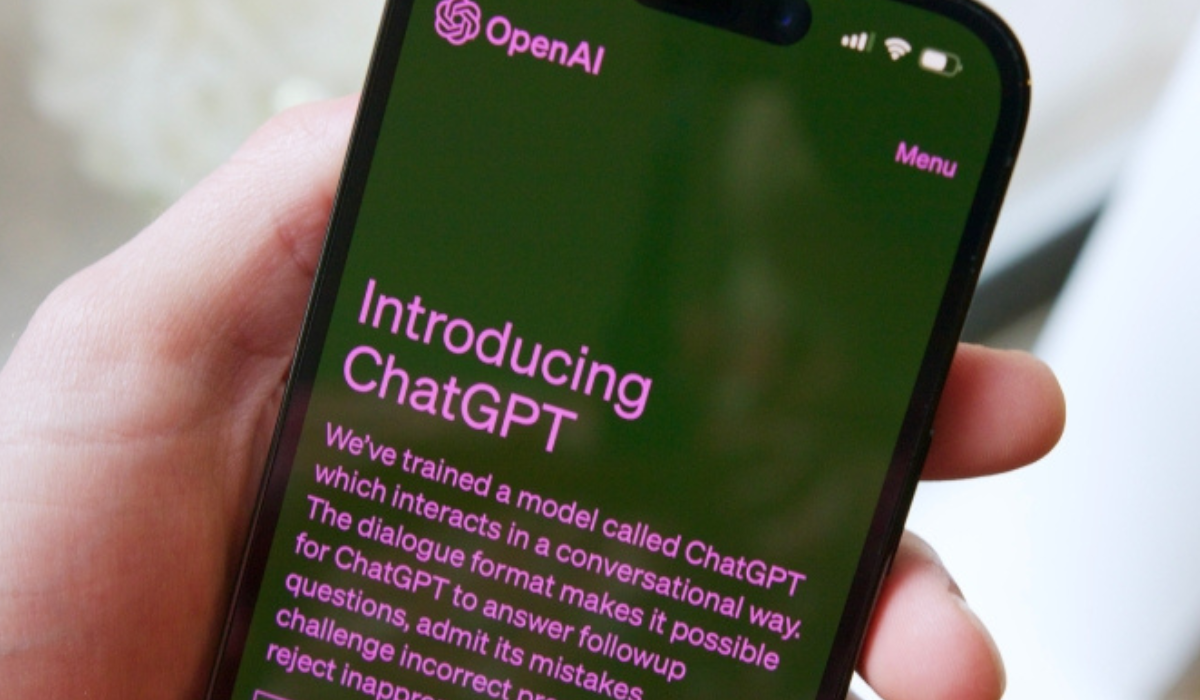
There has been a lot of buzz recently about the artificial intelligence chatbot , ChatGPT, with useful features such as generating brief blog entries, giving travel advice, and writing code, among other exciting possibilities. However, like many other people, I was disappointed when it seemed like it could only be used on desktop computers through its website.
Great news though, there’s a workaround! You can also use ChatGPT on your Android or iOS device. So, if you’ve been feeling left behind in all the AI excitement, I’ve got you covered. I’ll show you in this article how to use ChatGPT on your Android or iOS device, so here’s what you need to know.
- How Can You Use ChatGPT on Your Android or iOS Device? How to Gain Access to Use ChatGPT on Your Android or iOS Device How to Set Up a Shortcut to Use ChatGPT on Android How to Setup a Shortcut to Use ChatGPT on iPhone Third-Party Apps to Use ChatGPT on Your Android or iOS
How Can You Use ChatGPT on Your Android or iOS Device?
Many top firms are in on the ChatGPT rave, especially due to its versatility and fun features. Even Microsoft has incorporated it into its Word and Bing search engines. It’s important to note though, that there is currently no official ChatGPT app available for Android or iOS devices. The only way to get ChatGPT to work on your mobile device is to use a browser and go to the website.
While this may appear inconvenient, it’s the only official (and safe) way. It is, however, not the only option to access ChatGPT in general, and I’ve discussed a few alternatives below.
How to Gain Access to Use ChatGPT on Your Androidor iOS Device
If you’re looking to use ChatGPT on your Android or iOS device, the good news is that it’s straightforward. You’ll need to first establish an account before you can access the website using Google Chrome, Firefox, Edge, Safari, etc. Follow the instructions to access and use ChatGPT on your Android or iOS device.
- Navigate to chat.openai.com , the official ChatGPT website, using any web browser.
- Enter your login information or signup if you don’t already have an account.
- After you finish signing up/logging in, you’ll get a few disclaimers about the chatbot. Click Next on all of these, then Done to begin to use ChatGPT on your Android or iOS device.
How to Set Up a Shortcut to Use ChatGPT on Android
Granted, it’s simple to access and use ChatGPT on your Android or iOS mobile device, as you can see from the above instructions. However, opening the browser repeatedly for this purpose can be tiresome. You should therefore consider creating a shortcut to easily use ChatGPT on your Android or iOS phone’s home screen. To do so on your Android device, follow the instructions below:
- In Chrome, on the “ chat.openai.com/chat ” page, tap the ellipsis (three vertical dots) in the top right corner and then select “ Add to Home Screen .”
- Change the page’s name to ChatGPT and click on “ Add “. The website will become a widget. Simply press the “ Add to home screen ” button.
- That’s all there is to it! You should now notice a ChatGPT shortcut on your home screen. When you want to easily access and use ChatGPT on your Android device, tap on the shortcut.
How to Setup a Shortcut to Use ChatGPT on iPhone
The steps to create a shortcut on iOS differ, so I’ve highlighted them below. Follow the steps below to create a quick shortcut for ChatGPT on your iPhone.
- Visit the ChatGPT website and hit the “ Share ” icon in the bottom navigation bar of Safari. Scroll up and select “ Add to Home Screen ” from the menu that opens.
- Rename this page to ChatGPT and then click Add .
- The ChatGPT shortcut will then appear on your iPhone’s home page. Next time you want to visit the website quickly, just click on it.
Third-Party Apps to Use ChatGPT on Your Android or iOS
ChatGPT has had great success since its introduction, but it’s disappointing that there’s no official mobile app, especially if you’re the type to do most of your work on your phone. There are many third-party alternatives available, though. Consider the following third-party app options to use ChatGPT on your Android or iOS device:
Perplexed: This is a great option if you use an iPhone. The software mimics a number of ChatGPT’s features and has an AI-powered search engine. It’s still the closest unofficial app to ChatGPT so far. Perplexity gives you relevant sources for the answers it provides, and it can look up current information on the internet and even let you conduct voice searches.
Nova: Nova is a great option for Android owners looking to use Chat GPT. This third-party tool uses GPT 3.5 at the moment, but its creators promise to update it with GPT-4 capability shortly. It has multi-language support, chat history, and the option to share your chats directly from the app but lacks some of Perplexity’s functions.
A note of warning — amid all of the hype surrounding the use of AI, it’s important to beware of certain apps that could steal your data, bill you for no reason, or annoy you with incessant ads.
Several third-party apps are guilty of these, so if you need a third-party app to use ChatGPT on your Android or iOS device, follow the suggestions in the guide. For the best experience, use the official ChatGPT website or Microsoft’s Bing AI Chat.
To conclude , it is encouraging to know that you can simply use AI right from your phone and enjoy its many benefits. Whether you use the official ChatGPT website or a third-party app, I hope this guide has made it easy to use ChatGPT on your Android or iOS device.
Author:Joan Agie
Add MobilityArena as a preferred source on Google
If you’re anything like me, music probably helps you unwind in different conditions. Personally, I like the idea of streaming music from various sites because of the variety of options they offer. However, sometimes, you may also need to listen to music without internet access, and streaming services only work when you’re online.
In this article, I’ll provide details on the best apps to download music on iOS and Android devices. Most of these apps are free to download and use, so let’s have a look at the top options to download music on your smartphone.
- What Are the Best Apps to Download Music on iOS and Android? Spotify Apple Music Amazon Music Pandora SoundCloud Google Play Music TIDAL YouTube Music
What Are the Best Apps to Download Music on iOS and Android?
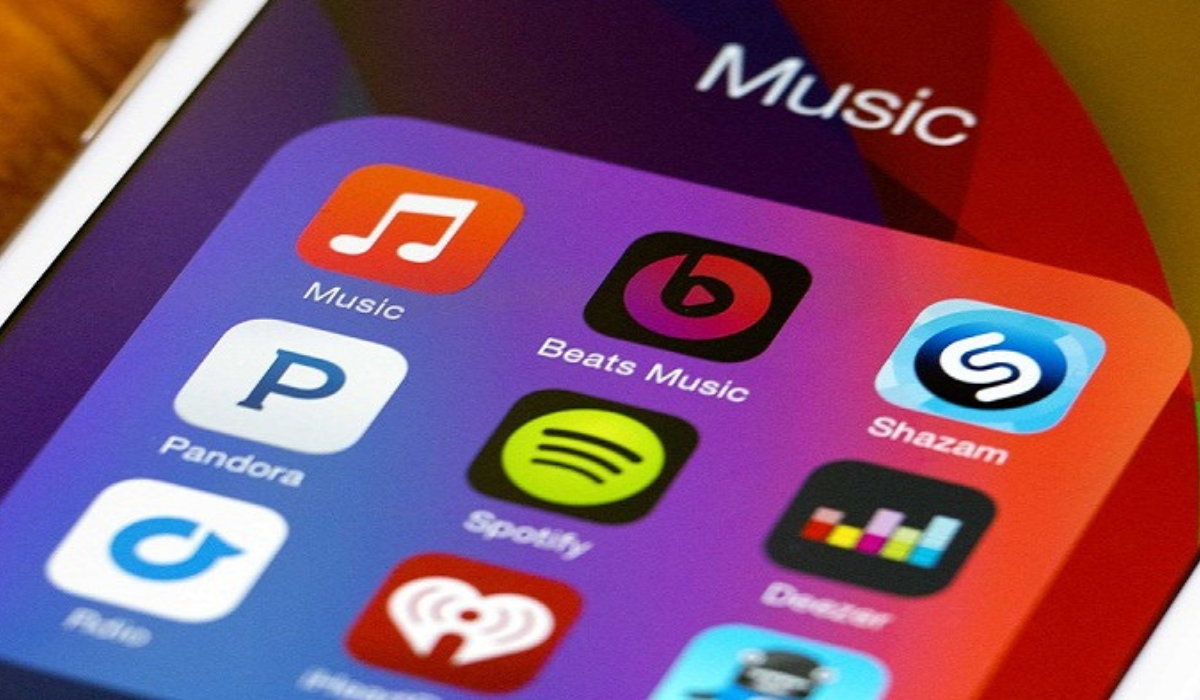
Free offline music apps for the iPhone and Android come in handy when you’re trying to listen to music without internet access. Below are the best apps to download music on iOS and Android, so try these options if you ever have to listen to music offline.
Spotify
Spotify is a widely used streaming services with a fantastic discovery engine that makes it the best place to find new music. It is also one of the best apps to download music on iOS and Android, and creating, sharing, and embedding playlists is incredibly simple on Spotify.
Apple Music
Apple Music is one of the best apps to download music on iOS and Android, especially if you’ve fully committed to the Apple ecosystem. There isn’t a free tier like there is with Spotify—it costs $9.99 per month. However, you’ll have several song options to download for offline listening, so the cost is pretty much worth it.
With Apple Music, creating an offline music library is simple. You can enable Automatic Downloads by going to Settings > Music . Now, whatever you add to your library will immediately download to your device.
Pandora
If you use Pandora frequently, it might be worth paying this amount. You’d also be able to find more of your favorite songs and albums with Pandora’s Music Genome Project, add them to your library, and use the same app to listen to them offline.
SoundCloud
SoundCloud is the app to use if you’re looking for alternative music or electronic music mixtapes. It’s also a great option if you want to discover and support new artists in your favorite genre. If you’re unfamiliar with SoundCloud, it’s a streaming service that’s available everywhere. This app also has an offline mode.
Some tracks are available for download on the free plan. A good number of its tracks can be downloaded by subscribing to the $4.99/month SoundCloud Go plan. And if you pay $9.99 per month for the SoundCloud Go+ plan, you can download over 30 million exclusive tracks. So, is it one of the best apps to download music on iOS and Android? Definitely, yes!
Google Play Music
Google Play Music is another free music app that supports multiple languages, has great Google features, and can be linked to your Google account. Given the data security and safety inherent in Google apps, we can undoubtedly rank it as one of the best apps to download music on iOS and Android. So, try it if you’re looking for a free option for offline music.
TIDAL
Though a lot of people are unaware of it, TIDAL is the best option for offline music listening. You can download music using TIDAL, a music streaming app for iOS and Android. Although it has a free version, you can’t save your favorites offline, as you might expect. You can gain access to the download feature by purchasing one of its subscription plans.
YouTube Music
To summarize, downloading music for offline listening is obviously only a small part of the functions of these streaming services. You’ll find great options among my suggestions for the best apps to download music on iOS and Android, so take advantage of them for premium offline listening.
