Add MobilityArena as a preferred source on Google
Imagine having a smart assistant that can see exactly what you see and respond in the moment — like a helpful guide and a tech-savvy friend rolled into one. That’s what you get with Gemini Live with Camera on the Pixel 9. Just point your phone and it instantly gives you real-time information, suggestions, and actions to make life easier. With Gemini Live with Camera, your phone isn’t just a tool, it’s a partner that helps you navigate, learn, and do more. Ready to experience the power of Gemini Live with Camera? Let’s dive in.

- What Is Gemini Live with Camera?
- How to Activate Gemini Live Camera Feature
- Real-Time Use Cases to Impress Your Friends
- Tips for Best Experience
- Privacy Considerations
- Conclusion
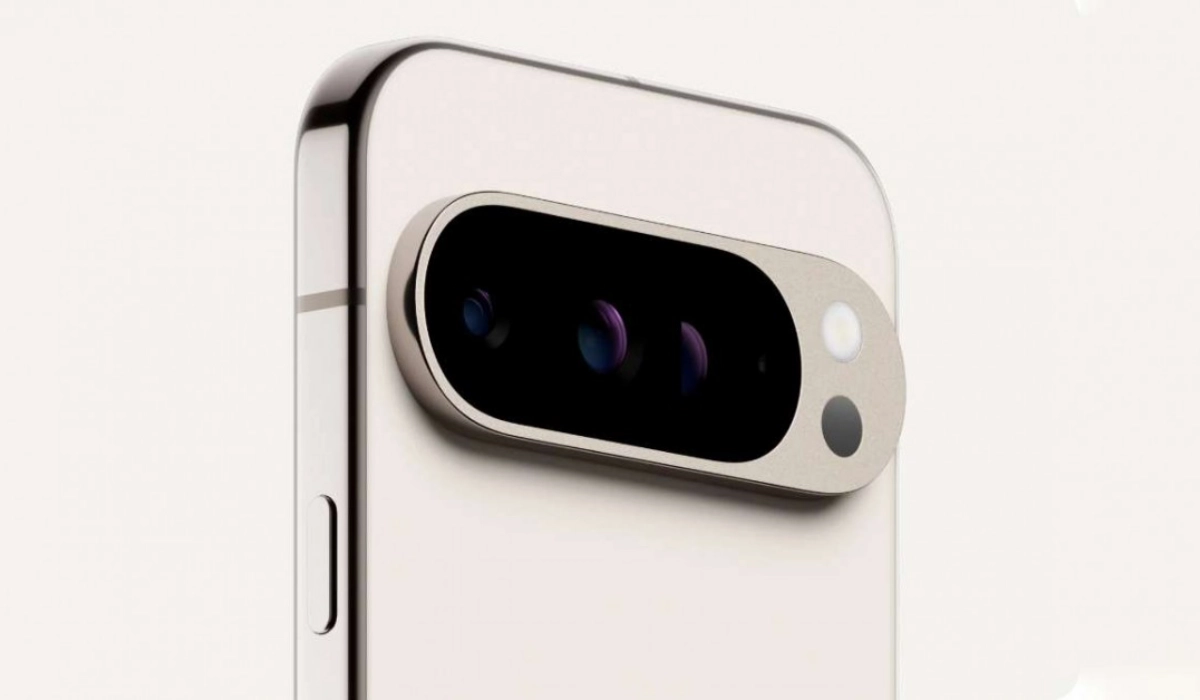
What Is Gemini Live with Camera?
Gemini Live is Google’s next-level AI assistant that goes beyond voice commands. It uses your Pixel 9’s camera to look at the world around you and gives you feedback, advice, or even helps solve problems instantly. No more describing awkwardly or searching manually — just point and ask.
How to Activate Gemini Live Camera Feature
- Start with your Assistant: Hold down your Pixel’s power button (or say “Hey Google”).
- Tap on “Share screen with Live” or alternatively open the Gemini Live app and tap the camera icon.
- Gemini Live will show a live feed of your camera view — you can toggle between front and rear cameras.
- Start asking questions or request help about anything in view.
Real-Time Use Cases to Impress Your Friends
- Shopping Helper: Point at products in a store, and Gemini Live can compare prices, suggest alternatives, or check reviews on the spot.
- DIY Fixer: Stuck fixing something? Aim your camera at the object (toaster, TV ports, etc.), and Gemini Live will guide you through the steps with visual highlights.
- Fashion Advisor: Can’t decide between two sneakers or outfits? Gemini Live sees both and suggests what matches your style better.
- Organizing Whiz: Show Gemini a cluttered drawer or desk and get smart tips for decluttering efficiently.
- Language Translator: Travel abroad? Point at signs or menus, and Gemini Live translates instantly. Solo jet-setting just got way easier.
Tips for Best Experience
- Use in well-lit areas for clearer camera input. Yes, your AI assistant also loves good lighting!
- Speak naturally and clearly for smooth back-and-forth with Gemini Live.
- Combine screen share and camera share when you want help with both digital and real-world items at once.
- Remember Gemini Live supports over 45 languages, so global goodies included.
Privacy Considerations
Your data and camera views are processed securely on the device or Google’s secure servers; you’re always in control of sharing. Think of Gemini as a friendly robot who respects your privacy boundaries.
Conclusion
Gemini Live with Camera truly changes the way you interact with your Pixel 9. Instead of just typing or talking, you can now point your camera and let AI make sense of the world around you. With Gemini Live with Camera, everyday tasks feel smoother, quicker, and more intuitive — like having an all-in-one helper right in your pocket. Simply put, Gemini Live with Camera makes your phone feel smarter and your life a little easier.
Author:Ifeoluwa Adeleke
Add MobilityArena as a preferred source on Google
Think photo editing has to be complicated or left to the pros? Not anymore. With Google’s Pixel 9, you get Pixel Studio right at your fingertips — an AI-powered editing tool that makes transforming your photos simple, fast, and fun. Whether you’re tweaking colors, fixing details, or adding a creative twist, Pixel Studio helps you turn everyday shots into something special. It’s photo editing made easy, and with just a few taps, you’ll see why it is changing the way we play with pictures.

- What Is Pixel Studio?
- How to Get Started with Pixel Studio
- Pixel Studio Creative Tools to Explore
- Tips for Pixel Studio Wizardry
- Conclusion

What Is Pixel Studio?
Pixel Studio is Google’s state-of-the-art text-to-image and AI photo editor built right into your Pixel 9. Using the power of on-device AI and Google’s Imagen 3 model on the Tensor G4 chip, it offers tools to generate images from text prompts, edit existing photos by removing or moving objects, add stickers and captions — all without needing to change apps.
How to Get Started with Pixel Studio
- Open the app on your Pixel 9. If it’s your first time, you may need to download the AI model — think of this as the brain upgrade for your photo genius.
- Import an existing image or start fresh with an AI-generated creation by typing a description (e.g., “a jelly avocado with sunglasses”).
- Play around with tools like Erase and Move to remove unwanted items or adjust subjects in your photos.
- Tap the Make Sticker button to create fun stickers from parts of your images you can use in chats via Gboard.
- Add captions in a variety of fonts and colors to personalize your photos further.
Pixel Studio Creative Tools to Explore
- Magic Eraser: Say goodbye to strangers in your vacation photos or distracting background items with this one-tap cleanup crew.
- Text-to-Image Generation: Describe a scene or object, and watch the app paint a fresh image — a perfect solution when your creative juices need a boost.
- Stickers & Captions: Create stickers from any part of your photos and jazz them up with captions for fun storytelling.
- Photo Remixing: Reimagine existing photos by swapping backgrounds, resizing objects, or adding new elements through text prompts.
- Screenshot Editing: Got a cluttered screenshot? Edit it directly in the app to highlight essentials or clean up info for sharing.
Tips for Pixel Studio Wizardry
- Be descriptive but clear in your text prompts for best AI results — think of it as talking to a super literal but helpful artist.
- Don’t hesitate to experiment with erasing and moving parts of your images; the undo button has your back.
- Combine sticker creation with your messaging apps for personalized chats — your texts just got upgraded to art galleries.
- Explore Pixel Studio regularly as Google updates it with new AI magic.
Conclusion
With Pixel Studio, editing photos isn’t just easy — it’s exciting. From quick touch-ups to creating custom stickers or even generating entirely new images, it gives you the tools to bring your ideas to life. It’s more than just editing; it’s creativity made simple, and with the app on your Pixel 9, every photo has the potential to become something extraordinary.
