Add MobilityArena as a preferred source on Google
Google Lens is a mobile tool that helps you discover more information about objects around you. An example of how it works is this: you see a striking building or book and take a photo of it with Google Lens and the app provides you more detailed information about the building or the book. Google Lens is now available to iOS devices.
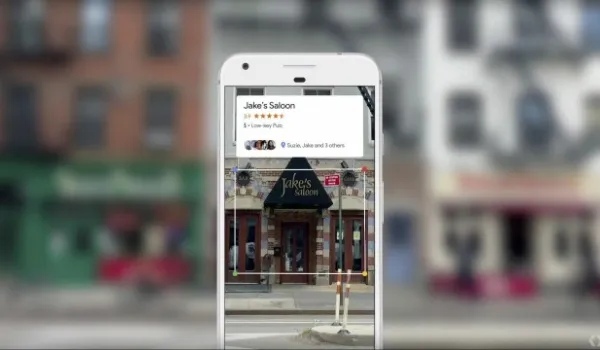
This guide will help you get started with using Lens on your iPhone. But first, here are some of the things you can do with Google Lens:
- You can extract and save info from business cards, follow URLs, call phone numbers and navigate to addresses.
- Google’s Lens can help you go on a personal excursion of a new city by helping you recognize landmark buildings and structures and learn about their history.
- Find out more information about a book, its synopsis, author and publisher; or a movie, from the trailer to reviews, right from the movie poster.
- You can look up a product by scanning its barcode or QR code, so Google Lens gives you more details about the product.
Google’s Lens is an image recognition mobile tool that you will find highly educational and helpful.
How to use Google Lens on your iPhone
Google Lens is built into the Google Photos app (from version 3.15). To access the feature on your iPhone, follow these steps:
- update the Google Photos app from the app store, so you have at least version 3.15
- launch the Google Photos app,
- select a photo or take a new photograph,
- tap on the Google Lens icon; here is what it looks like:
The app will push out more details about the photo. Depending on the information provided, you can carry out a number of actions. For example, if you have snapped a conference poster, you may be able to add the conference schedule to your calendar right from Google Lens. Nifty; right?
If you scanned a product, Lens may provide you a link to an online store where you can place your order right away.
Give it a try today. And if you own an Android smartphone instead, the process for using Google Lens on it is similar. Make sure that you have the latest version of the Google Photos app, launch it and follow the steps spelt out above.
Enjoy!
- Don’t miss our reviews .
- Follow our news on Google News .
- Join our WhatsApp Group , to be notified of the most important articles and deals,
- Follow us on Instagram , Facebook , Twitter , and YouTube .
Author:InfoDesk
Add MobilityArena as a preferred source on Google
In iOS 11, Apple is replacing JPEG images with a new image format called HEIC. Google has adopted HEIC images in Android P. Nokia supports HEIC images. Microsoft has done the same with Windows 10. Why? HEIC is a new image format that lets you take photographs with the same quality as JPEG format but at about 40% of the file size. That means you can store more images on your devices, as well as save data while upload/sharing images over the internet.
You may see HEIC mentioned in some places, and HEIF as well too. The simple explanation is that HEIC images are based on the technical HEIF standard. You may also see HEVC (High Efficiency Video Coding) mentioned. HEVC is what makes the compression that produces HEIC images possible. If all that confuses you, just note that HEIF images have filenames that end in HEIC, similar to how you currently have filenames that end in .jpg, e.g. mistermo.heic .
So, HEIC is an improvement on JPEG and may ultimately replace it for most case uses. For now though, it isn’t so popular yet, but the big boys are embracing it. It is already in use on some iPhones. For example, dual camera images captured on iPhone X, iPhone 8 Plus and iPhone 7 Plus use this format. Newer Macbooks also already support the file format.
- Who Created The HEIF/HEIC Format?
- HEIC Images Compatibility Issues
- How to convert iPhone photos from HEIC to JPG
- How to change your iPhone photos from HEIC to JPEG
- How to convert photos from HEIC to JPG on other devices
Who Created The HEIF/HEIC Format?
HEIC was not created by one single product manufacturer. It springs from the work of the Moving Picture Experts Group (MPEG), “a working group of authorities that was formed by ISO and IEC to set standards for audio and video compression and transmission”.
HEIC Images Compatibility Issues
Because it isn’t in widespread use yet, there are compatibility issues with HEIC. Not every device – desktop, cell phone and others – can display HEIC images yet. So, the immediate solution is to let users convert HEIC images to JPEG when they need to view them on unsupported devices.
If you own a modern smartphone, including an iPhone and have wondered why your photos are in HEIC format, welcome to the new world. You can convert your HEIC images to JPEG though. Follow the below guides.
How to convert iPhone photos from HEIC to JPG
Open the HEIC image you want to convert in Preview, then tap on File, then Export. Select the JPG Format option when saving it to the destination. Tap on Save. You now have a new copy of your HEIC image saved as JPG.
How to change your iPhone photos from HEIC to JPEG
Another approach that Apple has taken to address the current compatibility issue is provide iPhone users with the option to shoot photos in JPEG instead of HEIC. If you own an iPhone, you can dive into the Settings to change what format your phone uses for camera images, as follows:
Settings > Camera > Formats, and select “Most Compatible” to shoot in JPEG. If you select “High Efficiency”, your iPhone camera will shoot and save photos in HEIC format.
How to convert photos from HEIC to JPG on other devices
You can use any of the available third party photo/image editors on Android and Windows to convert HEIC images to JPEG.
Android OS now has the ability to take and display HEIC photos, as well as to convert JPEG photos to HEIC. Cnet reports that “A test version of Windows 10 – a step on the road to a version due this fall – has the ability to display HEIF images in its Photos app and any other software drawing on on Windows’ built-in imaging foundations.”
Adoption of HEIC will spread, the initial compatibility issues notwithstanding. Technology that saves storage space on devices and reduces file transfer sizes is gold, as humanity dives deeper and deeper into multimedia.
- Don’t miss our mobile phone reviews .
- Follow our news on Google News .
- Follow us on Instagram , Facebook , Twitter , and YouTube .
Author:Mister Mobility
Digital Skills and Communication Coach | Mobile Phone Connoisseur since 2001 | Tech Blogging since 2004
