Add MobilityArena as a preferred source on Google
The COVID-19 pandemic greatly influenced how everyday activities are being carried out in so many ways. A lot of sectors in the country were affected by this “new norm”, from work to schooling to shopping. More than ever before, the world is embracing online work, online education (schooling and training) via video conferencing Think of video conferencing as a conference call in which participants see one another in real time.
Google Meet is a video conferencing application that is great for holding virtual meetings for online education, corporate board meetings, startup team meetings, and the like. Free use of the app is limited to 100 participants and 1 hour per meeting. For meetings that require more than 100 participants and/or 1 hour, you will need to pay via the Google Meet app. A paid Google Meet subscription has the upper hand when compared to the more advanced Zoom meeting app.
Google Meet.
In this article we will be focusing on the video conferencing application “Google Meet” and we will look at steps that will enable us to boost our productivity while using this application.
- How To Access Google Meet On Mobile
- How To Access Google Meet On Laptop Or PC
- Some Quick Tips To Help You With using Google Meet
- How To Workaround Poor Connection On Google Meet
- Test Your Microphone and Camera
- Place Your Focus On the Speaker:
- How To Turn On Caption In Google Meet
- Mute Participants
- How To Assign Co-host(s) In Google Meet
- How To Make Use Of Breakout Rooms In Google Meet
- How To Blur Your Background I n Google Meet
- How To Use A Whiteboard In Google Meet
- Conclusions
How To Access Google Meet On Mobile
Google Meet is not the best video conferencing application out there, but judging from the locality, it is one of the most widespread and readily available. Since the majority of people in this area of the world use Android devices, it is easy to pick Google meet as a solid video conferencing application.
Accessing this application is easier than ever, because it has been integrated into your Gmail application. After you open your Gmail application, you will notice an icon at the bottom of the screen just beside your mail button (see screenshot below); tap on it and start or join your meeting. For more advanced features, you can also download and install the standalone Google Meet application.

How to use Google Meet on Mobile
Head over to Google PlayStore and simply search for “Google Meet” using the search bar. Once you have been redirected to the download interface, hit Install . After the application has been installed, open it and sign in to your Gmail account, and you are good to go.
How To Access Google Meet On Laptop Or PC
If you are using a laptop or desktop PC, you can access Google Meet via the Chrome browser or by using meet.google.com. To use your Gmail account, follow these steps:
- On your laptop or desktop PC, open your Web browser, and login to your Gmail account.
- Look in the bottom-left corner of your Gmail account to find the Meet menu. It has two menu items – New meeting (to start a meeting), and Join a meet ing (to join a meeting you have been invited to).
- Suppose, you need to join a meeting already scheduled on Google Meet, follow the same steps. Just ensure you have the joining link on your Gmail and click on it. The window will open to the Google Meet.
Some Quick Tips To Help You With using Google Meet
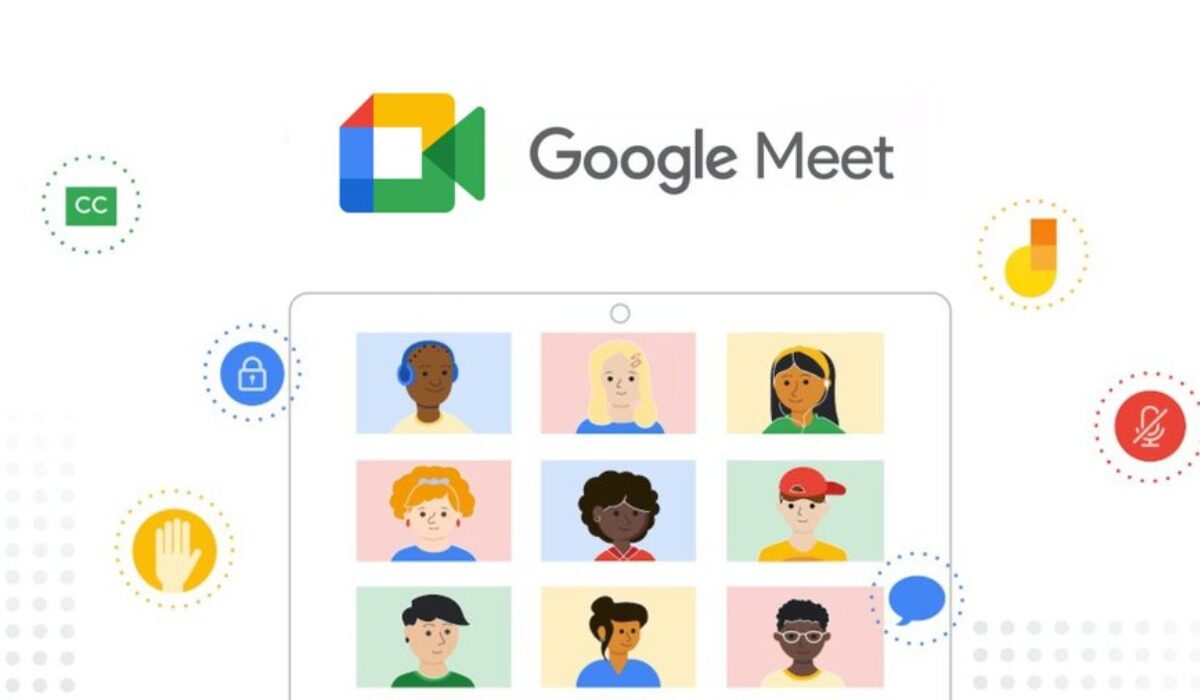
The tips we are going to consider will be tackled in three phases, first the pre-meeting tips, second the tips for attendees, and last the tips that meeting hosts need to put in place to ensure a chaos free meeting.
How To Workaround Poor ConnectionOn Google Meet
Network connection can at times be really frustrating and unstable, so it is important to first check your network connection before each meeting. Check your phone network connection or your Wi-Fi network connection to see if it is stable enough. If it is not stable, you can step down your video quality to make the meeting run more smoothly (by doing this, the video quality on your end will be grainy, but it saves you more data).
Test Your Microphone and Camera
This needs to be done before the meeting starts. Before you join any meeting, first check with the Google Meet application for your video and audio quality. This is important because you will want to appear nice to and also be heard by the other participants at the meeting. Check for light interfering with your camera and also enable the noise reduction feature. This helps the microphone to only pick up what is speech and disperse noise.
Place Your Focus On the Speaker:
This is very important when you are using Google Meet for school. With videoconferencing, it is easy to get distracted by other participants that have their videos on. To avoid this distraction, tap on the main speaker’s screen, then tap on the three dots and select Pin . By doing this, you make the main speaker the centre of your screen, hence boosting your concentration.
How To Turn On CaptionIn Google Meet
This might not be very accurate, but it is helpful to a certain degree. Tap on the three dots at the top of your screen and turn on captioning. Whatever the speaker says it being written out on your screen and taking notes is easier.
Mute Participants
This is very important for the meeting hosts. It is quite frustrating during a meeting where multiple microphones are on, and the main speaker is also talking. A participant has no control over this turn of event except ensuring that your microphone is muted. For the rest of the participants, the host need to constantly check and mute microphones of those not meant to speak at the moment. This reduces the chaos. Tap on the participant that left his or her microphone on and simply mute it.
How To Assign Co-host(s)In Google Meet
For a host, constantly keeping the decorum at an online meeting can be stressful. To reduce the stress, assign a co-host or even more. This feature is only available for users on any Google Workspace plan. To activate it, simply take the following steps:
- First tap on the three dot on the screen, then tap on meeting safety
- Second turn on Host Management, you can now add a co-host.
- Tap on the participant tab search for the person you want to add as a co-host, tap on the little dots next to their name and add them as a co-host.
How To Make Use Of Breakout Rooms In Google Meet
What are breakout rooms? Simply put, this can be referred to as a video conferencing within a video conference. What this helps users do is to create a small video room that the host can use to communicate with a few members of the meeting. The audio and video in this room is independent or separate from the entire session. This feature can be accessed via a Google Workspace plan.
How To Blur Your Background I n Google Meet
This feature enables you to attend virtual meetings even when you might have a busy background. You can access this either before or after the meeting, but note that if you are hosting the meeting, you do not have access to this feature until after the meeting is live. To blur your background before the meeting if you’re joining, simply, tap on the effects button on an Android device, or the bottom right of your self view if you are using a computer. This feature is not available on all devices as there are some requirements.
How ToUse A Whiteboard In Google Meet
Using a whiteboard allows you to scribble and erase notes in real-time during virtual meetings. This is useful for online education or training virtual events. For whiteboard activities during trainings and teaching classes, Google Meet uses Jamboard. This works directly on a laptop or desktop PC. Mobile users will be given a link to the Jamboard app.
- Start or Join a meeting.
- At the bottom right of the screen, click Activities -> Whiteboarding .
- Select an option: To create a new Jamboard: Click Start a new whiteboard . To open an existing Jamboard from your drive, shared drives, or computer: Click Choose from Drive .
Conclusions
These few tips can ensure that you enjoy your virtual meetings on Google Meet. Familiarizing with this now will help us get more used to video conferencing, as most events and activities will choose to adapt to this means.
You are reading Mobility Arena .
- Don’t miss our reviews .
- Follow us on Instagram , Facebook , Twitter , and YouTube .
Author:KittysTech
Tech analyst, Collins Eshiet, writes about technology. Follow me on Twitter @KittysTech.
Add MobilityArena as a preferred source on Google
The world of telephones was once dominated by desk phones that were made up of a base and a part that you would pick up and hold to your ear/head. That part you held to your head is what was originally called a handset.
The earliest telephones had rotary dials with the digits arranged in a circular layout that rotated by your finger action. To dial a number, you would place your finger on the digit you wanted and rotate the dial till it stopped, then release it and repeat the same process with each number till you were done. Tedious, I know. My wife and I communicated using one like that back when we were dating. Did I hear you call me old? I’m cancelling you.
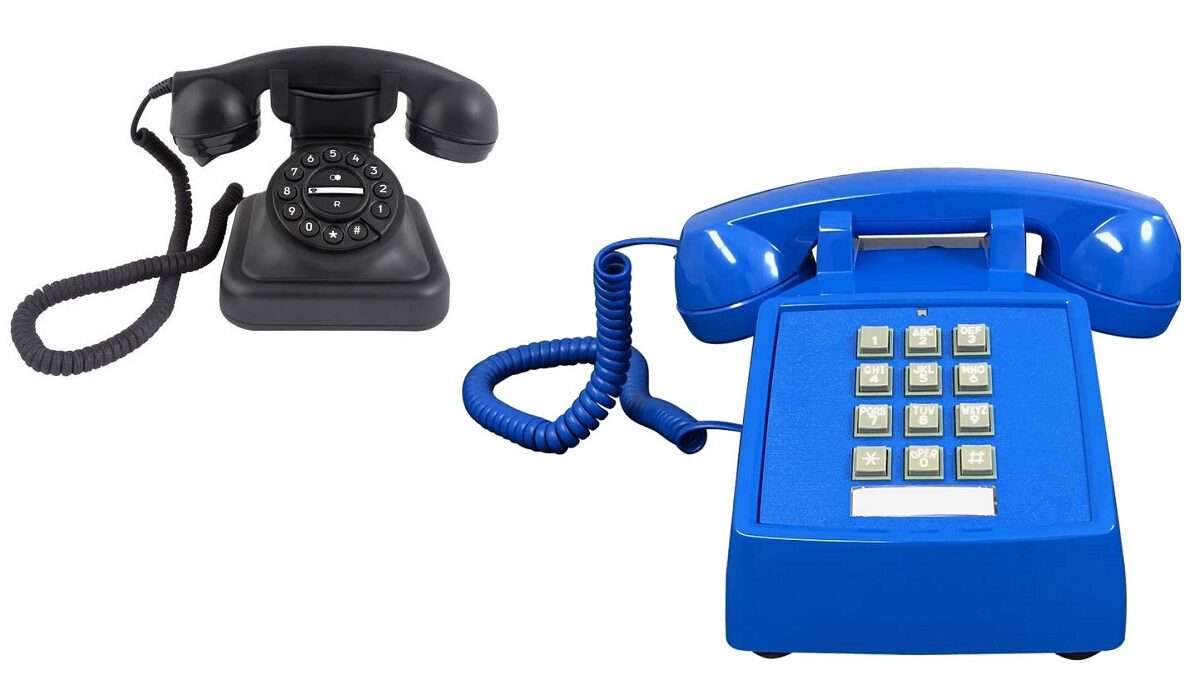
The part of early telephones that you lifted to your head was the handset
Anyway, rotary dials later gave way to push button desk telephones (like the blue one in the image above). The push button desk phones were easier to use, of course. You simply push the buttons like you do on your smartphone today, but you still had to lift the handset to make calls.
- History and Evolution of Mobile Phone Handsets
- Cellular or Cell Phones
- Mobile Phones
- Handy, HandyPhones, or Cordless Phones
- Handsets
- Types of Mobile Phone Handsets Smartphones Feature Phones Satellite Phones
- Cutting Edge Trends in Mobile Phone Handsets Foldable Screens 5G Connectivity Improved Cameras Augmented Reality Biometric Security
- Last Words
History and Evolution of Mobile Phone Handsets
The origin of the word handset is found in the design of early telephone devices. They were wall or table designs and had two parts – one that sat on a desk or hung on a wall, and the other that you woud lift up to your head to speak so you could speak and also listen. That section was called the handset. Of course, things changed with the arrival of mobile phones, as you have to pick up the whole phone instead. As such, in today’s world, a handset is a mobile phone of any kind.
Mobile phone handsets have come a long way since the first mobile phone was invented in 1973 by Martin Cooper. The first mobile phone was bulky, heavy, and expensive, and had limited functionality. It was not until the 1980s that mobile phones became more affordable and widespread.
In the early days of mobile phones, the handsets were large and heavy, with a limited battery life and minimal features. They were primarily used for making calls and sending text messages. However, as technology advanced, mobile phone handsets became smaller, lighter, and more feature-rich.
The introduction of the smartphone in the late 1990s and early 2000s marked a significant milestone in the evolution of mobile phone handsets. Smartphones combined the functionality of a personal digital assistant (PDA) with that of a mobile phone. They had touchscreens, cameras, and could connect to the internet, among other features.
Today, mobile phone handsets continue to evolve, with manufacturers constantly introducing new features and technologies. Some of the latest trends in mobile phone handsets include foldable screens, 5G connectivity, and improved camera technology.
Cellular or Cell Phones
I do not think that people in the United States of America and Canada generally refer to cell phones as “handsets”. You would rather hear them called “cellular” or “cell” phones. This holds for many South American countries as well. Sometimes, the phrase “wireless phone” is used as well.
Mobile Phones
The phrase, “mobile phone”, is more commonly used in countries like the United Kingdom (UK), much of Europe, Australia, and New Zealand.
In countries like Nigeria, Ghana, as well as in certain Asian countries, among others, quite a number of mobile phone users – perhaps mostly Gen X – still use the term, “handset”. However, you will find a mix of usage with other terms like “mobile phone” and “cell phone” here and there.
Handy, HandyPhones, or Cordless Phones
In China, Korea, Singapore, Malaysia, as well as in some European countries like Germany and the Netherlands, you will still hear some people call their mobile phones “handyphones”, “handy phones”, or just a “handy”. The phrase “cordless phones” is quite commonly used in Germany. And it is for good reason. In those places, a modern form of wireless telephones with the traditional two parts still exist. below is the image of a Gigaset handset sitting on the base. The handset is lifted to the head to take or make a call. Gigaset is an European mobile phone brand .
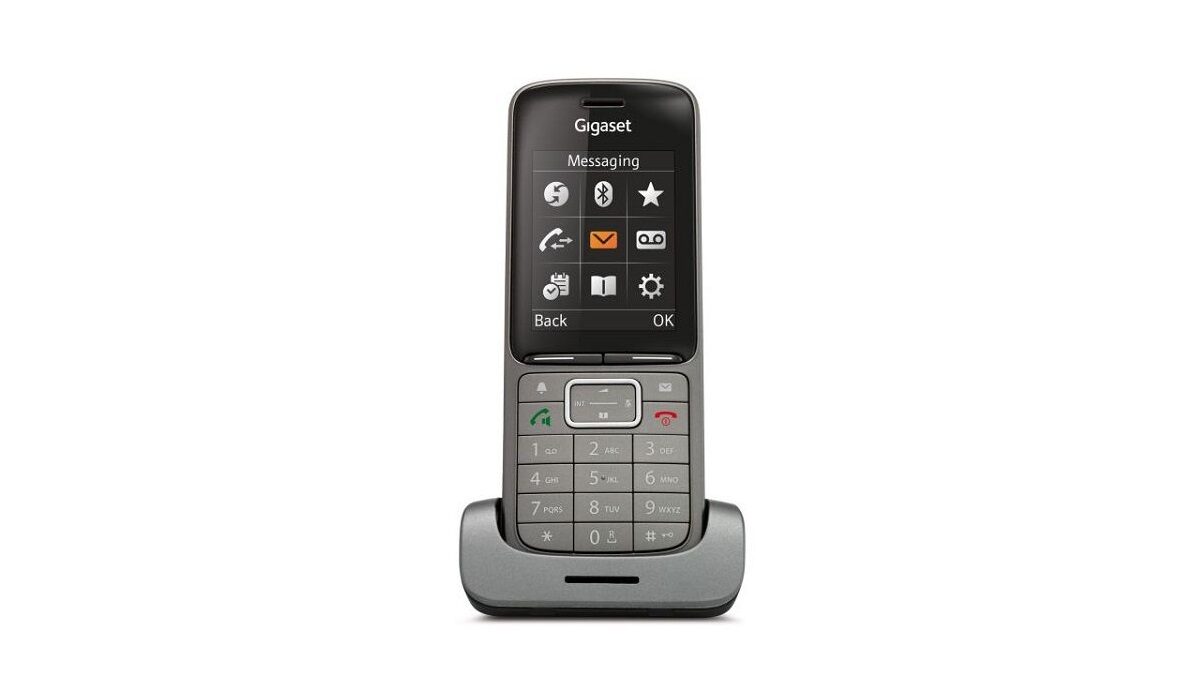
A Gigaset Handset or cordless phone, commonly found in Germany and the Netherlands. It consists of two parts and the handset can be lifted from the base.
Handsets
The word, “handset”, is one of the many valid terminologies now used in referring to mobile phones in different places around the world. Being Gen X myself, I do not flinch or wonder when I hear someone say the word. In the early 2000s, it was a common word used for mobile phones when many of us first got introduced to them. It is doubtful that any Gen Y or Z individuals will be caught dead referring to a smartphone as a handset. They were born and grew up in the age of iPhones and Android smartphones, and would probably think that the word “handset” is funny.
Types of Mobile Phone Handsets
Smartphones
Smartphones are mobile phones that come with advanced features and functionalities. They are designed to offer users a wide range of applications and services. Smartphones are equipped with high-resolution touch screens, powerful processors, and advanced operating systems. They allow users to access the internet, send and receive emails, take high-quality photos and videos, and play games. Some popular smartphone brands include Apple, Samsung, Huawei, and Google.
Feature Phones
Feature phones are mobile phones that offer basic features and functionalities. They are designed for users who do not require advanced features such as internet access or high-quality cameras. Feature phones typically have physical keypads and small screens. They are less expensive than smartphones and are ideal for users who need a phone for making calls and sending text messages. Some popular feature phone brands include Nokia and Samsung.
Satellite Phones
Satellite phones are mobile phones that are designed to work in areas where there is no cellular network coverage. They use satellites to connect to the network and offer users the ability to make calls and send text messages from remote locations such as deserts, mountains, and oceans. Satellite phones are typically more expensive than other types of mobile phones and require a subscription to a satellite network. Some popular satellite phone brands include Iridium, Inmarsat, and Thuraya. There is a new generation of regular smartphones with satellite communications built-in.
Cutting Edge Trends in Mobile Phone Handsets
As technology continues to advance, there are several exciting trends emerging for mobile phone handsets. Here are a few of the most notable:
Foldable Screens
Foldable screens are already in use on some mobile phones, but they are expected to become more common in the coming years. These screens allow for larger displays without increasing the overall size of the phone. As the technology improves, it is likely that foldable screens will become even more durable and affordable.
5G Connectivity
5G connectivity is the next generation of mobile network technology. It promises faster download and upload speeds, lower latency, and more reliable connections. As 5G networks become more widespread, mobile phone manufacturers are likely to release handsets that are optimized for this new technology.
Improved Cameras
Cameras have become a key selling point for many mobile phones, and this trend is expected to continue. Manufacturers are likely to continue to improve the quality of their cameras, with features such as optical zoom and improved low-light performance becoming more common.
Augmented Reality
Augmented reality (AR) is a technology that overlays digital information onto the real world. It has already been used in mobile phone apps such as Pokemon Go, but it is expected to become more widespread in the coming years. Mobile phone manufacturers are likely to release handsets that are optimized for AR, with improved sensors and processing power.
Biometric Security
Biometric security, such as fingerprint and facial recognition, has become increasingly common on mobile phones. In the future, it is likely that this technology will become even more advanced, with features such as iris scanning and voice recognition becoming more common. This will help to improve the security of mobile phones, making them more difficult to access without authorization.
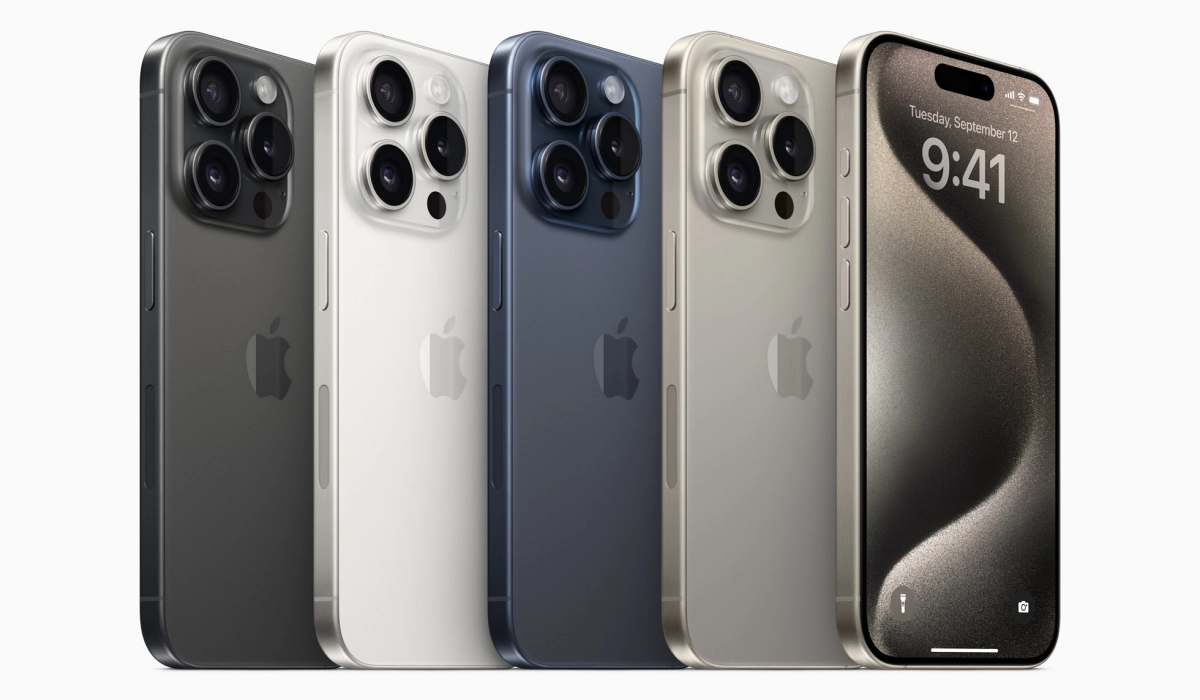
The iPhone 15 is an example of what a modern handset looks like
Last Words
The world is quite a diverse place, and there is a colourful mix of terminologies to enjoy, if you pay attention. Some of these terms are fading or dying out faster than others. But, if you hear anyone call their smartphones, a “handset”, calm down and smile; they are not coo-coo or anything of the sort. They just likely grew up in a different dispensation from you.
Author:Mister Mobility
Digital Skills and Communication Coach | Mobile Phone Connoisseur since 2001 | Tech Blogging since 2004
