Add MobilityArena as a preferred source on Google
It can be quite a pain being the only Android user among a group of iPhone owners, especially when it comes to sharing photos and videos. Most of the available means for getting this done tend to compromise the video’s quality. However, this does not need to be a difficult process.
Don’t feel limited by the lack of iMessage or Airdrop access; you can still transmit high-quality videos to iPhone users via other means that won’t reduce the quality of your videos. With Google Photo’s quick video-sharing technique, sending high-resolution videos to iOS users has become pretty simple.

If you’re not already familiar with this process, we’ve created this guide for you. So, keep reading to learn how to take advantage of Google Photo’s features to share high-quality videos from your Android smartphone to iPhone devices.
How does Google Photos’ Video Sharing Work?
Google Photos is typically preinstalled on almost all US smartphones. You can share HD films with any mobile user using Google Photos’ free auto backup feature, which saves the videos to the cloud. Actually, you can view and share your films on any platform thanks to Google Photos, which is not only compatible with Android and iOS but also has a fantastic web interface.
Below are the necessary steps to share videos from your Android smartphone to iPhone devices using Google Photos:
- Step 1: You must sign in first if you have never used Google Photos before. Your default Google account should appear when you open the Google Photos app. If this does not happen, switch the email to your main account. As soon as “Back up & sync” is enabled, select “Next.” The page where you can select your backup options will now be presented to you. Both “Original” and “High Quality” are the available options you should see.
Although you just have a small amount of backup space with Original, your video quality will not be compromised. Videos created with High Quality are compressed but still retain HD definition, and you get limitless backup space. As a result, we’d advise that you choose High-Quality.
Additionally, you can decide if you want to back up your videos using data. Be careful because it can take a lot of data if you choose to enable this. Press the “Confirm” button next. Your videos will now be synced and backed up by the app.
Follow these steps to enable “Back up & sync” if you have previously signed in to Google Photos. Press the three horizontal lines in the top-left corner of the app’s main screen. From the menu, pick “Settings,” then click the “Back up & sync” option. Click on the “Backup & sync” option; this will enable it on the “Back up & sync” page. Your videos will now always be saved in the cloud for the next time you’re connected to Wi-Fi.
- Step 2: Simply capture a video as you typically would after turning on “Back up & sync” in your Google Photos app. Within seconds of completing the recording, if you’re connected to Wi-Fi, the video you’ve made will be transferred to the cloud. The video will be uploaded the next time you are connected to Wi-Fi if you are using mobile data.
Therefore, the only thing you actually need to do is share the video after it has been uploaded. There are two ways to do that: The first method is for iPhone users with the Google Photos app running on their devices, and the other is for those who don’t.
- Step 3a: This method is for sharing with iPhone users that have Google Photos installed. Find the video you want to share in the Google Photos app and tap it. The share button, which is the bottom-leftmost, should be pressed next. Additionally, you can go through your video library if you want, and choose multiple videos to share at once.
You’ll be able to send videos to any contact on your Gmail thanks to Google Photos’ integration with Gmail. In an ideal world, you could simply put in your friend’s name and they would appear. There will be a tiny pinwheel icon indicating that they have a Google Photos account if they do. Look up the name of your friend and then click on it when you see it. Note that there is no requirement that you share with just one individual at once.
You could also type a message to accompany the video once you’ve decided who you want to share the video with. You can choose to let the individuals you invite contribute their own videos and images to the album by tapping on the lock icon. Click the blue “Send” button when you’re ready to share the videos. Your friends should now be able to watch the videos you’ve shared on iOS, Android, and the web.
- Step 3b: If you don’t know your friend’s email address or you want to share with folks who don’t have Google Photos, use this method. You can share content with Google Photos by sending someone a link to a video that can be viewed on any device and operating system.
When you choose the video you want to share and click the “Share” button, a “Create link” button will appear in the bottom left corner. By pressing this button, Google Photos will generate a sharing link that is open to users without a Google Photos account. As soon as the link is made, it is automatically copied to your clipboard so that you can paste it wherever you desire (such as in your Messages app).
As an alternative, you can send it directly to your preferred app, such as in a message with a link to the photos. Click on the “Messaging” app to do this. You may then share your link with any contact, even iOS users, once it has been pasted. When they click the link, they will be taken immediately to the video with the option to download it.
In summary, you can take advantage of this easy video-sharing method, and never have to worry about compromising video quality when sharing videos with your iOS user friends. Make sure to follow the instructions correctly to achieve this.
- Don’t miss our mobile phone reviews .
- Follow our news on Google News .
- Join our WhatsApp Group , to be notified of the most important articles and deals,
- Follow us on Instagram , Facebook , Twitter , and YouTube .
Author:Joan Agie
Add MobilityArena as a preferred source on Google
We’re sure you’ll agree that Mac devices are known for their excellence in quality, scalability, speed, and dependability, among other things. However, it’s possible that your Mac will underperform and experience unforeseen problems.
Of course, you can always take your Mac to the closest Apple service center to get it fixed, but you could also want to try to figure out the issue on your own first. Your time and money will be saved this way, and catastrophic system crashes will be avoided. The potential actions and next steps will be determined by determining whether the issue is a hardware or software one.
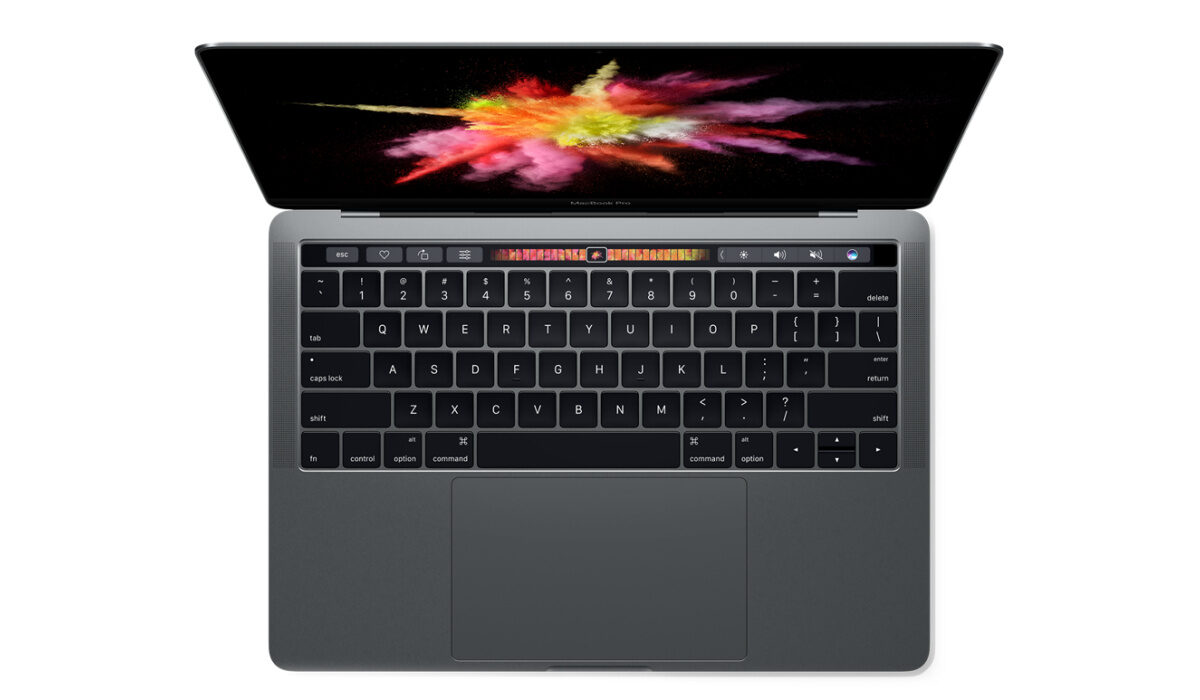
The first thing to try when dealing with a hardware issue is to run Apple Diagnostics (or Apple Hardware Test). It will assist you in identifying the procedure that contributes to the issue and decreases Mac productivity.
If you’re not sure how to run Apple Diagnostics on your Mac device, we’ve written this guide for you. Read carefully, then follow the specific instructions we’ve provided to guide you through the process.
What is Apple Diagnostics?
Apple Diagnostics is a built-in testing tool for Mac devices that can help identify any faulty hardware parts and locate system issues. The RAM, power controller, logic board, battery, and other wireless modules will all typically be examined throughout the test.
Running Apple Diagnostics Process on Different Mac Devices
The diagnostic tool was previously external to the Mac, but starting in June 2013, Apple integrated the tool (through Internet recovery) on all Macs.
Running Apple Diagnostics on a MacBook with an M1 or M2 chipset (Apple Silicon) is essentially the same procedure, and it’s a pretty straightforward one too.
For your Apple Silicon MacBook Pro to undergo diagnostics:
- Put the computer to sleep.
- With the exception of the power and Ethernet adapter, unplug all other devices (if present). You can keep your external wired keyboard and mouse connected if you use them.
- Press down on the power button until you can see the message “Loading startup options…” on the screen.
- Hold down the command and D keys at once while the Startup Options screen loads to bring up the diagnostic tool. The Mac will then reboot into the diagnostic tool after around 10 seconds.
- Keep in mind that Apple Diagnostics on Silicon Macs needs an Internet connection to start up. You can choose to use the tool in offline mode after it has been loaded. If you are not using an Ethernet adapter, click the Wi-Fi symbol in the top right corner of the screen to connect to a Wi-Fi network after the computer has restarted.
- Click OK after choosing your language from the options.
- To start the diagnostic tests, select “Run offline” or “I agree” on the following screen.
If you’re running Apple Diagnostics on MacBook Pros with Intel Processors, follow these easy steps:
- Put your MacBook Pro to sleep.
- With the exception of the Ethernet, power adapter, keyboard, and mouse, if any, unplug all other peripheral devices.
- After turning on the Mac with the power button pressed, quickly press and hold the D key on your keyboard. A firmware password must be disabled on your Mac in order to boot into the diagnostic tool, so ensure to keep that in mind.
- In order to start the diagnostic tests, choose your language.
If you’re working with a MacBook Pro introduced before June 2013, you can run diagnostics by following the instructions below. Note that you will require an optical disk or flash drive containing the OS X media connected to your MacBook if the Mac is running Snow Leopard or a previous version of OS X.
The following are the instructions you’ll need:
- Put your MacBook Pro to sleep.
- All peripherals outside those mentioned as well as the installation media should be unplugged.
- After turning on the Mac with the power button, quickly press and hold the D key on your keyboard.
- Try using option + D to boot into diagnostics online if your Mac was produced in 2011 or later.
Apple Hardware Test (AHT), an older version of diagnostic software, is used by Macs manufactured before June 2013. Select your language after the computer has loaded AHT, then click the arrow to continue. The tool will perform a brief self-test before you click Test to launch the diagnostics.
What Happens After Running Diagnostics on my Mac?
You’ll receive the list of faults with thorough explanations and associated reference codes after running a Mac hardware test. Each code denotes a specific problem and aids in helping you determine the appropriate course of action.
A typical error description will include potential fixes. However, Apple Diagnostics may advise contacting Apple or taking your Mac to an Apple Authorized Service Provider or Apple Store to address a particular issue, though.
It’s possible that the system testing turns up with no problems. You could choose one of a few options if you’re in this situation. Keep in mind that these options are mutually exclusive, so pick the one that works best for you:
- You could click on the option to “Run the test again” which will repeat the procedure. This may be necessary because sometimes a minor error could ruin everything. It’s possible that your power adapter was not plugged in the first time you attempted to run Apple Diagnostics. It will help to reconnect it and attempt again to identify the issue.
- Click on “Get started” to learn more about the support and service choices. This will launch the macOS X recovery. Next, click “Agree to send”; this will send your reference codes and serial number to Apple. Make sure to obey the directions displayed on the screen afterward.
- Reboot your Mac
- Press the Shut Down key.
If Apple Diagnostics still finds no hardware issues and your Mac is still acting up, it’s possible that a software issue is at blame. In this case, a dedicated tool such as CleanMyMac X will be useful in conducting a thorough test to identify any issues on your Mac device. It can then clean up, speed up and optimize your Mac device as needed.
In summary, feel free to take advantage of Apple’s dedicated diagnostic tool to identify any hardware issues with your Mac device. Also consider visiting an Apple service outlet if you encounter any technical problems, or if you’d rather not go through the process by yourself.
- Don’t miss our mobile phone reviews .
- Follow our news on Google News .
- Join our WhatsApp Group , to be notified of the most important articles and deals,
- Follow us on Instagram , Facebook , Twitter , and YouTube .
