Add MobilityArena as a preferred source on Google
It can be very convenient to have access to all of your essential media files available on every device you own. There are several ways to accomplish this, but some are more difficult than others.
Home Sharing, the native remote sharing method for Mac, is a simple and fast way to share files with other computers on your Wi-Fi network. In this article, we’ll go over what Home Sharing is and how to set it up. You’ll also learn how you can use Home Sharing to share media files with other Macs or Windows PCs seamlessly.
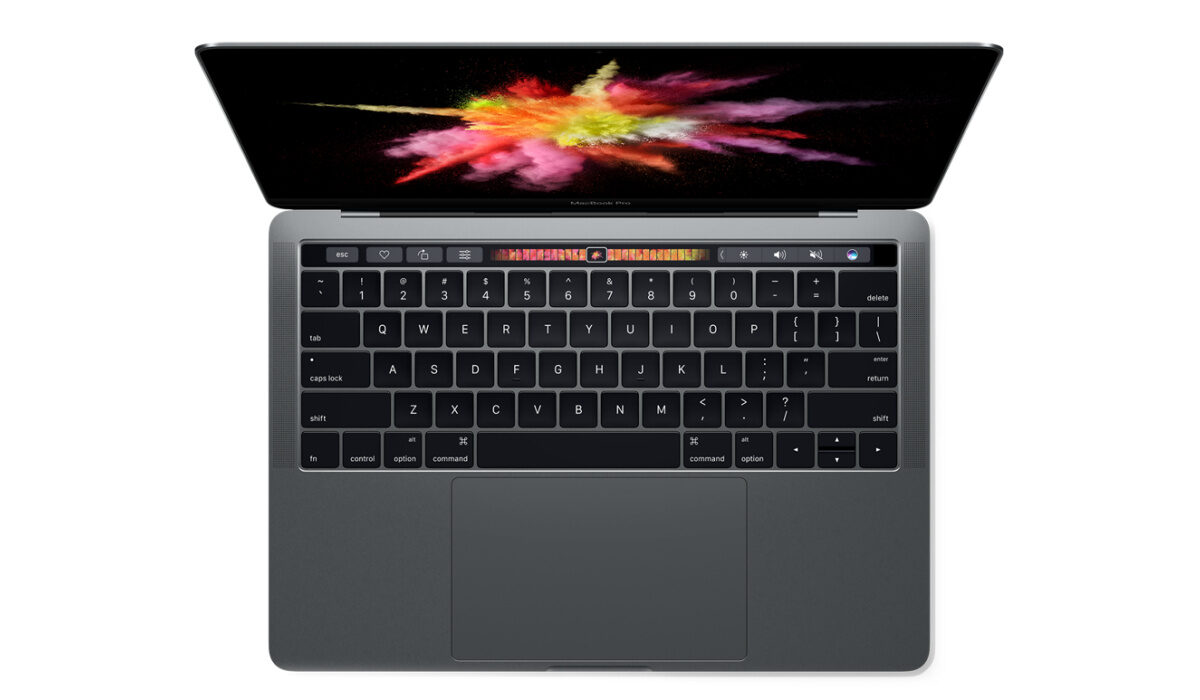
- What Exactly Is Home Sharing?
- How Can I Set Up Home Sharing on a Mac or PC?
- How Can I Use Home Sharing to Share Media Files With Another Mac or PC?
- How to Share Media Files Using Home Sharing on a Mac
- How to Share Media Files Using Home Sharing on a PC
What Exactly Is Home Sharing?
Home Sharing is Apple’s default method for transferring media files between devices linked to the same Wi-Fi network. It was first introduced in 2009 and has undergone numerous changes since then.
Home Sharing was originally part of iTunes, but after iTunes discontinued macOS Catalina, it was quietly stashed away in the System Preferences (now System Settings) panel.
You can use Home Sharing to easily share music, movies, and TV shows with other devices without using AirPlay. Before using the feature, consider the following prerequisites:
- You must update your Apple device. Ensure that iTunes for Windows is running at the most recent version on your PC.
- Your devices must all be linked to the same Wi-Fi network.
- The Apple IDs on your devices must match.
How Can I Set Up Home Sharing on a Mac or PC?
Home Sharing needs to be configured on your Mac or PC before you can use it. Here’s how to setup Home Sharing on a Mac for sharing files with other computers:
- Select Apple menu > System Settings , then General in the sidebar.
- On the right, click Sharing
- Turn on Media Sharing and then tap the Info button
- Enter your Apple ID after choosing Home Sharing , and then tap Turn on Home Sharing .
- Use the same Apple ID on all computers and devices connected to your Home Sharing network..
Here’s how to setup Home Sharing on a PC for sharing files with other computers:
- Start up iTunes for Windows.
- Sign in with your Apple ID if you’re yet to sign in. Use the same Apple ID on all computers and devices connected to your Home Sharing network.
- Click on File > Home Sharing > Turn on Home Sharing from the menu bar at the iTunes window top.
How Can I Use Home Sharing to Share Media Files With Another Mac or PC?
It’s easy to use Home Sharing to share media files with another Mac or PC. You just need to ensure that the other devices are linked to the same Wi-Fi network, and also log in using the same Apple ID.
How to Share Media Files Using Home Sharing on a Mac
To access the media library and share files with Home Sharing on a Mac, follow these steps:
- Launch the Music app.
- Sign in with your Apple ID if you’re yet to sign in. Use the same Apple ID on all computers and devices connected to your Home Sharing network.
- Click Library in the sidebar.
- Navigate to the media library .
- By selecting thecheckbox next to Share media with guests , you can also share your media files with other people. It is important to note that they must be connected to the same Wi-Fi network as you for this to work.
- Your media libraries will now be visible on other Macs connected to the same Wi-Fi network.
How to Share Media Files Using Home Sharing on a PC
From one authorized computer to another, you can use Home Sharing to stream music, movies, and TV shows. Just make sure that iTunes for Windows or the Music app is open on all of your computers and that they are turned on and functional.
In the iTunes window’supper-left corner, click Music to access all of your shared libraries .
With the instructions in this guide, you can share your media files with other Macs and even Windows PCs using Apple’s native Home Sharing feature. You won’t need to use AirPlay or physically transfer the media files.
In conclusion , we hope this guide will help you use Home Sharing to share media files with another Mac or PC more effectively.
Author:Joan Agie
Add MobilityArena as a preferred source on Google
The internet is the new TV, and this saying gets more and more accurate over time. Modern life can be rather hectic, so truly amazing developers have demonstrated creative abilities by developing excellent applications that allow you to watch free live TV channels from anywhere.
With these apps, you can now watch TV on the go while also lowering your monthly television costs. Many of these live-streaming applications are also free. Iin this article, we’ll show you some of the best free Apps to watch live TV on Android. Use any of these apps to replace traditional TV in your homes with something truly amazing.
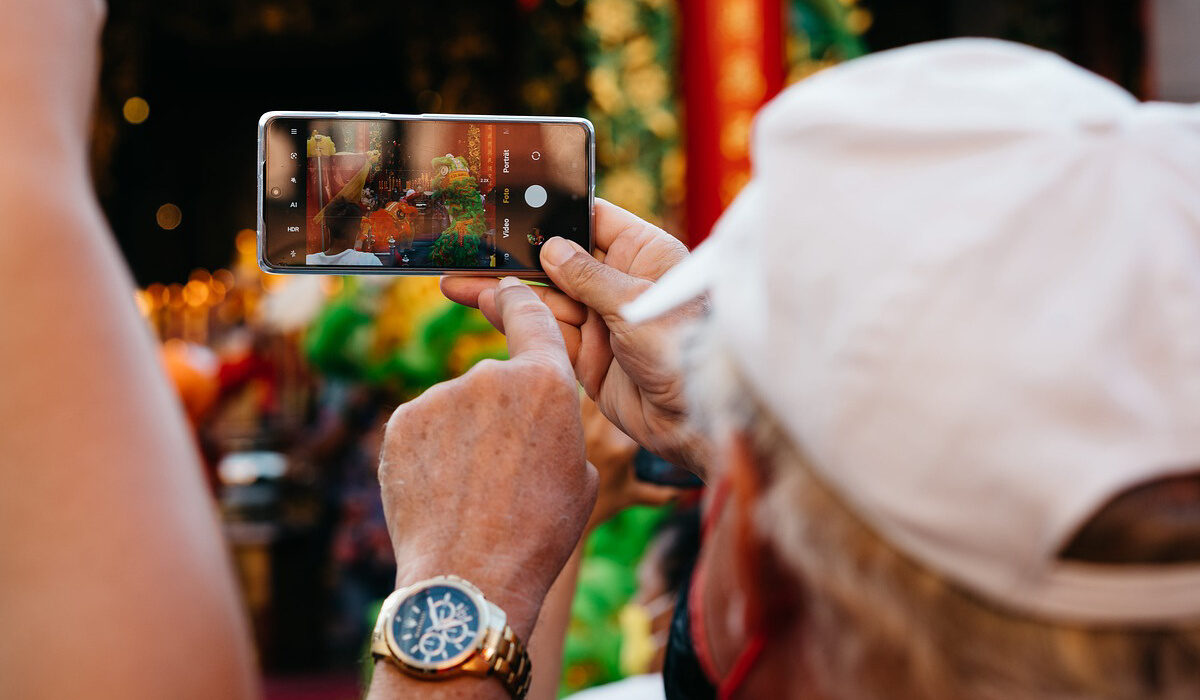
- What are the Best Free Android Apps for Live TV Streaming? YuppTV MX Player Jio TV Disney+ Hotstar Sony LIV Hulu Tv Distro TV App Tubi Tv
What are the Best Free Android Apps for Live TV Streaming?
We’ve described the best free apps to watch live TV on your Android, so you can download anyone you prefer to stay entertained. You’ll be able to access shows from every genre using these Live TV apps, including sports, serials, movies, news, and other programs are all available. Here are our suggestions for the best free Android apps for watching live TV.
YuppTV
YuppTV is one of the best free live TV apps, with over 200 live TV channels. The app provides options for all genres, including News, Sports, Romance, Comedy, Entertainment, Music, and more. There is a significant selection of regional channels that can give you excellent entertainment in the language of your choice.
YuppTV also includes 7 days of catch-up TV. Your location will determine which channels are available. However, you can stream a few channels on the app for free while also choosing from paid packages.
MX Player
The MX player is a well-known mobile video player that also lets you watch your preferred channels without charge with MX player TV. The app provides access to original content in Hindi and other regional languages. Bengali, Punjabi, Bhojpuri, Kannada, Tamil, Telugu, Malayalam, and Hindi live TV channels are available.
The MX player app allows you to watch your favorite shows and originals for free. It also provides smooth and quick navigation for a pleasant experience.
Jio TV
The Jio TV app is another of the best free live TV apps and it provides access to over 650 TV channels. You can select content in over 15 languages. All types of live TV channels are offered, including those for kids, sports, movies, entertainment, devotional news, educational programming, and infotainment.
You also have 7 days to catch up on Jio TV. All TV channels will be provided to you without charge, including those in English, Hindi, Kannada, Tamil, Punjabi, Malayalam, Assamese, Telugu, Marathi, Bengali, Gujarati, Bhojpuri, and others. As additional entertainment, the app offers a sizable selection of live sports channels.
Disney+ Hotstar
Disney+ Hotstar is your only free live TV app option for watching Star Network channels. The video streaming app offers live sports, TV shows, and movies. This platform offers a wide range of popular shows and movies. Several live TV channels are also available.
Sony LIV
Hulu Tv
Hulu TV is a fantastic app for watching the latest movies, web shows, and TV shows online. In the free version of the app, you can watch a variety of content at any time and from any location.
You can also choose the paid version if you want to enjoy uninterrupted free entertainment. The paid version includes a greater selection of web shows and movies. Among the most popular apps that can be downloaded for free is Hulu TV. The app’s pai version is also reasonably priced. Hulu TV has also received 4.5-star ratings from Google PlayStore users.
Distro TV App
The DistroTV app provides free access to over 15 channels. You can watch television shows and movies from Canada, the United Kingdom, and other countries. Choose from TV shows, news, movies, music, and so on. If you’re looking for free apps to watch live TV, Distro is worth a look. It is a good option due to the variety of content it offers across genres.
Tubi Tv
Tubi TV is another one of the free live TV apps available in India. This app offers free access to a huge selection of movies and TV shows. The application is completely legal and provides its users with high-quality content and live television.
In conclusion , the apps listed above are the best free live TV apps for Android. All of the TV channel live apps mentioned here provide a wide range of content in a variety of categories under various areas of entertainment. We hope you’ve already decided which app you’d like to visit next.
