Add MobilityArena as a preferred source on Google
One of the most noticeable differences between the iPhone and Android is that the latter does not support iMessage by default. Apple designed the iMessage feature specifically for iOS devices. However, because of its numerous advantages and appealing effects, many Android users want to use this outstanding service.
Fortunately, it’s now possible to use iMessage on Android with AirMessage, a fantastic piece of software that allows you to use iMessage on any internet-enabled device. The only limitation AirMessage has is that it requires a MacBook to function and that it must be turned on and connected to the internet to send and receive iMessages because it functions as a private server.
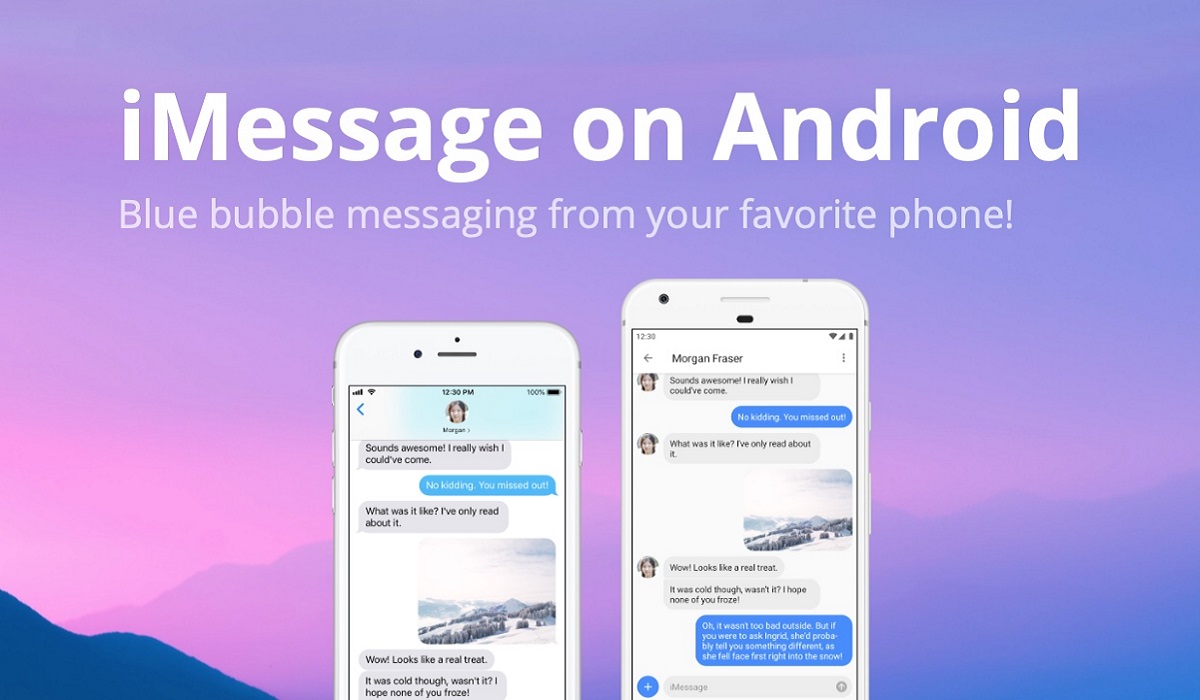
You can use iMessage on Android with AirMessage and a Mac
If you’re wondering how to use iMessage on an Android device with AirMessage and a Mac, keep reading. We’ve compiled all the necessary details on how to achieve this easily.
How Can I Use iMessage on Android with AirMessage and a Mac?
All you need to use iMessage on your Android with AirMessage is:
- an Android device
- a local Mac device or a macOS Cloud server
Once you have these on hand, follow the instructions below to use iMessage on Android with AirMessage.
Install and Set Up the AirMessage Server app on your MacBook
Before you can use iMessage on your Android, you must first install an AirMessage server on your MacBook.
- First, on your Mac, download and install the AirMessage Server for macOS app.
- If it isn’t done automatically, move the app to the Applications folder.
- On your Mac, launch the AirMessage app.
- Click the Connect an Account (Recommended) option
- Create a new account or sign in to your existing one.
Enable Automation and Full Disk Access
There are a few more steps you must take before proceeding. When configuring the app, you must grant AirMessage full disk access as well as access to the built-in macOS Automation functionality.
- On your Mac, launch the System Preferences app.
- Select Security and Privacy
- At the top of the window, click the Privacy button
- Scroll down to Automation in the sidebar
- In the bottom-left corner, click the Lock icon
- Enter your password here (or use TouchID).
- Click the checkbox next to Messages under AirMessage
- To save the changes, click the lock again.
Following that, you need to enable Full Disk Access. To do so:
- Navigate to System Preferences > Security & Privacy > Privacy
- Select Full Disk Access from the left bar.
- Again, select the Lock option, enable AirMessage
- Next, select Lock again to save the changes.
Changing Sleep Preferences
On your Mac, AirMessage works as a server, so to send and receive messages, it must always be “awake.” You won’t be able to route your messages if it’s sleeping or the lid is closed.
Here’s how to modify the Energy Saver settings:
- On your Mac, launch the System Preferences app
- Select Battery
- Click Power Adapter in the sidebar.
- Drag the slider to adjust when your display turns off automatically.
Select the checkboxes next to the following:
- Prevent your Mac from sleeping automatically when the display is turned off.
- Wake for Wi-Fi network access
Enable Port Forwarding
The next step to use iMessage on Android with AirMessage is to configure port forwarding on your router. This is required in order for AirMessage to communicate with the server software on your Mac via the internet.
This allows you to use AirMessage regardless of where you are, as long as your computer is turned on at home. Setting up port forwarding differs depending on your router so it’s advisable to consult the manufacturers for the best approach
Install the AirMessage app on Your Android Device
At this stage, you can now download and install AirMessage since the difficult part of the setup is complete.
Follow these steps:
- Go to the Google Play Store and download the AirMessage app.
- Open the app on your Android phone afterward.
- Log in with the same account you used on Mac (via the Connect account option).
- Tap the blue chat icon in the app’s bottom-right corner and enter a phone number to which you want to send an iMessage.
- Allow AirMessage to use the Messages app in a pop-up window that appears on your Mac.
And there you have it; you can now use iMessages on your Android through AirMessage.
In conclusion, using iMessage on your Android phone with AirMessage necessitates some technical knowledge due to the requirement of a third-party iMessage app. Even though it takes some time to set up, with the step-by-step guidelines we described above, using iMessage on Android with AirMessage and a Mac will be quite simple.
- Don’t miss our mobile phone reviews .
- Join our WhatsApp Group , to be notified of the most important articles and deals,
- Follow us on Instagram , Facebook , Twitter , and YouTube .
Author:Joan Agie
Add MobilityArena as a preferred source on Google
Ghost touch occurs when your iPhone performs functions or actions on its own and opens apps without any contact or action from your end. Unsurprisingly, such strange behaviors can be quite irritating. Ghost touch can affect any iPhone, and if it happens to your device, you may notice that the screen responds to itself even without any contact with the screen.
Nonetheless, what’s the best way to fix ghost touch on your iPhone? Luckily, we’re here with the right answers. This article will show you different ways to fix ghost touch on an iPhone.
- What Causes iPhone Ghost Touch?
- How Can I Fix Ghost Touch on an iPhone?
What Causes iPhone Ghost Touch?
The following are some of the most common causes of a ghost touch on an iPhone:
- Replacing or taking off the touch screen during a repair: Screen sensitivity and ghost touch is typically found in new Apple devices where the touch screen is replaced/removed during the repair
- Manufacturing flaws: Sometimes ghost touch is caused by a flaw in the digitized manufacturing process
- Hardware issues: It could also be the cause of a hardware problem, since mobile device hardware can sometimes cause such problems and issues
- Software flaws: Another common cause of ghost touch is a software error, such as the iOS 16 update. If there is a bug in the update, it may affect screen sensitivity and cause a very annoying ghost touch.
How Can I Fix Ghost Touch on an iPhone?
Fortunately, most ghost touch issues are simple to resolve. You can try some of the options we’ve described below to fix ghost touch on your iPhone.
Remove Dust From Your Screen
One of the most common causes of ghost touch is the presence of dust particles on your device, which causes your iPhone to perform tasks automatically.
As such, to fix ghost touch on an iPhone, try using soft microfiber cloths on a regular basis to keep your device dust-free and free of other particles. Make sure not to get moisture into any openings while wiping.
Remove the Screen Protector from Your Phone
This is another option to fix ghost touch on an iPhone. Sometimes your iPhone screen protector causes ghost touching because it is incompatible with your iPhone device and automatically touches some parts of the device. If this is the cause of ghost touch on your iPhone, removing the screen protector will solve your problem.
You should carefully and slowly remove the screen protector from your iPhone. If the protector is cracked or damaged in any way, it may be safer to take your phone to a properly qualified repair shop (or to Apple) to avoid cutting yourself on the cracked glass.
Take Your iPhone Case Off
Hard phone cases, especially if dropped, can cause the screen to warp slightly and result in ghost touch issues.
Therefore, to fix ghost touch on your iPhone, try taking off its case. If the case appears twisted, carefully remove it to avoid further damage to your iPhone. Afterwards, check to see if the problem persists without the case.
Update Your iPhone’s iOS Version
Another solution that might fix ghost touch on an iPhone is to update the operating system. It’s always important to ensure that your iPhone device is running the most recent iOS version.
The iPhone needs to be updated in order to address bugs and other problems that might have existed in earlier versions. So, by regularly updating, you can successfully fix ghost touch on your iPhone.
Navigate to Settings > General > Software Update > Download and Install (or click Install if you’ve already downloaded the update).
Reset All of Your iPhone’s Settings
Your iPhone settings determine how your device will function. Simply reset all of your iPhone’s settings if you’ve ever changed them, and it just might work to fix ghost touch on your iPhone.
To do this, navigate to Settings > General > Transfer or Reset > Reset and select Reset All Settings on iOS.
Reset Your Device to Factory Settings
If your device is still not working as it should, your only option to fix ghost touch on your iPhone is to factory reset it. You should back up your iPhone before performing a factory reset because this will erase all of your device’s data and settings.
Go to Settings > General > Transfer or Reset iPad and select Erase All Content and Settings . After that, tap Continue and enter your iPhone passcode. Following these instructions may be just what you need to fix ghost touch on your iPhone.
In conclusion , the ghost touch issue is mostly caused by a number of external factors that can be resolved through simple troubleshooting steps like the above described. However, note that there may be times when a trip to the service center is required. This is especially if a hardware issue is the problem. So, make sure you only use Apple or an Apple-authorized service provider to help fix ghost touch on your iPhone.
