Add MobilityArena as a preferred source on Google
First introduced in iOS 15, mic mode voice isolation is a feature that improves the call quality on iPhones. Its first iteration was available for only with FaceTime calls and a limited number of third-party apps. However, it is now available for regular cellular calls from iOS 16.4.
How does this feature work? When on a phone call, it uses an iPhone’s microphone to block out ambient sound and noise so as to deliver better in-call audio. The microphone focuses on your voice and isolates it from any background or ambient sounds, so your words come through clearer than ever.
- What does Mic Mode Voice Isolation do on iPhone and what are the benefits?
- Is it good?
- How to enable Mic Mode Voice Call Isolation for Cellular Phone Calls
- Update Your iPhone to iOS 16.4 To Get It
- Use Mic Mode Voice Isolation to make your calls clearer
What does Mic Mode Voice Isolation do on iPhone and what are the benefits?
The benefit of using the mic mode voice isolation feature is clear – better audio quality during normal telephone calls. You use it when you want your voice to be even clearer during a FaceTime or phone call. Turning on Mic Mode Voice Isolation prioritizes your voice and blocks ambient noises so your voice is clearer. Everyone wants that and your callers will appreciate the better voice quality and clarity.
Is it good?
Quite a number of people who have used it and given feedback say that mic mode voice isolation works remarkably well at cutting out background noises and isolating your voice in a phone call. You should use it.
How to enable Mic Mode Voice Call Isolation for Cellular Phone Calls
To enable the feature, you need to answer or initiate a phone call first, and it does not come on automatically. I wonder why. Anyway, the following steps show you how to use mic mode voice isolation when on a regular phone call on an iPhone running iOS 16.4 and newer.
- Open the Phone app and start a regular audio phone call with someone.
- Once the other person answers the call, swipe up from the bottom of the screen to access your iPhone’s Control Center. You can also swipe down diagonally from the top-right corner of the screen.
- In top-right corner, you will see “ Mic Mode ” labelled “ Standard “.
- Tap the Mic Mode button and select the Voice Isolation option.
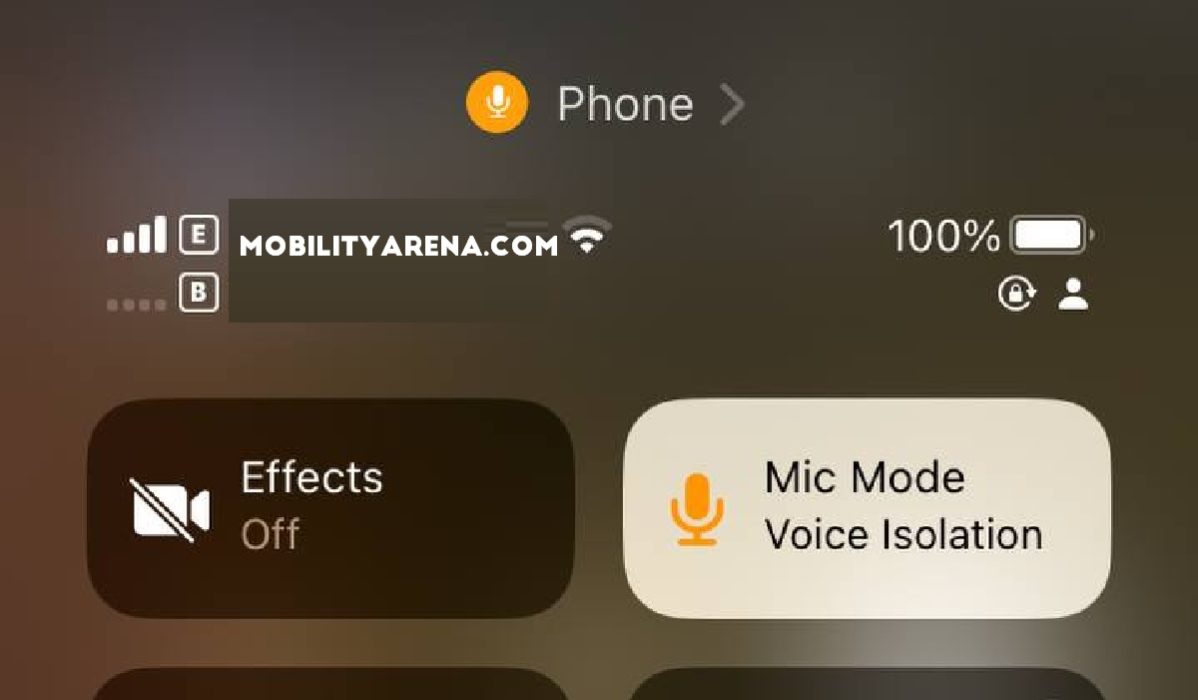
It is now activated for that call. You can turn it off at any time simply by accessing the Control Center again and selecting Standard instead. It would have been nice if Apple had made things easier for us by making the Mic Mode menu pops up automatically every time a telephone conversation is initiated. Or perhaps even have the feature come on automatically by default. I find it tedious to have to manually access the Control Center in order to enable it.
Update Your iPhone to iOS 16.4 To Get It
If you have an iPhone 8 and newer ( iPhone X series , iPhone 11 , iPhone SE 2020 , iPhone 12 , iPhone 13 , iPhone 14 , and iPhone SE 2022 ), your device is eligible for the iOS 16.4 software update, so go get it. the update is about 1.68 GB to 1.9 GB in size (if you are a Public Beta user like I am, it can get as large as 5.12 GB in size). Anyway, dive into your iPhone Settings > General > Software Update to get it and update your phone.
Use Mic Mode Voice Isolation to make your calls clearer
When you want your voice to be even clearer during a FaceTime or phone call, turn on Voice Isolation. During calls, it will prioritize your voice and block ambient noises, so your voice comes out better.
Author:Mister Mobility
Digital Skills and Communication Coach | Mobile Phone Connoisseur since 2001 | Tech Blogging since 2004
Add MobilityArena as a preferred source on Google
The Incognito mode in Google Chrome allows you to browse the web privately without disclosing your activity data. If you give it some thought, you realize that this experience isn’t entirely private because anyone with access to your phone can see all of the Incognito tabs you have open in the browser.
Fortunately, Google offers a simple solution to this problem – you can lock incognito tabs in Chrome. This is a easy way to restrict access to Incognito tabs in Chrome. So, in this article, we will show you how to lock Incognito tabs in Chrome on iPhone and Android devices so that you can make your browsing experience more private.

How Do I Lock Incognito Tabs in Chrome on My iPhone?
First, go to the App Store and update your iPhone’s Google Chrome browser to the most recent version. Assuming you currently have a few Chrome tabs open in Incognito mode, here is how you can lock them:
- Launch Chrome on your iPad or iPhone.
- Select Settings by tapping the horizontal ellipsis button in the bottom-right corner and swiping left on the action row above.
- Toggle the Lock Incognito tabs when you close Chrome option under Privacy and Security .
- Depending on the model of your iPhone, Chrome will ask you if you want to let it use Touch ID or Face ID . Click OK to confirm your identity.
- If you prefer not to use biometrics, click Don’t Allow and enter your iPhone’s passcode when prompted. Click Done afterwards.
When you exit Chrome while it is in Incognito mode, it will automatically lock all Incognito tabs. This will be visible when you open the App Switcher. Keep in mind that Chrome will remain accessible if you are not in Incognito mode.
How Can I Open Locked Incognito Tabs in Chrome on iPhone?
In Chrome, accessing your locked Incognito tabs is as simple as authenticating yourself with a passcode, Face ID, or Touch ID, depending on what you used to lock the Incognito tabs.
So, just follow these simple steps:
- Select Chrome from the App Switcher. Alternatively, you can open the Chrome app by tapping on it.
- If you’ve locked the tabs with Face ID, press the Unlock with Face ID button. If you’ve used any of the other methods, tap Unlock with Touch ID or Unlock with Passcode .
- When you authenticate yourself, the tabs will instantly unlock.
Keep in mind that Chrome will lock the Incognito tabs in this situation as well when you transition to normal browsing. As a result, even when switching between regular and Incognito windows, you’ll still need to authenticate.
How Can I Lock Incognito Tabs in Chrome on Android?
As Google explains on The Keyword, once Chrome is open on your phone, go to Settings and then Privacy & Security to lock incognito tabs in Chrome on your Android device. If the update has been applied to your device, you’ll be able to enable a feature called “lock incognito tabs when you close Chrome.”
If, after your update, you still don’t see the option to lock incognito tabs in Chrome, no need to worry. It simply means that Google has not yet made the feature available to you.
When you close Chrome and return to your incognito session, you’ll need to verify your credentials. Even though it’s an extra step, it ensures that your secrets remain private and that your browsing habits are hidden from prying eyes.
Additionally, whenever using an Android device, you will never again have to close your incognito tabs out of concern that someone may see them.
How Can I Open Locked Incognito Tabs in Chrome on Android?
After you lock incognito tabs in Chrome on your Android, you can access previously closed incognito sessions in three ways: Passcode, Facial recognition, Fingerprint scanner.
Note that you don’t need to enter a special passcode to reopen a previously closed incognito session. Instead, your phone’s passcode and biometrics will be used for the unlocking process.
Summarily, it’s simple to enable the lock Incognito Tabs in Chrome on both Android and iPhone devices. Follow the instructions in this guide carefully to get it done correctly.
