Add MobilityArena as a preferred source on Google
Ever wished you could film your vlog, livestream, or unboxing video from more than one angle without juggling multiple devices? With the Pixel 9 series’ exclusive Multi-Camera Simultaneous Capture feature, you finally can. This smart tool lets you record from two (or more) cameras at the same time, no extra apps, no confusing setups — just seamless creativity. Whether you’re sharing reactions while unboxing, streaming with dynamic angles, or capturing your best content yet, Multi-Camera Simultaneous Capture makes your videos look polished and professional. It’s a simple way to level up your storytelling and give your audience a richer, more engaging experience. With Multi-Camera Simultaneous Capture, your content doesn’t just get recorded — it comes alive.
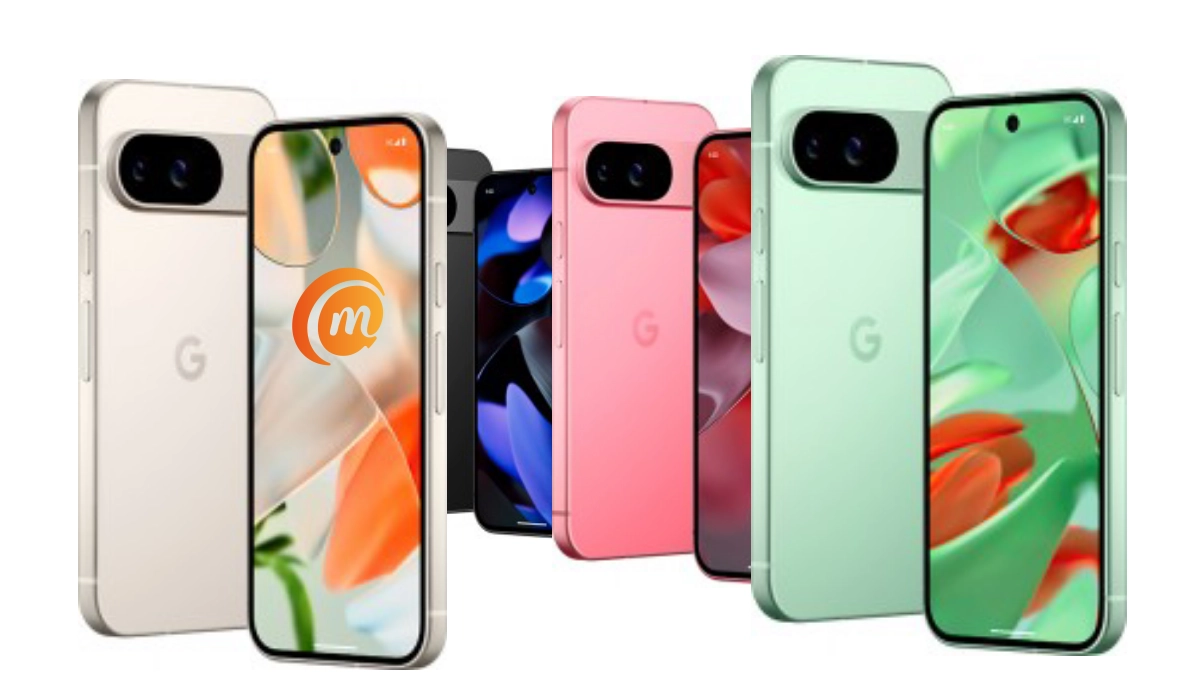
- What Is Multi-Camera Simultaneous Capture (Connected Cameras)?
- How to Enable Connected Cameras on Your Pixel 9
- What You Can Do with It
- Things to Keep in Mind
- Pro Tips
- Conclusion
What Is Multi-Camera Simultaneous Capture (Connected Cameras)?
Google’s Connected Cameras lets you link your Pixel 9 (or Pixel 9 Pro, Pro XL, Pro Fold) with other Pixel devices (Pixel 6 or newer) or GoPro Hero 10+ cameras wirelessly. This means you can stream and record from multiple angles and switch between cameras seamlessly during your video sessions — all within popular apps like YouTube, Instagram, TikTok, Snapchat, and Facebook. No more lugging around complex setups or juggling multiple devices manually!
How to Enable Connected Cameras on Your Pixel 9
- Get Your Devices Ready: Make sure your primary Pixel 9 and the remote camera device (another Pixel or supported GoPro) are signed in with the SAME Google Account and connected to Wi-Fi or Bluetooth.
- Enable Connected Cameras: On your Pixel 9, go to Settings → Connected devices and toggle on Connected Cameras.
- Open Your Favorite Live Streaming or Recording App: Launch apps like YouTube or Instagram.
- Switch Cameras: Upon starting your livestream or recording, you’ll notice a camera picker interface allowing you to toggle smoothly between your phone’s camera and the remote camera.
What You Can Do with It
- Switch Angles Without Pausing: Flip between your front and rear phone cameras or the remote GoPro or Pixel camera on-the-fly.
- Add Unique Perspectives: Use a GoPro for action shots while your Pixel handles close-ups.
- Stream with Professional Flair: Spice up your live stream with dynamic angles to keep viewers hooked.
Things to Keep in Mind
- Both devices must use the same Google Account, so no borrowing your buddy’s Pixel for remote cams.
- Audio switches to whichever active camera is currently streaming, so if the mic is better on one device, keep that in mind.
- Switching cameras has a brief countdown before it activates to avoid jolting your video. It’s like your phone taking a breath before showing off a new camera angle.
- Connectivity can be a bit finicky for long streams — best to test before going full pro.
Pro Tips
- Use a tripod or stable mount for the remote cameras to get crisp, steady shots.
- Plan your angle switches to maximize viewer impact near key moments.
- Combine this with Pixel’s smart video features, like Dual Exposure Video for lighting control, to make your captures even more stunning.
Conclusion
Multi-Camera Simultaneous Capture on the Pixel 9 series isn’t just another feature — it’s a powerful tool that makes creating content easier and more exciting. From vlogging to live streaming to simply saving memories in a more dynamic way, Multi-Camera Simultaneous Capture gives you freedom to tell your story from every angle. With just a quick setup, you’re ready to let your content shine, and that’s the real magic of Multi-Camera Simultaneous Capture.
Author:Ifeoluwa Adeleke
Add MobilityArena as a preferred source on Google
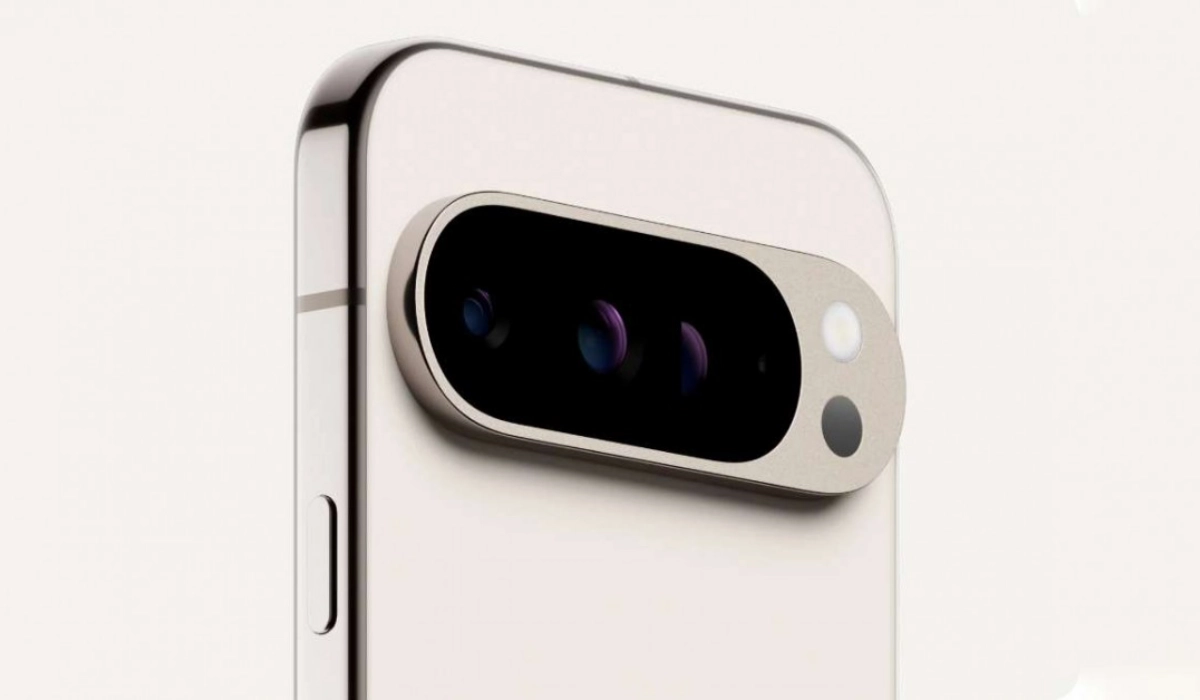
In today’s digital world, protecting your personal information isn’t optional — it’s a must. The good news? Your Google Pixel 9 comes packed with Privacy and Security Settings that work like a built-in shield for your data. Think of it as your own digital bodyguard, always on watch. In this guide, we’ll walk through the key Privacy and Security Settings you should know about and how to use them with ease. Ready to take control and unlock your Pixel’s full security potential? Let’s get started!
- Step 1: Check Your Security Status at a Glance
- Step 2: Lock It Down with Screen Locks and Biometrics
- Step 3: Harness the Power of Google Play Protect
- Step 4: Find My Device — Your Phone’s Lifeline
- Step 5: Manage App Permissions Like a Pro
- Step 6: Use Privacy Dashboard for Full Transparency
- Step 7: Enable Suspicious Message Alerts
- Step 8: Set Up 2-Step Verification for Your Google Account
- Step 9: Don’t Forget to Update Regularly!
- Conclusion
Step 1: Check Your Security Status at a Glance
- Open Settings → Security. At the top, you’ll see your phone’s security status and Google Account safety overview.
- If you spot any warnings, don’t ignore them! It’s like your Pixel waving a tiny flag saying, “Hey, time to secure this place!”
Step 2: Lock It Down with Screen Locks and Biometrics
- Head over to Settings → Security → Screen Lock and pick your poison: PIN, pattern, or password. (Pro tip: use what you can actually remember.)
- Set up Fingerprint unlock and Face unlock for quick and secure access. Your phone’s biometric sensors are way faster than typing in codes — and way cooler, too.
Step 3: Harness the Power of Google Play Protect
- Go to Settings → Security → Google Play Protect and tap Scan. It checks your apps for harmful behavior.
- Keep automatic scans enabled so your Pixel has your back against sneaky apps trying to get nosy.
Step 4: Find My Device — Your Phone’s Lifeline
- Ensure Find My Device is activated in Settings → Security.
- If your Pixel ever pulls a disappearing act, you can track, ring, lock, or wipe it remotely. (Hopefully, just to lock it and not wipe those treasured memes!)
Step 5: Manage App Permissions Like a Pro
- Privacy is all about control. Jump to Settings → Privacy → Permission manager to see which apps access your camera, microphone, location, and more.
- Revoke permissions from apps you don’t trust or no longer use. Your location doesn’t need to be gossip, after all.
Step 6: Use Privacy Dashboard for Full Transparency
- Head to Settings → Privacy → Privacy Dashboard to see real-time data access logs for apps.
- Spot anything fishy? Act on it! It’s like having CCTV on your apps’ nosy behavior.
Step 7: Enable Suspicious Message Alerts
- In Settings → Security, turn on Suspicious message alerts so your Pixel warns you about potential scam texts or phishing attacks.
- It’s like having your own Spidey senses for dodgy messages.
Step 8: Set Up 2-Step Verification for Your Google Account
- For an extra fortress, enable 2-step verification on your Google account.
- It adds a layer of verification when signing in, making hackers sigh in defeat.
Step 9: Don’t Forget to Update Regularly!
- Go to Settings → System → System update to check for updates.
- Updates bring crucial security patches and new features, so install them promptly — think of it as giving your Pixel a security tune-up.
Conclusion
At the end of the day, managing your Pixel 9 isn’t just about flipping a few switches — it’s about making sure you feel safe every time you use your phone. By setting up biometrics, keeping an eye on app permissions, and staying updated, you’re putting yourself in control. The Privacy and Security Settings on your Pixel are designed to be simple but powerful, giving you real peace of mind. So take a few minutes to explore those Privacy and Security Settings, make the adjustments that matter to you, and let your phone do what it does best — keeping your digital life protected. With the right Privacy and Security Settings , your Pixel 9 becomes more than a phone; it becomes your personal guardrail online.
