Add MobilityArena as a preferred source on Google
Over the past years, the Apple Watch has come a long way. Nowadays, it’s possible to do so much on your Apple Watch without needing to access your iPhone.
The App Store is a key example of these possibilities. With a few clicks, you can access and use the App Store on an Apple Watch to carry out different functions. Admittedly, using the App Store on your iPhone is still easier. However, you may still be curious as to what you can manage on an Apple Watch using the App Store.
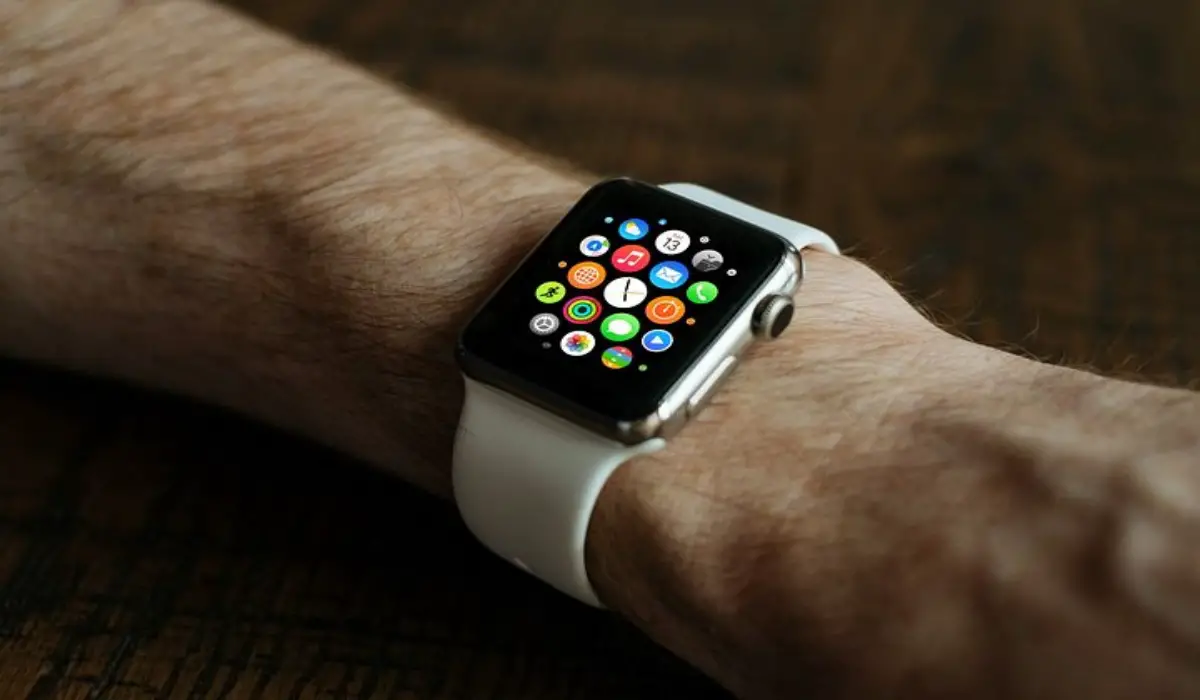
In this guide, we’ll show you how to use the App store on an Apple Watch, so keep reading if you’d like to find out.
- How Can I Use the App Store on An Apple Watch? Check App Purchases Manage Subscriptions Install Apps on the Apple Watch Manual App Updates
How Can I Use the App Store on An Apple Watch?
There are several ways to use the App store on an Apple Watch. Consider the following actions:
Check App Purchases
One action you can perform when you use the App Store on an Apple Watch is checking app purchases. Once you buy an app and download it onto your device, it gets added to your list of purchases in the App Store. You can then use this list of purchases to find all the apps you’ve purchased in case you wish to re-download them.
It’s particularly great that it’s possible to access this list without having to use your iPhone. You’ll only need your Apple Watch and you should follow the steps below:
- Click on the Digital Crown
- On your home screen, hit the App Store icon.
- Scroll to the page bottom, then select Account .
- Select Purchased .
- Click on My Purchases .
Manage Subscriptions
Sometimes, your Apple Watch is all you need to manage your subscriptions. Subscriptions are actually easy to manage when you use the App Store on an Apple Watch. Although it’s still considerably faster to verify and cancel your membership on an iPhone or iPad, knowing how to do it on an Apple Watch could also prove quite useful.
- To access your Home Screen, press the Digital Crown .
- Tap the App Store button.
- Select Account at the bottom of the page.
- Choose Subscriptions .
All your active subscriptions will display. To cancel a subscription, simply press it, scroll down to the bottom, click Cancel Subscription , and then confirm your cancellation.
Install Apps on the Apple Watch
Installing apps is a key action you can manage when you use the App Store on an Apple Watch. Normally, it’s possible to configure your iPhone’s Watch app so that any app you download on your iPhone also gets installed on your Apple Watch.
But if you prefer to install apps directly on Apple Watches, you can use the App Store on an Apple Watch to locate and download any available app.
Here’s how to do it:
- To access your Home Screen, click on the Digital Crown on your Apple Watch.
- Launch the App Store.
- Select Search .
- Look for the app you’d like to install.
- Choose the desired app from the search results.
- Select Get .
The app will be installed and added to your Home Screen by your Apple Watch. You can then begin using the app and, if desired, add it to your Apple Watch Dock.
Manual App Updates
Another function you can manage when you use the App Store on an Apple Watch is manual app updates. The Apple Watch will periodically update your apps by default. However, if you’d rather not wait for your Apple Watch to do it, you can use the App Store on an Apple Watch instead. You’d just need to locate the apps in question and update them manually.
This is how it works:
- Go to the Home Screen by pressing the Digital Crown .
- Click on the App Store icon to open it.
- Scroll down to Account .
- Scroll down and click on Updates
You’ll get a list of all apps that were updated recently, as well as those that need updates. Press Update next to apps with available updates. If you have multiple apps, you can choose the Update All option.
Summarily , if you ever decide to use the App Store on an Apple Watch to manage functions, the instructions we’ve provided in this guide will help you do so easily.
Author:Joan Agie
Add MobilityArena as a preferred source on Google
For many people, video calls are a big part of daily living, both for work and personal matters. As a result, new technologies arise frequently to liven up video conversation experiences.
For instance, with One UI, it’s possible to change the video call background on Samsung devices. The Samsung Galaxy phone actually lets you introduce different video call effects to any of your video chat apps.
So if you’re interested in learning how to change the video call background on Samsung Galaxy devices, this guide is for you.
- How to Enable Video Call Effects on Samsung Galaxy Devices How Can I Change the Video Call Background on Samsung Devices? How to Change Mic Mode During Video Calls on Samsung Galaxy Devices How to Reset Video Call Effects
How to Enable Video Call Effects on Samsung Galaxy Devices
On a Samsung Galaxy phone, you must first enable the option from the Settings menu in order to use the video call effects.
We’ve described the process below:
- Activate the Settings app, then select Advanced features .
- To turn the feature on or off, use the switch next to the “Video call effects” option.
After enabling video call effects as described above, you can then proceed to the necessary steps to change the video call background on Samsung Galaxy devices.
These video call effects will typically function in your preferred video calling applications, such as WhatsApp, Facebook Messenger, Google Meet, and others, once you’ve enabled it.
How Can I Change the Video Call Background on Samsung Devices?
Once you’ve enabled video call effects, it becomes pretty easy to change the video call background on Samsung devices.
A floating video call effects icon should show on your screen if you’re in a video conversation with someone. It is from these options that you can change the video call background on Samsung Galaxy devices according to your preferences.
Tap the floating icon, then choose Background . There will be three choices available here: Blur , Color , and Image . When you choose Blur , the background will be blurry and the focus will be on you.
Your backdrop will change to a solid color if you choose Color . Select your favorite color from the Video call effects menu if you’d like more color choices; do this by tapping Settings .
If you want, it’s also possible to use an image when you change the video call background on Samsung Galaxy devices. To do that, choose an image from your phone’s gallery by tapping the Image option.
Additionally, you can swiftly swap between several backdrop photos that you have added. To add more pictures from your phone’s gallery, just select Settings and hit the plus icons.
Once added, you can use this to change the video call background image at any time.
How to Change Mic Mode During Video Calls on Samsung Galaxy Devices
The option to change the video call background on Samsung Galaxy devices is great, but there’s also more you could explore.
During video chats, you can also switch between various mic modes to lower background noise and enhance voice clarity. This is how to do it:
Click the floating video call effects icon on the video call screen, then choose Mic mode from the drop-down option that appears.
Three different mic modes are available: Standard , Voice focus , and All sound .
- Standard : This silences ambient sounds.
- Voice focus : This feature pays attention to sounds originating from the front camera’s direction.
- All sound : This feature sends every audio signal your microphone picks up.
How to Reset Video Call Effects
It’s tempting to get carried away and use too many effects on your video calls. Fortunately, you can always start over and reset the effects you’ve introduced to the video call. Tap the floating video call effects icon and choose Reset all to accomplish this.
Note that this action won’t remove the images you added to change the video call background on Samsung Galaxy devices. You can follow the steps below if you’d prefer to remove the images:
- Open the Settings app, then select Video call effects under Advanced features .
- Select Delete background image from the kebab menu (three-dot menu symbol) in the top right corner.
- To get rid of a backdrop image, tap the minus sign.
In summary , if you follow the instructions we’ve provided correctly, you’ll find that it’s pretty easy to change the video call background on Samsung Galaxy devices. So, feel free to explore this option to make your video conversations more interesting.
