Add MobilityArena as a preferred source on Google
If you’re ever in a situation where you need to use your wired headphones with your iPhone, this guide is for you. With the removal of the headphone jack on newer iPhone models, it can be a bit confusing to figure out how to use wired headphones with your iPhone device. But don’t worry, this guide has got you covered.
In this article, I’ll show you the step-by-step process of how to use wired headphones with an iPhone. Whether you’re looking to get better audio for music or movies, or you want to make a phone call, there are different methods you can try.
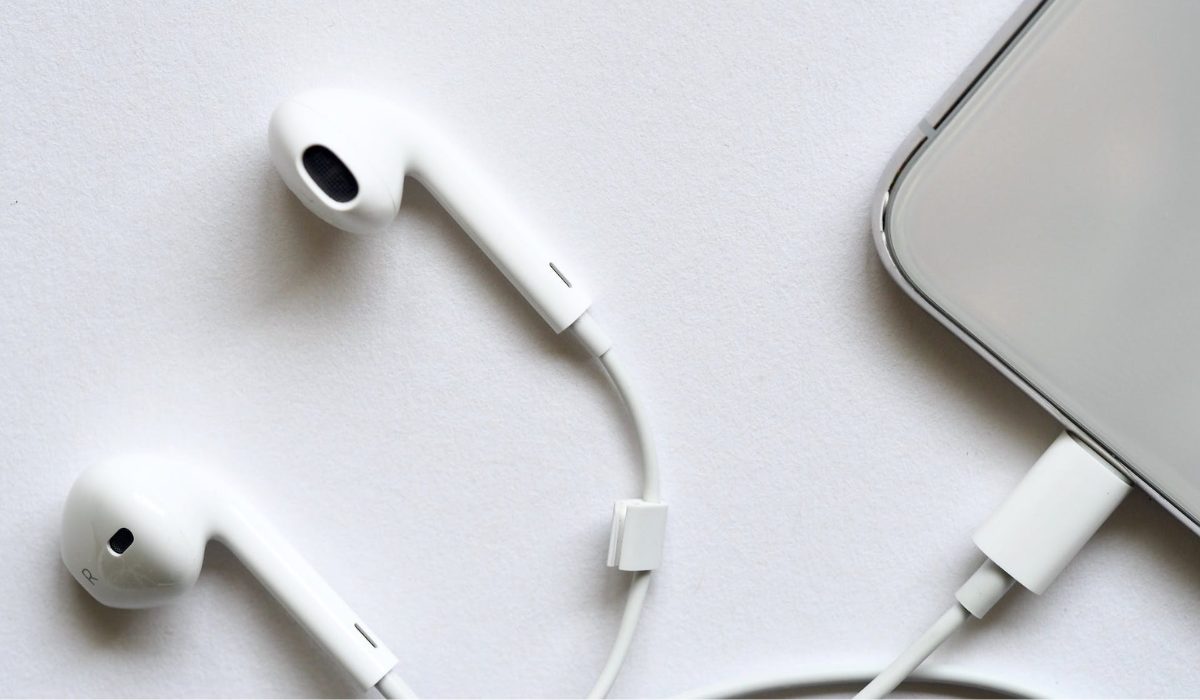
How to Use Wired Headphones with an iPhone
Five years ago, Apple removed the headphone jack from the iPhone, and the feature will not be returning. This change happened as Bluetooth headphones and earbuds grew in popularity, making it easier to listen to music while on the go. Although Bluetooth headphones and earbuds have improved over time, they still provide a compressed listening experience when compared to wired headphones because music is transmitted wirelessly from the device to the headphones.
This compromise in the listening experience is a significant issue for those who prefer wired headphones. If you’re one of the iPhone users that feels this way, try any of these techniques described below to listen to music using wired headphones.
Using Lightning Headphones
The iPhone does not have a headphone jack, but it does feature a Lightning port. Although its main function is charging, this port can also carry data. A few companies have created headphones that connect directly to an iPhone’s Lightning port, the best of which are Pioneer’s Rayz earbuds .
Many of the convenience features you’d expect from wireless headphones are there in the buds, like noise cancellation, auto pause when a bud is removed, and the option to adjust the EQ to your preferred sound levels. It also has a neat feature called Smart Mute , which turns off the earbuds’ microphone when you aren’t speaking on a call.
If you’re interested in getting a new pair of wired headphones to use with your iPhone, using Lightning headphones such as the Rayz , or options from Apple , Beats , or Belkin is the most straightforward method.
To use wired headphones with an iPhone using lightning headphones, follow these steps:
- Plug your headphones into the lightning port on your iPhone.
- Make sure your headphones are turned on and properly connected.
- Check that your device is not in silent mode and that the volume is turned up.
- Open the app you want to use (e.g. Music, Podcasts, or a phone call).
- Start playing audio or making a call. You should hear sound coming from your headphones.
Use An Adapter To Plug In Your Current Headphones
If you currently have wired headphones and are satisfied with them, you can use Apple’s Lightning to 3.5 mm Headphone Jack Adapter to connect them to your iPhone. This adapter connects to the Lightning port on your iPhone and terminates in a regular 3.5mm headphone jack (the same type that was originally built into the iPhone). It therefore allows you to connect most wired headphones to your iPhone directly. If your headphones terminate in a ¼-inch jack, you’ll need an adapter to convert it to the ⅛ -jack size.
Additionally, Belkin’s Rockstar adapter, which has both a Lightning and 3.5mm audio output on it, is a good choice if you want to listen to music at your desk all day. You can charge your iPhone and use wired headphones simultaneously with the Rockstar adapter.
Use An Adapter To Connect A USB DAC
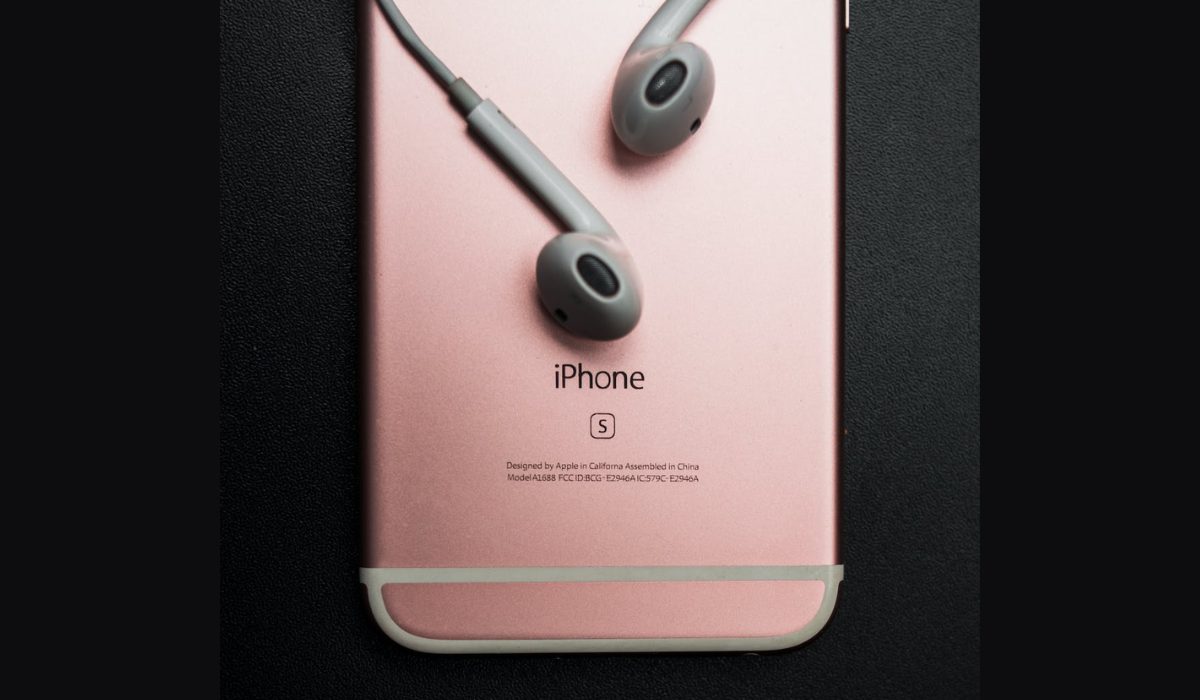
If you want to use wired headphones with your iPhone and get the best audio quality while you’re at it, you should get Apple’s Lightning Camera Adapter. This adapter has a standard USB-A port for accessories and an additional Lightning port for charging your iPhone.
You can connect your iPhone to AudioQuest’s Dragonfly Cobalt USB DAC (digital-analog converter) using this adapter. The Cobalt is a flash drive-sized DAC that substantially improves the audio quality of your digital music by presenting it in its most basic form.
Here are the detailed steps on how to use this method:
- Purchase an adapter that connects to the Lightning port. Apple’s Lightning Camera Adapter is a good option.
- Plug the USB DAC into the adapter.
- Connect your headphones to the USB DAC’s 3.5mm headphone jack.
- Once your headphones are connected, you can start using them with your iPhone. Your iPhone should automatically recognize the USB DAC and route audio through it.
- To listen to music, open your music app and play a song. The audio should now play through your headphones.
- If you want to adjust the volume, use the volume buttons on your iPhone or the volume controls on your headphones.
To conclude, wired headphones provide high-quality audio that many people prefer over wireless headphones. However, with the removal of the headphone jack in newer iPhones, using wired headphones is a bit more complicated. However, if you follow the methods above, it should be far less challenging to work around wired headphone usage with your iPhone device. If you need more useful tips to navigate iPhone usage, check out this category .
Author:Joan Agie
Add MobilityArena as a preferred source on Google
All batteries degrade over time with each charging and discharging cycle. Android OS does not have a battery health feature the way that iPhones do. As such, you may not be able to tell how healthy your Android phone’s battery is. But there is a feature that Samsung provides to help you protect battery health on Galaxy S23, S23+, S23 Ultra, and other Galaxy smartphones.
Having used a few iPhones and Pixel phone models, I know that under certain conditions, e.g. if the phone gets warm or hot, or under sustained heavy use, the battery do not charge beyond 80%. This was done to protect their battery health so the batteries can last longer before they need replacing. The good news is that Samsung has implemented a similar thing in the Galaxy S23 and other Samsung phones. I currently have it enabled on my Samsung Galaxy S23 . Let me walk you through it.
Did you know you could protect battery health on Galaxy S23 and other Samsung phones?
Enable this feature to protect battery health on Galaxy S23 and other Samsung phones
On your Samsung Galaxy S23, go to Settings . In the search box at the top, enter, “Battery”, and scroll down through the results till you see More battery settings . tap on that. Scroll down to Protect battery and toggle it on to enable the protection feature. What this does is make sure that your Samsung phone’s battery is not charged beyond the 85% point, similar to what happens with iPhones and Pixel phones. The difference here is that this limit is in effect all the time, not just under extreme conditions.
Samsung developed this feature into their custom user interface, One UI, so you should be able to find it in other Samsung smartphones as well. If you own a Galaxy A54 , Galaxy A34 , or other model, check it to see if you can enable the protect battery feature. of course, as already mentioned, this feature also lets you protect battery health on Galaxy S23+ and S23 Ultra as well.
Note that you don’t have to use it. If you use your phone in a more demanding way, that extra 15% charge to full capacity can mean a big difference, in which case, you might want to not use this feature. Or best, you can enable it for about a week to see if you can live with it or not, after which you can make a permanent decision about it.
Whether you enable the feature or not, hopefully, by now you understand that one key way to protect the battery health of your phone is not to charge it all the way up to 100%. Even when I had the feature off, I would disconnect my Galaxy S23 from the charger at around 95% charge.
Also, to protect battery health on Galaxy S23 and other phones, do not empty the battery
Another thing you can do to extend the battery life span of your Samsung phone and indeed any other smartphone is to not wait for the battery to empty before charging it. Top up your battery at any opportunity you get, so it never drains to zero. Modern batteries function better when not charged to 100% and when not discharged completely to 0%. As a matter of fact, try to charge your phone before it drops below the 50% battery mark. Repeatedly allowing the battery to drain completely is likely to shorten its life and decrease its overall capacity.
Practice these two tips and your phone’s battery will last longer before deteriorating. Note that modern smartphone batteries are already resilient. The average battery is designed to retain up to 80% of its original capacity even after several hundred complete charge cycles when operating under normal conditions. You might likely change your phone before the battery health drops to that level. But if you are one of those who like to use their smartphones for a few years before replacing them, it is a good idea to follow these tips to protect their battery health.
Author:Mister Mobility
Digital Skills and Communication Coach | Mobile Phone Connoisseur since 2001 | Tech Blogging since 2004
