Add MobilityArena as a preferred source on Google
For a while, I had been wanting to get a dashcam (or dash cam) for use in my car but couldn’t and finally decided to use an Android phone as a dashcam. And it worked! A dash cam is a useful utility. By definition, a dashcam is a camera that is positioned inside your car and pointed out your windshield to constantly record video of the road ahead.
What are dash cams useful for? Records. Evidence. With a dash cam, you have evidence to back up your claims about incidents and accidents while on the road. A dashcam can also provide some fun footage of natural activities – storms, floods, animals, etc.
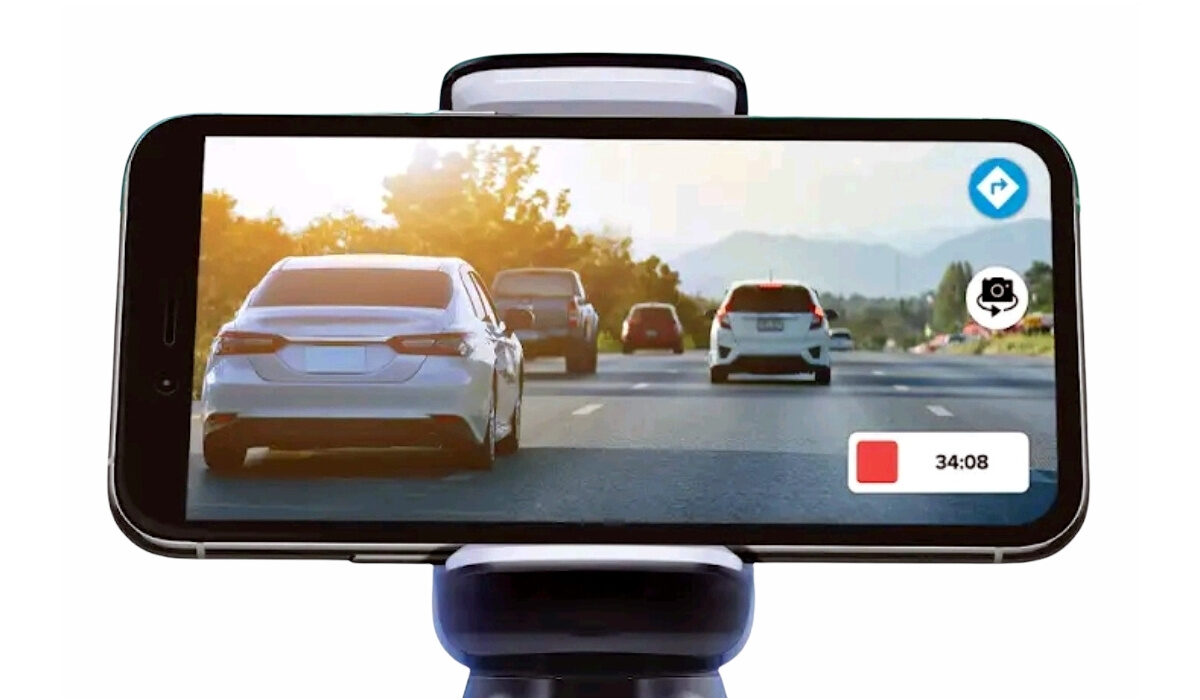
You can use your Android phone as a dashcam
Anyway, back to my story. Getting a dash cam to buy from where I am requires weeks of waiting, as it has to be shipped thousands of kilometres. So, I decided that there had to be an alternative. Guess what – it turns out that anyone can use an Android phone as a dashcam.
And it is pretty easy too. Using an Android phone as a dashcam requires just a few things – the Android smartphone itself and a dash cam app to ensure that the footage is captured in the right format for storage purposes. Some would argue that my list should read four items, as you would need a car mount for the phone, and a car charger to keep the battery topped up.
- What You Need
- DashCam Apps To Try
- Setting Up Your Android Phone As A Dashcam
- Download Drive Recorder
What You Need
- Android smartphone
- Dash cam app
- Car phone mount
- Car phone charger
Do you need an expensive smartphone to be able to create your own dash cam? Not at all; as a matter of fact, a basic smartphone will do. You do not need a lot of processing power or the most powerful camera for dashcam use. I mean, you can use a basic, entry-level Android phone as a dashcam.
Dash cams usually have to record for a long time, so you do not want to record your video in large resolutions, which would lead to quick depletion of the phone’s built-in storage.
DashCam Apps To Try
There is a variety of dash cam apps available in the Play Store. Some of them are free and some require a fee. Here is a short list for you to consider:
- Driver: Turn Your Phone Into A dash Cam For Free
- Drive Recorder
- Smart Dash Cam
- Droid Dashcam – Driving video recorder, BlackBox
- AutoGuard Dash Cam – BlackBox
- AutoBoy Dash Cam – BlackBox
Setting Up Your Android Phone As A Dashcam
The first thing to do is download and install the dash cam app. Then launch the app and dive into the Settings, where you can tinker with it to your needs and taste. Once you are okay with the settings and ready to take it for a spin, mount the phone in your car with your car mount. Do not forget to plug in your phone for charging: video recording is a huge battery drain.
Then start the recording and start driving. Make sure that the first time you use your phone as a dash cam, it is on a deliberate test drive. That way, you can get used to how the app works and also adjust the settings further to make it function how you want.
Some dash cam apps let you record in both directions – capturing both the road ahead and the inside of the car. This can be quite useful. Some offer a “Retain” feature that lets you store only the last few minutes of footage, thereby saving you storage space.
Drive Recorder was my first experience with dash cam apps. It is a basic tool that gets the job done without any frills. Do feel free to experiment till you find a dashcam app that you feel comfortable with. I am still experimenting too, and this might not be my final choice for a dashcam app. But for now, it does a fair job of letting me use an Android phone as a dashcam.
Download Drive Recorder
You can download Drive Recorder HERE .
That is it. Now you know how to use your Android phone as a dashcam. Go record some incredible moments on the road. Feel free to also share some of your experiences in which you found a dashcam useful.
You are reading Mobility Arena .
- Don’t miss our reviews .
- Follow us on Instagram , Facebook , Twitter , and YouTube .
Author:Anna Makama
Gadget lover making my way through life one day at a time.
Add MobilityArena as a preferred source on Google
Wireless charging is a convenient piece of coll technology that lets you charge your phone without plugging a cable into it. It works by electromagnetic induction to power your phone in close contact with a charging pad, mat, or stand. It isn’t quite wireless in the sense that no cable is involved at all; it is just that the cable isn’t plugged directly to your phone.
Like other manufacturers, Apple has adopted wireless charging in some of their products, starting from the iPhone, 8, iPhone Plus, and iPhone X. The company uses the popular Qi standard, though modified to work with their own products only, in some cases. Here, we have a look at which Apple products and iPhones have wireless charging support.
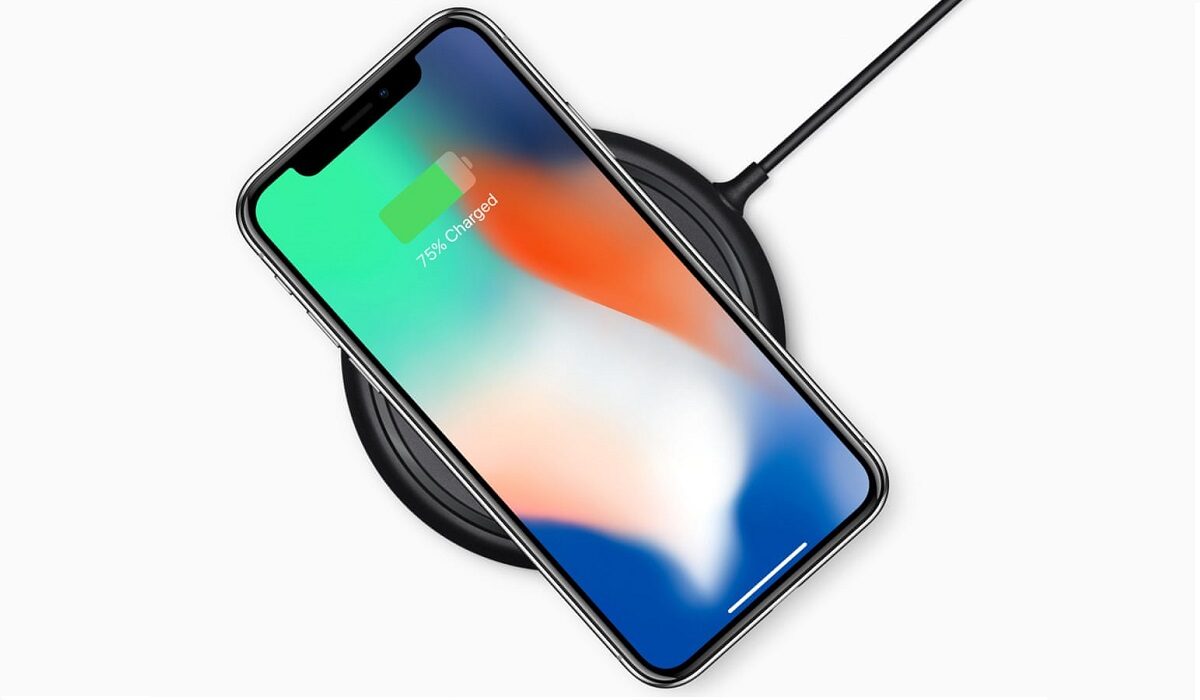
These iPhones Have Wireless Charging
Every Apple iPhone announced since the iPhone 8 series in 2018 has had wireless charging built into it.
- iPhone 8
- iPhone 8 Plus
- iPhone X
- iPhone Xs
- iPhone Xs Max
- iPhone XR
- iPhone 11
- iPhone 11 Pro
- iPhone 11 Pro Max
- iPhone SE (2020)
- iPhone 12
- iPhone 12 mini
- iPhone 12 Pro
- iPhone 12 Pro Max
- iPhone 13
- iPhone 13 mini
- iPhone 13 Pro
- iPhone 13 Pro Max
Upcoming models are likely to feature this technology as well. It is safe to say that you do not have to worry about whether any future iPhone model will have wireless charging or not.
Which Other Apple Devices Have Wireless Charging?
iPhones are not the only gadgets that Apple makes. Other products include iPads, watches, pencils, and AirPods. Which of these support wireless charging, and which do not?
Which Apple Watches Support Wireless Charging?
Right from the 1st generation Apple Watch, all Apple Watches have supported the Qi wireless charging standard. Here is the complete list till date:
- Apple Watch Series 1
- Apple Watch Series 2
- Apple Watch Series 3
- Apple Watch Series 4
- Apple Watch Series 5
Future Apple Watches will likely support the standard as well.
Which Apple AirPods Support Wireless Charging?
Apple’s AirPods support wireless charging as well. This requires the use of a wireless charging case, though, so if the case you have is not that, you have to buy one. The list of AirPods that can be charged wirelessly includes:
- Apple AirPod 1
- Apple AirPod 2
- Apple AirPod Pro
Can You Charge iPads Wirelessly?
None of the iPad line-up, all the way till 2021, supports wireless charging. None. Will there ever be an iPad with wireless charging? Apple has not made any definitive statement on this, but rumours are that the first iPad to support wireless charging will be launched in 2022.
These Apple Products Can Not Be Charged Wirelessly
All iPhones from the iPhone 7 and older do not support wireless charging. We have already seen the list of which iPhones have wireless charging earlier in the article. As already mentioned, no current iPad has it either.
How To Charge Your iPhone, AirPods, Apple Watch Wirelessly
To charge any of your Apple products wirelessly, plug your Qi-compatible charging mat or stand to a power source, and place your Apple device on it. It will start to charge. It is as simple as that.
Which Are the Best Wireless Chargers for Your iPhone or Apple Device?
There are a handful of wireless chargers available for Apple products. These include products from MagSafe, Belkin, Morphie, Native Union, Otterbox, Anker, and others. Some of these are available from Apple, and you can buy them from independent accessories stores in the United States and elsewhere around the world.
You are reading Mobility Arena .
- Don’t miss our reviews .
- Join our WhatsApp Group , to be notified of the most important articles and deals,
- Follow us on Instagram , Facebook , Twitter , and YouTube .
