Add MobilityArena as a preferred source on Google
Some laptop owners generally prefer to use a mouse instead of the laptop’s trackpad. When you’re on the go, however, packing a mouse can sometimes be difficult or even impossible. Fortunately, if you have an iPhone, you may already be carrying a wireless mouse without even realizing it.
You can use your iPhone as a wireless mouse by downloading free software from the App Store. While there is no official Apple solution, there are free third-party apps available on the App Store that you can use instead.
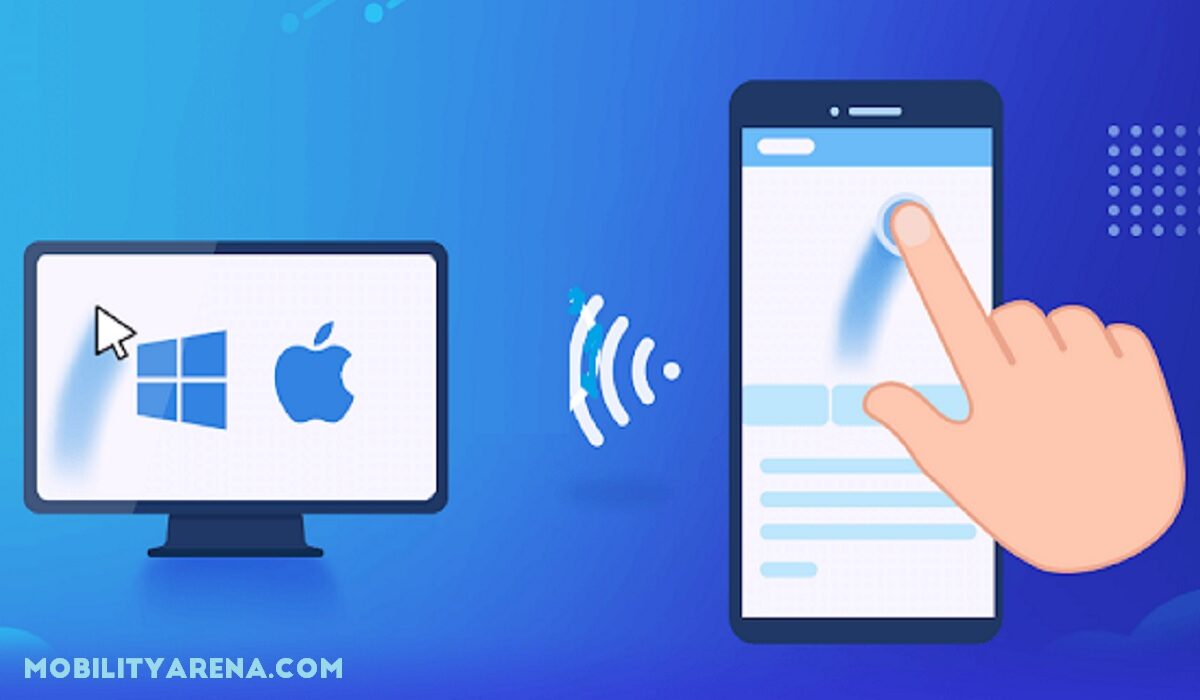
In this article, we’ll show you how to use your iPhone as a wireless mouse, so keep reading to find out.
How Can I Use My iPhone as a Wireless Mouse?
The iPhone has a lot of features, and you can use it as a wireless trackpad for your Mac thanks to an app. Here’s how to go about it.
In iOS 16, you can control many functions of your Mac directly from your phone using a free pair of apps called Remote Mouse. Here’s how to set it up, as well as the features you can control from your iPhone.
How to Use an App to Turn Your iPhone Into a Wireless Mouse Trackpad
The setup process on your iPhone and Mac is simple and only requires a few steps.
Here’s how to configure the wireless mouse functions on both devices.
On the iPhone:
● From the your iPhone’s App Store, download the “Remote Mouse” app.
● As soon as the download is complete, launch it.
● When you open the app, two notifications will appear asking you to grant permission.
● Give the app access to connect to Bluetooth and WiFi devices.
● You can use your iPhone to control your Mac once you give them permission to do so.
On the Mac:
● From your Mac’s App Store, download the “Remote Mouse” app.
● As soon as the app downloads, launch it.
● When you open the app, it will guide you through enablingthe application in the Accessibility settings .
● After allowing the app in the Accessibility settings , press the app icon in the toolbar and then click Auto Start .
Please take note of the following:
● After you’ve configured both devices with the app, make sure they’re both connected to the same WiFi network for the best connectivity.
● You can then choose which device to control and begin using your iPhone as a wireless mouse for your Mac.
● Both the iPhone and Mac apps are free to download from the respective App Stores of the two devices.
● Your iPhone must run iOS 11 or later, and your Mac must run macOS Big Sur or later and contain an M1 chip or later.
How to Connect your iPhone to your Mac for Wireless Control
There are several ways to connect your iPhone to your Mac and control it wirelessly.
You can see every connected device as well as some suggestions for devices you might want to control from the “Select a Computer” menu. You can save multiple devices to control from your iPhone.
Other devices can be added to your iPhone and Mac using various methods of connectivity.
Here’s how to add more devices to control.
● Navigate to your iPhone’s Remote Mouse app.
● Navigate to the “Select a Computer” menu.
● Click the Plus icon in the upper right corner of the screen.
● Choose the method you want to use to add the new device(through an IP address, through scanning a QR code on the device you want to control or from previous devices you have added)
On your Mac, you can connect a device using an IP address or a QR code from the same menu. You select “Show IP address” or “Show QR code” by clicking on the app icon in the toolbar, just as you did to enable Auto Start .
By selecting “Show IP address,” you will be given eight numbers to enter into your iPhone in order to connect the two devices. When you choose “Show QR Code,” a QR code will appear on your Mac’s screen that you can use the Remote Mouse app’s camera on your iPhone to scan.
For your iPhone to find the app, it must be opened and running on your Mac. To terminate the connection, select “Quit” from the upper taskbar icon.
The usability of your devices will be consistent regardless of how you connect them.
How to Use iPhone Gestures to Control your Mac
Though there are a variety of gestures to learn, most of them are the same as those you would use on the Mac’s trackpad.
Below are the most common gestures to know in order to make the most of using your iPhone as a wireless mouse.
● Click where the cursor is by tapping one finger .
● Right click by two-finger tapping .
● Swipe/scroll with two fingers to move up, down, left, or right on your Mac’s screen.
● To zoom in or out, pinch or spread your fingers (this only works on Macs)
● Drag three fingers to select and move
In conclusion , we hope the information in this guide makes it easier for you to use your iPhone as a wireless mouse to control your Mac.
Author:Joan Agie
Add MobilityArena as a preferred source on Google
Sports analysis has always been a fascinating field, and technology has been revolutionizing the way we analyze and understand sports. In recent years, mobile apps have become an essential tool for sports enthusiasts and professionals alike. With the rise of Android apps, sports analysis has become more accessible and efficient. In Kansas, Android apps are making a significant impact on sports analysis. From scores to stats, Android apps are enhancing the way we analyze and understand Kansas sports.
Kansas is a state with a rich sports culture. From the Kansas City Chiefs in football to the Kansas Jayhawks in basketball, Kansas has produced some of the most successful teams and athletes in the country. Sports analysis is an essential part of Kansas, and sports apps have been doing a lot of improvements. Initially, when launched, companies like BetMGM strategize in a way that bettors just try out this service by providing them a free DraftKings Kansas bonus code . From this, today, the sports app industry has carved a big market for itself.

Changes in the Sports Betting industry
One of the most significant ways Android apps are enhancing sports analysis in Kansas is through real-time scoring. Real-time scoring allows coaches, players, and fans to keep track of the game as it is happening. With Android apps like ESPN and CBS Sports, users can get live updates, scores, and stats from all the major sports leagues, including the NFL, NBA, MLB, and NHL.
These apps provide users with detailed information on player stats, team rankings, and game schedules. Users can customize their notifications to receive updates on their favorite teams or players, making it easier to stay up-to-date with the latest news and scores. Real-time scoring has made it easier for coaches to make game-time decisions based on accurate data.
Advancements caused by mobile apps
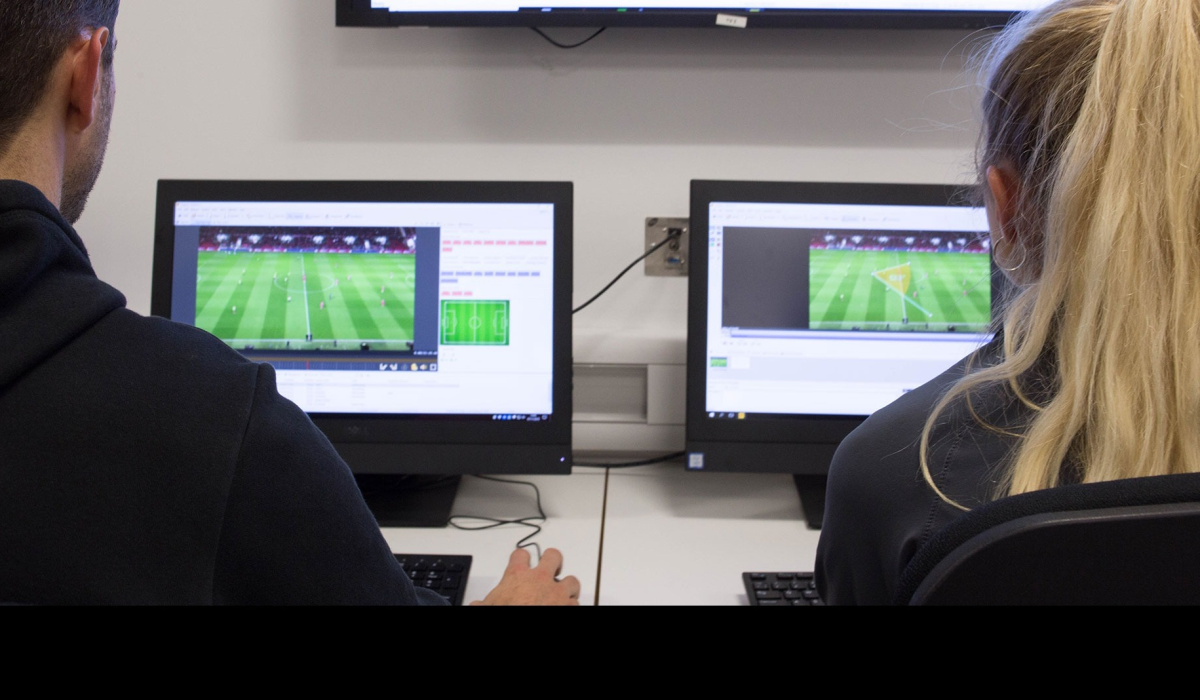
Android apps are also enhancing the way coaches analyze player performance. With apps like Hudl, coaches can record and analyze game footage to identify areas of improvement for their players. Hudl provides coaches with a platform to upload and share game footage, allowing them to collaborate with other coaches and players.
The app’s analytics tools allow coaches to track player stats, performance metrics, and video highlights. Coaches can use this data to develop personalized training plans for their players, making sure they are improving in the areas they need the most.
How these apps benefits Athletes
For athletes, Android apps provide a platform to track and analyze their performance. Apps like Strava and Nike Training Club allow athletes to track their workouts, monitor their progress, and connect with other athletes. These apps provide users with real-time data on their workouts, including distance, pace, and calories burned.
Athletes can use this data to adjust their training plans and set goals for themselves. With the social networking features of these apps, athletes can connect with other like-minded individuals, share their progress, and motivate each other to achieve their goals.
Effects on Sports Fans
Android apps are also enhancing the way fans interact with their favorite teams and players. With apps like Bleacher Report and FanDuel, fans can engage with their favorite sports leagues, teams, and players. These apps provide users with news, scores, and statistics, as well as betting and fantasy sports features. Fans can use these apps to create their fantasy teams, track player stats, and make bets on upcoming games. These apps also provide fans with an opportunity to interact with other fans, share their opinions, and engage in friendly competition.
Android apps are also making it easier for fans to attend games and events. With apps like StubHub and SeatGeek, fans can purchase tickets to games and events directly from their smartphones. These apps provide users with a platform to compare prices, view seating charts, and find the best deals on tickets. The mobile ticketing feature of these apps allows fans to enter the stadium without having to print or carry paper tickets. This not only makes the ticketing process more convenient but also helps reduce the environmental impact of paper tickets.
Social Features
In addition to enhancing sports analysis, Android apps are also providing a platform for sports fans and enthusiasts to connect. With social networking features, fans can connect with other fans, share their views and thoughts on specific games, discuss strategies, and can even create communities involving people with similar ideologies and enthusiasm about a certain sport.
Best sports apps available
Bleacher Report
Yahoo Sports
It is one of the best sports apps available in the app market. You will get quick updates and mews cards related to your favorite sports. If this doesn’t feel enough, you can also watch free matches of certain sports without a subscription.
Conclusion
Sports analytics apps have changed the way the entire sports fraternity exists today. Right from the teams to the athletes, fans, coaches, and everyone involved, it has shown a new way of playing, analyzing, and sports.
Author:Anna Makama
Gadget lover making my way through life one day at a time.
