Add MobilityArena as a preferred source on Google
Every operating system hides some files from its users, but macOS tends to do this considerably more. This helps prevent the deletion of crucial files and as a bonus , it guards against systemic harm.
Nonetheless, occasions might arise where you require access to some of these “invisible” files on your Mac device. It could be required for manual system cleaning, troubleshooting, altering system files or program settings, and in various other situations.
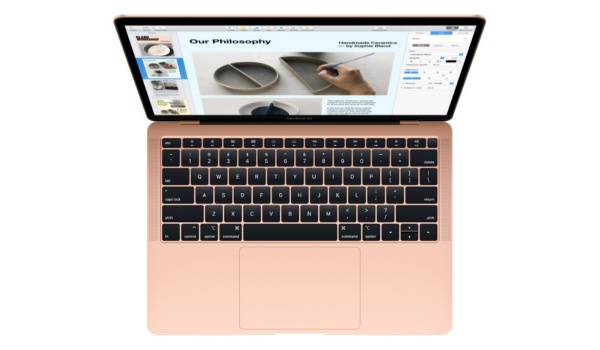
If you’d like to find out how to access hidden files on your Mac device, we’ve created this easy guide for you. Read through and pay attention to the crucial instructions we’ve outlined here, and you should be able to access the files you need pretty easily.
How Do I See the Hidden Files on my Mac?
There are several different methods that can help you get this done, some more complex than the others. We’ll start with the simplest ones, so take note of the instructions below:
Use a Shortcut
One of the simplest ways to find hidden files on a Mac is by using the necessary shortcuts to access them. The shortcut keys to “show hidden files” are also fairly simple to recall:
- Navigate to any folder where hidden files might be located from the Finder on macOS (for instance, the Macintosh root directory)
- To switch instantly and view hidden files, press Shift + Command ( ⌘ ) + Period.
That’s it, it’s that easy!
Use a Terminal Command
A typical Apple software called Terminal can be found in Launchpad and can prove useful in locating hidden files on a Mac. Using certain commands, this application assists with carrying out numerous activities on Mac devices.
You’ll need to follow the actions listed below in order to locate and make visible any hidden files on your Mac:
- Launch the Terminal program.
- The following command should be copied and pasted into the Terminal window:
“defaults write com.apple.finder AppleShowAllFiles -bool true killall Finder”
Keep in mind that you’ll have to repeat the process in order to hide the files again.
Use AppleScript
The scripting language employed in macOS is called AppleScript. An application named Script Editor can be used to view and alter it. In our case, its usefulness is demonstrated by the creation of commands that enable the display of macOS hidden files and folders.
This approach, however, is arguably more difficult than those previously described in this guide. Below, we’ve provided a clear explanation that will make the process easier for you if you’re using it for the first time.
- Launch the Script Editor program using Launchpad.
- Choose “New document” from the menu.
- The following code should be copied and pasted into the editor’s window.
“ display dialog “Show all files” buttons {“TRUE”, “FALSE”}
set result to button returned of result
if result is equal to “TRUE” then
do shell script “defaults write com.apple.finder AppleShowAllFiles -boolean true”
else
do shell script “defaults delete com.apple.finder AppleShowAllFiles”
end if
do shell script ‘killall Finder ’’
- Press the Run button.
- To reveal hidden files, click True ; to conceal them, click False .
- Save this document for later use.
Use the “ ~/Library ” Folder
Another method for viewing hidden files is through the “~/Library folder.” To locate hidden files on your Mac via this method:
- Either click on the desktop or launch the Finder.
- Next, pick Go To Folder by clicking Go in the menu bar. Hold the Option key down while choosing Go from the Finder’s menu.
- From the drop-down list, select Library .
- Alternatively, you can enter the Go To Folder option by pressing Ctrl + Shift + G on your keyboard. Put “~/Library” in the path field.
The ~ /Library folder houses crucial information and files needed for Mac user accounts and applications to run. As such, you should ensure that you use it with caution at all times. Also, keep in mind that the user-level and system-level “~/Library folder” are distinct from one another.
Use File Managers
Apart from the methods we’ve described above for viewing hidden files, it’s also possible to use file managers for this purpose. One such third-party file manager for macOS is called Commander One. Commander One contains a dedicated switcher in its upper panel for this purpose, making it exceptionally easy to view hidden files.
In summary , feel free to take advantage of the instructions and tips we’ve provided in this guide to locate and access hidden files on your Mac device. These steps should be pretty easy to follow, and if one method does not work, it’s a good thing there are other options to try.
Also, don’t forget to share or recommend this helpful article to other Mac users you know who might benefit from the information in it.
- Don’t miss our mobile phone reviews .
- Follow our news on Google News .
- Join our WhatsApp Group , to be notified of the most important articles and deals,
- Follow us on Instagram , Facebook , Twitter , and YouTube .
Author:Joan Agie
Add MobilityArena as a preferred source on Google
It’s possible that you find reading news articles, blog posts, and books to be more enjoyable than listening to them get read aloud. However, there are still instances when listening to information you would normally read becomes important.
For instance, when cleaning, working, walking, driving, or engaging in other tasks that call for a little multitasking, it’s pretty easy to listen rather than actively read any bit of information. Doing this gets much easier with Apple’s text-to-speech service – called Speak Screen – which is available on your iPhone.
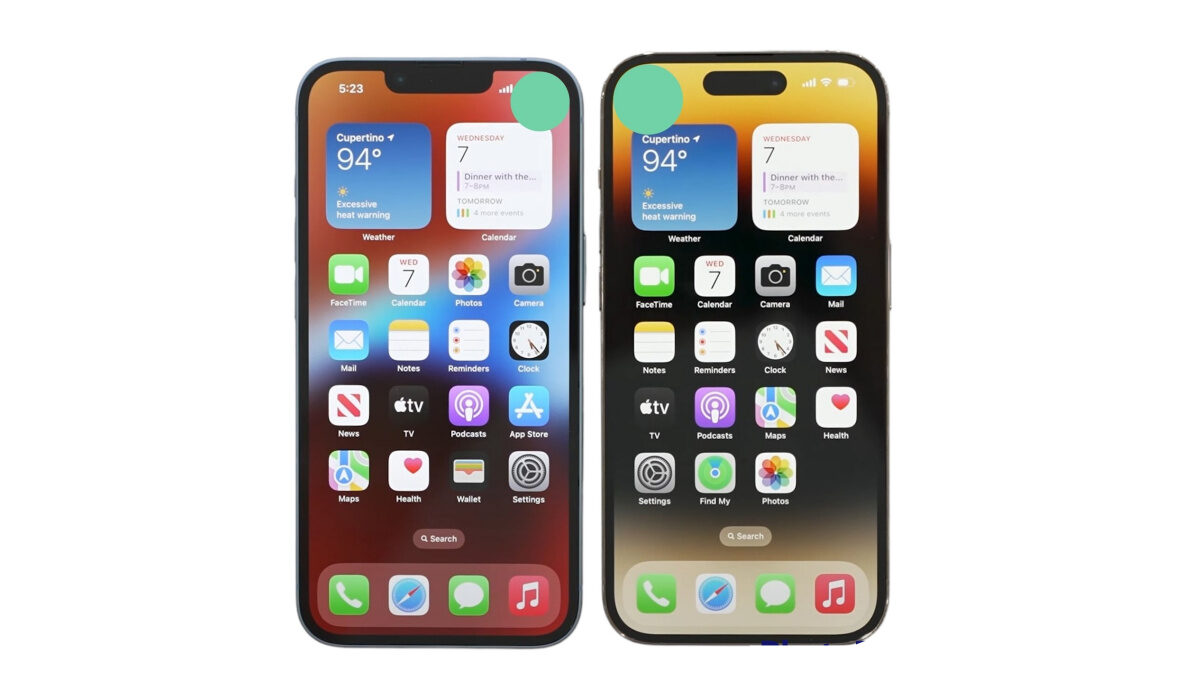
If you don’t know how to set up and use Apple’s text-to-speech feature, we’ll show you in this guide. Make sure to note every helpful tip we provide and follow instructions correctly.
What is Speak Screen?
The built-in accessibility feature Speak Screen, intended for people with vision impairment, can read on-screen material to you aloud. However, anyone with an iPhone is free to utilize them however they see fit, much like many other accessibility tools.
There’s also no need to spend a ton of money on audiobooks, as long as you already have the text-based version. This is because Speak Screen will let you automatically convert all of your e-books to audiobooks — easy and cost-free.
How Do I Use Speak Screen to Change Text-to-Speech?
The following steps will help you set up Speak Screen on your iPhone device, and use its text-to-speech conversion:
Step 1 : Visit the “Accessibility” menu in the Settings app. Toggle on “Speak Screen” after selecting “Spoken Content” in the Vision area. If you want to use the function right away, that is all you need to do for the time being.
Step 2 : To have your iPhone read you a book, PDF, or article, open it first. Then, swipe downwards with two fingers starting at the top of the screen. An alternative is to say “speak screen” to Siri or Hey Siri.
You can adjust the speaking pace, pause, resume, or stop the reading, as well as move ahead or backward, while Speak Screen is activated. Even better, you can activate “Speak on Touch” by clicking the finger button first, then clicking the text you want to hear. Usually, this will cause the program to begin reading at the start of the paragraph you touch.
If you don’t engage with the Speech Controller for a few seconds, it will automatically hide. The back button can be used to manually hide it as well. The Speech Controller will be removed and Speak Screen will be canceled.
Step 3 : If you’ve ever used the AssistiveTouch feature on an iPhone, you’re probably familiar with how the AssistiveTouch button always shows at the top of the screen, ready for use whenever you are. The button may be moved, and when not in use, its opacity can be set to a level that prevents you from being distracted from what you’re doing.
The AssistiveTouch button’s setup is the same for the Speech Controller. Toggle on “Show Controller” by going to Settings -> Accessibility -> Spoken Content -> Speech Controller .
Step 4 : Similar to AssistiveTouch, you can also click “Idle Opacity” and tweak the slider setting. However, the opacity only goes as low as 5% instead of AssistiveTouch’s lowest 15%.
Speech Controller only offers the double-tap and long-press gestures, whereas AssistiveTouch offers three gestures (single-tap and double-tap, as well as long-press) to expedite specific activities.
You can select the area of the screen where you want your iPhone to speak out loud by double-tapping the Speech Controller button, which activates Speak on Touch by default. All of the text on the screen will be read with a lengthy press. If you don’t like the triggers, you can switch them out or turn them off.
Step 5 : If you don’t like the talkback voice, you can change it. You can view a list of all the supported languages by selecting “Voices” under Settings -> Accessibility -> Spoken Content . Tap the language you want, then select the voice name for the relevant dialects to preview and/or download them. Each language has its unique set of accessible voices. After downloading, tap it once more to choose it and leave the menu.
Step 6 : Another option to activate through Settings -> Accessibility -> Spoken Content is the “Highlight Content” feature which — while using Speak on Touch — displays a brief border around the chosen piece. When speaking the entire screen, it will underline each word as it is uttered.
Once enabled, you can decide whether to underline just words, just sentences, or both words and sentences. You may also change the highlight style for sentences from underlining to background color and choose new colors for both words and sentences.
Counting English, Arabic, Bangla, Basque, Chinese, Catalan, Czech, Danish, Dutch, Finnish, French, Galician, German, Italian, Japanese, and many more, Spoken Content is available in more than 60 languages and regions as of iOS 16. So, feel free to customize the voice to your preferences.
Note that depending on which column the reader notices first, PDFs with columned text may occasionally be read out of order. When that occurs, try the Speak on Touch function.
To reduce the number of adverts, buttons, and other distractions that may be read aloud, enable ad blockers, reader views, and other reading tools that are available in apps and on websites.
In summary , you can enjoy all the information you would normally read in audio form by simply taking advantage of Apple’s text-to-speech feature. We’ve provided instructions for how to set it up in this guide, so make sure to follow them correctly.
Also, don’t forget to recommend this guide to anyone you think might be in need of it, you never know who you might be helping.
- Don’t miss our mobile phone reviews .
- Follow our news on Google News .
- Join our WhatsApp Group , to be notified of the most important articles and deals,
- Follow us on Instagram , Facebook , Twitter , and YouTube .
