Add MobilityArena as a preferred source on Google
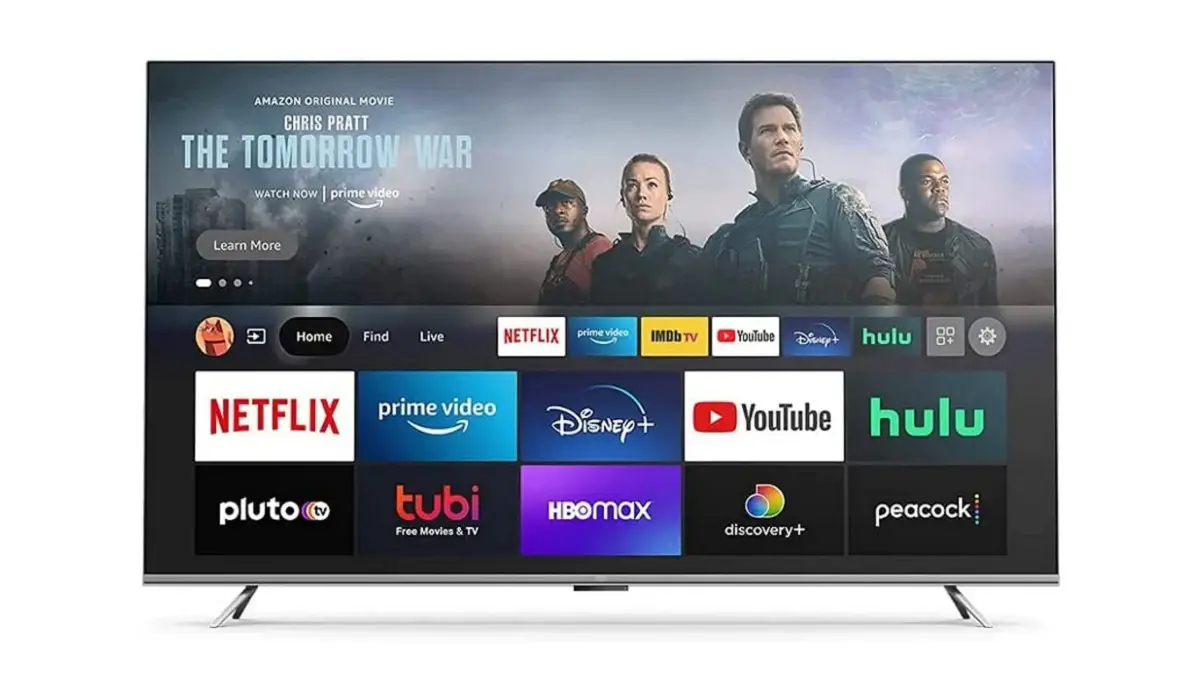
- How Can I Watch Google Play Movies and TV Shows on Amazon Fire TV? Option One: Install Google Play on Amazon Fire TV Option Two: Install Youtube on Amazon Fire TV
Go to the Settings page on your Fire TV.
Select Device by scrolling to the right.
Down there, select Developer Options
Turn on the toggle for Apps from unknown sources
Accept the caution notice for the installation of external apps.
Download “File Explorer” or another preferred file manager from the Amazon App Store.
Ensure that you download all four of these APK files and save them on your Fire TV in an accessible location: The Google Play Store apk (Android TV), Google Play Services apk, Google Account Manager apk, and the Google Services Framework apk
The Google Play Store app will be operational once you download and install the aforementioned apks.
Click on the Find menu option after connecting the Fire TV device to the internet.
Click the Search tile on the next screen.
Click the Search tile on the next screen.
You will be directed to the app info screen, where you can install the YouTube app by clicking the Get button.
Be patient while the app downloads.
After installing the app, click the Open button to launch the YouTube app.
Go to the home button and launch the YouTube app on your Fire TV.
On the app information screen, select the Sign-in option.
You’ll see an activation code on your screen.
Go to youtube.com/activate in any web browser.
Input the code and use your account to log in.
Verify that you’re using the same account you’ve used to sign in to Google Play Movies and purchase all of your content
On the left pane, select the Library option
Next, select the Purchases tab. You’ll find the movies and TV shows you’ve purchased from Google Play Movies in this tab.
You can now watch all your favorite Google Play movies and TV shows on your Amazon Fire TV
- Don’t miss our mobile phone reviews .
- Join our WhatsApp Group , to be notified of the most important articles and deals,
- Follow us on Instagram , Facebook , Twitter , and YouTube .
Author:Joan Agie
Add MobilityArena as a preferred source on Google
Every now and then, you might find that you need to take a long or scrolling screenshot on a Motorola phone. It might be because of a need to save. Along document or Web page for work purposes or something that caught your eye for your personal use.
- What is a long or scrolling screenshot?
- How to take a long or scrolling screenshot on a Motorola smartphone
- How to edit the scrolling screenshot after taking it
- Taking a long or scrolling screenshot of an app that doesn’t allow screenshots
What is a long or scrolling screenshot?
A scrolling screenshot is a screenshot with which you can capture content outside of what you can visibly see on your screen. It is also called a long screenshot. For instance, you are viewing a document/content on a site and you screenshot it all. Instead of taking multiple screenshots from top to bottom, you can take one scrolling screenshot that covers all, or most, of the content in one single long screenshot.
Taking a long or scrolling screenshot on a Motorola smartphone works and looks a little different than most Android smartphones do. Let’s take a look at how to take a scrolling screenshot on Motorola smartphones.
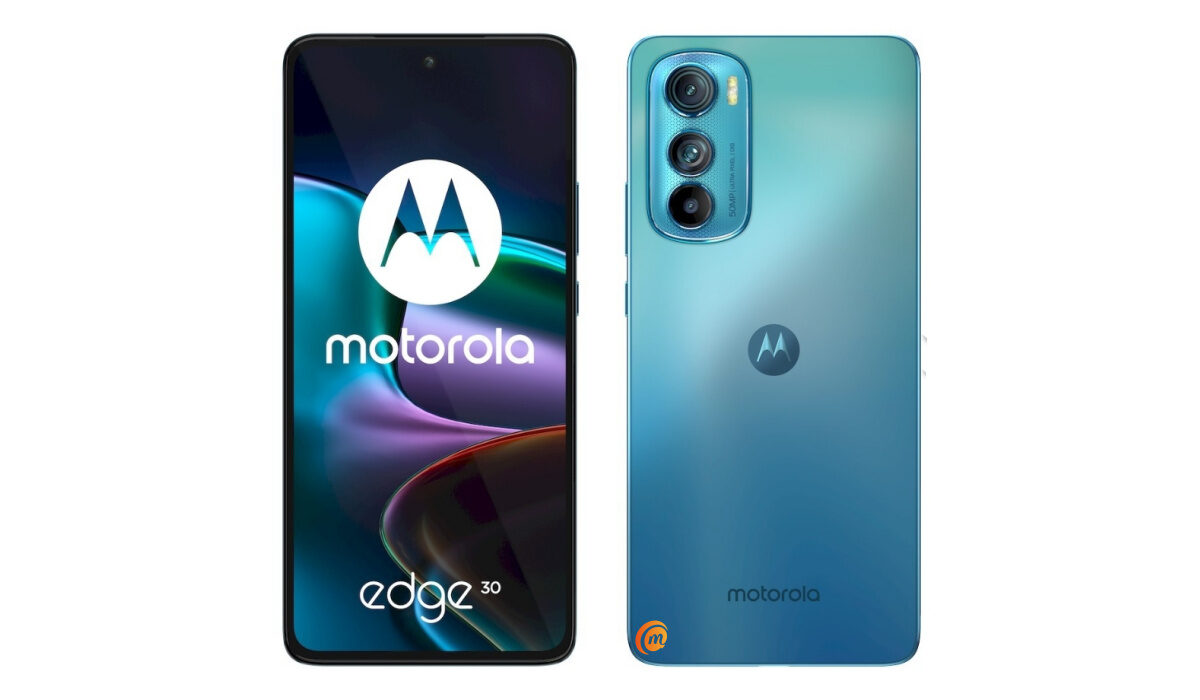
How to take a long or scrolling screenshot on a Motorola smartphone
To capture a long or scrolling screenshot on your Motorola smartphone, follow these easy steps:
- Take a regular screenshot of the content you want to capture, either by using the buttons or three finger swipe method.
- At the bottom of your screen, you will see the captured screenshot. Under the shot, tap on the two arrows facing downwards.
- The miniature screenshot will lengthen and start to automatically save the content below what you originally screenshot.
- There is a red icon below that you can use to stop at where you want the scrolling screenshot to end.
- When you tap that, it will show “processing”. When it’s done, you can now view your scrolling screenshot in your gallery.
Taking a scrolling screenshot on a Motorola smartphone, in my opinion, is much cooler and easier than the format that many other Android smartphones. That is all there is to it. Something so easy but so efficient.
How to edit the scrolling screenshot after taking it
When you take a scrolling screenshot on a Motorola phone, you can also edit it to make it usable for your specific need. To do so, you can follow these steps:
- Open the screenshot in the Photos app, then tap Edit.
- You can draw, annotate, crop, rotate, or add text to the image before sharing.
- You can also use other editing apps or tools that you have installed on your phone.
Taking a long or scrolling screenshot of an app that doesn’t allow screenshots
Taking a scrolling screenshot of an app that doesn’t allow screenshots is not easy, but it is possible. There are different methods that you can try, depending on your Android version and the app you want to capture. Here are two methods that might work for you:
Method 1 : Use Google Assistant. This method works by using voice commands to take a screenshot instead of the buttons. To use this method, follow these steps:
- Open the app that you want to screenshot.
- Activate Google Assistant by saying “Hey Google!” or holding the home key.
- Say or type “Take a screenshot”.
Google Assistant will capture a screenshot and let you share it.
Method 2: Use a third-party app. This method works by using an app that can record your screen and save it as a video. Then, you can extract the frames from the video and stitch them together as a scrolling screenshot. To use this method, follow these steps:
- Download and install a screen recorder app from the Play Store, such as AZ Screen Recorder, Screen Recorder, or some other alternatives.
- Open the app that you want to screenshot and start the screen recorder.
- Scroll through the content that you want to capture and stop the recording when you are done.
- Open the video file and use a video editor app or tool to extract the frames that you want to include in the screenshot.
- Use a photo editor app or tool to crop, resize, and merge the frames into a single image.
These methods are not guaranteed to work for every app, as some apps may have more advanced ways of blocking screenshots. However, they are worth a try if you really need to take a scrolling screenshot of a restricted app.
- Don’t miss our mobile phone reviews .
- Follow us on Instagram , Facebook , Twitter , and YouTube .
Author:Flamez
Flamez loves basketball, art, gadgets and cars.
