Add MobilityArena as a preferred source on Google
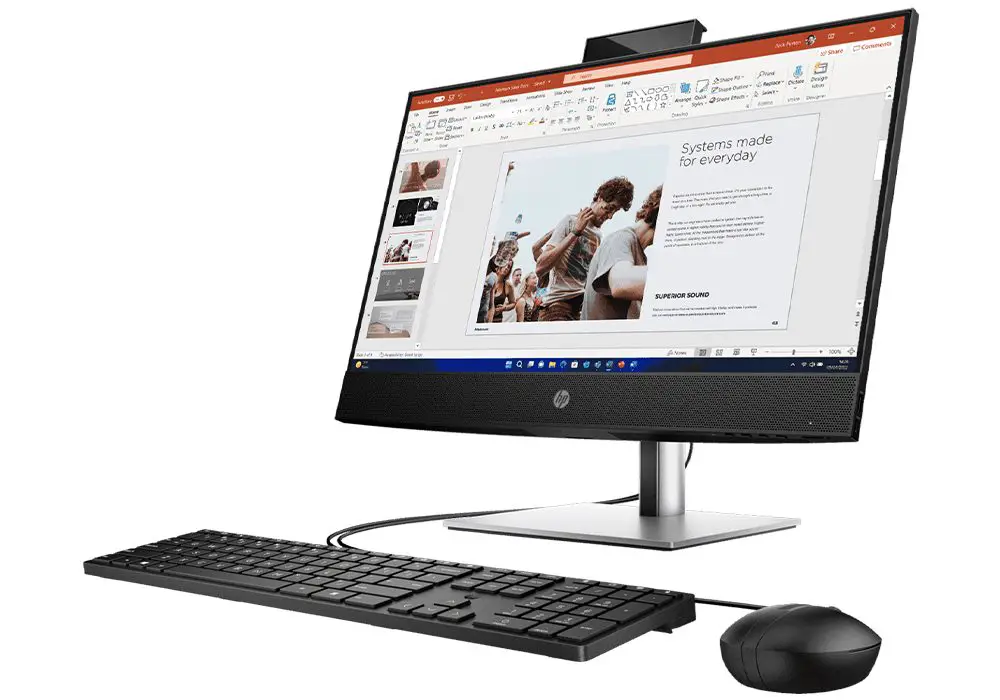
The HP ProOne 440 G9 is a powerful all-in-one PC designed for business and professional environments. While it offers impressive features and performance, some users have reported experiencing frustrating display flickering issues that can disrupt productivity and diminish the overall experience. Display flickering can occur due to various reasons, including outdated drivers, refresh rate mismatches, or even hardware issues. Understanding these causes is crucial for troubleshooting effectively. Additionally, addressing these problems promptly can prevent further disruptions and ensure that your device operates smoothly. By implementing the solutions outlined in this article, you can significantly improve your experience with the HP ProOne 440 G9. Whether you’re working on important projects or enjoying multimedia content, resolving display flickering will enhance your overall satisfaction with this capable all-in-one PC. Read through as I dive into the details and discover how to tackle this issue effectively!
- Common Causes of Display Flickering Outdated Display Drivers Refresh Rate Mismatch Incompatible Applications Loose or Damaged Connections Run Windows Troubleshooter Conclusion
Common Causes of Display Flickering
Outdated Display Drivers
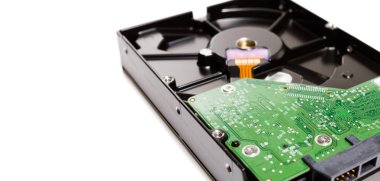
One of the primary reasons for screen flickering on the HP ProOne 440 G9 can be outdated or incompatible display drivers. If your graphics drivers are not up to date, it can lead to performance issues, including flickering. Keeping your display drivers updated is crucial for optimal performance, Here is how to update your drivers:
- Open Device Manager by right-clicking on the Start button.
- Expand the Display adapters section.
- Right-click on your display adapter and select Update driver .
- Choose Search automatically for updated driver software .
Refresh Rate Mismatch
Sometimes, a mismatch in the refresh rate settings can cause flickering on the HP ProOne 440 G9, especially when using external monitors or after software updates. Understand that incorrect refresh rates can lead to flickering. Here is how to Adjust the refresh rate:
- Right-click on your desktop and select Display settings .
- Scroll down and click on Advanced display settings .
- Click on Display adapter properties and navigate to the Monitor tab.
- Change the refresh rate to a supported value (60Hz is standard).
Incompatible Applications

Certain applications may not be compatible with your system configuration, leading to flickering when those apps are in use. If flickering occurs only when certain applications are running, they may be incompatible with your system. Here is how to Identify and get it fixed:
- Open Task Manager by pressing Ctrl + Shift + Esc.
- Observe if the flickering continues while Task Manager is open. If it stops, an incompatible app may be causing the issue.
Loose or Damaged Connections
Physical issues such as loose cables or damaged internal connections can also cause display problems on the HP ProOne 440 G9, including flickering. Simply ensure that all cables are securely connected and that there are no visible damages. Follow these steps to check:
- Power down your device and inspect all cable connections, including power and any external monitor cables.
- If using an external monitor, try connecting it with a different cable or port.
Run Windows Troubleshooter
Windows has built-in troubleshooters that can help identify and fix display issues. You can access the troubleshooter on the HP ProOne 440 G9 by follow these steps:
- Go to Settings > Update & Security > Troubleshoot > Additional troubleshooters .
- Select Display quality and run the troubleshooter.
Conclusion
Display flickering on the HP ProOne 440 G9 can be a frustrating issue, but understanding its common causes and implementing these effective solutions can significantly enhance your computing experience. By keeping your drivers updated, adjusting refresh rates, checking for incompatible applications, inspecting physical connections, managing thermal conditions, and utilizing Windows troubleshooting tools, you can resolve these issues efficiently. Embrace these strategies as opportunities to optimize your HP ProOne 440 G9 for peak performance. With a little effort and attention, you’ll find that this remarkable all-in-one PC can deliver a seamless experience that meets all your professional needs!
Author:Ifeoluwa Adeleke
Add MobilityArena as a preferred source on Google
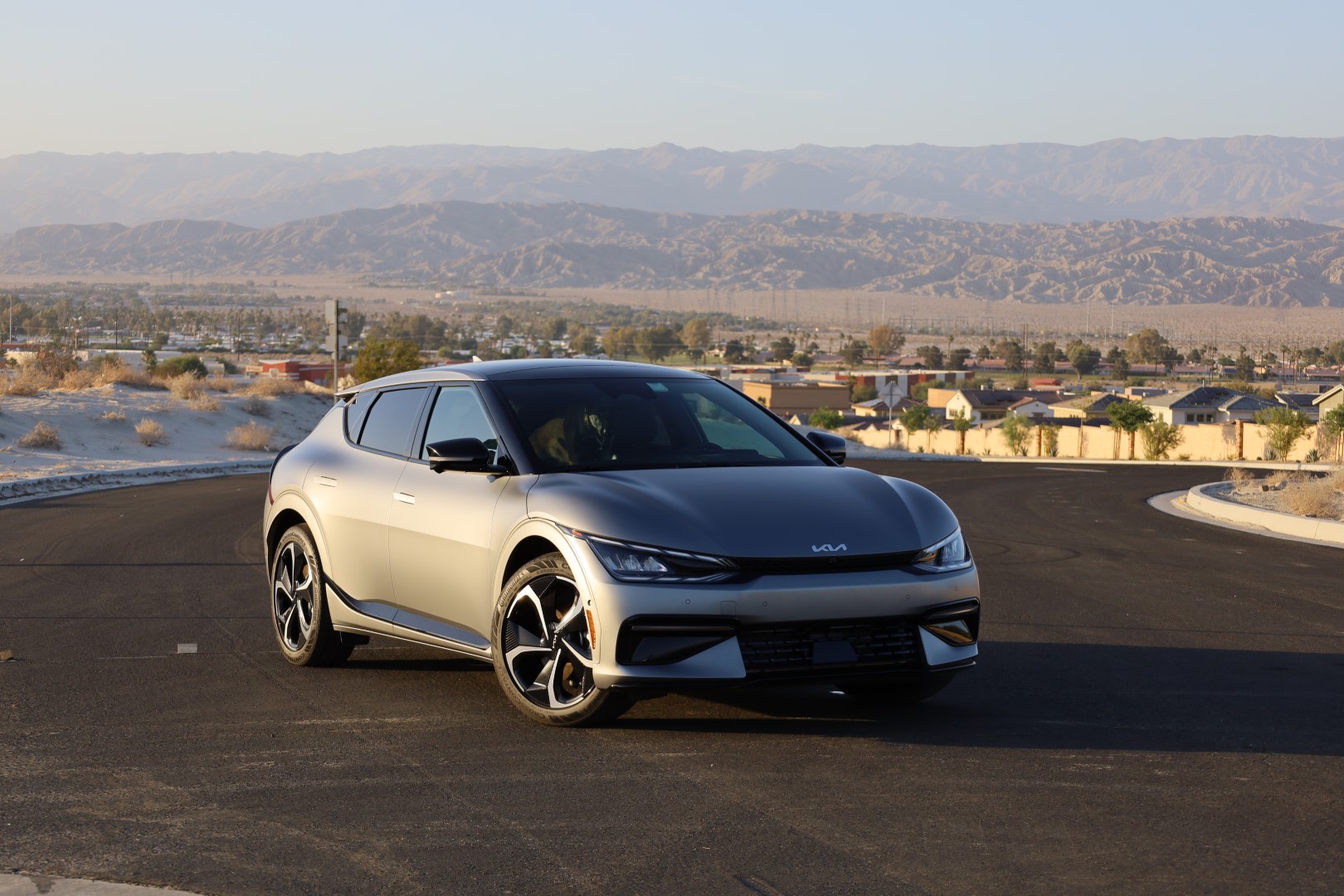
The Kia EV6 has made a significant impact in the electric vehicle market, celebrated for its sleek design and advanced technology. However, some drivers have reported visibility issues, particularly concerning the A-pillars and the effectiveness of driver assistance features. Drivers have noted that the thick A-pillars can obstruct their peripheral vision, making it challenging to see pedestrians and other vehicles at intersections. This issue is compounded by larger blind spots due to the positioning of the B-pillars. Additionally, some users have expressed concerns about rear visibility, particularly in adverse weather conditions or when reversing. The combination of these factors can lead to a heightened sense of caution while driving, especially in busy urban environments where quick decision-making is crucial. By understanding these visibility challenges and implementing effective solutions, you can improve your overall driving experience in the Kia EV6. Let’s delve deeper into these concerns and as I explore practical steps to enhance safety and confidence on the road.
- Common Visibility Issues Thick A-Pillars Blind Spots Limited Rear Visibility Driver Assistance Feature Limitations
- Conclusion
Common Visibility Issues
Thick A-Pillars
Many users of the Kia EV6 have noted that the thick A-pillars obstruct their peripheral vision, making it difficult to see pedestrians and vehicles approaching from the side at intersections. This can lead to potentially dangerous situations, especially in busy urban environments. I recommend that you adjust your sitting position, apply these simple solutions:
- Optimize Seat Height: Adjust your seat height to improve your line of sight over the A-pillars. Raising your seat slightly may help mitigate blind spots.
- Tilt and Recline: Experiment with tilting or reclining your seat back slightly to find an optimal position that reduces obstruction from the pillars.
Blind Spots

The design of the Kia EV6 contributes to larger blind spots, particularly due to the positioning of the B-pillars. This can make lane changes and merging more challenging. Your best bet is the driver assistance feature, make use of it effectively:
- Activate Surround View Monitor: If equipped, use the surround view monitor when navigating tight spaces or changing lanes. This feature provides a comprehensive view of your surroundings.
- Blind Spot Monitoring: Always rely on blind spot monitoring systems when changing lanes. Ensure that these systems are activated and functioning properly.
Limited Rear Visibility
While some users of the Kia EV6 appreciate the sleek design of the rear, others find that it compromises rear visibility, especially without a rear wiper during rain. I recommend that you make use of additional mirrors:
- Wide-Angle Mirrors: Consider adding wide-angle mirrors to your side mirrors to expand your field of vision and reduce blind spots.
- Convex Mirrors: Installing convex mirrors can also help you see vehicles that might otherwise be hidden by A or B-pillars.
Driver Assistance Feature Limitations
While driver assistance features like Forward Collision-Avoidance Assist and Lane Keeping Assist are designed to enhance safety on the Kia EV6, they may not always compensate for visibility issues caused by vehicle design. To resolve this and avoid future occurrence, regularly clean sensors and cameras:
- Maintain Sensor Clarity: Ensure that all cameras and sensors used for driver assistance features are clean and unobstructed. Dirt or debris can hinder performance.
- Check for Obstructions: Regularly inspect areas around sensors for any obstructions that might affect their functionality.
Conclusion
While the Kia EV6 offers impressive features and a modern design, visibility issues related to its driver assistance features can pose challenges for drivers. By understanding these common problems and implementing practical solutions—such as adjusting seating positions, utilizing driver assistance tools effectively, using additional mirrors, maintaining sensors, practicing defensive driving techniques, and providing feedback—you can significantly enhance your driving experience. Embrace these strategies as opportunities to improve safety and confidence behind the wheel of your Kia EV6. With a little attention and adaptation, you’ll find that this remarkable electric vehicle can deliver both performance and peace of mind on every journey!
