Add MobilityArena as a preferred source on Google
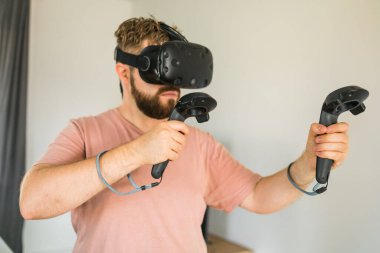
The HTC Vive Pro 2 has earned a reputation as one of the leading virtual reality headsets on the market, offering stunning visuals and an immersive experience for gamers and professionals alike. With its impressive 4896 x 2448 resolution per eye and wide field of view, it’s designed to deliver an unparalleled VR experience. However, like any advanced technology, users may encounter some challenges. From performance hiccups and connectivity problems to audio quality concerns and clarity issues, these challenges can affect your overall satisfaction with the device. Understanding these issues is crucial for maximizing the functionality of your Vive Pro 2. By addressing these common complaints proactively, you can ensure that your time spent in virtual reality is both enjoyable and efficient. Journey with me as I share common issues reported by HTC Vive Pro 2 owners and provide practical solutions to enhance your VR journey.
- Performance Hiccups
- USB Connection Issues
- Audio Quality Concerns
- Binocular Overlap and Clarity Issues
- Limited Multi-Monitor Support
- Conclusion
Performance Hiccups
Many users of the HTC Vive Pro 2 have reported experiencing stuttering or frame rate drops during gameplay, which can detract from the immersive experience. These simple steps will get it resolved:
- Check System Requirements: Ensure your PC meets the recommended specifications for the Vive Pro 2. A powerful GPU, such as an NVIDIA RTX 30 series or equivalent, is essential for optimal performance.
- Adjust Graphics Settings: Lower in-game graphics settings to improve frame rates. Reducing resolution or disabling demanding features like anti-aliasing can help maintain smoother gameplay.
- Update Drivers: Regularly update your graphics card drivers and ensure that SteamVR and the Vive software are also up to date. This can resolve compatibility issues and improve performance.
USB Connection Issues

Some users of the HTC Vive Pro 2 have faced problems with their headset not being detected due to USB connection issues, which can be frustrating. I recommend the following to get this resolved:
- Try Different USB Ports: Plug the USB cable into different USB 3.0 ports on your computer. Avoid using USB hubs; connect directly to the motherboard.
- Update USB Drivers: Ensure that your USB drivers are updated. You can do this through your device manager or by visiting the manufacturer’s website.
- Use a PCI-Express USB Card: If problems persist, consider investing in a dedicated PCI-Express USB card known for compatibility with VR devices.
Audio Quality Concerns

Some users of the HTC Vive Pro 2 have reported issues with static noise or low-quality audio from the built-in headphones, which can diminish the immersive experience. Below are solutions to get this issue resolved:
- Switch Audio Output Options: In Windows sound settings, toggle between different audio output options (e.g., “Vive Pro multi-media” vs. “Vive Pro”) to see if one provides clearer sound.
- Check Connections: Ensure that all audio connections are secure and that there are no loose cables affecting sound quality.
- Consider External Headphones: For improved audio quality, consider using high-quality external headphones instead of the built-in ones.
Binocular Overlap and Clarity Issues
Some users have experienced problems with binocular overlap from the HTC Vive Pro 2, leading to a less satisfying visual experience. Apply these simple solutions to get it resolved:

- Adjust IPD Settings: Make sure to adjust the interpupillary distance (IPD) setting on the headset for optimal clarity. This adjustment can help align the lenses with your eyes.
- Use Prescription Lens Inserts: If you wear glasses, consider using prescription lens inserts designed for VR headsets to improve clarity and comfort.
- Clean Lenses Regularly: Dust and smudges can affect visibility; use a microfiber cloth to clean the lenses frequently.
Limited Multi-Monitor Support
Users have noted that multi-monitor support is limited when using the HTC Vive Pro 2 compared to other headsets. These simple solutions will help out:
- Optimize Display Settings: Adjust your display settings in Windows to prioritize your main monitor for VR applications while limiting other displays during gameplay.
- Use Virtual Desktop Software: Consider using virtual desktop software that allows you to manage multiple screens more effectively while using VR.
Conclusion
The HTC Vive Pro 2 stands out as a top-tier virtual reality headset that offers exceptional visual quality and immersive experiences. While some challenges exist—such as performance hiccups, connection issues, audio quality concerns, and clarity problems—many of these can be effectively addressed through simple troubleshooting steps and proactive measures. By optimizing your setup, adjusting settings, and keeping your software updated, you can unlock the full potential of your HTC Vive Pro 2. Embrace these solutions as opportunities to enhance your VR experience! With a little effort and care, you’ll find that this powerful headset can deliver hours of enjoyment in virtual worlds without compromise.
Author:Ifeoluwa Adeleke
Add MobilityArena as a preferred source on Google
- Performance Limitations
- Limited App Ecosystem
- Battery Life Variability
- Display Quality Concerns
- Build Quality Issues
- Conclusion
Performance Limitations
- Limit Background Apps: Close unnecessary apps running in the background to free up system resources. You can do this by accessing the recent apps menu and swiping away those you aren’t using.
- Use Lightweight Apps: Opt for lighter versions of apps when available. For instance, use Facebook Lite or Messenger Lite to improve performance.
- Regularly Restart Your Device: Restarting your tablet can help clear temporary files and free up memory, leading to smoother operation.
Limited App Ecosystem
- Sideload Apps: If you’re comfortable with it, you can sideload the Google Play Store onto your device. This process allows you to access a wider range of apps beyond what Amazon offers.
- Utilize Web Versions: For essential services like Google Docs or Sheets, use the web versions through the Silk browser. While not as convenient as dedicated apps, they can still get the job done.
- Explore Alternatives: Look for alternative apps in the Amazon Appstore that serve similar functions to your favorite apps.
Battery Life Variability
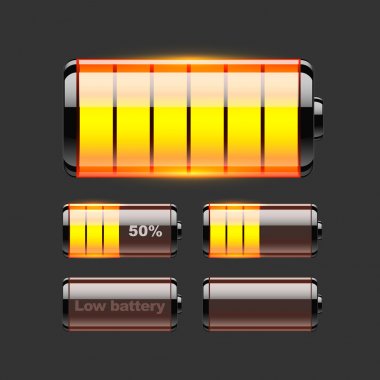
- Optimize Settings: Lower screen brightness and turn off features like adaptive brightness when not needed. This can help extend battery life during prolonged use.
- Use Battery Saver Mode: Activate battery saver mode under Settings > Battery to limit background data usage and conserve power.
- Manage Streaming Quality: When streaming videos, adjust the quality settings in your app to reduce battery consumption.
Display Quality Concerns
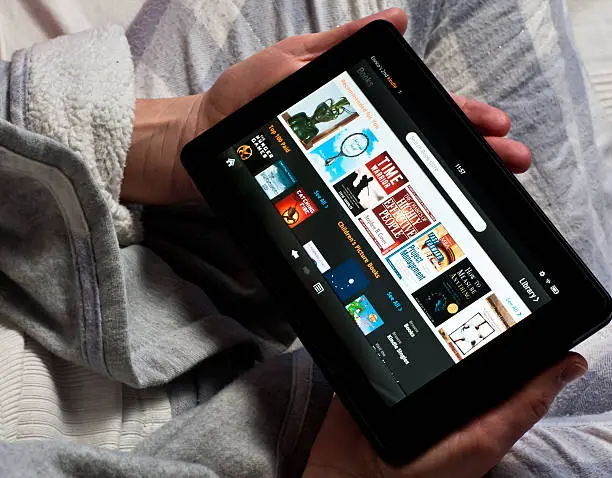
- Adjust Viewing Position: Try to view the screen straight on for optimal clarity and color representation.
- Utilize Adaptive Brightness: Enable adaptive brightness in Settings > Display to automatically adjust brightness based on ambient light conditions, improving visibility in different environments.
- Consider a Screen Protector: A matte screen protector can reduce glare and improve visibility in bright conditions.
Build Quality Issues
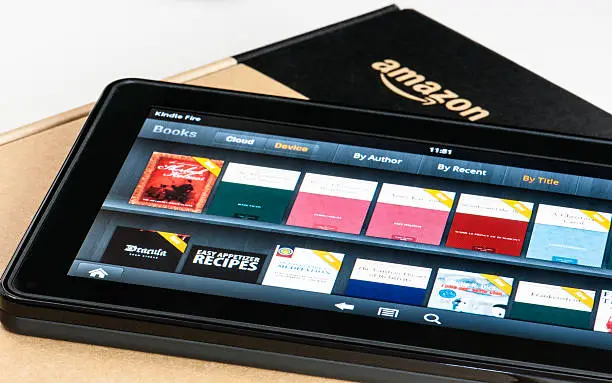
Some users have noted that while the tablet is durable, it has a plastic build that may not feel as premium as other tablets on the market. These two hacks will help:
- Invest in a Case: Protect your tablet with a sturdy case that enhances grip and provides additional durability against drops.
- Regular Cleaning: Keep the tablet clean from fingerprints and dust by using a microfiber cloth regularly.
