Add MobilityArena as a preferred source on Google
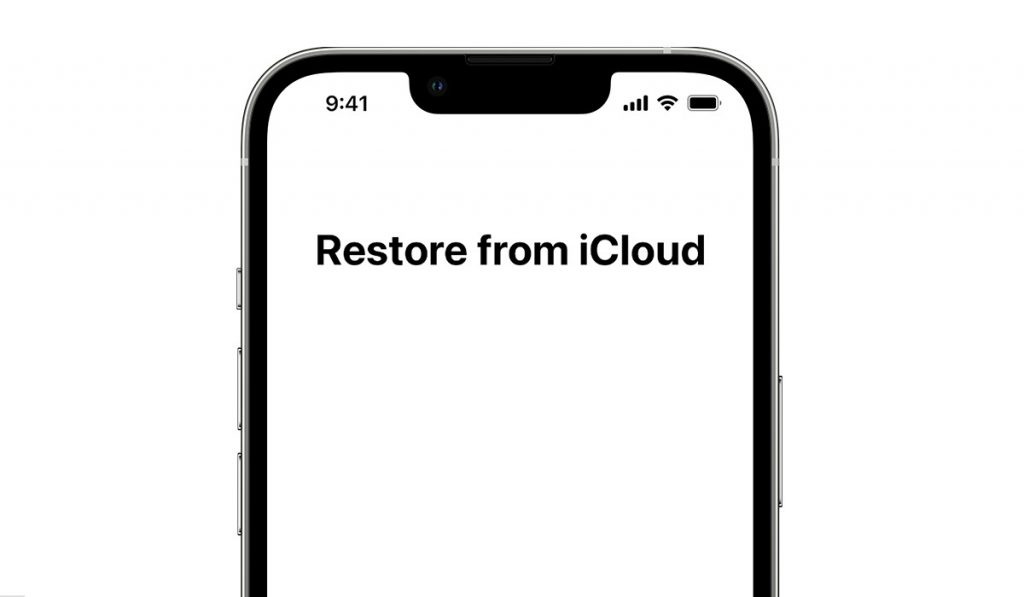
iCloud Photos is a handy iPhone feature that uploads all of your photos and videos to the cloud, so you can access them from any device at any time. Your collection is synced across all of your other devices whenever you make changes to it on one.
However, sometimes a system error prevents your Apple devices from syncing your photos. You risk losing priceless images and treasured memories if, for some reason, your iCloud Photos aren’t syncing correctly. So, to avoid that distress, let’s look at a few things you can do to fix iCloud photos not syncing on iPhones.
- Why are My iPhone Photos Not Syncing to iCloud?
- How Can I Fix iCloud Photos Not Syncing on iPhones?
Why are My iPhone Photos Not Syncing to iCloud?
There are several possible reasons for an iPhone’s photos not to sync to iCloud. Here are some of the most popular causes:
● Poor internet connection
● Full storage on iCloud.
● The iCloud photo on the phone is disabled
● Devices do not match iCloud accounts.
● iCloud or operating system error.
● Outdated version of iOS.
Regardless of the reason, we’ve provided some options in the next section to help fix iCloud photos not syncing on iPhones.
How Can I Fix iCloud Photos Not Syncing on iPhones?
If you discover that recent photos haven’t appeared on other devices, it is clear that the photos aren’t syncing to iCloud. Here are some simple ways to fix iCloud photos not syncing on iPhones.
Check Your Settings
The first thing you should do to fix iCloud photos not syncing on iPhones is to check the settings. Look through the iCloud Photos settings on the device that isn’t currently synchronizing with the cloud. Opening the Settings app will show you whether you are currently signed in with the same Apple ID that you used to create iCloud Photos.
Assuming you’re already logged in with the correct Apple ID, the next step is to ensure that iCloud Photos is enabled on your device. Go to iCloud > Photo s and verify that Sync this iPhone is turned on by tapping your Apple ID name at the top of the screen.
If this doesn’t work, move on to our other recommendations to fix iCloud not syncing on iPhones.
Manage Your iCloud Storage
Another way to fix iCloud photos not syncing on iPhones is to manage your iCloud storage capacity. Apple’s cloud server, iCloud, typically offers each user 5 GB of free storage. Data will no longer sync to iCloud on your iPhone if your iCloud storage is full; therefore, so you can check if you have enough space by looking at your iCloud storage.
Go to Settings , then click your name, and finally iCloud . You’ll be able to check how your iCloud is being used specifically. If your iCloud storage is full, you must either upgrade to one of Apple’s paid storage plans or free up some additional iCloud storage.
Check your Network Connection
Internet connection also matters when trying to fix iCloud photos not syncing on iPhones. You will need a reliable cellular network or a Wi-Fi connection while connecting your smartphone to iCloud Photo Library.
If your connection is fine but you want to use cellular data for iCloud Photos, you must first enable this function. Otherwise, your iPhone won’t see your iCloud photo library. To do this, go to Settings > Photos > Mobile Data . Turn on Mobile Data, and if your data plan permits, turn on Unlimited Updates as well.
To reset the network settings if the issue is network-related, open the Settings menu and select General > Reset > Reset Network Settings . All saved APN, VPN, and Wi-Fi settings on the device will be deleted as a result. Then you can start them over.
Make sure your device has enough storage.
Your iPhone needs a particular amount of free storage space in addition to having enough iCloud storage to upload your images and movies to the cloud. So, to fix iCloud photos not syncing on iPhone, check your device’s storage capacity. If it’s nearly full, take action to optimize your iPhone’s storage.
Go to Settings , then tap your Apple ID Name . Go to iCloud > Photos > Optimize iPhone Storage.
Restart Your iPhone
Regardless of the iPhone issue you’re experiencing, this is one of the simplest yet most effective steps to take when trying to fix iCloud photos not syncing on iPhones. Restarting your smartphone can solve problems like app crashes, frozen devices, and, in this case, an iCloud issue. Restarting your device only clears the data cache and doesn’t delete any of your data or saved things.
If you are unfamiliar with how the iPhone X and newer models shut down, press and hold down both the Volume Up and Power buttons to turn off your device. For older devices, press and hold the side button until you see the power off screen, then drag the slider across. You can then turn the device back on with the power button.
Update your iPhone Software
An outdated version of iOS may be the root of a number of performance issues, so this is something to investigate when trying to fix iCloud photos not syncing on iPhones. Install any available software updates for your phone to take care of any problems that could be the root of the issue.
To get started, navigate to Settings > General > Software Update and press the “ Download and Install ” button. Wait a moment; the iPhone will resume on its own and you might find your synced pictures.
In conclusion , using the straightforward solutions provided in this useful guide, you can quickly fix iCloud photos not syncing on your iPhones. Make sure to follow the instructions correctly to get the desired results.
Author:Joan Agie
Add MobilityArena as a preferred source on Google
Not many situations can be as frustrating as sound not working while browsing the internet. This is a problem that many people encounter, so chances are you’ve experienced it yourself at some point. Fortunately, most of the time it’s not a serious issue, and you’ll be able to fix it in a few simple steps.
In this guide, we’ve described several ways to fix Chrome sound not working on Windows. So, if you run into this issue frequently, you’ll find this guide helpful.
How Can I Fix Chrome Sound Not Working on Windows?
There are many reasons why Chrome’s sound might not work, including outdated sound drivers, problems with extensions, broken audio hardware, muted websites, browser sound settings that are disabled, browser sounds muted in Windows volume mixer, and a buildup of cache and cookies.
If you’re trying to fix Chrome sounds not working on Windows, below are some fixes you should try.
Check your Audio Hardware
If you can’t hear sounds while browsing Chrome on Windows, the issue might not be with your browser, but with your audio gear. So, one way to fix Chrome sounds not working on Windows is to verify that your audio hardware is operating properly.
First check to verify if your audio hardware functions on a different device, such as your smartphone. You’ll know that it’s a browser-specific issue if the audio functions on your device and in other browsers but not Chrome. You can apply the other fixes in that case, but first:
● Restart Chrome
● Restart your computer to rule out the possibility of a temporary glitch
Check If Sounds Work on Other Websites
Another thing to try is to play sound on websites other than the one where it currently doesn’t work. You can then unmute that page or tab to fix Chrome sound not working on Windows after you confirm that the issue is with just one particular website. Here’s how to go about it:
● Open the webpage where the sound doesn’t work in another tab.
● Do a right-click on the tab.
● From the list, select Unmute Site
If this doesn’t work and the issue persists across Chrome, proceed to the next method to fix Chrome sound not working on Windows.
Check the Sound Settings on Chrome
Another thing to consider is that you may have removed the setting that allows websites to play sound if the problem is present across all Chrome installations. You can take the following actions to confirm and fix Chrome sound not working on Windows:
● Tap the three vertical dots in the top-right corner of the Chrome browser.
● Access Settings .
● Go to the left sidebar’s Privacy and security section.
● Click Site Settings in the right-hand corner of the screen
● Select Additional content settings after you scroll down.
● Navigate to Sound settings .
● Choose the “ Sites can play sound ” option in place of the “ Don’t allow sites to play sound ” option.
Additionally, it’s possible to silence a few websites in Chrome by adding them to the list of websites that are not allowed to play sound in the option for customized behaviors. This means you should check to see if you have blocked any websites, thus making them unable to play sound.
If you’ve not excluded any websites and no sound settings are turned off, then the next fix to try is to make sure Chrome’s volume mixer isn’t set to zero for the sound.
Examine the Sound Settings in the Volume Mixer
It’s possible to silence your system, speakers, or the sound coming from specific browsers using a volume mixer. To make sure Chrome isn’t silenced in Volume Mixer and thus fix Chrome sound not working on Windows, follow these steps:
● Turn on the sound and play a media file in Chrome.
● Click the right mouse button once you have located the speaker icon.
● Toggle the Open Volume Mixer option.
● Unmute Chrome if it is already muted, then increase the volume to 100.
You should attempt a few more system-level remedies to fix Chrome sound not working on WIndows. Try using the sound troubleshooter or updating the sound driver if your inspection shows that the volume wasn’t disabled in the Volume Mixer.
Use the Sound Troubleshooter
Built-in troubleshooters in Microsoft Windows are capable of automatically diagnosing and resolving the majority of system problems. Sound-related problems can also be fixed in a similar way. As such, you should run it to make sure your Chrome browser isn’t being muted by a short-term system issue.
Follow these steps to launch the Sound troubleshooter in order to fix Chrome sound not working on Windows:
● To access the Settings app, press Win + I.
● Navigate to System Settings
● Click Sound in the left sidebar
● The troubleshoot button is located in the right-hand pane, click on it.
When you do this, the Get Help box will show up and ask whether you’d want to let the computer perform a brief scan. Select Yes to authorize the scan, if there’s a beep, it confirms that the issue is not a system-related one.
Update Sound Drivers
Lastly, it may also be beneficial to update sound drivers to fix Chrome sound not working on Windows.
In summary , ensure to follow the instructions in this guide carefully. These options we’ve recommended to fix Chrome sound not working on Windows work, especially if you target the exact cause of the problem.
- Don’t miss our mobile phone reviews .
- Join our WhatsApp Group , to be notified of the most important articles and deals,
- Follow us on Instagram , Facebook , Twitter , and YouTube .
