Add MobilityArena as a preferred source on Google
The IMO Q5 smartphone is a product of a collaboration between IMO Mobile and British retailer, Tesco. The compact Android 12 smartphone has a 5.5-inch IPS display, is powered by a Unisoc chipset, and has a smallish 2500 mAh battery.
Other features include 2 GB RAM, 16 GB built-in storage, and 4G LTE network support. There is a 5MP selfie camera at the front and a 13MP dual camera at the back. Expectedly, considering the price, there is no fingerprint scanner, but there is face unlock.
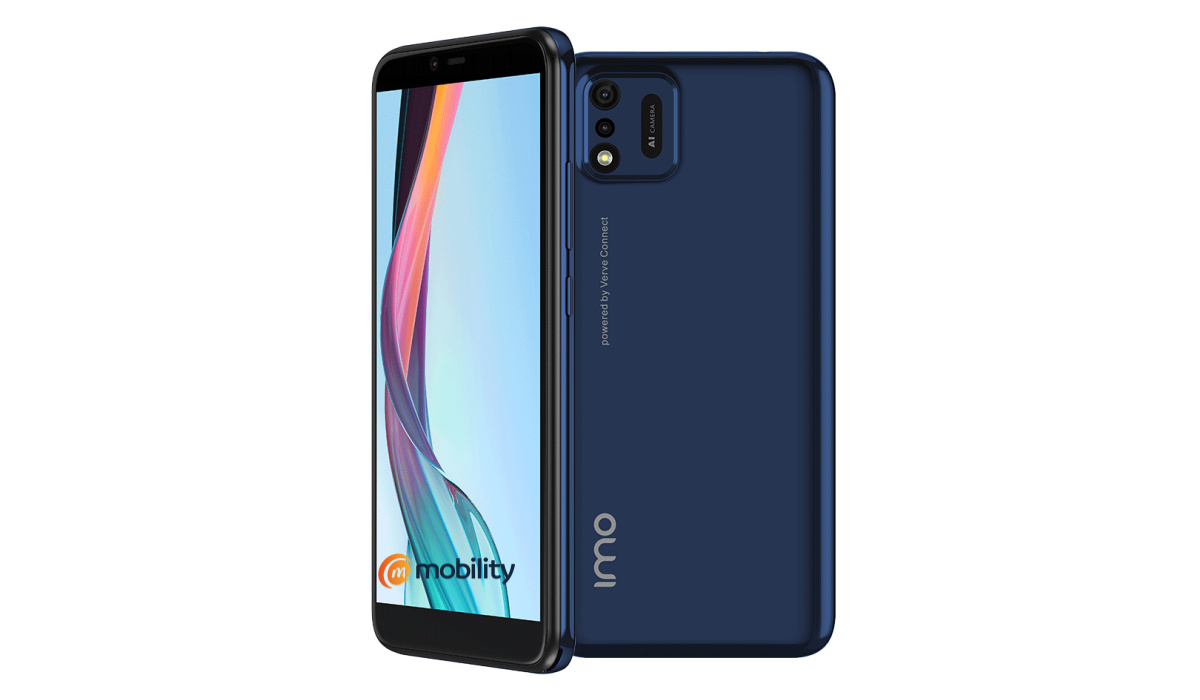
- IMO Q5 specifications
- Launch/Release Dates
- Price of IMO Q5 in the UK Does IMO Q5 have Google Play Store? Will IMO Q5 work in the USA?
- Buyer’s Guide Verdict
IMO Q5 specifications
Mobile Wireless Network and Software
- 2G mobile network bands : GSM, GPRS, EDGE 900 / 1800 / 1900 MHz.
- 3G mobile network bands : UMTS, WCDMA, HSDPA 900 / 2100 MHz
- 4G mobile network bands : LTE.
- 5G mobile network bands : No
- SIM Type : Nano-SIM, Dual SIM
- Software / OS : Android 12
Design, Form Factor, Appearance
- Dimensions : 148.2 x 71.1 x 10.2 mm
- Weight : 170g
- Display : 5.5 inches, 540 x 1132 pixels, 60 Hz refresh rate, 18:9 aspect ratio, IPS LCD screen
- Colours : Midnight Blue.
- Physical Build : Plastic frame; plastic rear panel.
Internal Hardware Specs
- CPU/ Processor : 64-bit, 1.4 GHz Octa-core
- Chipset : Unisoc SC9832E
- GPU/ Graphics Processing Unit :
- RAM : 2 GB
- Extended/Virtual RAM : N/A
- Internal Storage : 16 GB
- External Storage : microSD, up to 128 GB
Photography, Video Recording
- Main Camera : 13 MP main sensor + 0.3 MP, autofocus, LED flash, 1080p@30fps video recording
- Front Camera : 5 MP, fixed focus, Face Recognition, 720p@30fps video capture
Audio, Video Playback
- Music Support : PCM, AAC / AAC + / eAAC + / MP3 / AMR – NB / WB / APE
- Audio : 3.5 mm audio jack
- Loudspeaker : Mono speaker
- Video Support : H.264/MP4/MPEG4 player
- FM Radio : Yes.
Phone Sensors
- Digital Compass : No.
- Accelerometer : Yes.
- Proximity Sensor : No.
- Ambient Light Sensor : Yes.
- Barometer : No.
- Pedometer : No.
- Heart Rate Monitor : No.
- Gyroscope (G-Sensor) : No.
- Fingerprint Scanner : No.
- Face Unlock : Yes.
- Iris Scanner : No.
- Motion Sensing / Gesture Control : No.
- Voice Control : No.
- Intelligent Digital Assistant : Yes; Google Assistant.
- Infra-red Blaster : No.
Connectivity Options
- Bluetooth Version : 5.2
- Bluetooth Profiles : A2DP
- WiFi : Wi-Fi 802.11 a/b/g/n, hotspot
- GPS : Yes, A-GPS
- USB : microUSB v2.0.
- NFC : No.
Miscellaneous Specs
- Battery Type and Capacity : Non-Removable Lithium-Polymer 2500 mAh
- Battery Charging : 5W charging
- Wireless Charging : No.
- Reverse Charging : No.
- Model Version/Number :
Launch/Release Dates
- Announced : November 18, 2022
- Release Date : November 18, 2022
Price of IMO Q5 in the UK
The IMO Q5 phone is available in the United Kingdom (UK) for £79.99 only, from Tesco and Tesco Mobile stores. It is available on a pay-as-you-go plan (unlimited text and calls plus a data bundle), a monthly payment, and also SIM-free.
Does IMO Q5 have Google Play Store?
It supports Google Services and software applications, including Play Store and Maps, Gmail, YouTube, and others.
Will IMO Q5 work in the USA?
This is a GSM phone and is supported on US GSM carriers like AT&T and T-Mobile and other networks riding on their networks. It does not support CDMA networks. Do make enquiries from your carrier to know what bands/frequencies are supported on their service, if travelling to the USA.
Buyer’s Guide Verdict
Not available.
Our Buyer’s Guide Verdict is a recommendation based on the specifications of the device and a general guide to help you understand how much value a device offers for its price. It is not an endorsement of the device. Ask questions and use your judgement when buying any device; MobilityArena takes no responsibility for your buying decisions .
IMO Q5 Phone Review Rating
Not available.
- Don’t miss our mobile phone reviews .
- Follow us on Instagram , Facebook , Twitter , and YouTube .
Author:MobileChic
That motivated, gadget-loving geeky chic who tries to stay on top of things. Unapologetic iFan.
Add MobilityArena as a preferred source on Google
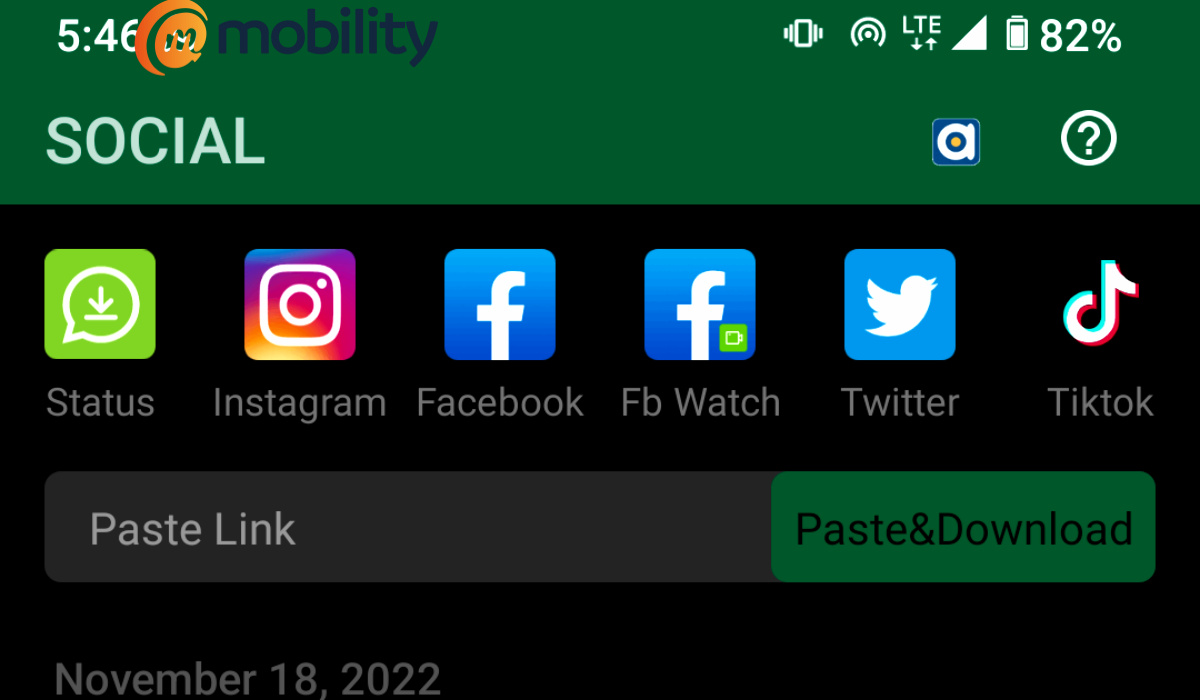
As a smartphone user, you are probably aware of the Xender application. But if you’re not, simply put, it is one of the best applications for sending and receiving files, and it works for both Android cell phones ans iPhones. What you likely did not know is that you can use Xender to download videos from your favourite social media apps, Facebook, WhatsApp, Instagram, Twitter, and Tiktok.
If you’ve been looking for a way to download videos from your favourite social media platforms, Xender gives you the medium to easily do this on the following platforms. As a social media video downloader, once you have Xender installed, you do not need to install any other apps to download videos.
How to use Xender to download video from Facebook
To download any video from Facebook, you don’t need to download any application or visit any special website because this can be easily done via Xender.
- Open your Xender app and select the “Social” option in the bottom tab.
- Select the “Downloader” option from the several options displayed on the Top Menu.
- Click on the Facebook icon and it automatically links your Xender app with your Facebook app and redirects you to your Facebook account.
- Select the video content you want and copy the link.
- After copying the link to the video, paste the link in the input box that says “Paste link”.
- Click on the download button and the video will be downloaded.
How to use Xender to download video from Twitter
If you need to download any video from your Twitter, a very similar process with the Facebook app applies to this.
- Open your Xender app and select the “Social” option in the bottom tab.
- Select the “Downloader” option from the several options displayed on the Top Menu.
- Click on the Twitter icon and it automatically links your Xender app with your Twitter app and redirects you to your Twitter account.
- Copy the link to the tweet.
- After copying the link, paste the link in the input box that says “Paste link”
- Click on the download button and the video will be downloaded.
How to use Xender to download video from Tiktok
Tiktok is the world’s most popular video sharing platform and you might need to save a video or two every once in a while. Xender makes this very easy to do without complications.
- Open your Xender app and select the “Social” option in the bottom tab.
- Select the “Downloader” option from the several options displayed on the Top Menu.
- Click on the Tiktok icon and it automatically links your Xender app with your Tiktok and redirects you to your Tiktok account.
- Copy the link to the video by clicking on the share button and then “Copy link”.
- After copying the link to the video, paste the link in the bar that says “Paste link”.
- Click on the download button and the video will be downloaded.
How to use Xender to download video from Instagram
If you need to save a video or an image from Instagram using Xender, follow the steps below.
- Open your Xender app and select the “Social” option in the bottom tab.
- Select the “Instagram” option from the several options displayed on the Top Menu.
- Click on the”Find Video” button and the app automatically redirects you to the Instagram login page.
- Input your login details and go to the video or image you want to download.
- Right next to the video or the image, click on the download button beside it and it automatically downloads to your smartphone device.
Use Xender to convert video to MP3
Xender allows you to directly convert your videos to audio format. You can easily extract audio from a video using the Xender application. To access this feature, follow the below steps:
- Open your Xender app and select the “ToMP3” option in the bottom tab.
- Choose the video you want to convert through the “ToMP3” or “Local” Menu (Whichever works faster for you).
- After selecting the video you want, click on the “ToMP3” button to convert it.
How to use Xender to download video from WHATSAPP STATUS
This feature enables you to manually save any form of content from your WhatsApp Status. Instead of downloading a Status Saver to save your favourite videos and photos from a contact’s WhatsApp Status, Xender allows you to do this without breaking a sweat.
The WhatsApp Status Saver is easily accessible on your Xender app and very simple to use.
To use this feature, you simply click on your Xender app, and select the “Social” option from the bottom tab. Then you click on the “Connect” button under the “Status” Menu. This will link your Xender app to your WhatsApp and automatically display every status you’ve watched – including both videos and images – alongside a download button for you conveniently save any video or image of your choice.
This article was contributed by T. Emmanuel
- Don’t miss our mobile phone reviews .
- Follow our news on Google News .
- Join our WhatsApp Group , to be notified of the most important articles and deals,
- Follow us on Instagram , Facebook , Twitter , and YouTube .
