Add MobilityArena as a preferred source on Google
AGM announced the G2 Guardian rugged smartphone at this year’s Mobile World Congress, announcing proudly that it has the most advanced thermal imaging camera on any smartphone – a monocular thermal camera.
What is a thermal monocular camera? A thermal monocular is a device that uses thermal imaging to allow outdoors enthusiasts and professionals to see objects that are hidden to the eye by darkness, foliage, fog, smoke, fire, or even walls. It is a small, compact device that attaches to your eyeglasses and allows you to see in low-light conditions. AGM has put one in this smartphone. That is the unique proposition of the AGM G2 Guardian , and as at today, you won’t find it in any other smartphone on the planet.
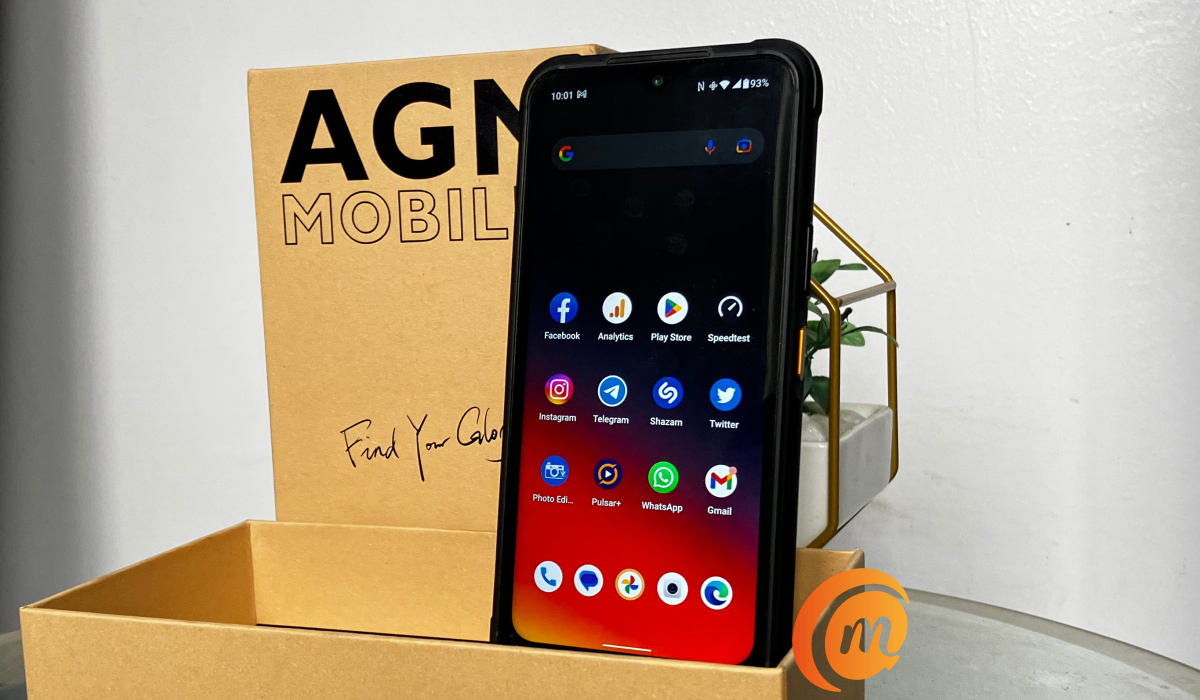
AGM G2 Guardian unboxing
As such, emergency workers like police, security, search-and-rescue, fire officers, and hikers, campers, etc, do not need to buy a dedicated monocular thermal camera anymore. With the AGM G2 Guardian, they are good to go, and we will be exploring this capability in detail in our full review of the phone.
The selfie camera is a 32-megapixel shooter, while at the back is a 108-megapixel main camera, a 20-megapixel night vision lens, and a 2-megapixel macro lens. Our experience with most 2MP macro lens is that they are useless. Does AGM buck the trend? We will find out. But these three light cameras are only a part of the G2 Guardian’s arsenal; the monocular thermal imaging camera is there, too, and you can’t miss it. It is the largest part of the camera module at the back of the phone.
But there is another pleasant surprise: AGM fixed a massive mono loudspeaker in the center of the camera module, and it is a good one, too. It is loud, the audio has depth, and we have enjoyed music playback and video audio on this bad boy.
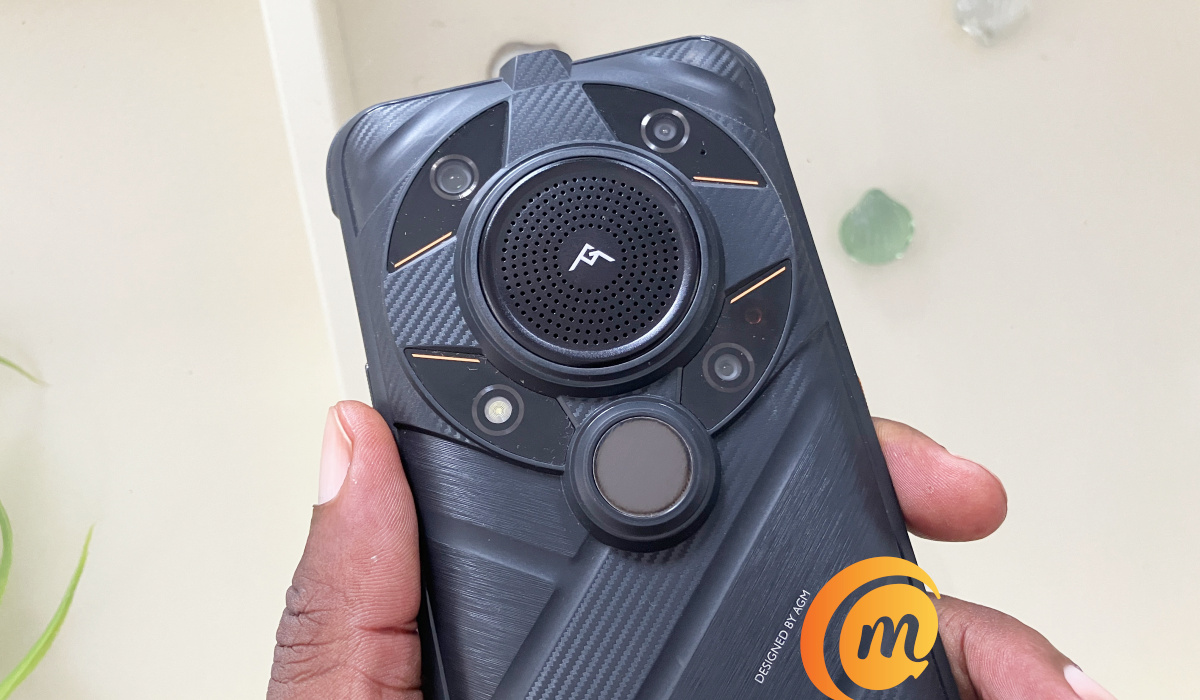
AGM G2 Guardian – four rear cameras and loudspeaker
The speaker is the branded section in the middle, while the thermal camera is the large round spot under the speaker. The rest of the layout features the three light cameras and an LED flash. Three light cameras and one thermal camera in one package.
Did we mention that the AGM G2 Guardian is big? Of course, it is. Rugged smartphones are so heavily armored that they end up big and heavy. This model weighs 406g. It isn’t the heaviest we have reviewed here at MobilityArena, but it is big.
Like all other rugged smartphones, it is built tough to withstand shocks, drops, water and dust. We are talking about MIL-STD-810H standard and IP68/69K, giving you protection from dust and allowing submersion of the device in up to 1.5 meters of water for 30 minutes.
There is a sheet of Gorilla Glass on the 6.58-inch, 120Hz IPS display. The rest of the body of the phone is plastic, which is understandable considering it is built to take hits, though a touch of metal here and there wouldn’t have been a bad thing. But plastic handles shocks and drops best, so we cannot complain.
What of performance? The G2 Guardian uses a relatively unknown chipset that is designed for industrial use (which is why it isn’t so popular), but which is quite capable, sitting firmly at the upper mid-range class. The Qualcomm QCM6490 chipset uses Kryo 670 and delivers performance a little above Snapdragon 778G and 782G. Coupled with 12GB of RAM, our review unit runs smoothly. There is an 8GB variant, too.
A smartphone designed for outdoor use like this should not have you worrying about running out of battery juice and looking for a power source out in the wilderness, in a cave, or up Mount Everest. Which is why the G2 Guardian has a 7000mAh battery. So you can top it up fairly fast, it has 18W fast charge built in and a compatible charger is included in the box.
How does a thermal photograph look?
We imagine that a number of our readers will be curious about what a thermal photo looks like. We have already taken quite a few, with interesting results. Here is an example:
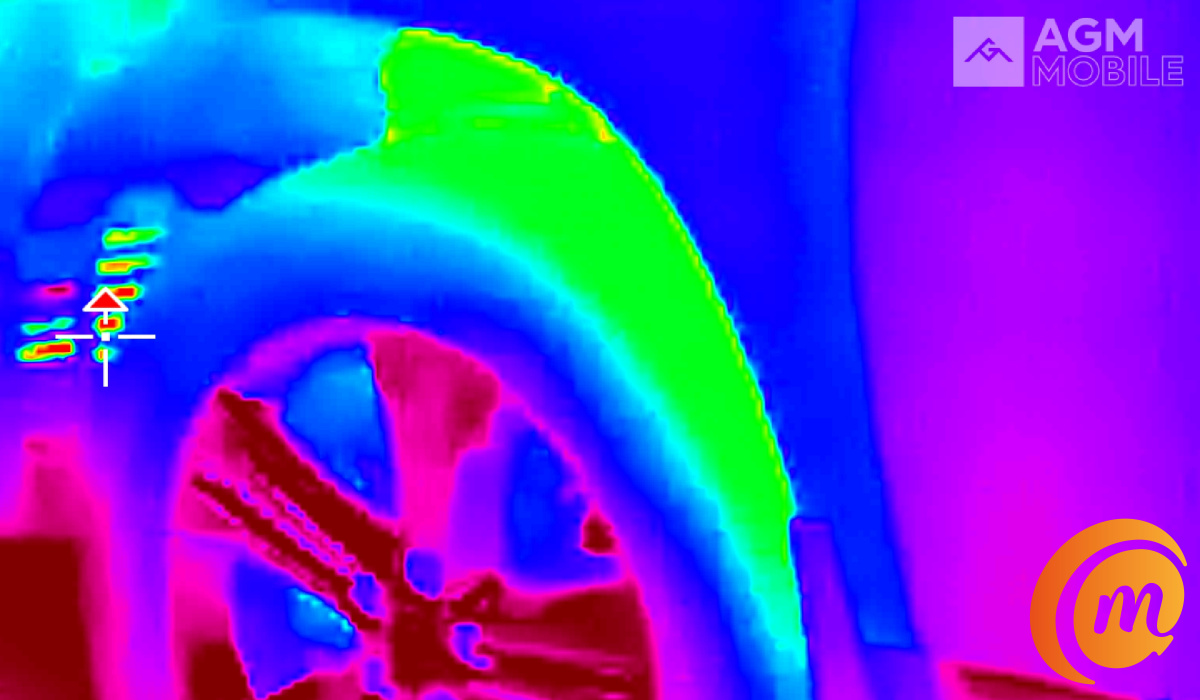
A thermal photo of a car tyre
Is a thermal photo of any use to the average person? We doubt it, but professionals and adventurers find thermal imaging very useful. For example, besides being able to pinpoint objects in that are otherwise hidden from sight, the G2 Guardian can measure the temperature of each part of that tyre or person or any other object it is pointed at. There is a whole range of uses this feature can be applied. But we will get to that in our detailed review.
Rugged smartphones and smartphones with thermal imaging cameras are a growing sub-sector of the smartphone industry. Generally referred to as the outdoor smartphone industry (though use cases are not exclusive to the outdoors), once again, mobile technology is putting convergence and added value in the hands of an industry made up of security personnel, search-and-rescue, hikers, adventurers, scientists, and more.
In a world of mobile devices that are more or less replicas of one another, the AGM G2 Guardian brings extra functionality that has us excited and exploring new frontiers. Don’t go away; keep an eye out for our full review. It promises to be exciting.
Author:MobileChic
That motivated, gadget-loving geeky chic who tries to stay on top of things. Unapologetic iFan.
Add MobilityArena as a preferred source on Google
If you’re an Android user, you’ll understand how difficult it can be to share files between an Android phone and an iPhone, iPad, or Mac. Sure, there are some cross-platform file-sharing services that claim to make this easier. However, some of them are expensive, while others are untrustworthy.
In this guide, I’ll show you how to use LANDrop to transfer files between Android and Apple devices. LANDrop is free, simple to use, and allows for faster file exchange between platforms. So, keep reading to find out how to transfer files between an Android device and an iPhone, iPad, or Mac with LANDrop.
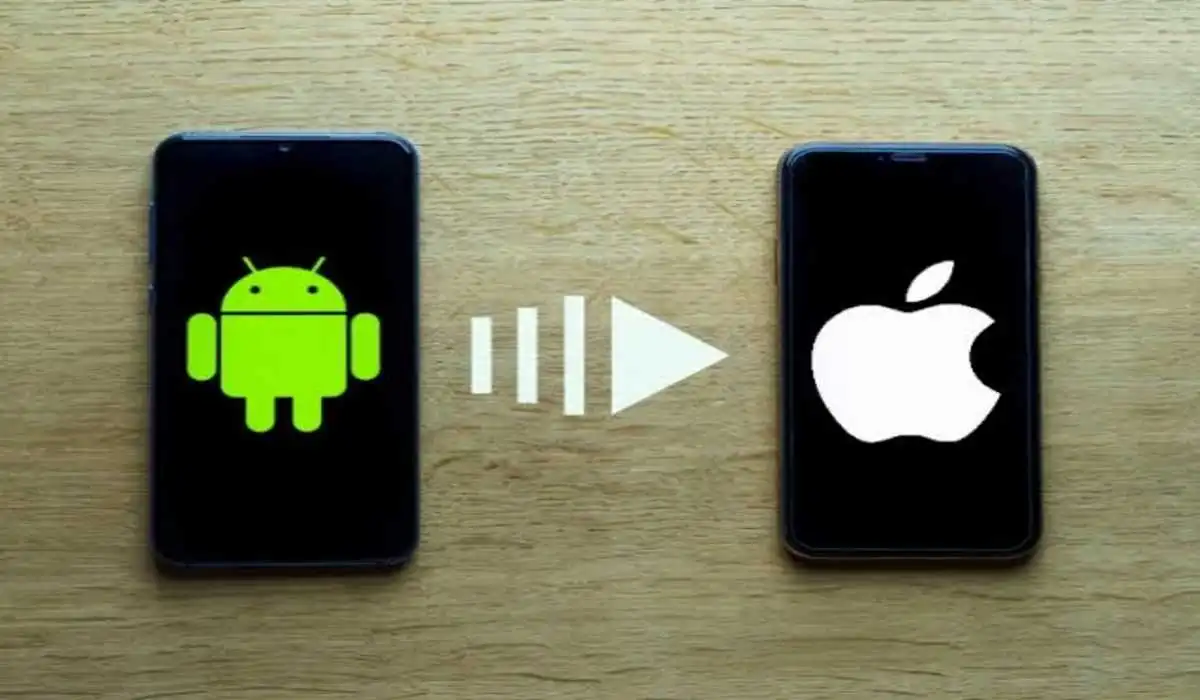
- How Can You Use LANDrop to Transfer Files Between Android and Apple Devices? How to Use LANDrop to Transfer Files Between an Android, iPhone, and an iPad How to Use LANDrop to Transfer Files Between Android and Mac
How Can You Use LANDrop to Transfer Files Between Android and Apple Devices?
Using the free and open-source LANDrop app, you can easily share files between Android, iPhone, iPad, and Mac. Here’s how to use LANDrop to transfer files between Android and Apple devices.
First, you need to have the LANDrop app installed on the devices with which you wish to share files. Download it on all of your devices, including phones, tablets, and laptops.
The iOS and iPad apps are available in the App Store, but LANDrop is not available in the Google Play Store. As a result, you must download it from the official website and manually install it on your Android device.
How to Use LANDrop to Transfer Files Between an Android, iPhone, and an iPad
The following steps can be used to transfer data from an Android smartphone to an iPhone or iPad, or from an iPhone or iPad to an Android device:
- Connect the devices that will be sharing files to the same Wi-Fi network.
- Launch the LANDrop app on your Android phone as well as the receiving device, such as a Mac or iPhone.
- To add images and videos from your phone’s gallery to the sender device, tap the Gallery icon in the top-right corner. Alternatively, you can add other file types from your internal or external storage by tapping the File icon.
- To view a list of all the devices connected to the same local network, click the downward-pointing arrow next to Devices .
- Tap the gadget you want to send the chosen files to from here. The other device’s name can be discovered in the LANDrop app.
- There will be an entry in the Receiving section on the receiving device. To accept the file and download it to your device, click the green check mark.
If the received file is a photo or video and you’re using an iPhone, it will be saved directly to the Photos app on your device. If it’s a different file, you’ll find it in the Files app’s Downloads folder.
Android automatically saves all downloaded files, regardless of their format, to the Downloads folder. You can then access it with a file manager such as Files by Google .
How to Use LANDrop to Transfer Files Between Android and Mac
The same steps that are required to use LANDrop to transfer files between Android, iPhone, and iPad are the same for transferring files from Android to Mac. Here are the steps you must take if you want to use LANDrop to transfer files between Android and Mac devices via a different set of instructions:
- Ensure that your Android phone and Mac are connected to the same network.
- Start LANDrop on your Mac and your Android phone.
- On your Mac, select Send File(s) from the menu bar by clicking the LANDrop icon.
- Select the files to be transferred and click the Add button. As an alternative, you can simply drag and drop the files onto the LANDrop window.
- Click Send , then on the next screen, choose the the other device and click Send again.
- Accept the receiving prompt on your Android phone to receive the shared file (s).
Once again, the received files will be saved to your Android phone’s Downloads directory. A file you receive on your Mac will be saved in a similar fashion to the Downloads directory.
When you use LANDrop to transfer files, it’s possible to modify the LANDrop settings to change the download location. On your Mac, open LANDrop, click the menu bar icon, then choose Settings . From here, select the download directory you want by clicking the ellipsis button next to Download Path .
Keep the following in mind when you use LANDrop to transfer files between Android and Apple devices:
With LANDrop, you can also share files on the go by using a hotspot connection. Simply turn on your Android phone’s hotspot and connect to it with your other device.
If the other device isn’t visible in the LANDrop app for some reason, it’s possible that you aren’t on the same network. Remember that the SSID must match for it to function, so if you are logged in to the same network using two different SSIDs, it won’t work.
Similarly, ensure that the receiving device is discoverable. On the iPhone, open the app and, if it isn’t already, toggle the Discoverable button on. If you’re using a Mac, go to Settings and check the box next to Discoverable .
You’ll agree that it’s pretty easy to use LANDrop to transfer files between your Android phone and other devices. Follow the instructions provided above for the best results.
