Add MobilityArena as a preferred source on Google
In the dynamic educational landscape of the 21st century, the roles of tablets, laptops, and mobile devices have taken on immense significance. These digital tools, no longer seen as mere devices for entertainment, have transformed into integral components of modern learning environments. They offer a myriad of possibilities to educators and students, opening new frontiers in teaching and learning processes.
This article aims to delve into insights provided by seasoned educators on how best to harness the power of these devices to enhance education. We shall explore the roles these tools play in modern education, discuss strategies to promote interactive learning with tablets, enhance research and project work with laptops, and facilitate personalized learning through mobile devices. We will also discuss ways to balance digital integration with healthy tech habits and how to prepare for online and remote learning.

Role of Digital Devices in Modern Education
The incorporation of tablets, laptops, and mobile devices into classrooms has revolutionized the sphere of education. They have transformed the way we approach teaching and learning by diversifying the avenues for knowledge dissemination and reception. For instance, using these devices, students no longer need to go looking, “Can someone write papers for me ?” But instead, they can access a plethora of resources, learning at their own pace and time. Educators, on the other hand, can use these tools to enrich their teaching methods, making lessons more engaging and comprehensive.
However, as with any innovation, the integration of digital technology in classrooms comes with its own set of challenges. Internet reliability, digital literacy, and the potential for distraction are among the obstacles that must be navigated. Despite these hurdles, the benefits of these tools – such as enhanced accessibility, diversity in learning resources, and the opportunity for personalized learning – outweigh their drawbacks.

Promoting Interactive Learning with Tablets
Tablets, with their intuitive interface and portability, offer an exciting platform for interactive learning experiences. They provide an engaging, hands-on approach to learning that encourages active participation from students. Educators can utilize various educational apps, games, and digital textbooks available on tablets to bring concepts to life, making learning more relatable and interesting.
Take, for example, a science teacher who uses a tablet to demonstrate a 3D model of the solar system, facilitating a more immersive understanding of the subject. Or a language teacher who uses an interactive language app to enhance vocabulary acquisition and pronunciation.
While the benefits of using tablets in the classroom are manifold, potential challenges exist. These include the risk of over-reliance on digital tools, unequal access to technology among students, and the challenge of ensuring online safety. Despite these concerns, with proper implementation and management, tablets can be a powerful tool in fostering an interactive and engaging learning environment.
Enhancing Research and Project Work with Laptops
Laptops, as versatile and powerful digital tools, play a significant role in supporting research and project work. Their larger screens, robust processing capabilities, and full-fledged operating systems provide students with a comprehensive tool for in-depth research, data analysis, and complex content creation.
For instance, an educator might guide students to use a laptop’s web browser to access scholarly articles for a research project or use software like Microsoft Excel to collate and analyze data for a science experiment. In a design class, laptops with specialized software like Adobe Photoshop or Illustrator can be utilized for high-quality graphic projects.
However, integrating laptops into classroom activities isn’t without potential obstacles. The cost of equipment, maintaining updated software, and issues of cybersecurity are real challenges. Additionally, educators must ensure that the use of laptops doesn’t result in passive learning. Despite these hurdles, when used strategically, laptops can significantly enhance the depth and breadth of student projects, providing them with skills that are valuable in the modern workplace.
Utilizing Mobile Devices for Personalized Learning
Mobile devices, such as smartphones, are ubiquitous and powerful tools that have the potential to facilitate personalized learning. Given their widespread usage and accessibility, these devices can be harnessed to cater to individual learning styles and, thus, provide a more personalized educational experience.
Consider a history teacher who employs an educational app that allows students to explore historical events and figures at their own pace. Similarly, a math educator might use an app that provides step-by-step solutions and explanations, adapting to a student’s current level of understanding and progressing as the student’s comprehension improves.
However, integrating mobile devices into education isn’t without its challenges. Distractions in the form of non-educational apps and social media can hinder learning. Additionally, the potential for unequal access to technology among students can create disparities. Nevertheless, when effectively integrated into the curriculum, mobile devices can create opportunities for learning that are tailored to each student’s unique needs and capabilities.
Balancing Digital Integration with Healthy Tech Habits
While the integration of digital devices into education provides numerous benefits, it’s equally crucial to instill healthy tech habits among students. Educators must be mindful of creating a balanced approach that combines digital learning with traditional methods and prioritizes students’ well-being.
One way to achieve this is by setting clear rules about device usage, such as designating tech-free zones or periods within the school day. This not only reduces potential distractions but also promotes meaningful face-to-face interaction and a break from screen time. Similarly, encouraging students to take regular short breaks while studying with digital devices can help mitigate the risk of digital eye strain and promote better focus.
Despite the potential pitfalls of over-reliance on technology, such as reduced physical activity and the risk of cyberbullying, with a balanced and mindful approach, digital devices can be effectively used as powerful enablers of learning.
Preparing for Online and Remote Learning with Digital Devices
The growing trend of online and remote learning underscores the importance of digital devices in education. Equipping students with the necessary skills to effectively use these devices for learning is now more important than ever.
Strategies from educators can involve introducing students to a range of educational platforms and tools. These can range from online collaborative tools such as Google Classroom to video conferencing software like Zoom for virtual classes to resources such as the best dissertation writing services for advanced learners. Regularly incorporating these tools into the classroom, even when in-person learning is possible, can also help students transition smoothly to remote learning when necessary.
However, potential challenges in remote learning include a lack of face-to-face interaction, reduced motivation, and issues with access to reliable internet and suitable devices. Despite these challenges, the increased flexibility and accessibility provided by online and remote learning make digital devices an invaluable tool in today’s educational landscape.
Preparing for a Digitally-Enabled Educational Future
As we’ve explored, tablets, laptops, and mobile devices hold immense potential in shaping the educational landscape. Insights from educators reveal that when used judiciously, these tools can promote interactive learning, enhance research and project work, facilitate personalized learning, and support online and remote learning. However, it’s equally crucial to instill healthy tech habits and ensure a balanced approach to digital device use.
Educators play a significant role in preparing students for a digitally-enabled educational future. Their guidance in optimizing the use of these tools while mitigating potential challenges will be instrumental in ensuring students not only benefit from the advances in digital technology but also become responsible digital citizens. The future of education is intertwined with technology, and with mindful strategies, we can prepare our students to navigate it successfully.
Author:Content Partner
Add MobilityArena as a preferred source on Google
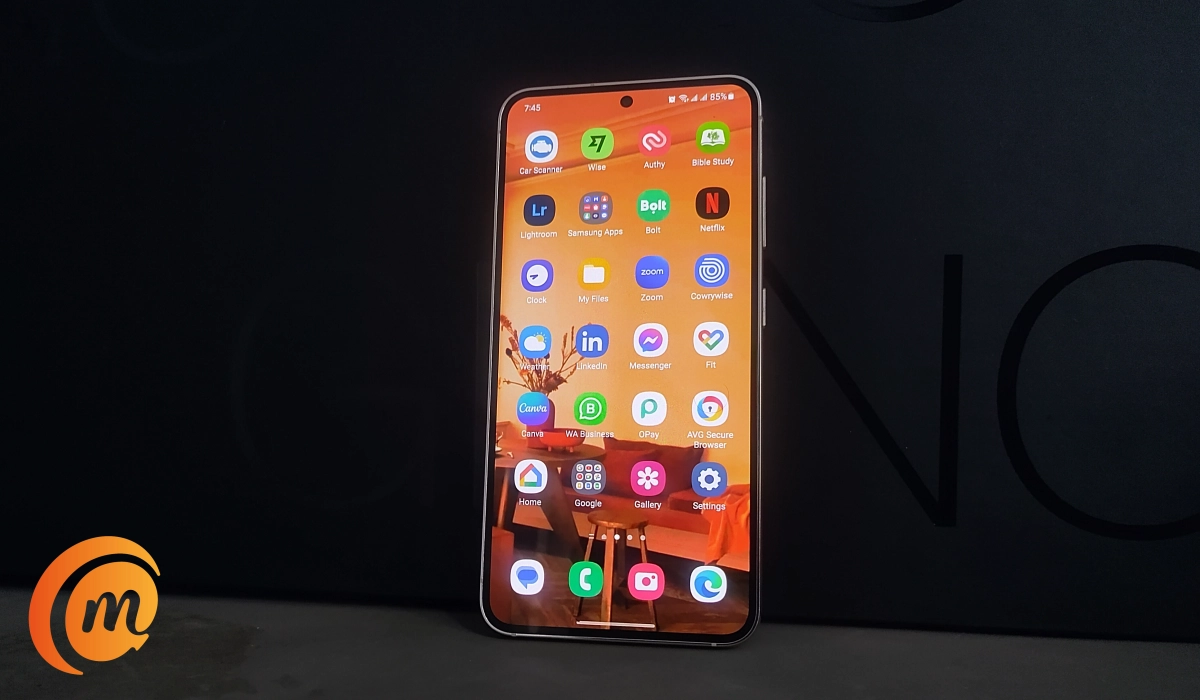
If you are like me, finding the best wallpaper for your phone must often be a tall order. I often spend long periods of time hunting down the perfect wallpaper for every new smartphone I review or use. Wallpapers are important to me. They have to be artistic, or tell a story, yet they have to not be too bright, too busy, or intrusive. They certainly must resonate with my person in some way.
Usually, I end up creating the kind of wallpapers that I need. Most times, I make them by tweaking existing wallpapers or random images that I find on the Web. Some times, I create them from scratch. I take a lot of photographs , so I am not exactly lacking content to create wallpapers from. Those photographs usually mean something to me, so I end up with wallpapers that resonate. Mission accomplished.
- The best wallpaper for your phone is one that inspires you
- How to create the perfect wallpaper for your phone
- How to set an image as a wallpaper for your phone
The best wallpaper for your phone is one that inspires you
It isn’t just me or a few of us. In the ever-evolving digital landscape, our smartphones have become more than just communication devices – they are extensions of our personalities, fashioning our online identity. A captivating wallpaper can transform your phone into a personal gallery, a statement of style that you carry with you everywhere. If you’re in search of the perfect wallpaper for your phone, ones that reflect your unique taste and flair, you are not alone.
If you find yourself on endless searches, perhaps the best way to get the perfect wallpaper for your phone is to create one. The wallpaper you are looking for is out there; it just is not a wallpaper yet. So, make it into one. No, it isn’t difficult. How many random images have you seen on Twitter or Facebook and you immediately liked? Lots of them; right? Each one is a potential wallpaper for your phone; do not sleep on them.
I am betting that you even have some of them saved on your phone already. See? You are already on the right path. Let me help you complete the journey.
How to create the perfect wallpaper for your phone
There are several easy ways to create a wallpaper for your phone. Here are some steps to follow:
Choose an image : Select an image that you want to use as your phone wallpaper. This can be a photo you took yourself, an image you found online, or a design you created (especially if you use an app like Canva).
Resize the image (optional): Use an image editor to resize the image to fit your phone screen. The size will depend on your phone model, so check the specifications or use a wallpaper size guide to ensure the image is the correct size.
Add text or design elements (optional): If you want to add text or design elements to your wallpaper, you can use an image editor to do so. There are many free image editors available online, such as Canva or Adobe Spark.
Save the image : Once you have finished editing the image, save it to your phone or to a cloud storage service like Google Drive or Dropbox.
Set the image as your wallpaper : On your phone, go to the settings menu and select “Wallpaper”. Choose the image you just created and set it as your wallpaper.
There are many online tools and apps that make it easy to create a wallpaper for your phone, such as Kapwing, Adobe Spark, and Canva. These tools allow you to upload an image, resize it to fit your phone screen, and add text or design elements. Once you have finished creating your custom image, you can download it and set it as the wallpaper for your phone. Check them out in your phone store, or use their official websites.
How to set an image as a wallpaper for your phone
Whether you downloaded the image or created it outright, setting an image from your phone as your wallpaper is a simple and straightforward process. The exact steps might vary slightly depending on your device’s operating system (iOS or Android) and the specific version you’re using, but here are the general steps for both platforms:
For iOS devices (iPhone and iPad):
- Choose the Image: Open the Photos app and select the image you want to set as your wallpaper.
- Tap the Share Button: Tap the share button, which looks like a square with an upward-pointing arrow. It’s usually located at the bottom left or bottom center of the screen.
- Choose “Use as Wallpaper”: Scroll through the options and tap “Use as Wallpaper.”
- Adjust the Image: You’ll have the option to move and scale the image to fit your screen. Adjust it to your liking.
- Set the Wallpaper: Once you’re satisfied with the image’s position, tap “Set” at the bottom of the screen.
- Choose Set for: You can now choose to set the image as your Lock Screen, Home Screen, or Both.
- Done: Your chosen image is now set as your wallpaper.
For Android smartphones:
- Choose the Image: Open the Gallery app or your preferred image viewer and select the image you want to use as a wallpaper.
- Open Image Options: Tap the three dots (menu) icon usually located in the top right corner of the screen.
- Select “Set as Wallpaper”: From the menu that appears, select “Set as wallpaper” or a similar option.
- Choose Set for: Depending on your device and Android version, you might be asked to set the image for the Home screen, Lock screen, or Both.
- Adjust and Set: If prompted, you can adjust the image’s position and scaling. Once you’re satisfied, tap “Set wallpaper.”
- Done: Your selected image is now your wallpaper.
That is it. Now, you know how to create a wallpaper for your phone that resonates with you – your very own custom phone wallpaper that inspires joy (or whatever other emotion you want to inspire).
Author:Mister Mobility
Digital Skills and Communication Coach | Mobile Phone Connoisseur since 2001 | Tech Blogging since 2004
