Add MobilityArena as a preferred source on Google
| BLU G91 Pro specifications in brief |
|---|
| OS: Android 11 Release Date: July 2021 Network Type: 2G/3G/4G Display: 6.7-inch, Full HD+ Processor: MediaTek Helio G90 Selfie Camera: 16 MP Rear camera: 48 MP quad RAM: 6 GB ROM: 128 GB Battery: 5000 mAh Related: . |
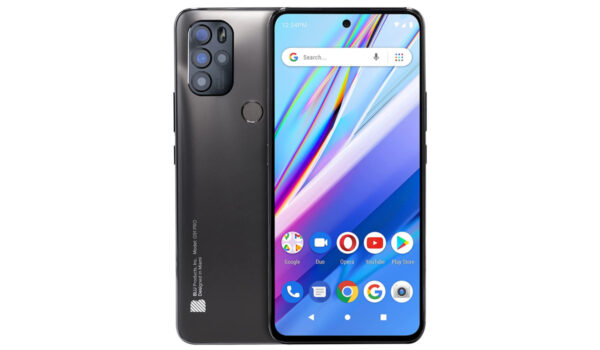
BLU G91 Pro – full specifications & features
Mobile Wireless Network and Software
- 2G mobile network bands : GSM, GPRS, EDGE 850 / 900 / 1800 / 1900 MHz.
- 3G mobile network bands : UMTS, WCDMA, HSDPA 850 / 900 / 2100 MHz
- 4G mobile network bands : LTE.
- 5G mobile network bands : No
- SIM Type : Nano-SIM, Dual SIM
- Software / OS : Android 11
Design, Form Factor, Appearance
- Dimensions : 7.4 x 3.94 x 2.05 inches
- Weight : g
- Display : 6.7 inches, Full HD+, 60 Hz refresh rate, 19.5:9 aspect ratio, IPS LCD screen
- Colours : Graphite. Moonstone.
- Physical Build : Plastic
Internal Hardware Specs
- Processor Type : 64-bit, 2.0 GHz Octa-core, Cortex-A76
- Processor Name : MediaTek Helio G90T
- Graphics Processor : ARM Mali
- RAM : 6 GB
- Internal Storage : 128 GB
- External Storage : microSD, up to 256 GB (dedicated slot)
Photography, Video Recording
- Main Camera : 48 MP main sensor + 5MP wide angle lens + 2MP depth sensor + 2MP macro lens, autofocus, dual LED flash, 1080p@30fps video recording
- Front Camera : 16 MP, fixed focus, Face Recognition, 1080p@30fps video capture
Audio, Video Playback
- Music Support : PCM, AAC / AAC + / eAAC + / MP3 / AMR – NB / WB / APE
- Audio : 3.5 mm audio jack
- Loudspeaker : Mono speaker
- Video Support : H.264/MP4/MPEG4 player
- FM Radio : Yes.
Phone Sensors
- Digital Compass : Yes.
- Accelerometer : Yes.
- Proximity Sensor : Yes.
- Ambient Light Sensor : Yes.
- Barometer : No.
- Pedometer : No.
- Heart Rate Monitor : No.
- Gyroscope (G-Sensor) : Yes.
- Fingerprint Scanner : Yes; rear-mounted.
- Face Unlock : Yes.
- Iris Scanner : No.
- Motion Sensing / Gesture Control : No.
- Voice Control : No.
- Intelligent Digital Assistant : Yes; Google Assistant.
- Infra-red Sensor : No.
Connectivity Options
- Bluetooth Version : 5.2
- Bluetooth Profiles : A2DP
- WiFi : Wi-Fi 802.11 a/b/g/n, hotspot
- GPS : Yes, A-GPS, GLONASS, BDS, Galileo
- USB : microUSB v2.0. Type-C.
- NFC :
Miscellaneous Specs and Features
- Battery Type and Capacity : Non-Removable Lithium-Polymer 5000 mAh
- Battery Charging : 30W fast charging
- Wireless Charging : No.
- Reverse Charging : No.
- Model Version/Number :
Launch/Release Dates and Information
- Announced : July 2021
- Release Date : July 2021
BLU G91 Pro Prices by Country
- International/Global : $249.99 on Amazon.
- European Union :
- Nigeria : ₦
- Egypt : Egyptian Pound
- UAE : AED
- India : Indian Rupee
- Iraq : Iraqi Dinar
- Kenya : Ksh.
- Ghana :
The above prices may change with time from country to country, as market forces and economic policies influence product price movements.
Does BLU G91 Pro have Google Play Store?
It supports Google Services and software applications, including Play Store and Maps, Gmail, YouTube, and others.
Will BLU G91 Pro work in the USA?
This is a GSM phone and is supported on US GSM carriers like AT&T, T-Mobile, Metro PCS, and other networks riding on their networks. It does not support CDMA networks like Verizon, Boost Mobile, and others. Do make enquiries from your carrier to know what bands/frequencies are supported on their service.
MobilityArena Buyer’s Guide Verdict
Not available.
Our Buyer’s Guide Verdict is a recommendation based on the specs of the device and a general guide to help you understand how much value a device offers for its price. It is not an endorsement of the device. Ask questions and use your judgement when buying any device; MobilityArena takes no responsibility for your buying decisions .
BLU G91 Pro Phone Review Rating
Not available.
- Don’t miss our reviews .
- Join our WhatsApp Group , to be notified of the most important articles and deals,
- Follow us on Instagram , Facebook , Twitter , and YouTube .
Author:InfoDesk
Add MobilityArena as a preferred source on Google
Every computing device slows down over time with use. This includes all smartphones, whether they are Android phones or iPhones. But there are a few easy things you can do to speed up a slow iPhone.
Whether you are using the latest iPhone 13 model or an older model from years ago, the following tips below will help you get better performance out of your iDevice.
Note that the older your model is, the more susceptible it is to slowing down and becoming sluggish. The reasons are easy to see. Older iPhones have older, and so less powerful processors, have smaller RAM and storage memory, and have usually have smaller battery capacity too. All of these are factors that affect the speed of devices.
As we use our iPhones, they accumulate “junk” in their memories, newer software updates and apps have more advanced features that require more processing power, and older smaller batteries lose optimum functionality. It is inevitable that such devices slow down over time.
- Speed up a slow iPhone with a restart or reboot
- Disable Low Power Mode
- To speed up a slow iPhone, remove homescreen widgets, animations, and Motion Effects
- Free up space to speed up a slow iPhone
- Reset to factory settings to speed up a slow iPhone
Speed up a slow iPhone with a restart or reboot
A simple restart can do wonders and should be the first step taken when you notice that your iPhone is slowing down or acting sluggish. When apps take longer to launch and tasks take longer to complete, it is time for a restart of your iPhone.
Disable Low Power Mode
iPhones come with a Low Power Mode built in, so you can preserve their battery life. But it does that by limiting the resources of the device, meaning that less power is available to keep things running smoothly. As such, one way to speed up a slow iPhone is to turn off Low Power Mode. You will find it in the phone Settings > Battery > Low Power Mode. Tap the toggle.
To speed up a slow iPhone, remove homescreen widgets, animations, and Motion Effects
Widgets add quick glance functionality to the homescreen of our smartphone. But that comes at a cost. Widgets are resource-intensive. Actually, anything that requires animation or moving graphics or live visual updates on your device is resource intensive. To speed up your iPhone, remove any widgets from the homescreen.
To turn off Motion Effects, go to Settings > Accessibility > Motion, and tap the “Reduce Motion” toggle to enable it.
Free up space to speed up a slow iPhone
Every computing device slows down as its storage memory fills up. If you notice your iPhone being sluggish consistently, check to see if you aren’t pushing the limits of its storage.
If the memory is almost filled up, it is time to delete some old stuff. Delete large files (videos are the biggest culprit here), and also delete any unused or unimportant apps from your iPhone to make it run faster.
Reset to factory settings to speed up a slow iPhone
Lastly, where all else fails, the ultimate action you can take by yourself without sending your phone to an authorised service centre is to reset your iPhone to factory settings. Do this only when you have run out of options, as it will wipe everything on the phone – apps, files, and settings. You will end up with a blank iPhone like when you first took it out of the box.
If you have your iPhone backed up to iCloud, you can always restore the backup after a factory reset, though. To reset, go to Settings > General > Transfer or Reset iPhone. Select, “Erase All Content and Settings”, and complete the procedure.
That’s all you can do on your own to speed up a slow iPhone. Every other possible solution will involve an authorised service centre. This includes if the battery has degraded and you need to replace it. All the best!
- Don’t miss our reviews .
- Join our WhatsApp Group , to be notified of the most important articles and deals,
- Follow us on Instagram , Facebook , Twitter , and YouTube .
Author:MobileChic
That motivated, gadget-loving geeky chic who tries to stay on top of things. Unapologetic iFan.
