Add MobilityArena as a preferred source on Google
There is no doubt that the iPhone 15 Pro is a strong and powerful device, but some users have reported issues with unresponsiveness of the touchscreen. Many iPhone 15 Pro users have experienced moments when their touchscreen becomes unresponsive or glitchy. This can manifest as:
- Delayed touch response
- Completely unresponsive areas of the phone
- Erratic behaviors such as phantom touches
I will be laying out a guide below for several troubleshooting steps to resolve this frustrating problem.
- Potential Causes of Unresponsive Screen
- Few Steps to troubleshooting Clean Your Screen and Hands Remove Screen Protector and Case Force Restart Your iPhone Update iOS Adjust Touch Sensitivity Reset All Settings
- When to Seek Professional Help
- Preventive Measures
- Conclusion
Potential Causes of Unresponsive Screen
iPhone 15 Pro unresponsive screen
There are a number of factors that can contribute to touchscreen unresponsiveness. Here are a list to a few:
- Software glitches
- Dirty or damaged screen
- Faulty Screen protectors or cases
- Hardware problems
Few Steps to troubleshooting
Clean Your Screen and Hands
Ensure both your hands and the iPhone’s screen are clean and dry. Dirt, oil, or moisture can interfere with touch sensitivity. This can help the iPhone 15 Pro unresponsive screen
Remove Screen Protector and Case
Temporarily remove any screen protector or case to rule out interference from these accessories. Sometimes you might have to get a new screen protector and case.
Force Restart Your iPhone
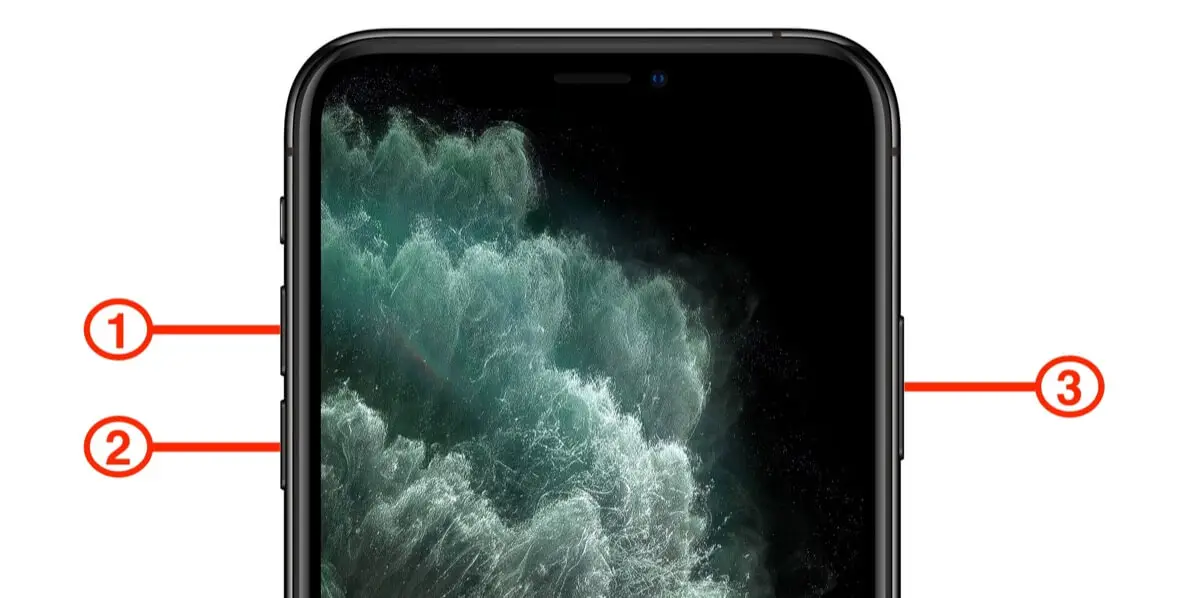
A force restart can often resolve temporary software glitches. Perhaps you do not know how to force restart your iPhone, simply follow this steps:
- Quickly press and release the Volume Up button
- Quickly press and release the Volume Down button
- Press and hold the Side button until you see the Apple logo
Update iOS
Make sure your iPhone is running the latest version of iOS. Incase you are not sure if it’s up to date, follow these two steps:
- Go to Settings > General > Software Update
- If an update is available, download and install it
Adjust Touch Sensitivity
You can try adjusting touch sensitivity settings. Carefully go to your phone settings as described here:
- Go to Settings > Accessibility > Touch
- Experiment with different settings to see if they improve responsiveness
Reset All Settings
If the issue persists, you can try to reset all without erasing all your data:
- Go to Settings > General > Transfer or Reset iPhone
- Choose “Reset All Settings” (this won’t delete your data)
When to Seek Professional Help
If none of these steps resolve the issue, it’s time to contact Apple Support or visit an Apple Store. The problem may be hardware-related and require professional diagnosis or repair. Make sure to visit a verified Apple Store or engineer to get it fixed.
Preventive Measures
To minimize the future risk of touchscreen issues, strictly adhere to the following:
- Use high-quality screen protectors and cases
- Keep your iPhone’s software up to date
- Avoid exposing your device to extreme temperatures or moisture
Conclusion
In conclusion, carefully following these troubleshooting steps, you can often resolve touchscreen responsiveness issues on your iPhone 15 Pro. Remember, if problems persist, don’t hesitate to seek professional assistance to ensure your device functions optimally.
Author:Ifeoluwa Adeleke
Add MobilityArena as a preferred source on Google
The PS5 disc drive noise excessiveness has been reported by many users. While some noise is normal during disc reading and installation, persistent or loud noise from the console may indicate a problem. I highlight a few of these complaints and discuss some troubleshooting options and solutions.
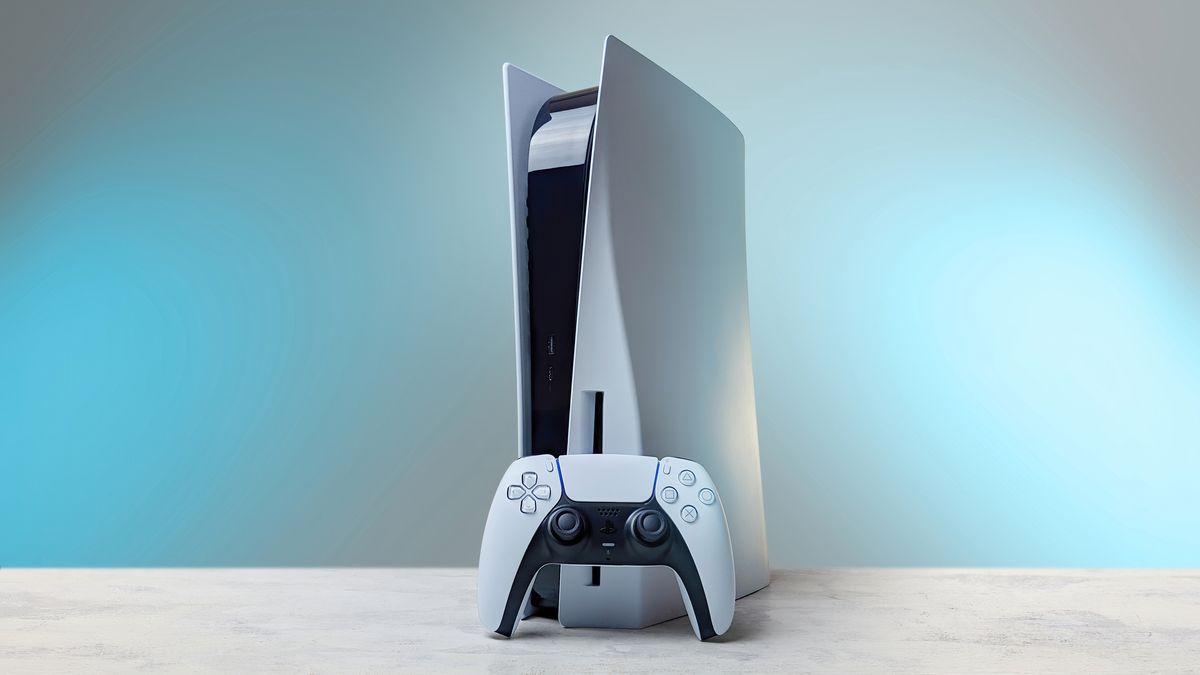
- PS5 Disc Drive Complaints
- Some Troubleshooting Steps for PS5 Disc Drive Noise Proper Console Placement Consider Orientation Placement Some Environmental Factors to Consider Do Regular Maintenance and Check Conclusion
PS5 Disc Drive Complaints
- Loud spinning during game installation
- Excessive vibration when reading discs
- Constant noise even when not using discs
- Difficulty reading or recognizing discs
Some Troubleshooting Steps for PS5 Disc Drive Noise
Proper Console Placement
Not properly placing your PS5 can cause this excessive noise. Make sure your PS5 is on a stable, flat surface. Placing a mouse pad under the console stand can significantly reduce vibrations and noise. Proper placement of your PlayStation 5 is crucial for minimizing disc drive noise and ensuring optimal performance. Here’s a detailed guide on how to position your console:
- Stable and Flat Surface – Choose a sturdy, level surface for your PS5. Avoid placing it on uneven or wobbly furniture.
- Vibration Dampening – Use a mouse pad or similar soft material under the PS5 stand. This acts as a buffer, absorbing vibrations that can amplify noise.
Consider Orientation Placement
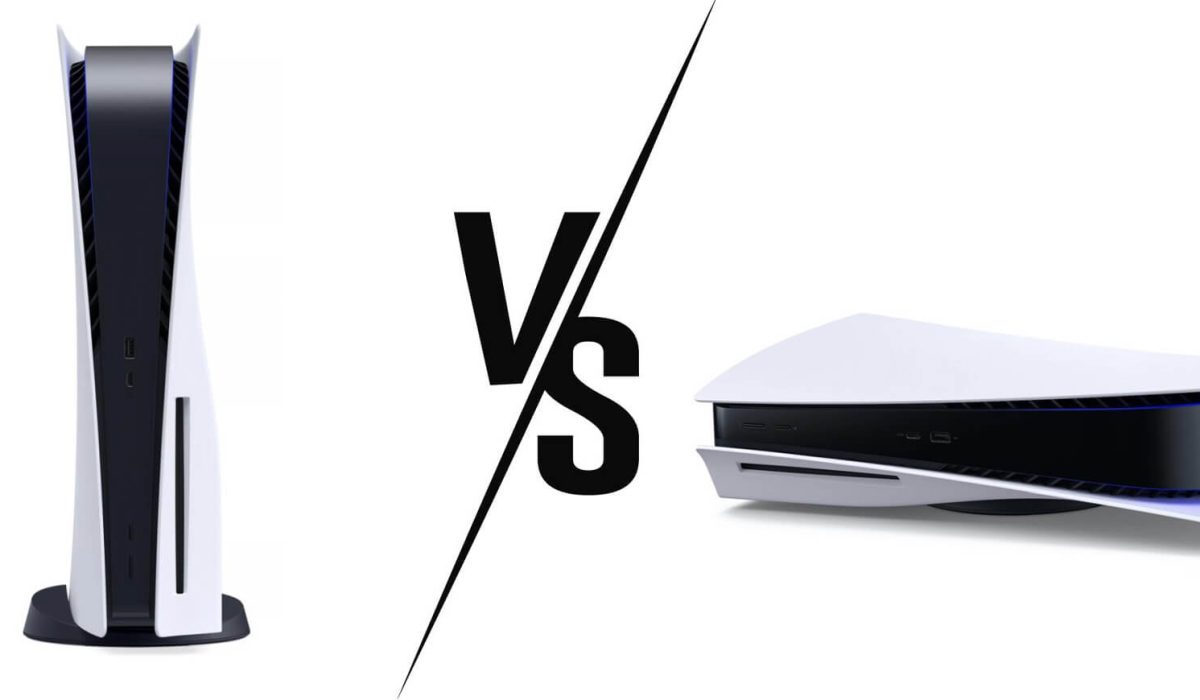
- Vertical Placement: If you place the PS5 vertically, make sure the stand is securely attached to the console. The disc slot should be at the bottom when in vertical position.
- Horizontal Placement: When laying the PS5 flat, use the included stand to slightly elevate one side, allowing for better airflow. Ensure the stand is properly aligned with the designated area on the console’s bottom.
- Ventilation: Leave at least 4 inches (10 cm) of clear space on all sides of the console for proper air circulation. Also avoid placing the PS5 in enclosed spaces like cabinets or entertainment centers with limited airflow.
- Surface Material: Hard surfaces like glass or metal can amplify vibrations. If possible, place the console on wooden or composite surfaces. In case you use a glass entertainment unit, consider placing a thin rubber mat beneath the PS5 to reduce vibration transfer
Some Environmental Factors to Consider
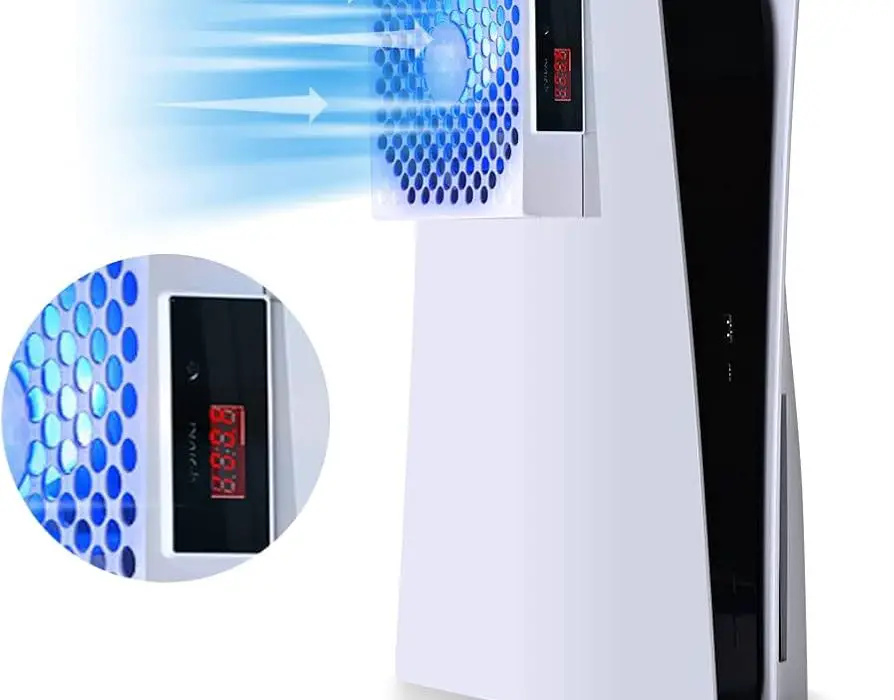
- Keep the PS5 away from direct sunlight or heat sources, which can affect its performance and potentially increase fan noise.
- Maintain a room temperature between 50°F to 80°F (10°C to 26°C) for optimal console operation.
Do Regular Maintenance and Check
- Periodically check the console’s placement to ensure it hasn’t shifted over time.
- Clean the area around the PS5 regularly to prevent dust accumulation, which can contribute to noise issues.
Conclusion
Simply following these detailed placement guidelines, you can significantly reduce disc drive noise and create an optimal gaming environment for your PS5. Remember, proper placement not only reduces noise but also contributes to the longevity and performance of your console
