Add MobilityArena as a preferred source on Google
Apple recently revealed a feature that lets users turn their iPhone into a webcam for their Mac devices to get an even better video quality during video calls and meetings. This promises such a fun, fulfilling, and exciting experience for Apple users, and we’re here to make sure you have all the knowledge you need to take advantage of this.
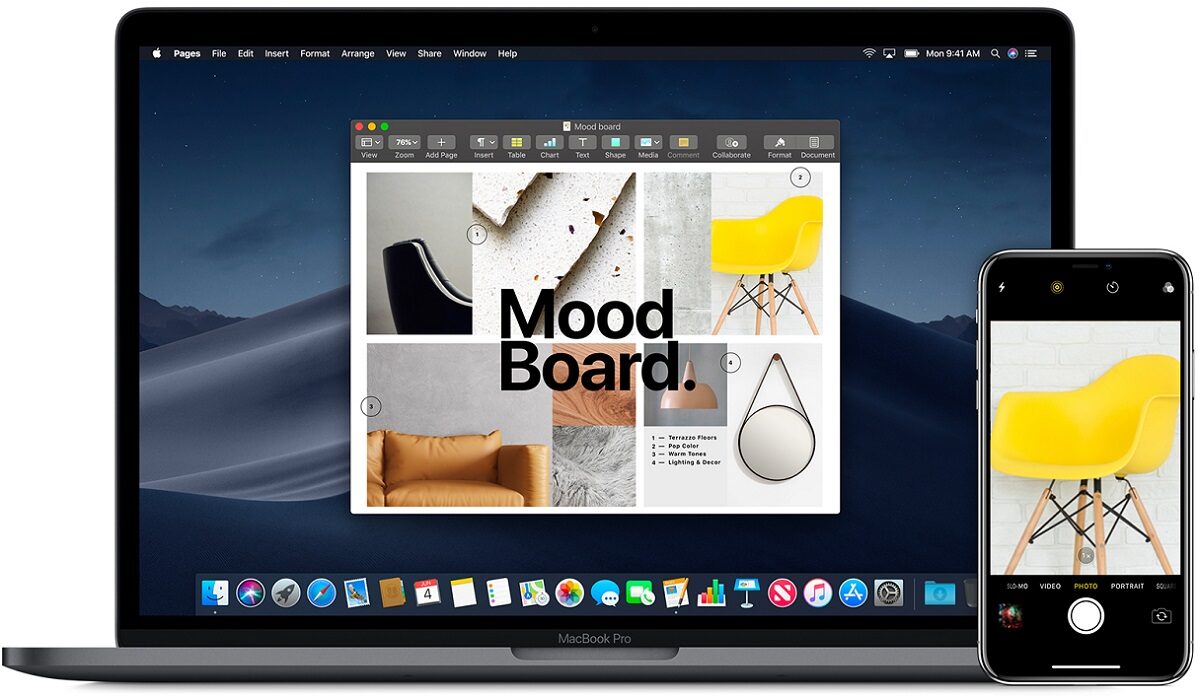
Use iPhone as Mac webcam with continuity camera
How Do I Use My iPhone As Mac WebcamWithThe Continuity Camera?
Given that your devices comply with the requirements we’ve listed in the first part of this guide, using the continuity camera is a piece of cake. Let’s look at the following steps that will guide you to use FaceTime (for instance) with the Continuity Camera.
● On your Mac, launch FaceTime. FaceTime will automatically recognize and select your iPhone as the webcam if it is nearby. Even without being unlocked, your iPhone can be registered as a webcam on Mac.
Keep in mind that in the future, FaceTime won’t always pick your iPhone as the webcam based on which camera you prefer to use, i.e. if you typically use your Mac camera instead of your iPhone. You can choose it manually in this situation. However, FaceTime will immediately recognize your purpose and pick your iPhone as the webcam regardless of your prior decision if your iPhone is mounted on a suitable stand and connected to your Mac.
● An onboarding dialogue box will show up if this is your first time using the continuity camera on your Mac following the upgrade; select “Continue” from the dialog box.
● Your iPhone will display a “Connected to Mac’s name>” screen while it is being utilized as a camera. Tap “Disconnect” on your iPhone to cease using it as a webcam. Your iPhone will no longer be listed as a camera on your Mac after disconnecting. To utilize your iPhone as Mac webcam once more, you must first disable and then re-enable the Continuity Camera setting in the settings.
● Swipe up on the app thumbnail in the app switcher to quit the Continuity app, which will halt the camera feed from your iPhone without deleting it from the list of cameras. The better choice is to manually switch the camera on your Mac.
Keep this in mind, while your iPhone is being used as a webcam, you’ll not be able to use it. Until you lock your iPhone or go back to the phone’s “Connected to Mac” screen, the video feed will be halted.
● Go to the ‘Video’ option from the menu bar in the top-left corner of the screen to switch between cameras on your Mac during a FaceTime chat.
● Choose your preferred camera from the menu after that. Here, you can also change the microphones. There is no option to swap cameras in the screenshot below because the iPhone camera is the only one that is available. However, a camera option, identical to the microphone one, will be available on your menu.
How Do I Use My iPhone as Mac webcamWithThe Video Effects on a Call?
As we mentioned in the first part of this guide, the continuity camera offers s number of video effects that work together or individually – depending on your preference – to give your video an outstanding quality. These video effects include Center Stage, Portrait video, Desk View and Studio Light. For in-depth information about what these effects do, make sure to see the first part of this guide.
The following instructions will help you use the video effects correctly while using the Continuity camera:
● Click the “Control Center” icon in the menu bar to access the visual effects while you are on a call.
● Then select “Video Effects” from the Control Centre’s menu.
● The menu for video effects will appear. Your device’s available effects will start to show up. Choose the effect that you want to apply. You can also combine several effects. A checkmark will appear next to the effects that have been chosen. To deactivate the effect, click it once more.
The Desk View effect in particular is one of the video effects that can be a little challenging to use. You can however follow these instructions:
● Click the Desk View button in the Control Center to use it.
● An onboarding dialogue will show up the first time you use the desk view. The “Continue” button is located in the bottom right corner.
● A new window will appear with the Desk View. No matter the video conferencing program you’re using, you must share your screen and select the Desk View window to share with the other participants in the conference.
● Using FaceTime as an example once more. In the toolbar at the base of the FaceTime window, select the “Share Screen” icon.
● Then, from the Share Screen overlay window that displays, choose “Window.”
● Your video feed will be visible while the desk view is shared, but you can opt not to share it and turn down your camera from the FaceTime app. The desk view feed won’t be affected by this.
● The Center Stage effect is also automatically activated when you choose “Desk View” to keep you in the spotlight when you share your desk. But from the Control Center, you can turn it off if you like.
Even though we used FaceTime to show how the continuity camera and video effects worked, you may still utilize it in other apps (including Microsoft Teams, Google Meet, Skype and Zoom as of now. Since each app places them differently, the only difference when using it with other apps would be the menus from which you may manually switch the camera or share your screen. However, the fundamental approach to employing the continuity camera will remain the same.
In summary , the continuity camera is a great feature, thank you Apple! It’s highly unlikely that you already know how to use this properly, so feel free to take advantage of the instructions we’ve provided in this article to use the continuity camera successfully.
You should also consider sharing this article so your friends and loved ones can also benefit from the helpful information we’ve provided in it.
- Don’t miss our mobile phone reviews .
- Follow our news on Google News .
- Join our WhatsApp Group , to be notified of the most important articles and deals,
- Follow us on Instagram , Facebook , Twitter , and YouTube .
Author:Joan Agie
Add MobilityArena as a preferred source on Google
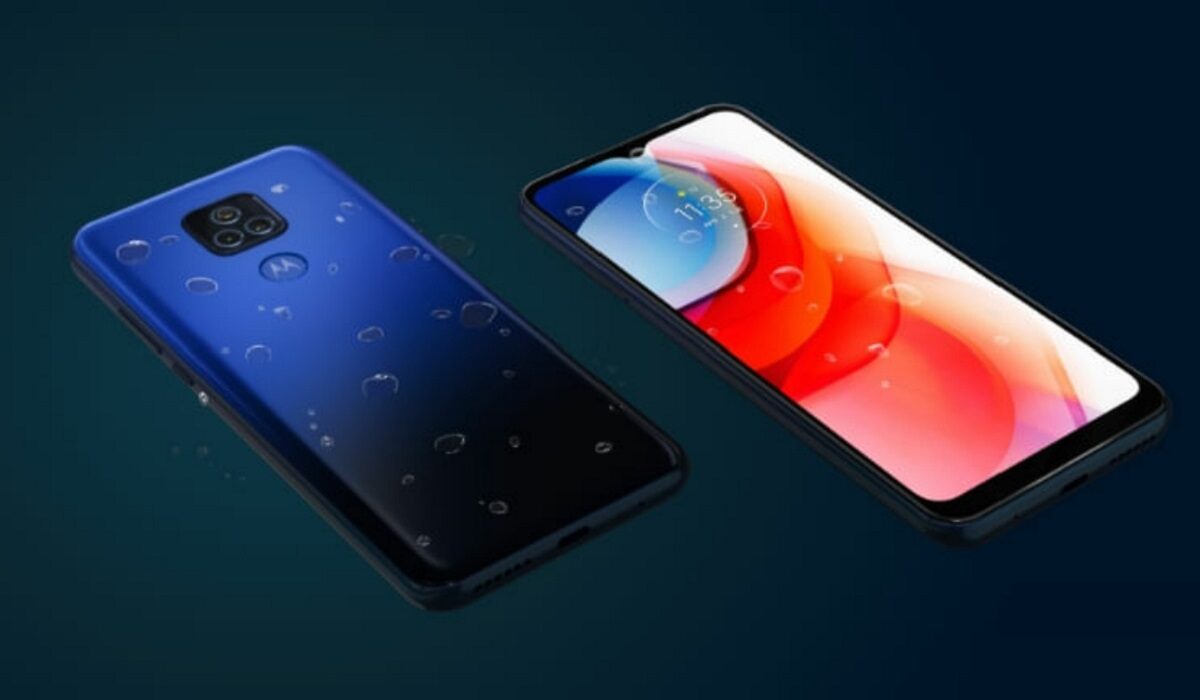
The Motorola Moto G Play is one of Motorola’s latest entry-level smartphones that was released in January 2021. The device has a 6.5″ HD+ display, a 13MP main camera, a 5 MP selfie camera, and a 5,000mAh battery that lasts for up to 3 days without charging. The processor on the Moto G Play is the Qualcomm SM4250 Snapdragon 460. It also has 3GB of RAM and 32GB of internal storage. The device has a durable build that is also water-repellent. This means that raindrops, light sweat, and little spills have no little to no effect on the device.
Now, if you are looking to make your Moto G Play run faster and smoother, here are some ways to make that possible.
- Make Moto G Play run faster by deleting unused apps
- Make Moto G Play run faster by clearing app cache
- Make Moto G Play run faster by installing software updates
- Make Moto G Play run faster by restarting your Device
- Make Moto G Play run faster by using the Lite Version applications
- Make Moto G Play run faster with a Hard Reset
Make Moto G Play run faster by deleting unused apps
Any smartphone user would love to have all their desired apps installed. This might lead to large amounts of apps piling up on the device, over time. It is important to form a habit of uninstalling unused apps and games. Having lots of these apps will hinder and slow down the performance of your device.
Especially when you have some of them running in the background. They also become so many and have so much data on each one of them, that there is barely any storage space left for your device to run as smoothly as you may have liked.
Make Moto G Play run faster by clearing app cache
Cleaning the cache of the app on your Moto G Play is important in terms of sending up your phone. Clearing the cache of an app can make that particular app run faster and smoother than it did before, and reduce possible lag. Clearing cache is also very important for entry-level devices too to help them improve their performance. As they are not as powerful as high-end devices. You can clear the cache of any app by long pressing the app icon, selecting App info , and then Storage . There will be an option to Clear the cache . Select that and you’re good to go.
Make Moto G Play run faster by installing software updates
It is important to keep your Moto G Play up to date. This is because, with every new update, there might be security enhancements (which are crucial) but there might also be performance improvements added to the update that can make your overall experience, and device speed, better.
Make Moto G Play run faster byrestarting your Device
It is well known that any device can perform faster and better simply off of a restart. The same holds for the Moto G Play. Doing this should address most of the performance issues, as it deletes temporary files to speed up the phone and clears the phone’s memory.
Make Moto G Play run faster by using the Lite Version applications
Lite versions of apps are the shortened versions of these said apps. Apps Tit Tok, Facebook, e.t.c. The lite versions are usually limited in comparison to the actual applications and don’t offer as many features. These lightweight apps, that do not work your device as hard as the main ones, are designed for entry-level smartphones and designed for users who want to keep their apps simple or use something simple. They help boost the performance of your device and lower your data and charges.
Make Moto G Play run faster with a Hard Reset
If you are looking for a simple method on how to Make Moto G Play Run Faster, it may be the most effective. If you do a hard reset on your Moto G Play, then all the phone data will be deleted, and the phone’s storage will be clean. At the same time, the random-access memory of your Moto G Play will start working like new again. However, you need to back up all the data before performing a hard reset.
The main reason for backing up is that all the data in your Moto G Play’s storage will be erased. This will increase the performance of your Moto G Play phone compared to its previous state before the reset. But it bears too much of a cost for some. If you are fine with having all your data lost, you can go for this option. It will certainly improve the phone’s performance and feel like you just bought a new phone.
- Don’t miss our mobile phone reviews .
- Follow our news on Google News .
- Follow us on Instagram , Facebook , Twitter , and YouTube .
Author:Flamez
Flamez loves basketball, art, gadgets and cars.
