Add MobilityArena as a preferred source on Google
An iPhone SE 2022 vs iPhone 13 mini comparison is inevitable if you are interested in an up-to-date, compact iPhone. They are the two most handy options in the market at this time. While the iPhone 13 mini arrived in September 2021, the iPhone SE 2022 arrived months later in March 2022.
The two iPhones are not much different in size and processing power (they are both powered by the Apple A15 Bionic) and they also arrived in the market with iOS 15. The question now is, Which is faster, has better battery life, takes better photos, does more, etc?
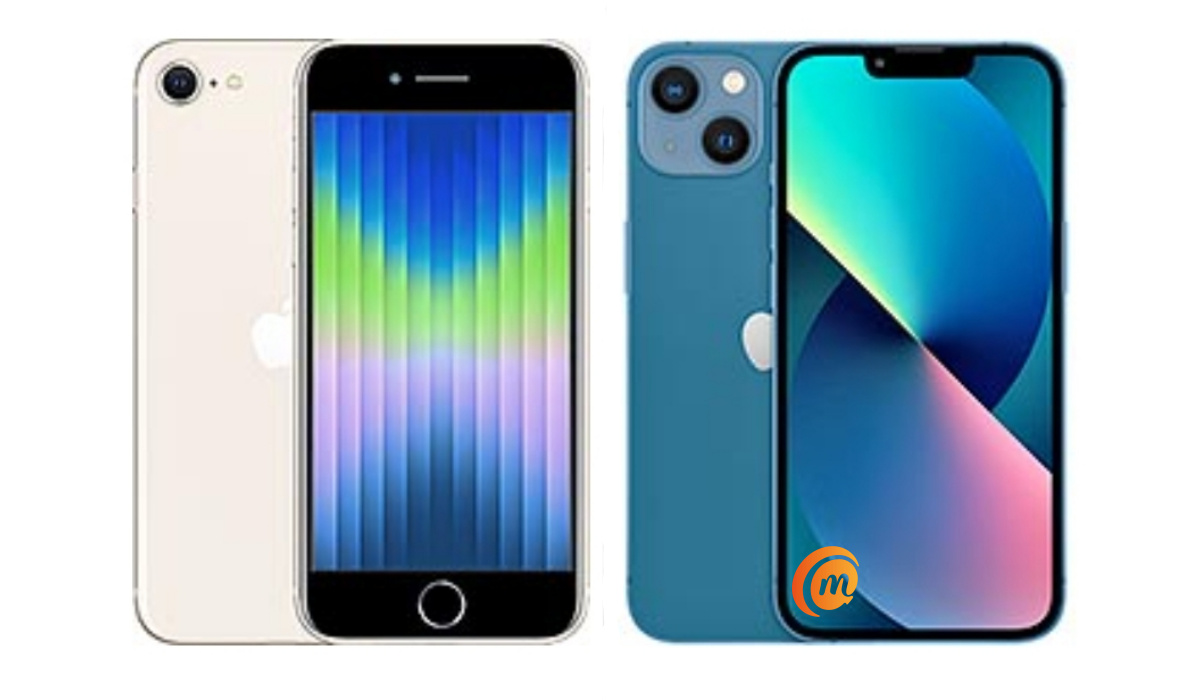
iPhone SE 2022 vs iPhone 13 mini
- iPhone SE 2022 vs iPhone 13 mini: Physical Build and Handling
- iPhone SE 2022 vs iPhone 13 mini: Cameras
- iPhone SE 2022 vs iPhone 13 mini: Battery Life
- iPhone SE 2022 vs iPhone 13 mini: Performance
- iPhone SE 2022 vs iPhone 13 mini: Final Words
iPhone SE 2022 vs iPhone 13 mini: Physical Build and Handling
As already mentioned earlier, our contestants are similar in size. The SE 2022 is 3 g heavier, is taller, wider and thinner than the 13 mini. The differences in dimensions are minimal and won’t likely make any difference in real-life handling.
Where you will notice a significant difference is in the size and resolutions of their displays. The iPhone SE 2022 has a smallish 4.7-inch IPS display with a measly 720×1334 pixels resolution. iPhone 13 mini beats it resoundingly with a 5.4-inch OLED display with 1080×2340 pixels resolution. The 13 mini also has HDR10 support and ceramic shield protection, while the SE 2022 has ion-strengthened glass for protection of the screen.
They are both made of glass and aluminium – glass front and back – and aluminium frames. While the SE 2022 has an IP67 ingress rating, the 13 mini has an IP68 rating, meaning that the latter is more protected against dust and water.
The iPhone 13 mini is the clear winner in this segment.
iPhone SE 2022 vs iPhone 13 mini: Cameras
Camera technology is one area where Apple differentiates between its budget phone models and its regular line-up, and here the differences are significant. The iPhone SE 2022 has a 7-megapixel selfie camera with 1080p video recording. The iPhone 13 mini has a 12-megapixel selfie wide-angle camera with depth and biometrics sensor support, as well as 4k video recording. And the difference in photo quality is big.
Flip the two phones over, and you will find a 12 MP wide-angle lens at the back of the SE 2022, along with quad-LED flash lights. The 13 mini has two lenses – a more capable 12 MP wide-angle lens with sensor-shift OIS, along with a 12 MP ultrawide lens. There is a dual-LED flash light to go with these. On the 13 mini, video recording includes stereo sound.
In usage, the iPhone 13 mini’s cameras out-shoot the SE 2022’s by a wide margin. The 13 mini is a flagship-grade camera configuration while the SE 2022’s is decidedly mid-range. There is no contest; the iPhone 13 mini wins this round too.
iPhone SE 2022 vs iPhone 13 mini: Battery Life
Apple put a bigger battery in the 13 mini – one with 2438 mAh capacity. The SE 2022 has a 2018 mAh battery. Considering that the two smartphones use the same chipset and the differences in screen size and resolution, this should translate to some better battery life for the 13 mini, and if feedback from hundreds of reviews is anything to go by, it does. The iPhone 13 mini has between 8 and 10 hours of endurance over the SE 2022.
They both have the same wired fast charging speeds – 20W, but the 13 mini has the faster 20W wireless charging (Magsafe) as a bonus to the Qi-standard 7.5W wireless charging in both phones. In all, the iPhone 13 mini wins this round too.
iPhone SE 2022 vs iPhone 13 mini: Performance
The iPhone SE 2022 and iPhone 13 mini have the same Apple A15 Bionic chipset and the same 4GB RAM, so the performance is expected to be similar across both devices. And benchmark results confirm this. The differences in performance tests are so minuscule that you will not notice any difference between the two in every day use.
iPhone SE 2022 vs iPhone 13 mini: Final Words
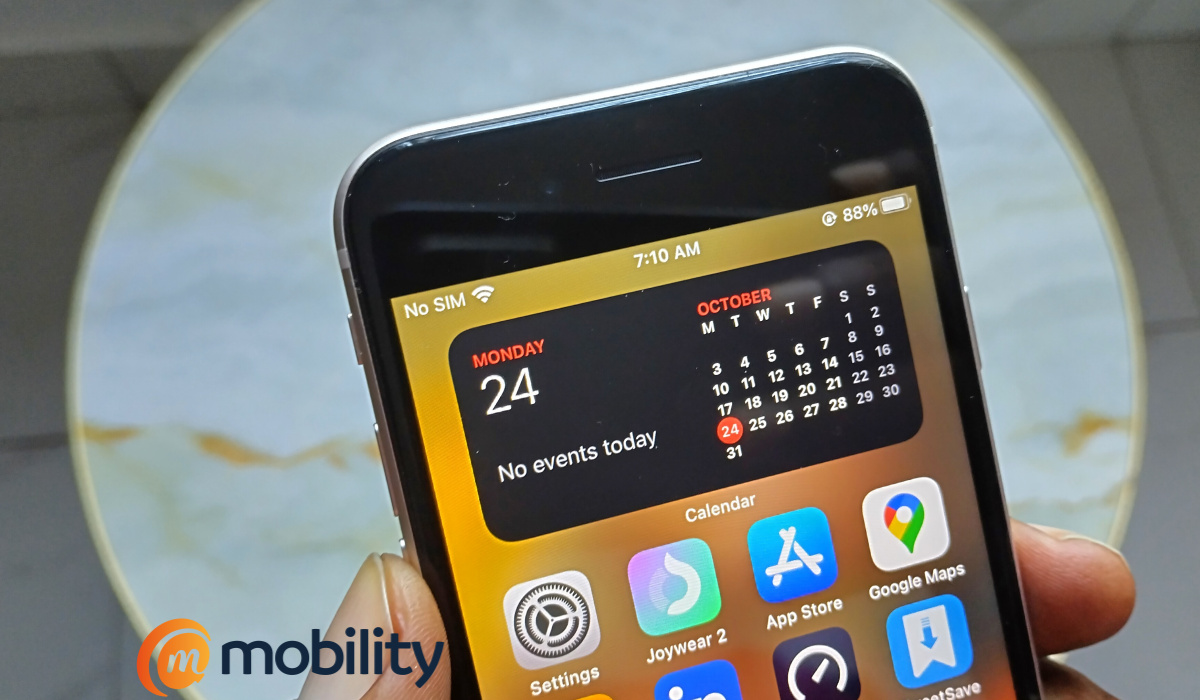
iPhone SE 2022
That price difference is massive enough to sway a budget shopper in the direction of the SE 2022. This was the factor that swayed me in buying it over the iPhone 13 mini. I bet it sways many more. And the sales figures suggest so: the SE 2022 is selling more than the 13 mini, according to Counterpoint Research’s list of the global top 10 smartphones in 2022 .
Plus, the 13 mini is likely the last mini from iPhone. It must have something to do with those sales figures. It isn’t that it is a bad phone; it is more likely that the SE model, while inferior, is simply better value for money for budget shoppers. Do not forget to have a look at my iPhone SE 2022 review .
Author:InfoDesk
Add MobilityArena as a preferred source on Google
The International Mobile Equipment Identity (IMEI) number is essential on mobile devices for cellular service, support forms, warranty and registration reasons, and especially for tracking a lost device. However, despite its importance, not many people know how to find the IMEI number on their iPhones.
In this article, I will walk you through different ways to find your iPhone’s IMEI number. The tips in this guide work whether your iPhone device is locked, turned off, or not at all in your possession.
- How Can You Find Your iPhone’s IMEI Number? Use the USSD Code (Dialer Code) Check Your Device Settings Check Your Device SIM Card Tray Check the Back of Your Device Check Your Device Apple ID Menu Use Finder on Mac Use iTunes on Windows Check Your Device’s Packaging Check Your Carrier’s Website Check the Apple ID Website
How Can You Find Your iPhone’s IMEI Number?
You may need the IMEI number of your iPhone or iPad for different reasons. For instance, the IMEI number of an iPhone or iPad is an important factor to consider when buying a used Apple iPhone. It is one of the best ways to confirm its legitimacy, as it can link any history of theft, criminal conduct, or carrier blockage to the device.
Below are different ways to find your iPhone’s IMEI number.
Use the USSD Code (Dialer Code)
Dialing *#06# is a simple way to find your iPhone’s IMEI number. After you type it out and press the call button, a screen displaying device-specific details will appear.
Check Your Device Settings
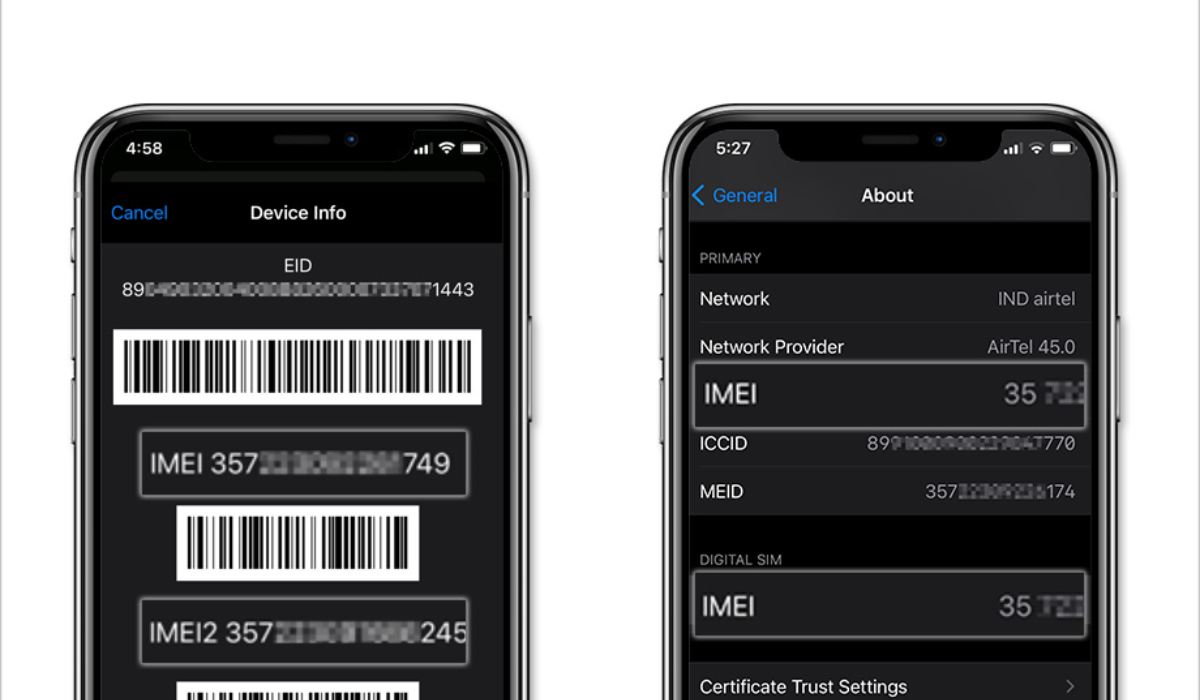
You can also easily find your iPhone’s IMEI number by using the Settings app. This information is easy to obtain on your iOS device by going to Settings > General > About and scrolling down a little.
Check Your Device SIM Card Tray
Pop out the SIM tray if you badly need your IMEI number but your smartphone won’t come on. If you have an iPhone 6s or later, the IMEI number will be printed on the SIM tray.
If you still use an older iPhone model, you can try the following procedure to find your iPhone’s IMEI number:
- Straighten a paper clip or locate a comparable-sized pin or tool. Insert it into the SIM tray and gently push it in until the SIM tray pops out.
- Look for your device’s IMEI in the SIM tray. It will be on the side where you insert the SIM card.
Check the Back of Your Device
You can also find your iPhone’s IMEI number immediately on the metal case if you’re using an iPhone 5, iPhone 5c, iPhone 5s, or iPhone 6/6 Plus. More precisely, it is printed in the lower middle area of the device.
Also, you should find the IMEI on the back if you own an iPad or iPad Pro (Wi-Fi or cellular model).
Check Your Device Apple ID Menu
The Apple ID settings menu is another place to find your iPhone’s IMEI number (or your iPad’s). Follow these steps
- Navigate to Settings and choose your Apple ID name .
- In the devices area at the bottom of the page, select your iPhone or iPad .
- Check for your device’s IMEI in the “ Device Info ” section.
Use Finder on Mac
If your iPhone is locked or you have a eSIM-only device, you may find your iPhone’s IMEI number with the Finder software on a Mac. This approach works on any Mac running macOS Catalina 10.15 or later.
- Open the Finder app and choose your iPhone or cellular iPad from the sidebar once you’ve connected your iPhone or iPad to your Mac with the included Lightning to USB cable.
- Then, navigate to the General page and continuously click the area under the device name until the IMEI number appears.
Use iTunes on Windows
If you have an older Mac that can no longer be updated, you may use iTunes to find your iPhone’s IMEI number. Also, if you’re using a Windows PC, this is your only option to find your iPhone’s IMEI number.
- Open iTunes after connecting your iPhone (or iPad) to your computer using the provided Lightning to USB cable.
- Then select Summary to view details about your Apple device, including the IMEI number.
Check Your Device’s Packaging
The sleek, white box that comes with iPhones (and iPads) is another easy way to find your iPhone’s IMEI number if you hold on to it after the purchase. The IMEI number is printed on a sticker on the box, so this is a useful way to find your iPhone’s IMEI number if you don’t have the device nearby.
Check Your Carrier’s Website
If you need to find your iPhone’s IMEI number online but don’t have your phone or another Apple device nearby, you have one more option. Through your network provider’s website, you’ll find your iPhone’s IMEI number online.
Some carriers, such as T-Mobile, display the IMEI online under your device details. Simply log in to your carrier account and look at the devices to obtain this information. Your IMEI will be listed there by most carriers. If you have a contract plan, you’ll see your IMEI number in your contract document.
Check the Apple ID Website
Even if you don’t have your iPhone or iPad with you but you need the IMEI number, there is still hope. You can find your iPhone’s IMEI number on Apple’s website as long as the device is connected to your iCloud account.
To find your iPhone’s IMEI number in this manner, follow these steps:
- Navigate to appleid.apple.com in any web browser.
- Then, login with your Apple ID and go through the device list. Forgotten your Apple ID? Check this guide to learn how to recover it.
- Once you’ve located the device for which you want information, click the device name to get the IMEI number.
To conclude , when contacting Apple Support for any form of help, the IMEI number is among the crucial details you’ll need. It’s also useful if you ever need to find your lost device. Using the tips I’ve provided in this guide, you can easily find your iPhone’s IMEI number and use it for whatever purpose.
