Add MobilityArena as a preferred source on Google
While the fax machine itself is now an antique now, many offices still use fax and list their fax numbers. Fax machines are obsolete and have been replaced by fax apps and online fax services. To send a fax from a mac, there are many online applications in existence.
With a number of options to select from, it becomes difficult to decide on which application to use. Many services are expensive and do not offer essential features. To make it easy for online fax users, we have selected one application that has all the top-notch features, after research and experience.
CocoFax: Reliable online faxing service for Mac
CocoFax is a mac application and online fax service that lets you fax without a phone line . It makes the faxing process secure by excluding the need to print out any documents. The app acts as the translator to convert the TIFF file from an old fax machine into a PDF file.
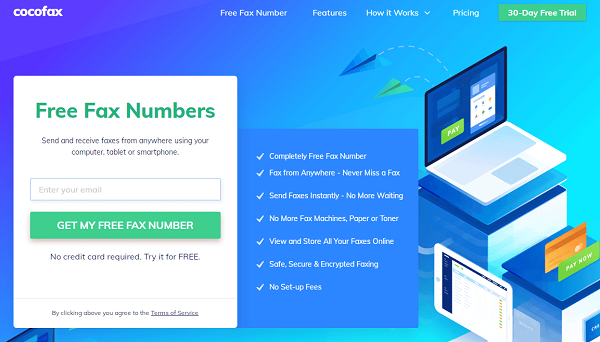
CocoFax features available for Mac users:
CocoFax provides both email-to-fax and fax-to-email service. This has made CocoFax a reliable service for many people who are not used to sending faxes through a fax machine.
To use CocoFax on a smartphone, Android and iPhone applications are also available. CocoFax not only sends faxes but it also lets you receive them. Incoming faxes are received and stored in the inbox for the entire lifetime of your CocoFax account.
CocoFax can be used on any device with an internet connection, like a laptop, smartphone, PC, and Mac. There is no need to keep the device on because you will not miss any fax even when the device is powered off.
It works without any additional hardware and telephone lines. There is no need to waste money on ink or paper. Many international organizations have been using CocoFax services and have given good reviews. Few of them are PC world, New York Times, iGeeksBlog.
Is it easy to fax from Mac via CocoFax dashboard:
CocoFax is an application that makes it possible to fax from Mac without the need for a modem or any additional hardware. The procedure of faxing is like a five-finger exercise: anyone can send and receive faxes without facing any technical issues.
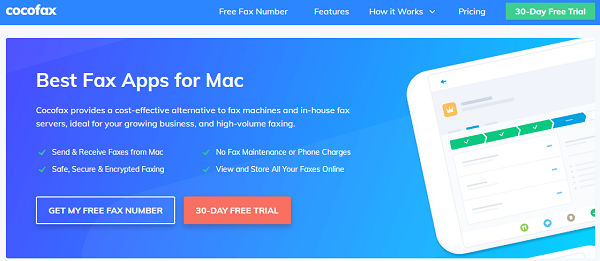
To make it convenient for its users, CocoFax has provided a video tutorial on the official site. In addition to that, you can read the steps below to better understand the process.
Step-by-step guidelines
First thing is to create an account on the official site. You can use any web browser for opening CocoFax.com. There you will see the free trial button on the top right corner, click on that to avail the opportunity of using CocoFax services for free.
For registration the first step is to specify the fax number you will use. You can select the fax number from any toll-free number, vanity number, or an easy to remember number.
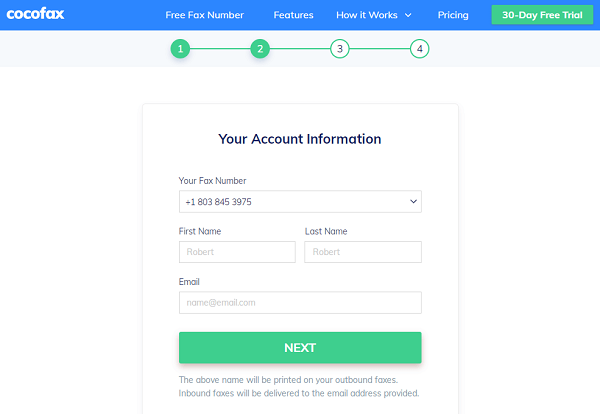
After selecting the free fax number move on to the next step. There you have to provide your first and last name and the email address of the account you want to merge with the CocoFax account. This will make it possible to fax from the email account directly.
Once the registration is complete, the CocoFax dashboard will appear on the screen. You can access this dashboard from any surfing site with your CocoFax credentials. This will make it possible to send and receive fax anytime, anywhere.
To send the fax hit the “new fax” option on the top left corner of the dashboard. After clicking on that a new window with empty fields will appear.
In the “To” field you have to enter The fax number of the person you want to send the fax to. You have to enter it carefully because any mistake in the fax number will not allow the rax to be delivered successfully.
Next subject and body fields are optional and you can leave them empty if there is nothing to mention. Otherwise, you can enter the title of the fax and the contact information in these fields respectively.
Lastly, to attach the file, the paper clip symbol is given. Click on that and select the files you want to fax. CocoFax can send multiple files at the same time. The formats could be different, for example, PDF, Docx, and doc. You have to click on the send button and in the blink of an eye, the fax will be delivered by CocoFax to the receiving end.
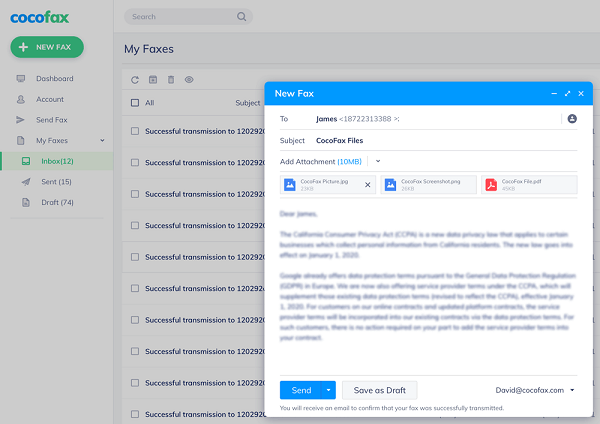
After successfully delivering it, CocoFax will give you an informing notification and an email so there is no need to call the recipient and find out whether the fax has arrived or not.
If there is any hurdle, the problem is most probably with their receiving fax machine or the machine is off. If the fax machine is off, contrary to digital devices and CocoFax, it cannot receive the fax. That’s why CocoFax has replaced the old fashioned fax machine at large scale.
Receiving fax via CocoFax on Mac:
To receive the fax, CocoFax is responsible for doing all the work behind the scene. You just have to open the file directly in your device and read it. Once a fax is received CocoFax converts it into a digital file if that is a TIFF file and saves it.
You can read the file without printing it out. This is another benefit of CocoFax which had made the fax mobile and convenient. Now anyone can enjoy the secrecy of faxing and the comfort of email in one place.
Conclusion:
It can be concluded that CocoFax is a best-suited option in the modern world because of its easy-to-use technology and lightning-fast speed. Now anyone can have an account without a huge budget to enjoy a hassle-free experience, devoid of extra telephone lines and multiple hardware devices, for sending or receiving fax from a Mac.
You can get more details about the features of CocoFax from the Google Fax Free site , if you still have questions that need answering.
Author:Content Partner
Add MobilityArena as a preferred source on Google
It’s not every day you get to see two Samsung smartphones go head-to-head, especially when both devices are as closely related as the Samsung Galaxy A50 and Samsung Galaxy A51. This match-up brings the past up against the present, making for a very interesting comparison today.
The Galaxy A50 was launched in March of 2019, with the A51 coming 9 months after the Galaxy A50. The Galaxy A51 was Samsung’s best-selling smartphone in the first quarter of 2020, while the Galaxy A50 was rated as the most successful Android phone of 2019.
With the really high-ratings both Samsung smartphones have garnered in the last few months, we sure do have one big battle on our hands today.
We will start by zooming in on the features and specifications of both devices in a brief moment, while we also bring you the more subtle differences between these two.
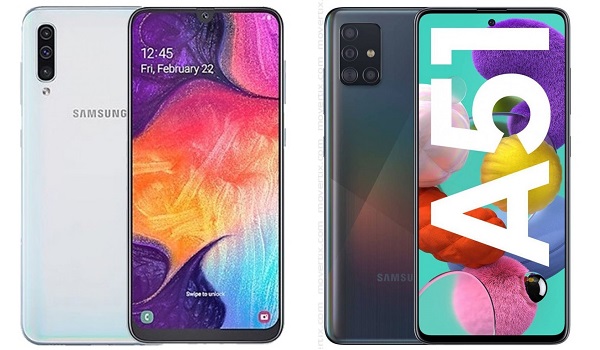
Samsung Galaxy A50 vs A51 comparison
Our first stop will be the specifications of both smartphones in a side-by-side manner.
Samsung Galaxy A50 vs A51 Comparison Table
This is where we catch our first glimpse at the specifications smartphones have for us.
| Samsung Galaxy A50 | Samsung Galaxy A51 |
|---|---|
| 2G, 3G, 4G | 2G, 3G, 4G |
| 6.4 inches, 2340 × 1080 pixels, 19.5:9 aspect ratio, Infinity-U Super AMOLED display | 6.5 inches, 2400 × 1080 pixels, 20:9 aspect ratio, Infinity-O Super AMOLED display |
| Android 9 Pie + One UI | Android 10 + One UI |
| Octa-core Exynos 9610 (10nm), 2.3GHz | Octa-core Exynos 9611, 2.2GHz |
| 25MP selfie camera | 32MP selfie camera |
| 25MP + 8MP + 5MP triple rear cameras with LED flash | 48MP + 12MP + 5MP + 5MP quad rear cameras with LED flash |
| 64/128GB internal storage + dedicated microSD card slot up to 512GB | 64/128GB internal storage + dedicated microSD card slot up to 512GB |
| 4/6GB RAM | 4/6GB RAM |
| 4,000mAh battery with 15W fast charge | 4,000mAh battery with 15W fast charge |
| ₦105,000/₦120,000 ($285/$310) | ₦103,800/₦135,450 ($282/$350) |
Samsung Galaxy A50 vs A51: Where The A50 Has The Edge
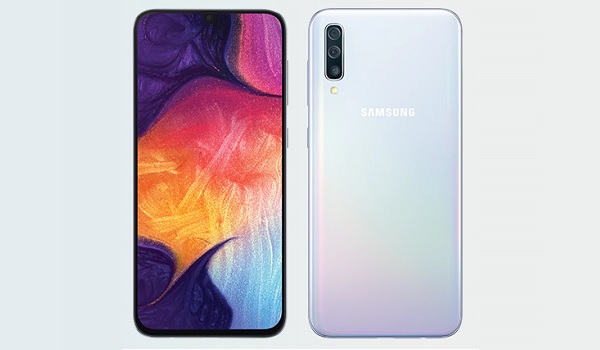
The A50 offers a less expensive option with its 6GB RAM variant. It is also lighter than its sibling device and is more compact, making it easier to hold and keep in smaller spaces.
It shares a number of features with the A51 such as RAM, and internal memory, while it has a very similar processor to the A51.
The A50 offers great specs at a decent price point for buyers who want a solid mid-range device with a great performance.
Samsung Galaxy A50 vs A51: Where The A51 Has The Edge
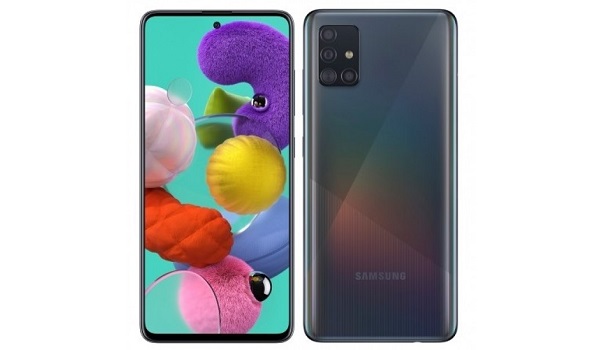
The A51 boasts a slightly bigger display with a higher resolution than its sibling device. It also comes with a newer OS version out of the box and should receive the new Android update once it is available.
The A51 boasts a better camera setup than its rival, as it can take better daylight photos than the A50, while bringing a more versatile setup to the fray. It shares the same onboard storage as the A50 and also has two RAM variants like its counterpart.
Samsung Galaxy A51
Samsung Galaxy A50 vs A51: Which Of These Devices Should You Go With?
Both devices offer 4G technology, have solid processors, have good RAM and provide great batteries to carry their impressive specs. The A50 offers a cheaper option than its counterpart for its higher RAM variant.
The A50 shares a number of specs as the A51, also coming in two RAM variants, a 4GB variant that costs ₦105,000 and a 6GB variant that sells for ₦120,000.
The A51 on the other hand offers a better camera setup storage than its sibling as well as a slightly larger display. It also comes with the Android 10 and brings a more aesthetic design to the table (in my opinion).
The A51’s 6GB variant is more expensive than the A50’s 6GB variant, but offers great specs, a newer OS and a better camera setup. Both Samsung mid-range smartphones are very wonderful options with good features, but if you have some extra cash to part with, then the A51 is the device for you.
Author:Alfa Baye
Staff Writer
