Add MobilityArena as a preferred source on Google
The touchpad can greatly affect your experience, regardless of how powerful your laptop is. Since it’s your primary method of interacting with the computer, a slow, inaccurate, or erratic cursor caused by a malfunctioning touchpad could make things difficult for you.
However, when your laptop’s mouse touchpad stops working, chances are the solution is simple. In this article, we’ll walk you through different ways to fix a laptop’s touchpad not working.
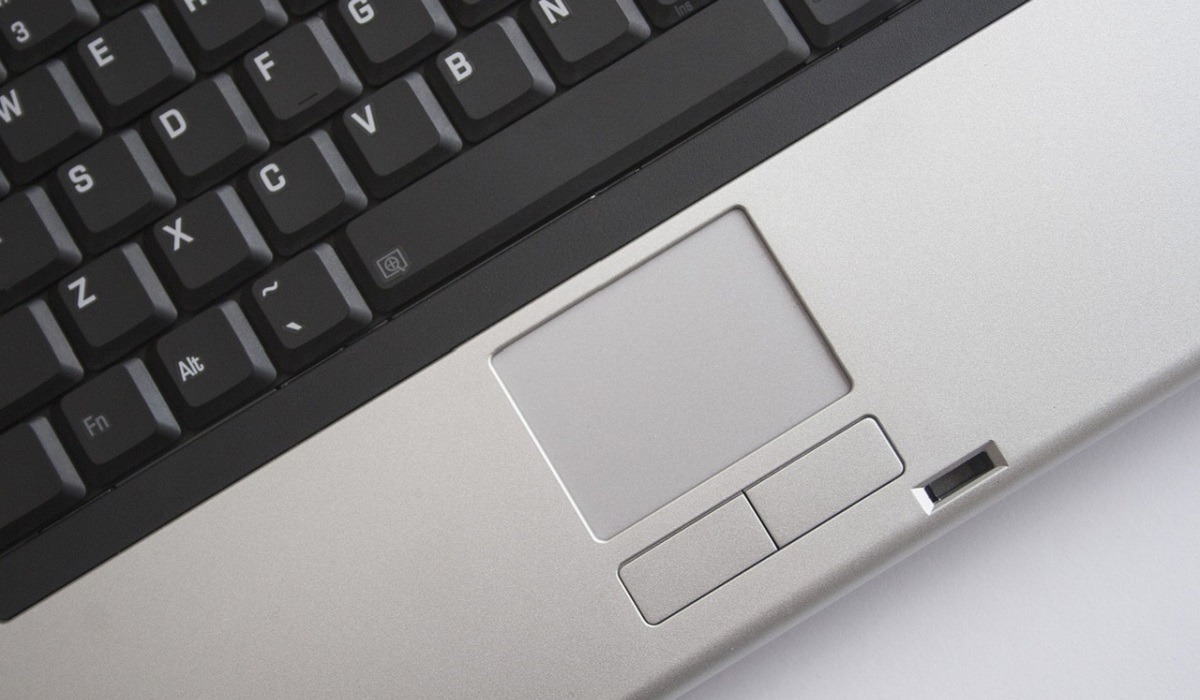
- How Can I Fix My Laptop Touchpad Not Working? Re-Enable the Touchpad Using the Function Key Reboot your laptop Enable Touchpad In Settings Enable Touchpad in the BIOS Undo Device Driver Updates Perform a System Update
How Can I Fix My Laptop Touchpad Not Working?
If your laptop’s touchpad no longer working, it can be really annoying. Fortunately, it’s usually an easy problem to resolve. Here are the most common ways to fix a laptop’s touchpad not working.
Re-Enable the Touchpad Using the Function Key
Most, if not all Windows laptops, have a function key dedicated to disabling and enabling the laptop touchpad. The key’s icon frequently depicts an older-style touchpad with a line through it.
In the row of function keys, press and hold the Function key (usually labeled “fn”) and the touchpad disable/enable key. The location and appearance of the key will vary depending on the make and model of your laptop, but it will most likely resemble a touchpad with a line running through it.
On the screen, you should see a message indicating whether the touchpad is enabled or disabled. If the message says enabled, check to see if the touchpad is now operational.
Reboot your laptop
If your laptop is always on or in sleep mode, restarting it may help fix the laptop touchpad not working. Turn off the laptopand wait 30 seconds for any residual energy to dissipate. Start the laptop and check if the touchpad works.
Even if this resolves the issue, it could indicate that there is a software issue. Check for and install any available system updates, as explained further below.
Enable Touchpad In Settings
It’s possible to disable the touchpad in the settings of both Windows and macOS. If your laptop has been used by anyone else, the touchpad may have been disabled in this manner, causing it not to work.
So, to fix your laptop’s touchpad not working, go to Settings > Bluetooth & Devices > Touchpad in Windows. Check here to make sure the touchpad is still enabled.
On a MacBook, navigate to System Preferences > Accessibility > Pointer Control > Mouse & Trackpad . The trackpad does not have a simple on/off switch here, but there is an option to “ Disable the Trackpad If an External Mouse Is Connected. ” To fix your laptop’s touchpad not working, make sure this option is not selected.
Enable Touchpad in the BIOS
The touchpad on a laptop can also be disabled in the BIOS settings. The touchpad setting may be changed on rare occasions when flashing or updating the BIOS. So, to fix a laptop’s touchpad not working, you can test this by entering the BIOS settings.
Turn on your laptop and press the key used to enter BIOS. The key you have to press varies depending on the device manufacturer, but it is usually F2 , F10 , or F12 . Look for “ Touchpad ” or “ Internal Pointing Device “ in the “Advanced” BIOS settings and make sure it is not disabled. Before exiting the BIOS settings, make sure to save any changes.
Undo Device Driver Updates
Of course, updating drivers on a regular basis is recommended to keep your laptop running smoothly. However, driver conflicts are unfortunately difficult to avoid because PC configurations are not standardized.
A driver conflict occurs when an installed software update adversely affects the operation of another piece of software. A driver conflict could be the cause of your touchpad not working after you updated your drivers.
In Windows, Device Manager allows you to undo driver updates to fix your laptop’s touchpad not working. Locate the device that had its driver updated by opening Device Manager. Select “ Properties ” from the context menu. Click the “Roll Back Driver” button under the “Drivers” tab in the properties pane.
Unlike Windows, macOS does not allow you to roll back driver updates. However, you could restore it to a time before the driver update if you have a recent Time Machine backup.
Perform a System Update
Microsoft and Apple both release system software updates on a regular basis. System updates improve security, resolve known issues, and help your computer run more smoothly in general. They can solve a wide range of issues, including software conflicts that can prevent a touchpad from working.
In Windows, navigate to Settings > Updates & security > Windows Update. Click the “ Check for Updates ” button to find and install any available updates.
On a MacBook, go to the Apple menu > System Preferences > Software Update. Search for and install all available updates by clicking the “ Update Now ” button.
In conclusion , if none of the aforementioned options can successfully fix your laptop’s touchpad not working, you may be dealing with a hardware issue. Check with the manufacturer of your laptop to see if it is still under warranty. And of course, you can try using a mouse in place of the touchpad.
Author:Joan Agie
Add MobilityArena as a preferred source on Google
You may know that mobile devices like smartphones and tablets have changed the world. They made it possible to stay connected all the time, have more fun at any given moment, avoid any restrictions and play games when you want, regardless of where you are. People also have access to all kinds of information 24/7 and can use a simple smartphone to solve a problem and boost their productivity. Nevertheless, all users at some point use mobile devices for entertainment.
Mobile Devices and Online Gambling: History And Features
An interesting fact is that mobile gambling became available and very popular in 1997. This was possible thanks to the game Snake that was available on Nokia phones. In 2001 the next big thing occurred. The first, more advanced games were released. Of course, all of this was significantly changed and improved in 2006-2007 when more capable devices were released, including the first iPhone.
Today, over 86% of the world’s population or over 6.9 billion people use a smartphone. The trend has been on the increase for a long time and it will continue to grow. This means that over 2.5 billion smartphone users play games on a regular basis.
Over time, smartphones have become more affordable, more capable, and more versatile. Also, were developed apps to avoid restrictions. For example, thanks to them, you can bypass the GamStop membership and gamble even if exclude yourself earlier. Why it’s important? Because if you become part of this program, then gambling again will become a huge problem. This program is extended automatically and is difficult to exit from it. But as we said, convenience is the main feature of phones and they will help you get avoid even GamStop. About other benefits read below.
Benefits of Mobile Devices for Online Gambling
There are a lot of reasons why this is the case and why many people use a smartphone to play games. The first one is convenience. It is much easier to play a game or use any smartphone than on your computer. You can also play the game regardless of where you are and at any given moment. You can even play the game while at work.
Gamers also like the improved privacy and the ability to control their gambling experience much better than when using any other device. All of this is important for users and makes smartphone games even better and more desirable.
Risks and Challenges of Mobile Devices for Online Gaming
Playing games on a smartphone can be perfect. However, some problems or issues if you prefer are still common and present in many cases. One of them is possible addiction. Because it is so easy to play a game, addiction can easily occur. If you are one of the users who need help, look at GamStop. This is a free self-exclusion method that is available in the United Kingdom. But as we mentioned earlier you will have a problem with getting off this program. So, you can keep yourself from gaming sites for up to 5 years or even more if you like.
Another issue here is sharing personal and financial information. This can be a huge issue for some users and something that can make things more problematic. Playing responsibly is harder than on a computer due to the aforementioned benefits. It is easy and simple to play a game stopping the gameplay is harder as well. Yes, it is much easier to lose track of your smartphone and play the entire day. Another issue here is the lack of physical activity that is obvious.
Technological Advances and the Future of Mobile Devices and Online Gambling
Smartphones and modern tablets are developing faster than anything else. We can see artificial intelligence, augmented reality, and virtual reality all being developed as we speak. Foldables make these devices even better. All of these technologies make gambling on a smartphone better, more versatile, and better.
AI can recommend the games to you that are just right. VR can make gaming far more realistic and appealing. Augmented reality can make any game so much better and more desirable.
While these technologies look great and feel like that as well, there are some ethical issues. These technologies will require new and more advanced smartphones and they can make using a smartphone even more addictive.
Conclusion
Using a smartphone to play games online is great. It is one of the trends that have been growing and developing for a long time and one that will continue to grow. Modern devices make this path easier and more controlled as we speak. You can even use apps to restrict some activities and concentrate on that what really matters. So, in the near future, we can expect to see a massive increase in mobile gambling and the ability to enjoy special, advanced, and one-of-a-kind games that are phenomenal.
