Add MobilityArena as a preferred source on Google
The Lenovo IdeaPad Pro 5i is celebrated for its powerful performance, impressive display, and sleek design. However, some users have expressed concerns regarding keyboard comfort and build quality, which can impact overall satisfaction and productivity. Issues such as keyboard flex, key travel, and tactile feedback can hinder typing efficiency and comfort during long sessions. Additionally, the touchpad’s responsiveness and overall build quality perception can further affect the user experience. In this article, we will explore the common concerns related to keyboard comfort and build quality of the Lenovo IdeaPad Pro 5i and provide practical solutions to enhance your experience. By addressing these issues proactively, you can significantly improve your typing experience and make the most of this capable laptop. Whether you are a student, professional, or casual user, ensuring that your keyboard setup is comfortable and efficient is crucial for maintaining productivity. Journey with me into the details and discover how to tackle these keyboard-related challenges effectively!

- Common Keyboard Comfort and Build Quality Issues and solutions Keyboard Flex Touchpad Responsiveness Overall Build Quality Perception Key Travel and Feedback
- Other Practical Solutions for Enhanced Keyboard Comfort Regular Maintenance Utilize Backlighting Effectively Provide Feedback to Lenovo
- Conclusion
Common Keyboard Comfort and Build Quality Issues and solutions
Keyboard Flex
One of the most frequently reported issues is the noticeable flex in the keyboard deck when typing. While the aluminum chassis of the IdeaPad Pro 5i exudes quality, it does not feel as solid as some competitors like Apple’s MacBook Pro. This flex can lead to a less satisfying typing experience, particularly for users who type with force. Consider using a silicone keyboard cover to reduce flex and provide additional cushioning while typing. This can enhance comfort and protect against dust and spills, potentially improving overall typing experience.
Touchpad Responsiveness

The touchpad on the IdeaPad Pro 5i has been described as functional but may not be as responsive or intuitive as those found on other premium laptops. The clicking mechanism can be less than ideal, leading to frustration during navigation. Adjust touchpad sensitivity settings through your operating system to improve responsiveness. Here is how to adjust:
- Go to Settings > Devices > Touchpad (or similar) and experiment with sensitivity levels until you find what works best for you.
Overall Build Quality Perception
While the laptop’s aluminum chassis is generally well-received, some users feel that it lacks the robust feel of higher-end models. This perception can affect user confidence in the device’s durability over time. If you find the built-in keyboard of the IdeaPad Pro 5i uncomfortable for extended use, consider investing in an external mechanical or ergonomic keyboard. Using an external keyboard can significantly improve comfort during long typing sessions while preserving your laptop’s portability.
Key Travel and Feedback
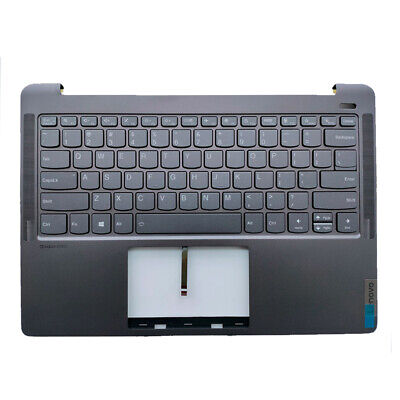
Users have noted that while the keyboard offers a good amount of key travel, the tactile feedback may not be as pronounced as desired. Some users report feeling uncertain about whether they have adequately pressed a key, which can affect typing speed and accuracy. Pay attention to your typing technique to minimize excessive force on the keys.
- NB: Try to type lightly to reduce flexing on the keyboard deck. Practicing good typing posture can also help alleviate discomfort.
Other Practical Solutions for Enhanced Keyboard Comfort
Regular Maintenance
Keep your keyboard and touchpad clean by regularly wiping them down with a microfiber cloth. Dust and debris can affect performance; regular cleaning helps maintain functionality.
Utilize Backlighting Effectively
Take advantage of the backlit keyboard feature on the IdeaPad Pro 5i in low-light conditions. Adjust brightness settings for optimal visibility without straining your eyes during nighttime use.
Provide Feedback to Lenovo
If you continue experiencing issues with keyboard comfort or build quality, consider providing feedback directly to Lenovo through their support channels. User feedback is crucial for manufacturers to identify areas for improvement in future models.
Conclusion
While the Lenovo IdeaPad Pro 5i excels in many areas, concerns regarding keyboard comfort and build quality can impact user experience. By understanding these issues and implementing practical solutions—such as using a keyboard protector, adjusting typing techniques, considering an external keyboard, customizing touchpad settings, maintaining cleanliness, utilizing backlighting effectively, and providing feedback—you can enhance your overall experience with this capable laptop. Embrace these strategies as opportunities to optimize your device for peak performance and comfort. With a little attention and care, you’ll find that navigating any keyboard-related challenges becomes much more manageable, allowing you to fully enjoy all that your Lenovo IdeaPad Pro 5i has to offer!
Author:Ifeoluwa Adeleke
Add MobilityArena as a preferred source on Google
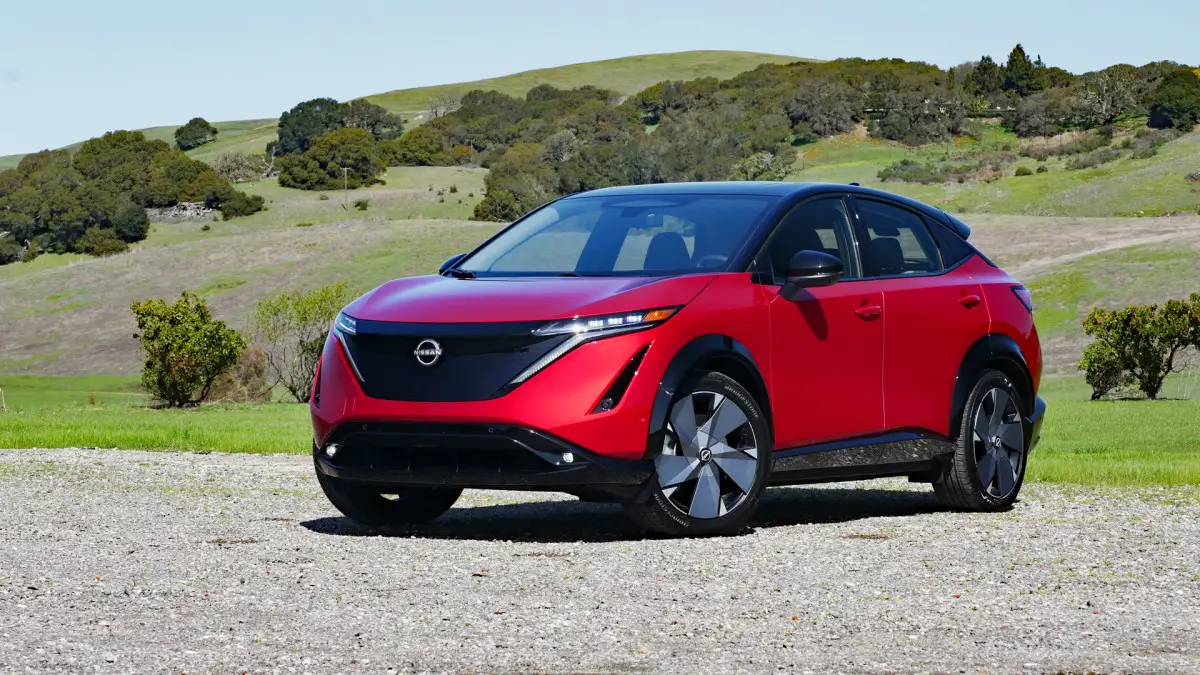
The Nissan Ariya EV is a groundbreaking all-electric SUV that combines advanced technology with an appealing design. However, some users have expressed concerns regarding its limited driving range, which can affect long-distance travel and overall satisfaction. With varying ranges based on battery size and driving conditions, understanding the factors that influence range is essential. Additionally, real-world performance may differ from manufacturer claims, leading to further apprehension among potential buyers. Implementing effective solutions can enhance your experience. By addressing these issues proactively, you can maximize the Ariya EV’s capabilities and enjoy a more fulfilling electric vehicle experience. Whether you’re commuting daily or planning a road trip, understanding how to optimize your driving range will help you get the most out of this innovative SUV. Let’s dive into the details and discover how to tackle these range-related challenges effectively!
- Common Causes of Limited Driving Range and Solutions Battery Capacity Variations Driving Conditions Temperature Effects Use of HVAC System Regenerative Braking Utilization Route Planning Conclusion
Common Causes of Limited Driving Range and Solutions
Battery Capacity Variations

The Nissan Ariya EV comes with two battery options: a 63 kWh battery with an estimated range of up to 304 miles (489 km) and a larger 87 kWh battery, which may offer a higher range but varies based on driving conditions. I recommend the following:
- Choose the Right Battery: If you frequently drive long distances, consider opting for the larger 87 kWh battery version, which provides more usable energy.
- Monitor Battery Usage: Use the NissanConnect app to track your energy consumption and plan your trips accordingly.
Driving Conditions
Real-world driving conditions significantly impact the Ariya EV’s range. Factors such as speed, terrain, and weather can cause fluctuations in battery performance. You should consider the following:
- Adjust Driving Habits: Maintain a steady speed, preferably below 65 mph, to maximize efficiency. Avoid rapid acceleration and hard braking.
- Utilize Eco Mode: Engage Eco Mode to optimize power consumption during drives, enhancing overall range.
Temperature Effects

Extreme temperatures can adversely affect battery performance of the Ariya EV. Cold weather can reduce the effective range by up to 30-40 miles due to increased energy demand for heating. I recommend the following:
- Precondition Your Vehicle: Use the remote climate control feature to precondition your Ariya while it’s still plugged in, minimizing battery drain.
- Park Smartly: Whenever possible, park in a garage or shaded area to mitigate temperature extremes.
Use of HVAC System
The heating, ventilation, and air conditioning (HVAC) system draws power from the battery, impacting driving range when used extensively. These solutions will help resolve the issue:
- Optimize HVAC Settings: Instead of blasting heat or AC, use seat heaters or ventilated seats to maintain comfort without draining the battery.
- Schedule Climate Control: Schedule climate control before you start driving while still connected to a charger.
Regenerative Braking Utilization
The effectiveness of regenerative braking can vary based on driving style and conditions, impacting how much energy is recaptured during braking. I recommend the following:
- Engage Regenerative Braking Features: Use features like e-Pedal to maximize regenerative braking during city driving.
- Practice Smooth Driving Techniques: Gradually slow down instead of sudden stops to enhance energy recovery.
Route Planning

Not planning routes with charging stations can lead to anxiety about running out of charge during long trips. I recommend the following:
- Use the EV Trip Planner Feature: Leverage Nissan’s trip planner to find charging stations along your route and ensure you have enough charge for your journey.
- Plan for Charging Stops: Factor in charging times during longer trips to avoid running low on battery.
Conclusion
While the limited driving range of the Nissan Ariya EV can be a concern for potential buyers and current owners alike, understanding its causes and implementing effective solutions can greatly enhance your experience. By choosing the right battery capacity, adjusting driving habits, managing temperature effects, optimizing HVAC usage, utilizing regenerative braking effectively, and planning routes strategically, you can maximize your Nissan Ariya EV’s range. Embrace these strategies as opportunities to optimize your electric vehicle experience. With a little attention and planning, you’ll find that navigating any range-related challenges becomes much more manageable, allowing you to fully enjoy all that the innovative Nissan Ariya EV has to offer!
