Add MobilityArena as a preferred source on Google
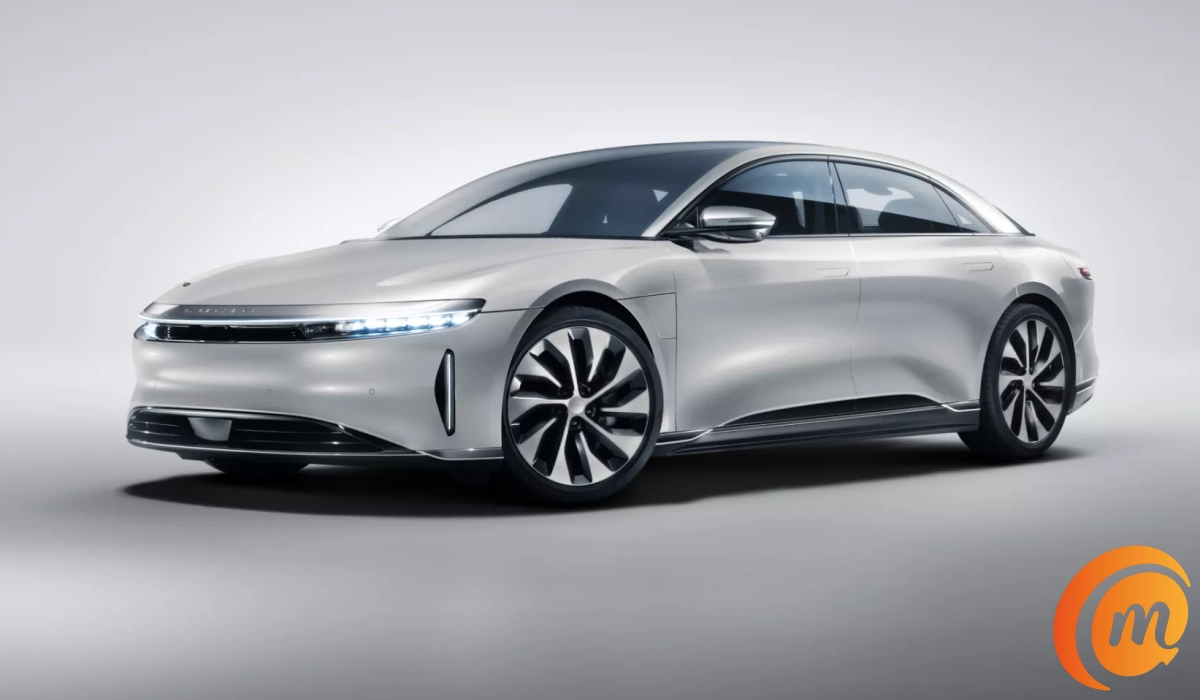
Lucid cars are made by an American automobile company called by the same name: Lucid. It has its headquarters in Newark, California, where their cars are designed. The vehicles are manufactured at the company’s factory in Casa Grande, Arizona.
Lucid started out in 2007 under the name Atieva and produced electric vehicle batteries and powertrains for other vehicle manufacturers. The company rebranded to Lucid Motors in 2016, announced its new direction of making electric vehicles, built its Arizona factory, and began manufacturing cars in 2021.
- Lucid Cars Are Made in America
- What kind of cars does Lucid Motors make?
- Specs and Features of the Lucid Air Range
- The Tesla Influence
- References
Lucid Cars Are Made in America
Lucid Motors is one of the few car makers with manufacturing facilities in the United States. And it reflects in the prices of the vehicles. Lucid electric cars are relatively pricey, but if you are looking for a made in America car, perhaps it is worth the price.
Lucid cars will also soon be made in Saudi Arabia. The Saudi Arabia facility is expected to go on stream in the 3rd quarter of 2023 [1] and produce electric vehicles for the Middle East market.
What kind of cars does Lucid Motors make?
Lucid’s focus is the high performance electric vehicle market. For example, the Lucid Air Touring has a 620 electric horsepower engine with a range of up to 425 miles. When you need to go, it goes from 0 to 60 miles per hour in 3.4 seconds. It sells for $107,400. The Volvo EX30 Ultra trim, with similar performance, sells for about half that price. The Volvo is manufactured in China where production costs are much lower.
But then, perhaps in true American style, the Air Touring has futuristic features that you won’t find in an EX30. Consider the 34-inch, 5K floating screen that curves around you, presenting vital info conveniently in your sightline. It sounds like the stuff of science fiction movies. I imagine it must be cool to experience. This experience is available in all Lucid Air variants (there are four of them).
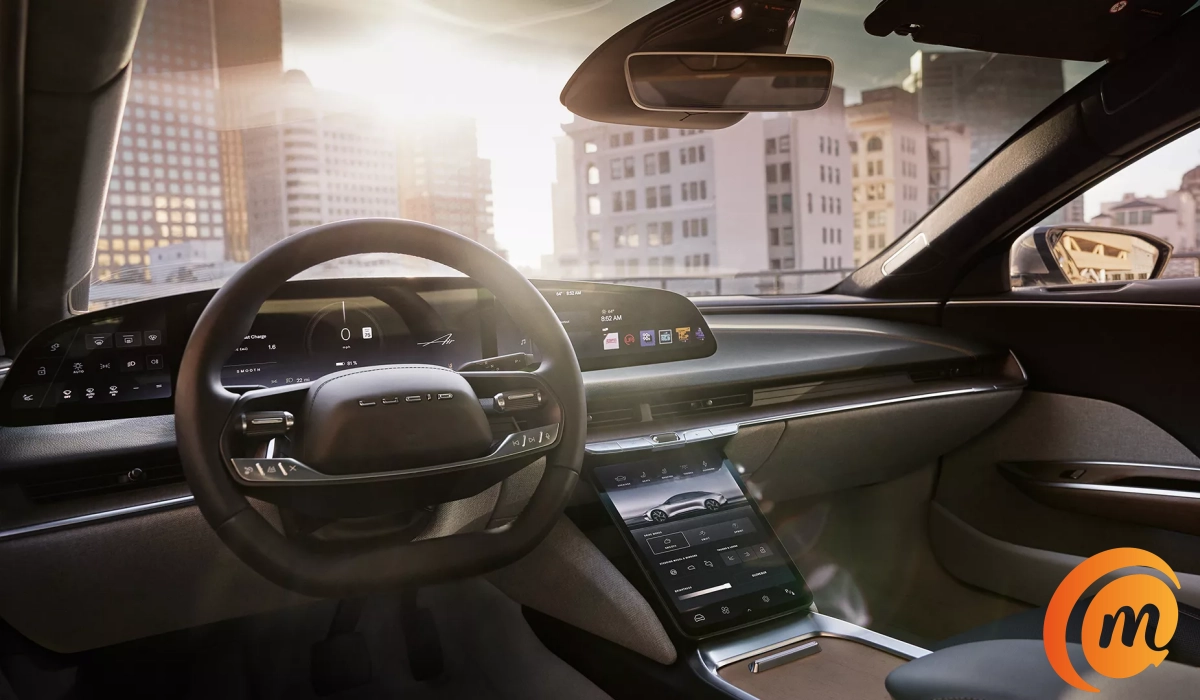
The Air Touring’s cockpit
Also available across the Lucid Air range is a facial recognition system that scabs your face when you sit in and automatically adjusts select settings to your preferences. If you love your music like I do, there is an optional 21-speaker Surreal Sound Pro system that you can add. You read that correctly: 21 speakers.
Lucid cars definitely have a cool factor that makes the steep prices worth it, if you are into cool cars. As a matter of fact, the Lucid Air has received positive reviews for its range, power, handling, and luxury features. It also received numerous awards for its innovative technology and design, including being named one of Time Magazine’s Best Inventions of 2020.
The top-of-the-line Lucid Air variants, Grand Touring and Sapphire, are reputed to have the longest-range for any EV currently on the market, and they beat out the BMW 7 Series / i7 and the Genesis G90 to take the prestigious 2023 World Car Awards prize.
As mentioned before, the Air Touring is only one of the four variants of the Lucid Air. Others include the Air Pure, costing from $87,400 (approximately €79,250), the Grand Touring, costing from $138,000, and finally the most expensive in the range, Air Sapphire, costing a whooping $249,000 (around €225,775). I did say that Lucid cars were pricey.
Specs and Features of the Lucid Air Range
- Aire Pure has a 480 electric horsepower engine with a range of 410 miles, and it accelerates from 0 to 60 miles per hour in 3.8 seconds. It takes only 15 minutes to get enough charge for a 200-mile drive.
- Air Touring has a 620 electric horsepower engine with a range of up to 425 miles, and accelerates from 0 to 60 miles per hour in 3.4 seconds. Charging time is the same as that of the Air Pure.
- Air Grand Touring has a 1050 electric horsepower engine with a range of up to 516 miles, and accelerates from 0 to 60 miles per hour in 2.6 seconds. It takes only 12 minutes to get enough charge for a 200-mile drive.
- Air Sapphire has a 1200 electric horsepower engine with a range of up to 516 miles, and accelerates from 0 to 60 miles per hour in less than 2 seconds. The Air Sapphire literally takes off. It charges at the same speed as the Grand Touring.
The Tesla Influence
Did I also mention that Lucid Motors was founded by former Tesla executive, Bernard Tse, and businessman, Sam Weng? You can see the Tesla influence in the design of Lucid cars, and even better, those designs leave Tesla designs in the dust. I consider it a case of standing on the shoulders of a pioneer to innovate even more.
References
- Lucid To Launch Saudi-Assembled Vehicles This September ( source )
Author:Mister Mobility
Digital Skills and Communication Coach | Mobile Phone Connoisseur since 2001 | Tech Blogging since 2004
Add MobilityArena as a preferred source on Google
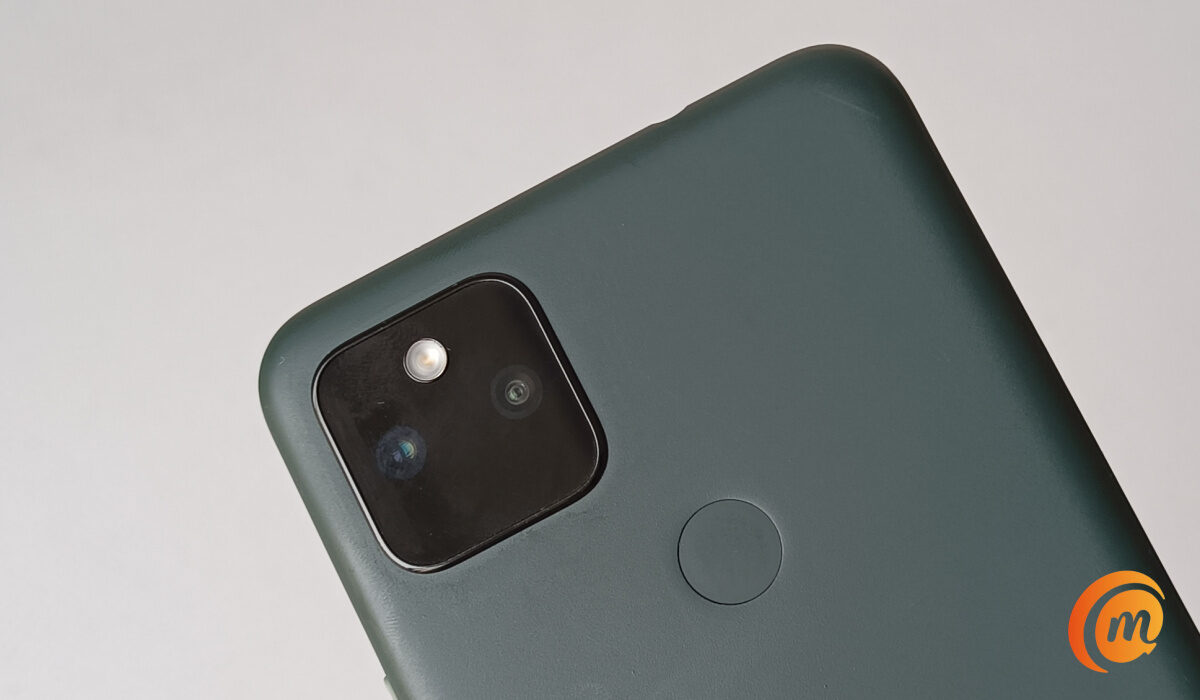
I picked up a new smartphone to review the other day. As is my practice, I dived into fishing out every little bit of info about it and in the process, I stumbled on the fact that it has a 3D ultrasonic fingerprint sensor for biometric authentication. That inspired me to write an article explaining the different types of fingerprint scanners found in cell phones today.
The first thing to point out is that while all fingerprint sensors provide your phone with security, the level of accuracy, detail, and security they provide differs from one type to another. How fast they work also differs from one type to the other. Some types of fingerprint scanners also work better under certain conditions that others perform poorly in.
- Types of Fingerprint Scanners
- Optical Fingerprint Sensors
- Capacitive Fingerprint Sensors
- Ultrasonic Fingerprint Sensors
- Ultrasonic vs Capacitive vs Optical Fingerprint Sensors, in Summary
- Which type of fingerprint scanner is best biometric authentication?
Types of Fingerprint Scanners
Regardless of the location of the fingerprint scanner on a phone – In-display, rear, or side, there are three types of fingerprint sensors in use in cell phones today. They are: Optical, Capacitive, and Ultrasonic. Which type is used in a particular smartphone depends on a number of factors, including cost.
Optical Fingerprint Sensors
These sensors use light to scan the fingerprint and create a 2D image of the fingerprint. They are generally less expensive than other types of sensors but may not be as accurate and can be fooled by fake fingerprints.
Optical sensors are the most common type of fingerprint sensors found in a wide range of smartphones, from entry-level models all the way to premium flagships. The list of cell phones with an optical scanner include older flagships like the Samsung Galaxy S21 and Pixel 6 Pro, as well as more budget models like Pixel 4a, Motorola Moto G Power (2021), and LG Stylo 6.
Capacitive Fingerprint Sensors
These sensors use electronic capacitors to scan the fingerprint. They can detect the ridges of the fingerprint and are more accurate than optical sensors. They are commonly used in smartphones and are fast and reliable.
A capacitive sensor is much more difficult to fool than an optical scanner, because the results can’t be replicated with an image, and even are difficult to fool with a prosthetic, as different materials will record slightly different changes in charge at the capacitor. This makes capacitive fingerprint scanners much more secure than optical ones.
Capacitive fingerprint sensors are popular among budget and mid-range smartphones. Some examples of popular smartphones with a capacitive fingerprint sensor include: iPhone 5s through to iPhone 8, Google Pixel phones all the way to Pixel 5, OnePlus 8 and 9 models, and Nokia 5.4.
Ultrasonic Fingerprint Sensors
These sensors use ultrasonic waves to create a 3D image of the fingerprint. They are more accurate than optical sensors and can work even if the finger is dirty, oily, or wet. They are also more expensive than other types of sensors. Ultrasonic fingerprint scanners are the most secure. They are also the ones used in premium flagship smartphones.
Examples of phones with ultrasonic fingerprint sensors include Samsung Galaxy S23 , S23+, and S23 Ultra, Samsung Galaxy Z Fold4, Samsung Galaxy Z Flip4, and Motorola Edge+.
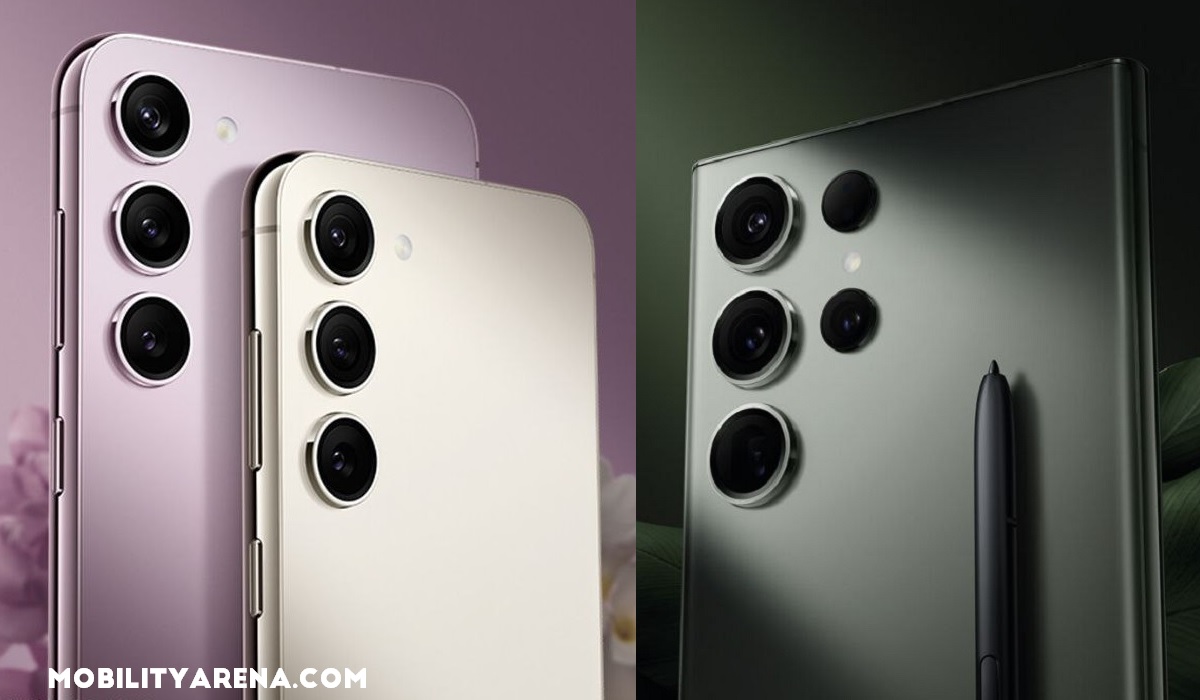
Samsung’s S23 range use ultrasonic fingerprint sensors
Ultrasonic vs Capacitive vs Optical Fingerprint Sensors, in Summary
The main differences between an Ultrasonic fingerprint sensor, a capacitive fingerprint sensor, and an optical fingerprint sensor are:
- Accuracy and Security : Ultrasonic fingerprint sensors are more accurate, and thus more secure, than optical sensors because they create a 3D image of the fingerprint, while optical sensors can only create a 2D image. Capacitive fingerprint scanners sit in the middle, in terms of accuracy.
- Speed : Traditionally, capacitive and optical sensors were initially much faster than ultrasonic fingerprint sensors. But the technology keeps maturing and the speed difference has been reduced to the barest minimum, if at all it still exists. On the Samsung Galaxy S23 which we reviewed , the 3D ultrasonic fingerprint scanner is very fast.
- Environmental conditions : Ultrasonic sensors can work even if the finger is dirty, oily, or wet, as well as in low-temperature conditions and strong sunlight. Optical sensors may have difficulty reading fingerprints in these conditions.
- Cost : Implementing an optical fingerprint scanning technology is generally less costly than implementing a capacitive or an ultrasonic fingerprint scanner. As such, optical scanners tend to be found in low-cost smartphones, capacitive in mid-range and budget smartphones, while ultrasonic scanners are found only in the most premium smartphones.
Which type of fingerprint scanner is best biometric authentication?
The answer is obvious: 3D ultrasonic fingerprint sensors are the best type for for biometric authentication in smartphones and other mobile gadgets. They offer the best accuracy, security, and have become really fast. If you can afford a premium smartphone that has one, buy it. If not, a budget device with a capacitive scanner will do just fine.
Author:Mister Mobility
Digital Skills and Communication Coach | Mobile Phone Connoisseur since 2001 | Tech Blogging since 2004
Add MobilityArena as a preferred source on Google
QR codes are everywhere these days – on posters, websites, and even products. Scanning QR codes is a useful way to quickly access information or links. If you have an Android phone, you may be able to scan QR codes automatically with your camera app. This feature is available on many Android devices, and you’ll find it incredibly easy to use.
In this article, I’ll show you how to scan QR codes with Android, so you can access the information and links they contain seamlessly. I’ll also provide tips on different methods that are sure to make the process even smoother for you. So, whether you’re already used to this feature or a first-time user, this guide will help you get the most out of it.
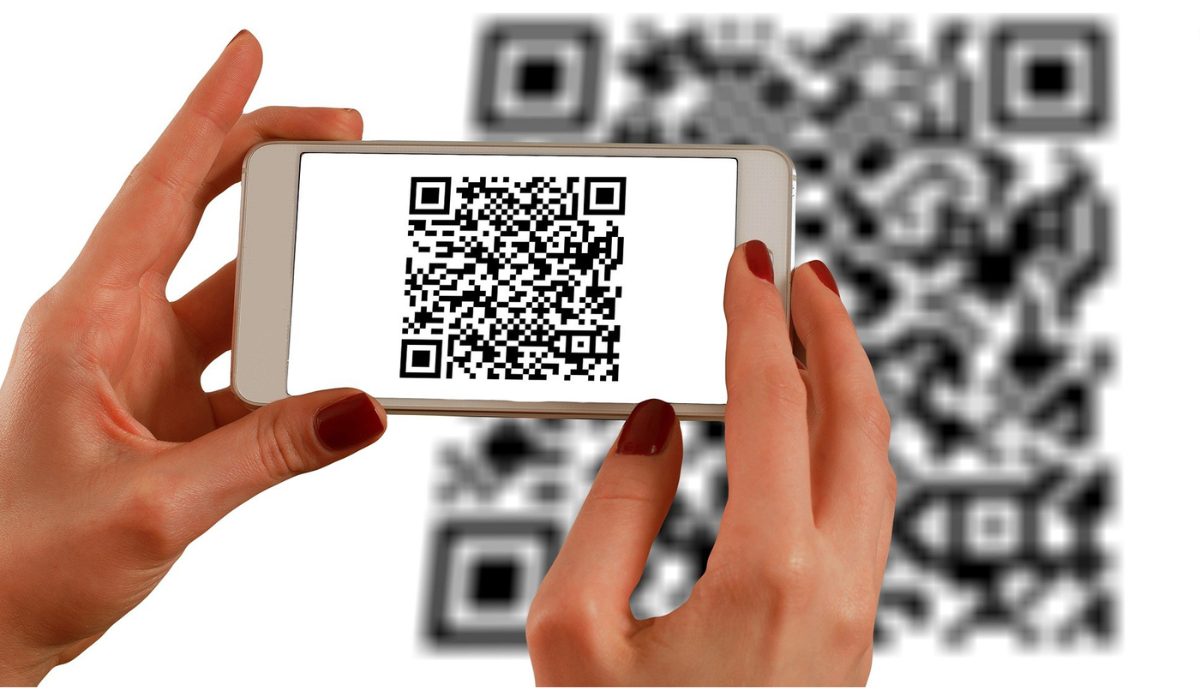
- How Do You Scan QR Codes on Your Android Phone? How to Scan QR Code With Android Using the Camera App How to Scan QR Codes on Android with Google Screen Search How to Scan QR Codes With Android Using Google Lens How to Scan QR Codes on Android With Third-Party Apps How to Scan a QR Code on a Samsung
How Do You Scan QR Codes on Your Android Phone?
In many cases, you should be able to scan QR codes automatically with the native camera app on your Android phone or tablet. If that’s not the case, however, you can also use dedicated third-party apps to achieve this. Below are several ways you can easily scan QR codes with just a few taps on your Android phone.
How to Scan QR Code With Android Using the Camera App
To use the camera app to scan a QR code on your Android device, follow these steps:
- Launch the Camera app on your Android.
- Point the camera at the QR code so that the whole of the barcode stays within the frame.
- Keep the camera pointed at the QR code for about 2-3 seconds
- If the code is scannable, you’ll see the website it links to appear at the bottom of the screen. You can click on this link to open the website or access whatever required content is contained in the link.
If you don’t see the code scanning option, you may need to activate QR Code scanning in your Settings app. If you don’t find this option in your settings, it means your device will not be able to scan QR Codes automtically. Not to worry though, I’ll go into more details below on other useful options to scan QR codes on Android.
How to Scan QR Codes on Android with Google Screen Search
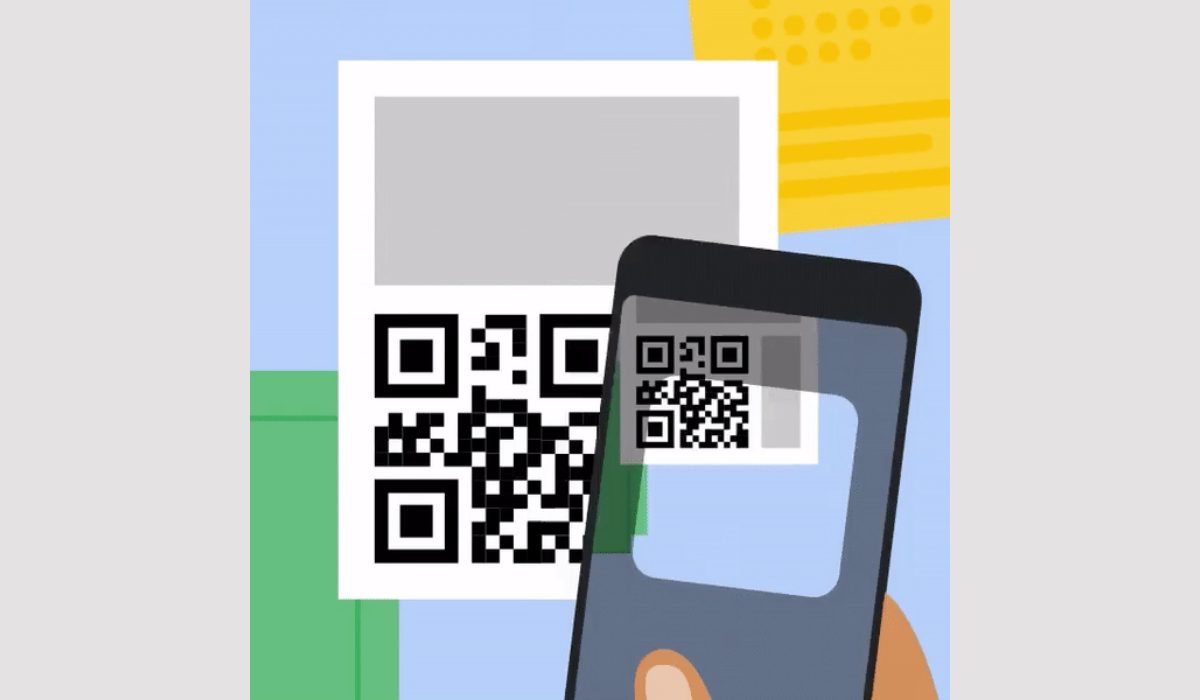
Androids running versions 8.0 or higher will typically be able to scan QR codes with the Google Screen Search feature. To scan a QR code with Google Screen Search, follow the steps below:
- Launch the camera and point it at the QR code.
- To display the options located beneath, long press the “ Home ” button and swipe upward.
- Click on “ What’s on my screen ?”
- Tap the link that shows up to access the contents of the barcode
Open the Google app and select Navigation if the smartphone’s screen search feature hasn’t been enabled yet. Enable Screen search permission in Settings .
How to Scan QR Codes With Android Using Google Lens
Google Lens offers another simple method to scan QR Codes on Android 8.0 and higher devices. Below are the instructions for using Google Lens in Google Assistant to scan a QR Code:
- To bring up Google Assistant , hold down the “ Home ” button.
- Depending on the version of Google Assistant you’re using, the Lens button may show automatically. If not, click on the bottom row of dots, and the Lens button will appear on the left-hand side.
- You must enable Lens to use your camera if you have never used it before. Direct your camera at the QR Code afterward to scan the QR code.
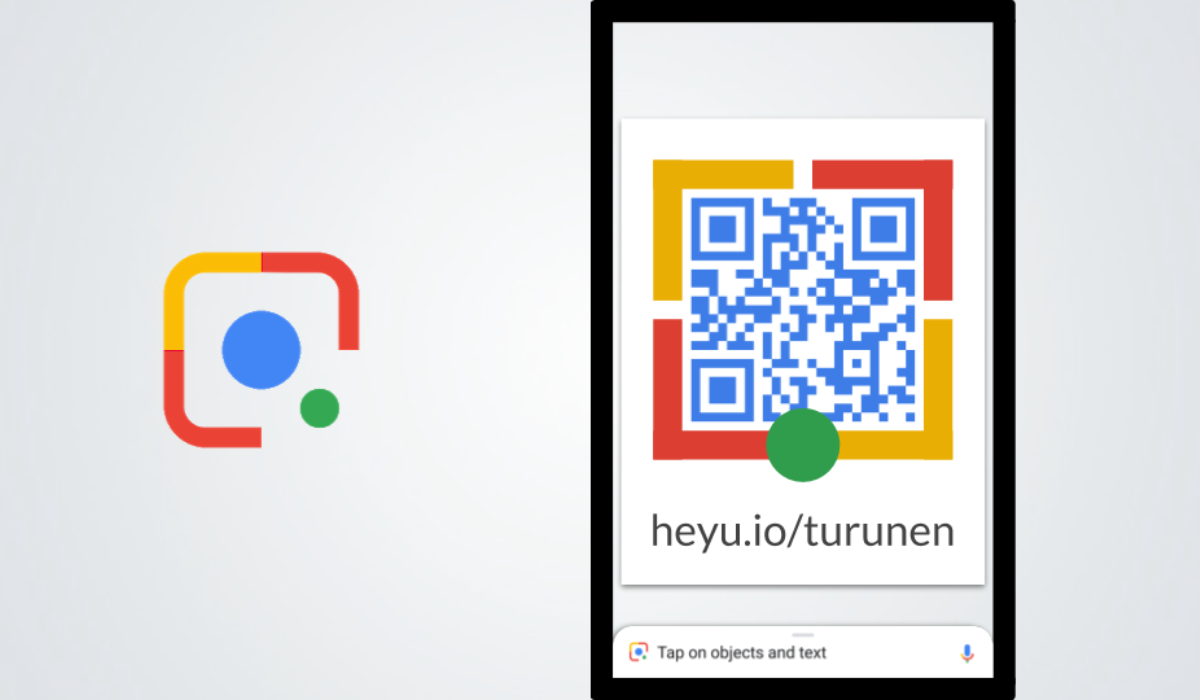
You can also use the Google Lens App to access Google Lens. To scan a QR code with the Google Lens app, you first need to download and install the app from the Google Play Store.
- Once you have the app installed, open it and point your camera at the QR code you want to scan.
- If your phone recognizes the code, it will display information about it on your screen.
- You can then tap on the information to open the link or access the associated content.
How to Scan QR Codes on Android With Third-Party Apps
Android smartphones running version 7.0 and below (excluding 6.0) do not allow for QR code reading via any of the methods described above. As a result, scanning QR codes on these devices will require the use of third-party programs, like QR Reader , Barcode Scanner . All you need to do is download your preferred app, then launch it immediately after to start scanning apps easily.
How to Scan a QR Code on a Samsung
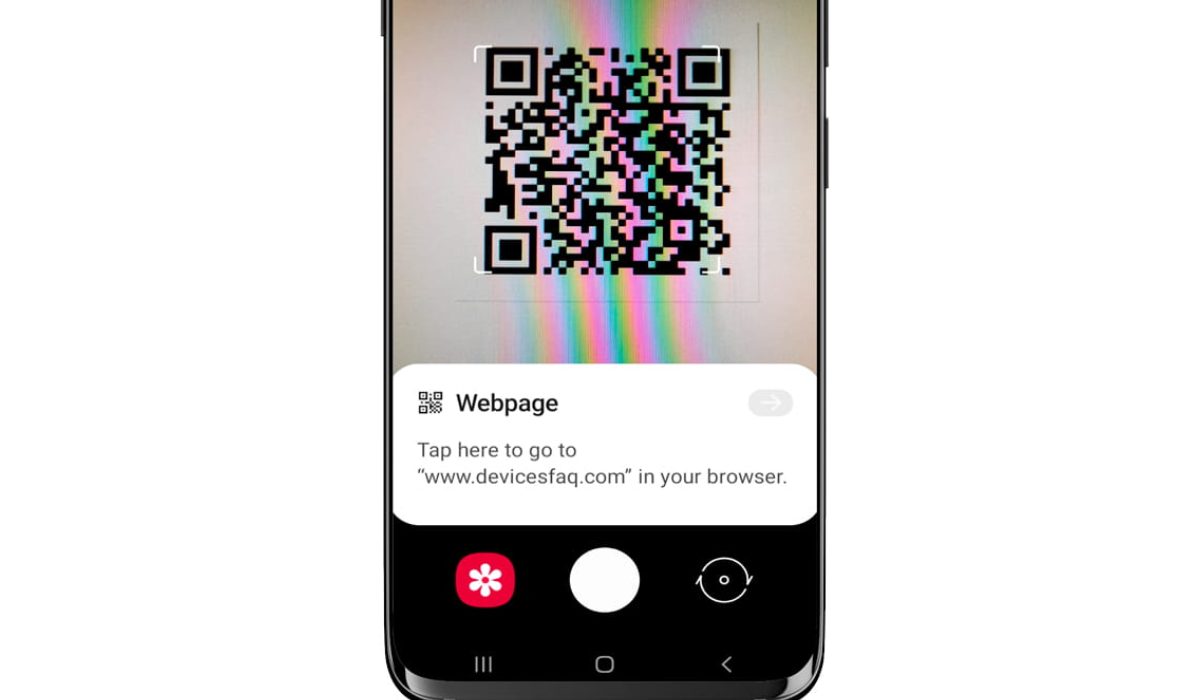
With a Samsung phone, there are a few different ways to scan QR Codes. It’s important to note that the Galaxy and OS versions may differ from one another in this regard.
Samsung QR Scanner
The dedicated app in the Quick Settings panel is the simplest way to scan a QR code on a Samsung phone. Follow these steps:
- To access your Quick Settings , swipe down from the notification panel and select Scan QR code .
- After launching the camera app, point your phone towards the QR code you wish to scan.
- Scan the code, then select your preference from options including View full text , Open in browser , Search web , or Copy . The options shown may vary depending on the information contained in the QR code.
Bixby Vision
You can also scan QR codes with Bixby Vision, follow these steps:
- Launch your camera app and click on Bixby Vision .
- Enable permission to use it if you haven’t used it before.
- Allow necessary permissions to enable Bixby Vision to take images.
- Scan the QR Code with your camera and click “ Go ” to see the QR Code’s content.
Gallery App
The Gallery app on Samsung devices also offer a QR code-scanning option. Follow these steps to use it:
- Open the Gallery app after taking a picture of the QR Code you want to scan.
- Choose the same QR Code picture.
- In the lower-left corner, press the Bixby Vision icon.
- Select “ Lens ” to enable Bixby Vision to read the QR Code.
To conclude , scanning QR codes with Android devices has never been easier. With the built-in camera app on most Android devices, you can quickly scan QR codes to access information, websites, and other digital content. Many third-party apps are also available that offer advanced features that let you scan multiple codes at once or save scanned codes for later use.
With the tips outlined in this guide, you’ll be able to scan QR codes quickly and easily, and take advantage of all the benefits this technology has to offer. If you’re in need of other useful Android tips, check out this category .
