Add MobilityArena as a preferred source on Google
Samsung Galaxy A22 is a mid-range Android smartphone. It isn’t equipped to be the most powerful smartphone. It isn’t even close. It provides decent performance for the price, though. Because it is a mid-range cellphone, sometimes its resources are stretched thin and it begins to run slower than usual, maybe even enough to annoy you, which is why you are reading this article. Bellow, I share a few things you can do to make your Samsung A22 run faster.
The key thing you need to know are the two factors affecting your phone’s performance: the processor and RAM. The processor determines how powerful your device is, while the RAM determines how smoothly apps launch and run on the phone. RAM (Random Access Memory) is a temporary storage for running apps. We can’t do anything about the processor, but RAM usage can be managed. Bear this in mind, as we provide ways to make your Samsung A22 faster.
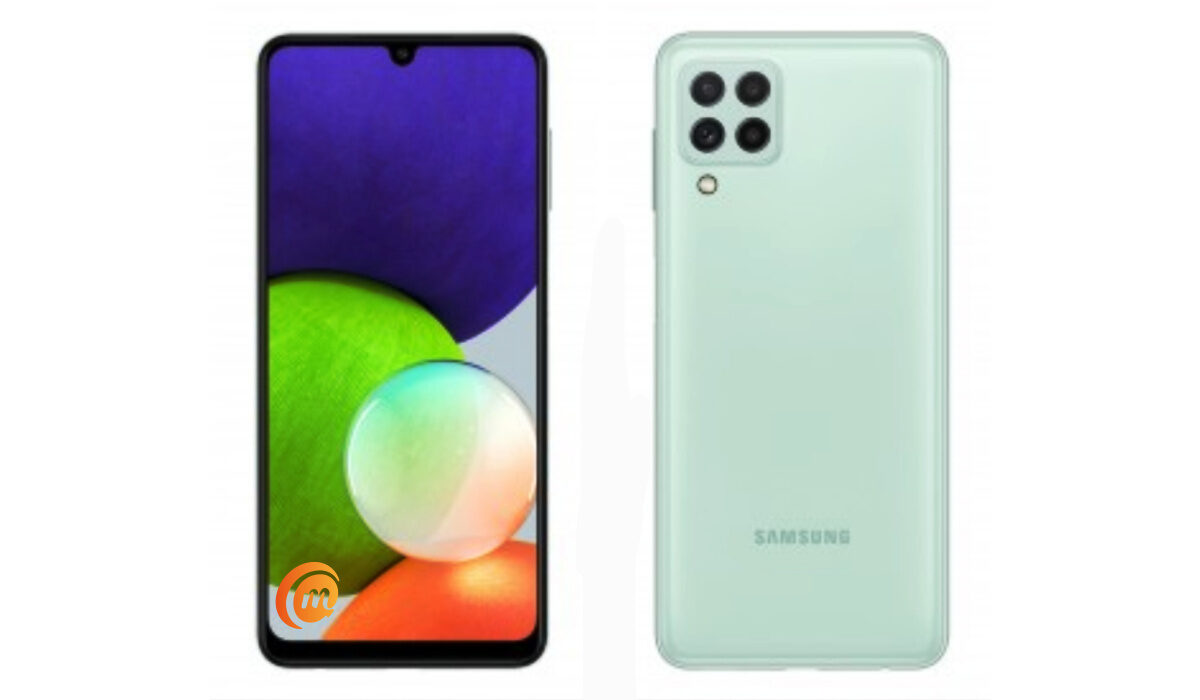
How to make your Samsung A22 run faster
- Make your Samsung A22 run faster by not using many apps at the same time
- Make your Samsung A22 run faster by using Device Care auto-optimisation
- Make your Samsung A22 run faster by restarting your phone
- Make your Samsung A22 run faster by not clogging it up with app updates
- Make your Samsung A22 run faster by keeping it from getting hot
Make your Samsung A22 run faster by not using many apps at the same time
Whether you own the vanilla version, the Nacho variant, or the Indian variant, your Galaxy A22 is equipped with a Helio G80 chipset and options of 4 and 6 GB RAM, depending on the variant you purchased. The lower the RAM, the easier you need to go on your phone. This is because it has less resources for apps to run with. If you switch between a lot of apps on it, the RAM gets used up and the phone begins to slow down.
The same way you shouldn’t attempt to drive a city car like a Formula 1 race car, don’t push your Samsung A22 too hard. It isn’t designed to handle the heaviest pressure. Switching lots of apps means they keep running in the background, using up precious resources. If you have used a lot of apps on the phone, you need to shut down those apps to keep things running smoothly. To do this, open the running apps menu, then slide up on the app you want to close. Repeat this for as many apps as you need to shut down.
Make your Samsung A22 run faster by using Device Care auto-optimisation
Device Care is a feature that you can use to auto-optimise your Samsung A22 for better performance. How it works is that when you are not using your phone and the screen is off, the feature closes any background apps (it doesn’t touch your most recently used apps). It is a good idea to set Device Care to auto-optimise your Samsung A22 at night when you are asleep.
- To do this, go to Settings > Battery and Device Care .
- Tap the Options icon.
- Tap Automation .
- Tap Auto optimise daily .
- Tap Time .
- Set the clock to the time you would like Auto optimise to run, e.g. 2am
- Tap Done .
- Tap the switch next to Close apps to free up memory .
That is it; you now have auto-optimisation helping you to free up memory while you sleep. You wake up to your Samsung A22 ready to perform at its best for the day.
Make your Samsung A22 run faster by restarting your phone
Restarting your cellphone on a regular basis, say weekly, is an easy way of clearing its memory of junk. This is low hanging fruit. You will be amazed how much smoother or faster your Samsung A22 runs just because you do this. Restart your Samsung A22 at least once a week to make it faster.
Make your Samsung A22 run faster by not clogging it up with app updates
Every time you run app updates, your cellphone storage gets clogged up with extra baggage. Each updated app takes up more system space – even those apps that you do not use, especially those pre-installed by Samsung. What to do? Do not turn on automatic app updates. Instead, make it a duty to manually update only the apps that you use or need.
Make your Samsung A22 run faster by keeping it from getting hot
You already know that overheating is a bad thing for any kind of electronic or machinery. If your phone heats up significantly, that impacts its performance, and it will slow down if you do not let it cool off. Keep your cellphone away from hot environments. If while using your Samsung A22, it begins to heat up, put it down and let it cool off for a while. It will serve you better if you treat it right this way.
With these few tips, you should see your Samsung A22 perform better, and run faster and smoother. All the best.
- Don’t miss our reviews .
- Follow our news on Google News .
- Follow us on Instagram , Facebook , Twitter , and YouTube .
Author:Mister Mobility
Digital Skills and Communication Coach | Mobile Phone Connoisseur since 2001 | Tech Blogging since 2004
Add MobilityArena as a preferred source on Google
Apple’s FaceTime feature is one of the best among similar platforms. FaceTime is a wonderful way to communicate when it works, especially since you get to make crystal-clear video calls with your loved ones. When it doesn’t, however, it can be a source of concern for iPhone users.
There are so many potential issues to consider when you find that FaceTime doesn’t function on your iPhone, so much that it might be challenging to know how to solve it.
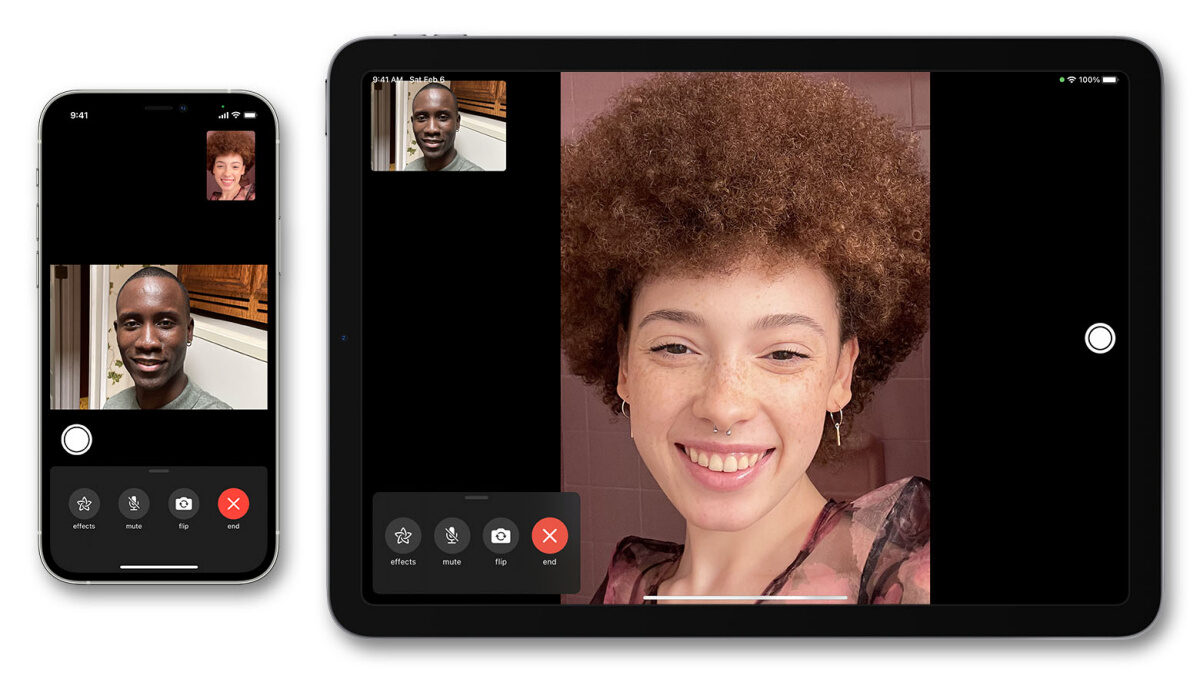
FaceTime Not Working on your iPhone: Solutions and fixes
However, the instructions and tips we’ve provided in this article to troubleshoot the issue should help you get FaceTime working just fine again.
Confirm if there’s a general problem
Sometimes there are technical problems with Apple services, so FaceTime won’t connect for anyone. When this occurs, your only option is to wait for Apple to come out with a fix.
Visit the Apple System Status website to view the status of each Apple service at the moment. You’ll also be able to find out whenever FaceTime is unavailable on this page.
Verify that FaceTime works in your Location
FaceTime is unfortunately not available everywhere, however it is quite close. Additionally, not every single phone provider offers it.
Find out if FaceTime is expected to operate in your country with your cell carrier by visiting Apple’s carrier support page. If FaceTime isn’t available where you reside, using a VPN on your iPhone may allow you to get around these restrictions.
Check your Internet Connection
FaceTime uses the internet to connect to other people, unlike traditional phone calls. Try loading a new browser on your iPhone, iPad, or Mac to check your internet connection if FaceTime isn’t connecting.
FaceTime can be used on an iPhone or iPad with cellular data, but Wi-Fi is the preferred connection. Go to Settings > Cellular and enable the FaceTime slider to use cellular data if you want to use FaceTime without Wi-Fi.
Make sure to use the Right Contact Details
By heading to Settings > FaceTime > You Can Be Reached By FaceTime At on your iPhone, you can view your own FaceTime contact information. Also ensure you have the correct information for the person you are trying to have a video chat with, so ask them to verify their details too.
Confirm that your device is compatible with FaceTime (for Group FaceTime)
If your smartphone is too old, you might not be able to make Group FaceTime chats function on it. Even if one-on-one FaceTime talks are allowed, this may still be a problem for group chats.
Everyone must have an iPhone 6s or later running iOS 12.1.4 or later in order to participate in group FaceTime calls
Limit Group Members (for Group FaceTime Chats)
With FaceTime, you may initiate a group conversation with up to 32 individuals at once. However, with that many individuals present, it is challenging to identify the particular person that is creating FaceTime issues. To identify where the issues arise, try starting a one-on-one conversation and then gradually adding more participants.
If FaceTime won’t connect to anyone at all, your device or internet connection must be the problem. However, if FaceTime isn’t working with a specific person, the issue is presumably on that person’s end.
Update your iPhone’s Software
If your iPhone doesn’t have the newest software installed, FaceTime may have problems working. To resolve this problem, update your device’s OS to the most recent version. Also make sure the person you’re calling has the most recent software version on their device.
Go to Settings > General > Software Update on your iPhone to update your software.
Set Date and Time Automatically
In the event that FaceTime isn’t functioning on your iPhone, Apple advises that you let the time and date be set automatically. The majority of iPhone users already do this, but you should check again to ensure that it is turned on in your device’s settings.
Make sure Set Automatically is turned on in the Settings > General > Date & Time section of an iPhone.
Disable FaceTime temporarily in Settings
From the FaceTime settings on your iPhone, you’ll be able to toggle FaceTime on and off. When you turn it back on, you might need to log into your Apple ID account.
Go to Settings > FaceTime on an iPhone. Toggle FaceTime off using the button towards the top of the page, then press it once more to turn it back on. This might just get FaceTime to work fine again.
Sign out, then Sign back in
On your iPhone, sign out completely and then re-sign in if FaceTime is still not functioning. When logging back in, be sure to use the proper Apple ID username and password.
Navigate to FaceTime under Settings on your iPhone to do this. In the Caller ID section, tap your Apple ID, and then select Sign Out from the box that displays. Tap Use your Apple ID for FaceTime after signing out to sign back in with your Apple ID information.
Summarily , if FaceTime does not work on your iPhone for one reason or the other, at least one of the fixes we’ve described above should help you get it working again. So make sure to read through this article and follow the instructions carefully.
Also, don’t forget to recommend this article to your friends and loved ones so they can also benefit from it.
- Don’t miss our mobile phone reviews .
- Follow our news on Google News .
- Join our WhatsApp Group , to be notified of the most important articles and deals,
- Follow us on Instagram , Facebook , Twitter , and YouTube .
