Add MobilityArena as a preferred source on Google
In the vast ocean of information available online, mastering Google search techniques can feel like discovering a treasure map that leads you directly to the gold. Imagine this: you’re trying to locate a specific recipe for dinner, researching a topic for an important work project, or hunting for the best local restaurant, but the search results are cluttered with irrelevant links and ads. It can be frustrating, right? Fortunately, with the right techniques up your sleeve, you can transform your searching experience from overwhelming to efficient. Let’s explore some essential tips that will help you navigate Google search techniques like pros and uncover the information they seek with ease.

- Understanding the Basics of Google Search
- The Art of Asking Questions Use Quotation Marks for Exact Matches Utilize the Site: Operator Exclude Words with the Minus Sign Use Advanced Search Features Leverage Google’s Autocomplete Suggestions Filter Results by Date
- Conclusion
Understanding the Basics of Google Search
Before diving into the Google search techniques, it’s important to understand how Google’s search algorithm works. Google aims to provide the most relevant and useful results based on your query. However, not all searches yield the same results; how you phrase your questions can significantly impact what you find.
The Art of Asking Questions
Think of searching on Google as having a conversation with a very knowledgeable friend. The clearer and more specific your question, the better the response you’ll receive. For instance, instead of typing “restaurants,” try “best Italian restaurants in San Francisco.” This specificity helps Google deliver more relevant results tailored to your needs.
Use Quotation Marks for Exact Matches

One of the simplest yet most effective Google search techniques is using quotation marks around your search terms. This tells Google to look for that exact phrase. E.G: Searching for “best coffee shops in Seattle” will yield results that contain that specific phrase rather than pages that mention “best,” “coffee,” or “Seattle” separately. Imagine you’re looking for a particular quote from a book or an article—using quotes ensures you find exactly what you need without sifting through unrelated content.
Utilize the Site: Operator
If you want to find information from a specific website, use the site: operator followed by the website’s URL. E.G: Typing site:wikipedia.org climate change will return results only from Wikipedia about climate change. This technique is particularly useful when you know that a certain site has valuable information but lacks an effective internal search feature.
Exclude Words with the Minus Sign

This is also one of the Google search techniques. Sometimes, you may want to exclude certain terms from your search results. You can do this by using the minus sign (-) before the word you want to omit. E.G: If you’re looking for recipes but want to avoid any with chicken, try recipes -chicken. This trick helps refine your search results and eliminates unwanted topics, making it easier to find what you’re truly interested in.
Use Advanced Search Features
Google offers advanced search options that allow users to filter results based on various criteria such as date, region, and file type. Here’s how to:
- Go to Google.com.
- Click on Settings at the bottom right corner.
- Select Advanced Search from the dropdown menu.
Here, you can specify details like language preferences or even limit results to a particular time frame—great for finding recent news articles or studies. One of the perfect Google search techniques.
Leverage Google’s Autocomplete Suggestions
This also one of the perfect Google search techniques. When you start typing in the search bar, Google provides autocomplete suggestions based on popular searches related to your query. These suggestions can guide you toward more specific searches that may yield better results. E.G: If you begin typing “how to bake”, Google might suggest “how to bake a cake” or “how to bake bread” based on common searches. Using these suggestions can save time and help refine your query into something more precise and relevant.
Filter Results by Date

If you’re looking for information published within a certain timeframe, use Google’s built-in tools to filter results by date:
- After performing a search, click on Tools just below the search bar.
- Select Any time and choose a specific date range or preset options like “Past hour,” “Past week,” or “Past year.”
This feature on the list of Google search techniques is particularly useful for staying updated on current events or finding recent studies related to your field of interest.
Conclusion
Mastering Google search techniques can significantly enhance your ability to find relevant information quickly and efficiently. By using strategies such as quotation marks for exact matches, employing operators like site: and filetype:, leveraging autocomplete suggestions, filtering by date, and exploring related websites, U.S. users can navigate Google like seasoned pros. So next time you sit down at your computer or reach for your phone, remember these tips! With just a little knowledge and practice, you’ll be able to uncover valuable insights and answers in no time—turning what once felt like an overwhelming task into an empowering experience! Happy Googling!
Author:Ifeoluwa Adeleke
Add MobilityArena as a preferred source on Google
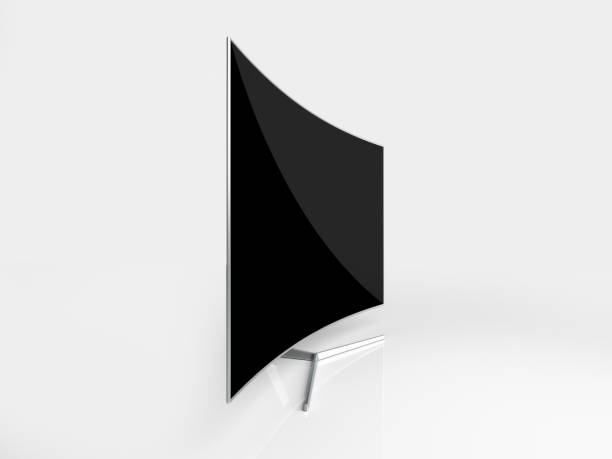
In today’s fast-paced digital world, Samsung Curved Monitors with Screen Splitting capabilities can make all the difference in enhancing your productivity. Imagine this: you’re working on a project, and instead of juggling multiple monitors or constantly switching between applications, you can simply split your curved monitor into multiple screens. This exciting feature allows you to maximize your workspace and streamline your workflow. In 2024, Samsung offers a range of innovative curved monitors designed to elevate your viewing experience and improve efficiency. Let’s explore some of the Samsung Curved Monitors with Screen Splitting available in the U.S. this year, ensuring you have the tools you need to work smarter, not harder.
- Why Choose a Curved Monitor with Screen Splitting?
- List of Samsung Curved Monitors with Screen Splitting Samsung Odyssey G9 (Model LS49AG950UN) Samsung ViewFinity S80A (Model LS27A800UNNXZA) Samsung CJ791 (Model LC34J791WTNXZA) Samsung C49RG9 (Model LC49RG90SSNXZA)
- Conclusion
Why Choose a Curved Monitor with Screen Splitting?
Imagine being able to view multiple applications side by side without the hassle of resizing windows or switching tabs. With screen splitting, you can:
- Increase Productivity: Work on spreadsheets while referencing documents simultaneously.
- Enhance Gaming Experience: Play games with a wider field of view that pulls you deeper into the action.
- Streamline Creative Workflows: Edit videos or graphics while having reference materials open at the same time.
Now, let’s dive into some standout models from Samsung Curved Monitors with Screen Splitting that are sure to impress!
List of Samsung Curved Monitors with Screen Splitting
Samsung Odyssey G9 (Model LS49AG950UN)
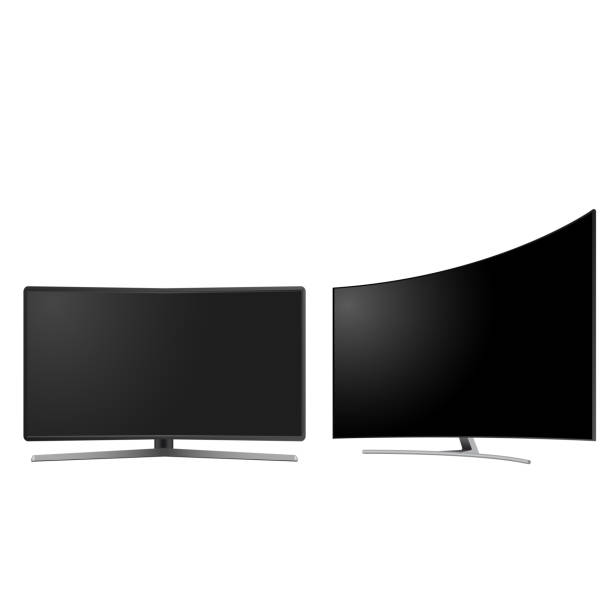
The Odyssey G9 is a powerhouse on the list of Samsung Curved Monitors with Screen Splitting, boasting an impressive 49-inch display with a 32:9 aspect ratio that mimics dual monitor setups without the bezels. Key features:
- Display: Dual QHD resolution (5120 x 1440) provides stunning visuals and clarity.
- Screen Splitting: The built-in Picture-by-Picture (PBP) feature allows users to connect two devices simultaneously, effectively splitting the screen for multitasking.
- Gaming Ready: With a 240Hz refresh rate and support for NVIDIA G-SYNC and AMD FreeSync, it’s perfect for gamers seeking smooth performance.
Imagine gaming at your peak while also keeping an eye on chat or streaming software — this monitor makes it all possible!
Samsung ViewFinity S80A (Model LS27A800UNNXZA)
The ViewFinity S80A is next on the list of Samsung Curved Monitors with Screen Splitting. It is designed for professionals who demand high resolution and color accuracy, making it perfect for creative work. Key features:
- Display: A 27-inch UHD (3840 x 2160) display that supports HDR10 for vibrant colors.
- Screen Splitting: Utilize Samsung’s Easy Setting Box software to split your screen into multiple windows effortlessly—up to six windows at once!
- Ergonomic Design: Height-adjustable stand allows you to customize your viewing angle for comfort during long work sessions.
Picture yourself editing photos or videos with precision while having reference materials displayed alongside—this monitor is built for creatives!
Samsung CJ791 (Model LC34J791WTNXZA)
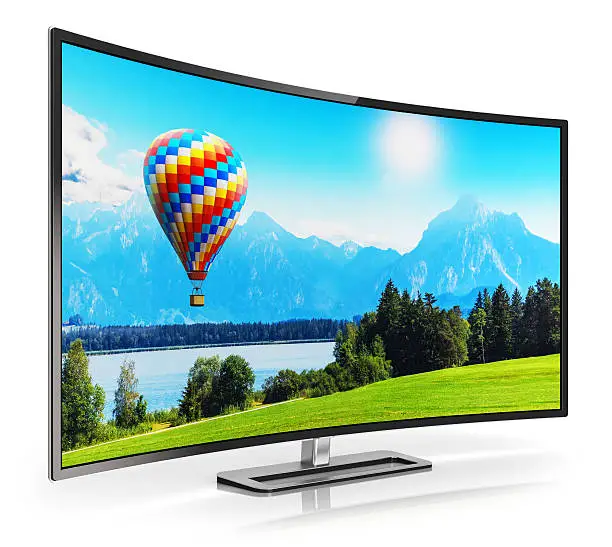
The Samsung CJ791 is an ultra-wide curved monitor that combines performance with style, making it a solid choice for both home office setups and gaming. Key features:
- Display: A 34-inch QLED display with a resolution of 3440 x 1440 delivers rich colors and deep contrasts.
- Screen Splitting: Supports PBP mode, allowing you to connect multiple devices and view them simultaneously.
- Thunderbolt 3 Connectivity: Easily connect laptops or other devices for seamless integration into your workspace.
Imagine working on a design project while streaming inspiration from another source—all on one beautiful curved screen!
Samsung C49RG9 (Model LC49RG90SSNXZA)
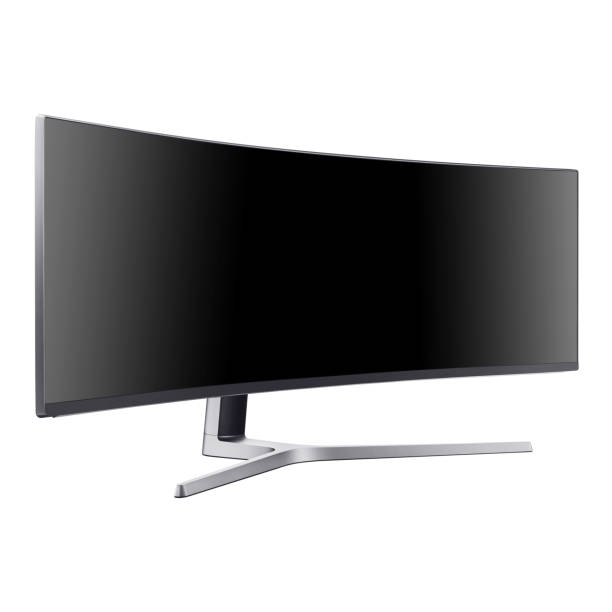
The Samsung CJ791 is an ultra-wide curved monitor that combines performance with style, making it a solid choice for both home office setups and gaming. Key features:
- Display: A 34-inch QLED display with a resolution of 3440 x 1440 delivers rich colors and deep contrasts.
- Screen Splitting: Supports PBP mode, allowing you to connect multiple devices and view them simultaneously.
- Thunderbolt 3 Connectivity: Easily connect laptops or other devices for seamless integration into your workspace.
Imagine working on a design project while streaming inspiration from another source—all on one beautiful curved screen!
Conclusion
Samsung Curved Monitors with Screen Splitting continues to lead the way in innovative monitor designs that enhance productivity and user experience. With their impressive curved displays and advanced screen splitting capabilities, these monitors are perfect for anyone looking to boost their workflow or enjoy immersive entertainment. So why wait? If you’re ready to elevate your home office setup or gaming experience, consider investing in one of these remarkable Samsung curved monitors with Screen Splitting. With their cutting-edge technology and user-friendly features, you’ll be well-equipped to tackle any task that comes your way while enjoying stunning visuals!
