Add MobilityArena as a preferred source on Google
Taking screenshots and screen recording the display on your iPhone can be useful in a variety of situations. You can use it to collect any Instagram, Facebook, or WhatsApp video or images that you find interesting.
All screenshots and screen recordings will be saved to the Photos app, where you can freely edit or share them. So, whatever your reason for needing to so, making screenshots and screen recording on iPhones is easier than ever. However, if you don’t already know, we’ve created this easy guide to show you how to take screenshots and screen record on the Apple iPhone.
- How Can I Screenshot on an iPhone?
- How Can I Screen Record on an iPhone?
- How to Improve Your iPhone Screen Recording
How Can I Screenshot on an iPhone?
A screenshot is a single, still image of the screen of your device. Once you know how to take a screenshot on an iPhone, you’ll agree that it’s a pretty easy process. Here’s how to screenshot on an iPhone:
- On an iPhone with Face ID, press and hold down the Side and Volume Up buttons at the same time.
- On an iPhone with a Home button, press and hold the Side and Home button simultaneously.
- In the bottom-left corner, tap the screenshot, then tap Done .
- Select Save to Photos , Save to Files , or Delete Screenshot from the menu. depending on whether you want to save it to the Photos app or send it to someone directly.
How Can I Screen Record on an iPhone?
Screen recording is available for iPhones running iOS 11 and later. This is one of the best iPhone widgets; and it’s also great that this function is free and built into iOS. Below, we’ve described how to screen record on an iPhone:
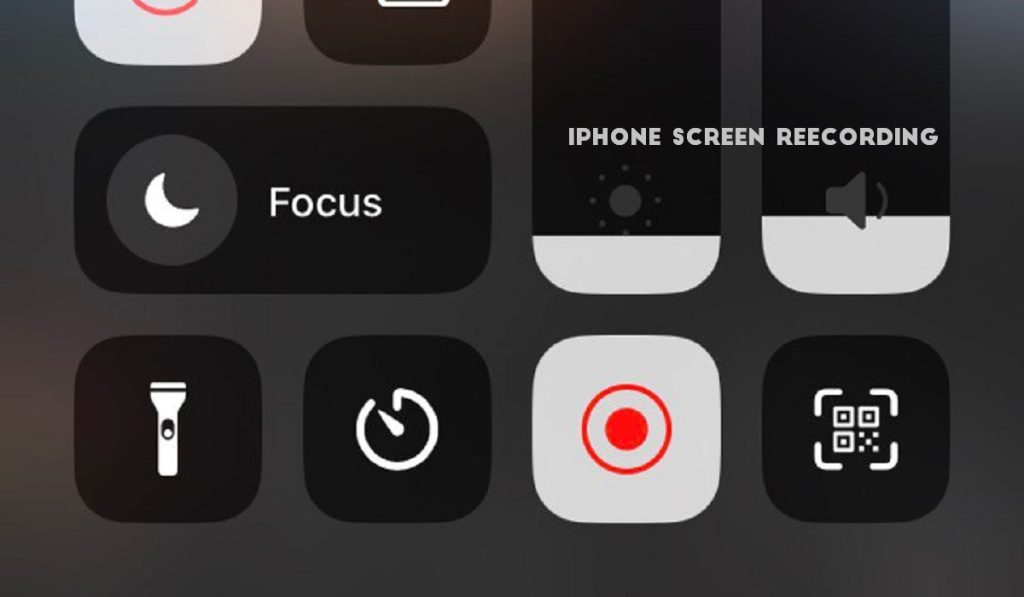
The first step to take to record your screen on an iPhone is to enable the iOS screen recording feature in the Control Center . What you need to do specifically is as follows:
- Navigate to the Settings menu to access the Control Panel
- Screen Recording can be found in the Additional Settings
- Move the plus sign (+) to the top of the Included Controls section
After enabling the screen recording feature, do the following to start recording on an iPhone:
- Swipe down from the top-right corner of the screen to access the Control Center , or swipe up from the bottom of the screen if you have a home button
- Click the gray record button or gray record icon. Wait for the three-second countdown after pressing the record button
- The Record button will turn red after a three-second countdown, and everything you do will be recorded, even if you close the Control Center . You’ll notice a red bar at the top of your iPhone’s screen if you’re still recording
- To stop recording, either open the Control Center and tap the Record button again, or tap the red bar at the top left of the screen and then tap Stop in the pop-up
- When you finish recording, the prompt will notify you that the video has been saved to your device’s Photos album.
It’s that easy and straightforward to record your screen on an iPhone.
How to Improve Your iPhone Screen Recording
While it is simple to record the screen on your iPhone, you may want to take some additional steps to achieve the best results. Here are a few tips for improving your screen recordings:
- Turn on Do Not Disturb mode : Nothing is more annoying than receiving a call or message notification while you’re trying to record the perfect video. To prevent this from happening, open the Control Center and tap the half moon icon to enable Do Not Disturb mode. Keep in mind that the mode does not block calls or notifications; rather, it simply silences them.
- Close any apps that aren’t in use : Screen recording is a resource-intensive process that can degrade phone performance. So make sure to close any iPhone apps you’re not using to help relieve the strain on your phone’s processor and RAM so your screen recording runs smoothly.
In conclusion , we have detailed how to screenshot and screen record on the Apple iPhone in this article, which are quite simple. So simply follow the guidelines outlined above.
Author:Joan Agie
Add MobilityArena as a preferred source on Google
Can you play games on your cellphone with a PS4 controller? Are there really mobile games that support PS4 controller on Android phones and iPhones? The answer to both questions is a Yes. As mobile games have evolved, new improvisations and advancements have followed. There was a time you could only play mobile games with buttons. Then touch screen technology came along, and it got a lot better. Now, we can use console controllers to play these same mobile games.
If you are like me, then you like to get ahead of the competition and increase your skill level, and range in whatever I’m doing. Using a PS4 controller for your mobile games does just that. It gives you an edge over your fellow competitors, in terms of movement, aim, etc. while playing the game. Oh, and it also gives you that cool console feeling.
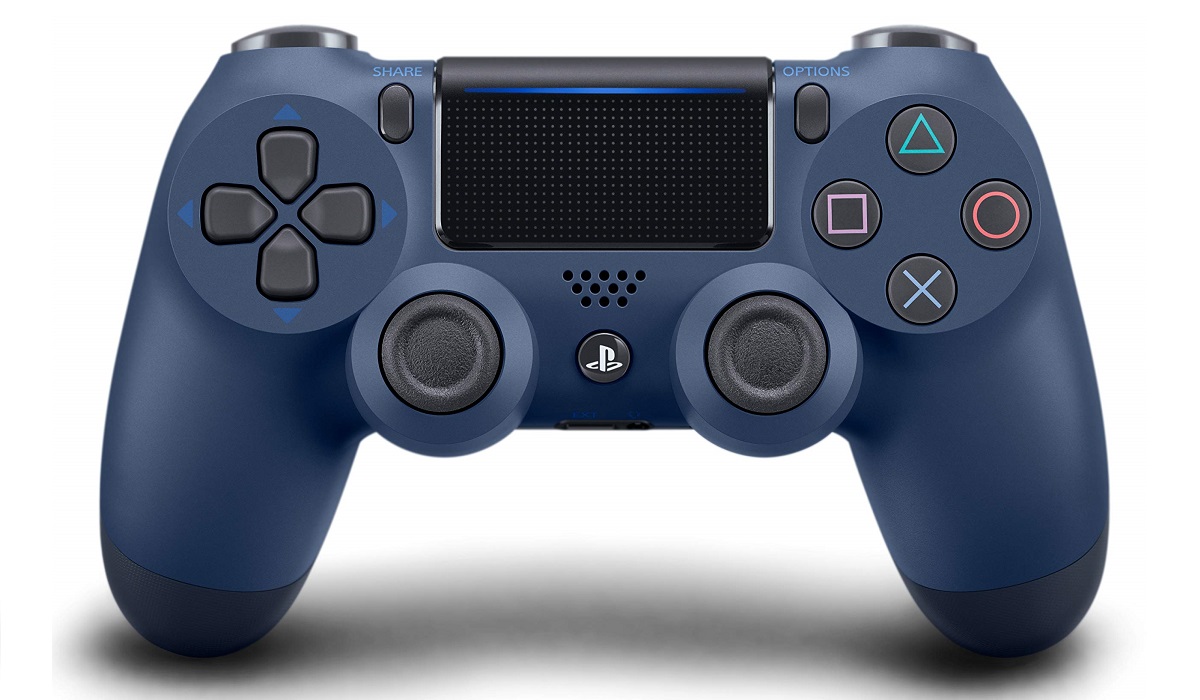
If you are new to this, you are probably wondering how to link your iPhone or ANdroid smartphone to a controller. Our detailed guide on how to connect a game controller to your phone will be of help with that. The next question then is, how many games support PS4 controller?
There are lots of games, across the App store and Google Play store, that support the use of a PS4 controller now. Let’s take a look at them.
- Top Mobile games that support PS4 controller on the Apple App Store
- Top Mobile Games that support PS4 controller on the Google Play Store
- How to connect and play mobile games that support PS4 controller on your Android phone
- How to connect and play mobile games that support PS4 controller on your iPhone
- Get a PS4 controller phone mount
- Game on
TopMobile games that support PS4 controller on the Apple App Store
Here are some of the games that you can download from the Apple App store, and that support the possible use of a PS4 controller:
- Apex Legends Mobile
- Brawlhalla
- Dadish 3
- What remains of Edith Finch
- DISMANTLE
- Streets of Rage 4
- Maximus 2
- ScourgeBringer
- Townscapes
- GRIS
- Sky: Children of the light
- Slender: The arrival
- Chefy-chat
- SpongeBob SquarePants
- Hunt down
- Where’s Samantha
TopMobile Games that support PS4 controller on the Google Play Store
Here are some of the games that you can download from the Apple App store, and that support the possible use of a PS4 controller:
- Call of Duty
- PUBG
- Dead Cells
- Asphalt 8: Airborne
- Fortnite
- Gang star vegas: World of Crime
- Minecraft
- Assassin’s Creed Idol
- Grand Theft Auto
- Rocket League Sideswipe
- Doom
- Reckless Racing 3
- Brawlhalla
- Jetpack Joyride
- Dead Trigger 3
Note also that a big factor in compatibility is the kind of smartphone you are using. The more advanced or more capable your smartphone is, the higher the compatibility with console controllers. As such, premium flagship devices and gaming phones have the highest compatibility.
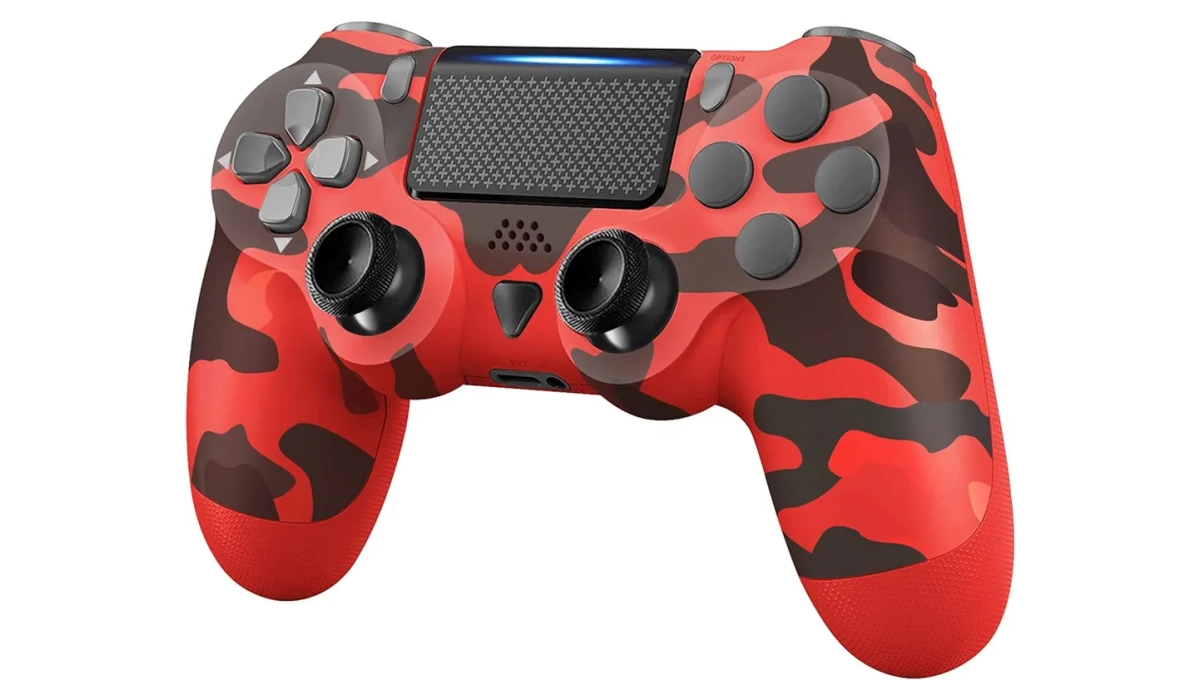
PS4 wireless controllers come in all shapes and sizes.
How to connect and play mobile games that support PS4 controller on your Android phone
Here’s a general guide on how to connect and use a PS4 controller with your Android phone:
- Enable Bluetooth on Your Phone:
- Go to your phone’s settings and turn on Bluetooth.
- Put the PS4 Controller in Pairing Mode:
- Press and hold the “Share” button and the “PS” button on the PS4 controller simultaneously until the light on the back starts flashing.
- Pair the Controller with Your Phone:
- On your phone, go to Bluetooth settings and look for available devices.
- Select the PS4 controller from the list to pair it with your phone.
- Use the Controller in Games:
- Once paired, you can use the PS4 controller to play games on your Android device. Most games with controller support will automatically recognize and configure the PS4 controller.
How to connect and play mobile games that support PS4 controller on your iPhone
Here’s a general guide on how to connect and use a PS4 controller with your iPhone:
- Update to the Latest iOS Version:
- Ensure your iOS device is running the latest iOS version.
- Enable Bluetooth on Your iPhone/iPad:
- Go to Settings, then Bluetooth, and turn it on.
- Put the PS4 Controller in Pairing Mode:
- Press and hold the “Share” button and the “PS” button on the PS4 controller simultaneously until the light on the back starts flashing.
- Pair the Controller with Your iPhone/iPad:
- On your iOS device, go to Settings, then Bluetooth, and look for available devices.
- Select the PS4 controller from the list to pair it with your iPhone or iPad.
- Use the Controller in Games:
- Once paired, you can use the PS4 controller to play games on your iOS device. Note that not all games on iOS support external controllers, so check the game’s compatibility.
Get a PS4 controller phone mount
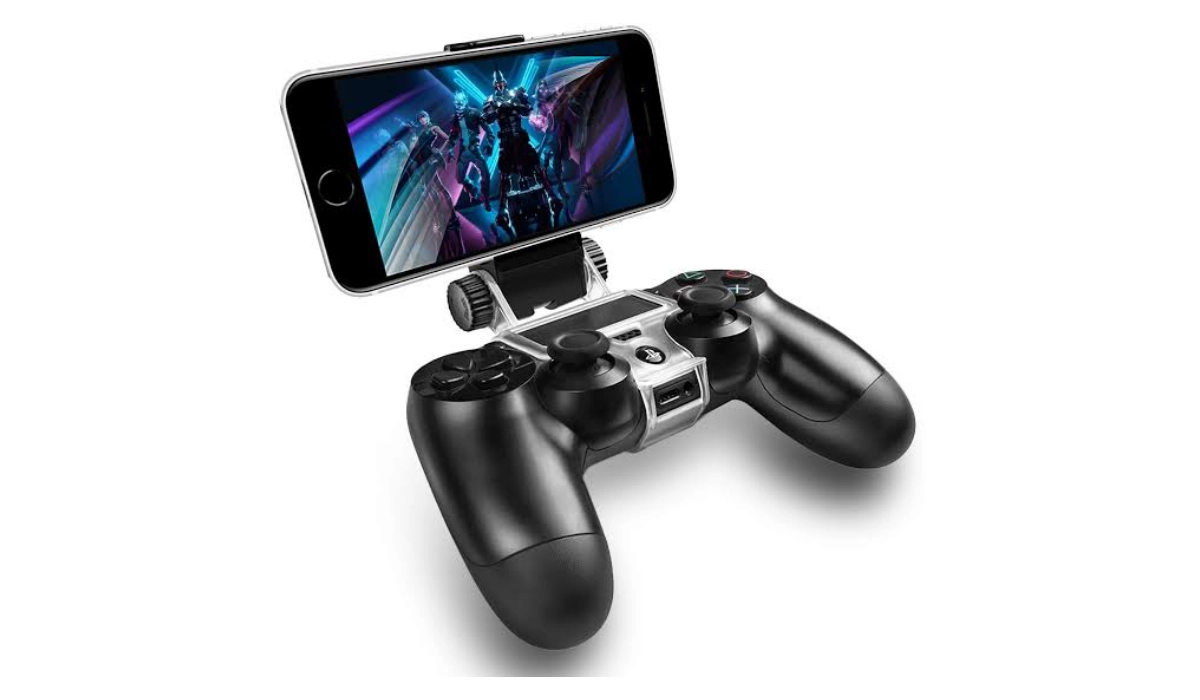
A PS4 controller phone mount is an essential accessory for playing games on your smartphone.
Most PS4 controller phone mounts enable you to clip your cell phone to a PS4 dualshock 4 controller for a better gaming experience.
Game on
As time goes on, more and more games will start to support the use of Console controllers to navigate their games. These are some of the very few games that allow access to these console controllers, for now. So, what are you waiting for? Get your controller, link it to your iPhone or Android smartphone, and join the fun.
- Don’t miss our mobile phone reviews .
- Follow us on Instagram , Facebook , Twitter , and YouTube .
Author:Flamez
Flamez loves basketball, art, gadgets and cars.
