Add MobilityArena as a preferred source on Google
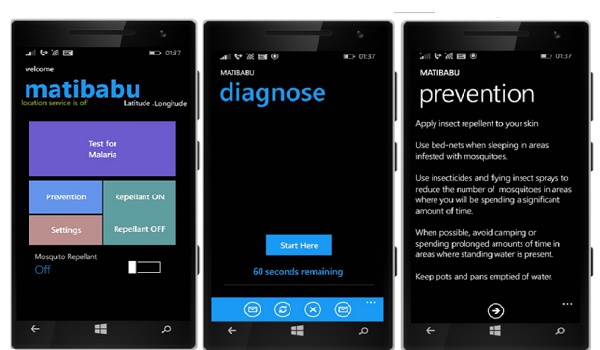
Have you ever wondered if there isn’t a safer, less inconvenient way of getting tested for Malaria fever besides the old way of getting pricked for a sample of your blood? As we say, there is an app for that, and it goes by the Swahili name, Matibabu. With Matibabu mobile app, you can say goodbye to needles when testing for Malaria.
Matibabu mobile app is part of a kit that includes a finger clip housing a light scanner. How does the kit work? You put your finger in the clip, and it beams a red light through your finger to detect changes in the colour, concentration and shape of your red blood cells. Using the information retrieved from the scan, the mobile app gives you a diagnosis.
How long does the whole test take? Just one minute.
Other Features of Matibabu Mobile App
- it provides information about how to prevent malaria infection.
- the app claims to produce sounds that chase away mosquitoes, similar to what the LG K7i smartphone claims to do (although research says high-frequency sounds do not actually work in repelling mosquitoes).
- it registers the location of the test via GPS.
- it lets users upload information to the Cloud.
Faster, Safer, Cheaper
Matibabu is still undergoing health regulatory approval and so Matibabu mobile app is not yet available to the public, but this is good stuff, no? If this makes it to commercial production, it will change the dynamics around Malaria diagnosis in Africa. Why? It is fast, non-invasive and so safe, as well as pocket-friendly, seeing that it is reusable. The defacto method requires a syringe or needle, which have to be discarded immediately after use.
Another interesting piece of information is that the entire bloodless Malaria test kit was developed by a group of Ugandan students in their early twenties. Amen to mobile innovation in Africa.
Colour me impressed. You can read some more about this non-invasive malaria diagnosis kit and the story behind it for a more complete picture.
- Don’t miss our reviews .
- Join our WhatsApp Group , to be notified of the most important articles and deals,
- Follow us on Instagram , Facebook , Twitter , and YouTube .
Author:Mister Mobility
Digital Skills and Communication Coach | Mobile Phone Connoisseur since 2001 | Tech Blogging since 2004
Add MobilityArena as a preferred source on Google
So, you bought an Android phone which supports USB host. In most cases, you will be able to connect it to a PC for transferring files and to a printer for printing documents or images through a USB cable. Sometimes, this may not possible due to some technical glitch or incompatibility. If you cannot directly print from Android phone via USB, then check this post, which will help you in doing that efficiently.
You may know that the USB host (the device that supports USB compatibility) is available on Android 4 and higher versions. This functionality makes a lot easier to finish some of the tasks.
For example, in earlier days, users were needed to connect their Android phones to a computer system for copying documents and images. Then only they became able to print those files by connecting the PC to a printer. But today, the users can easily print their required data from Android phones by directly connecting it to a printer via USB.
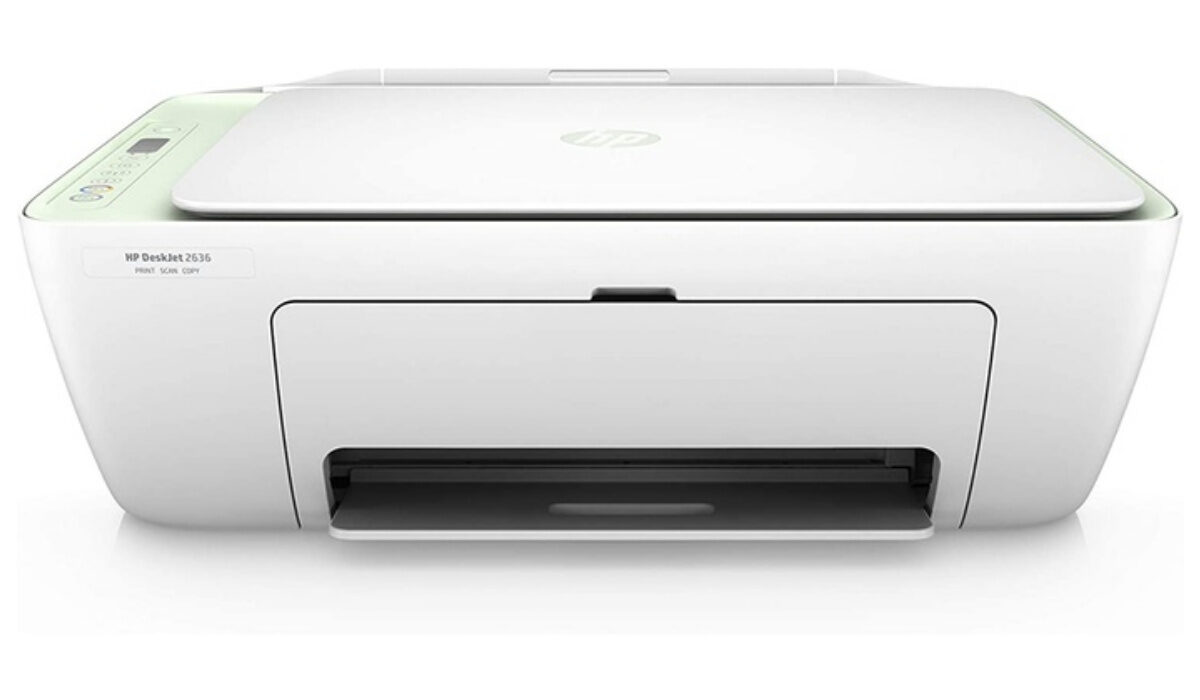
Printing Directly from Android Phone via USB
If your phone is USB compatible, but still if you can’t print through a USB cable, then follow the steps below to make it happen.
Step-1: Take Backup
First of all, take the backup of your files, documents, images, etc. on ‘Google Cloud.’ It is a free and reliable place to keep your data secured. You can access the data stored on ‘Cloud’ anytime anywhere from your Android device or PC. Taking this step will make sure that you will not lose any of your data if anything goes wrong.
This step is optional but recommended.
Step-2: Install App from PlayStore
There are bunches of applications which are handy for printing from your Android device via USB. You can choose from the specific printer brand apps like HP Smart, Epson iPrint, Samsung Mobile Print, Canon Print Service, etc. You can also use the Google Cloud Print app if your printer is connected with the application.
There are also some favourite third-party apps like PrinterShare Premium Key, StarPrint, etc. which will help to make your printing task easier. The PrinterShare app is now no longer available for free (It is a good app though. So you can install and use it if you wish to spend some bucks for premium printing service). So, I will show you how to use the StarPrint app for printing documents and images from your Android phone via USB.
The main reasons behind choosing this app are; first, it is free, and second, it is compatible with more than 4000 models of the printing machines from the famous brands like Canon, HP, Epson, Kodak, etc.
Go to Google PlayStore and search for “StarPrint” app. Download the app and install it on your Android device.
Step-3: Connect the Device to USB
Now, attach the USB cable to the Android phone USB OTG port. Then, connect the other end of the cable into the printing machine. Make sure that both the ends of the cable are attached properly, and the devices have identified the connection.
Step-4: Launch the Printing App
Now, open the StarPrint app on your phone. Then, select the item that you want to print from the list of images, documents, web page, map, drive, camera, etc.
Step-5: Set the Print
Next, set up the printing options. You can set the page margins, the number of copies, and other additional printing settings that you can generally do on any printing machine. You can even see the print preview to make sure everything is perfect.
Step-6: Select the Printer
You will have different options for printing like Wi-Fi, Bluetooth, and USB. As we are printing from the cable, you need to select the ‘USB printers’ option. Now, click on the printer model on your Android screen. If you cannot see any device there or if your phone cannot detect the printer, then follow steps 2 to 5 again.
Step-7: Enjoy Printing
Click on the ‘Print’ button once you find everything ok. Your printer should start the printing process, and in no time, you will get your hard copies of the files you want.
Printing is Easy
In this modern world of mobile technology, printing has become much more comfortable, quicker, and convenient. The primary factor behind this may be the upgraded Android versions, which are compatible with almost all types of application available in the store. So, the only limitation is the compatibility of the file you want to print.
I hope this guide will help you to print directly from your Android device via USB. If you still have any issue or doubt or if you know any better way to do it, then please share it in the comment section below. Thanks!
- Don’t miss our reviews .
- Join our WhatsApp Group , to be notified of the most important articles and deals,
- Follow us on Instagram , Facebook , Twitter , and YouTube .
Author:MobileChic
That motivated, gadget-loving geeky chic who tries to stay on top of things. Unapologetic iFan.
Add MobilityArena as a preferred source on Google
The FullView Display aka edge to edge display was pioneered by Samsung Mobile and is now in use by many other smartphone brands. Other terms used to refer to the same type of display are Fullscreen and bezel-less. But what does Full View screen really mean? One easy way to understand it is that it refers to a certain class of displays with minimal bezels.
Bezels are the borders between the screen and frame of devices with a display, e.g., a smartphone, a PC monitor. Bezels offer protection for the screen, but in small devices like smartphones, they also take up lots of space. And phone makers are eternally looking for ways to maximize space. Hence, the birth of Fullscreen, Fullview, edge-to-edge, or bezel-less displays.
To provide the best possible user experience for phone users, these new types of phone displays have a tall aspect ratio. What is aspect ratio? A good definition of aspect ratio is that it is the ratio of Length x width of the screen. 16:9 ratio has been the standard phone display aspect ratio. It can be referred to as a short and squat ratio.
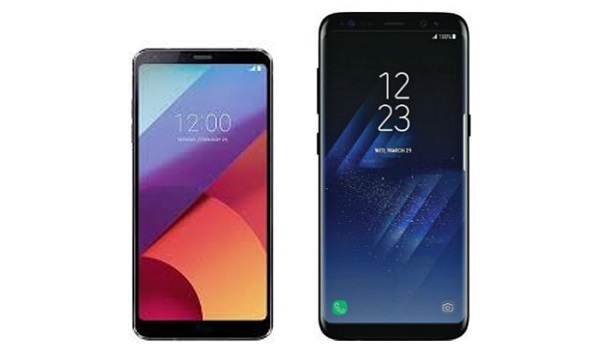
A FullView screen is one that has a slim and tall aspect ratio. 18:9 is the most common FullView Display ratio right now. Here is what the older 16:9 aspect ratio looks like beside an 18:9 aspect ratio of the same size:
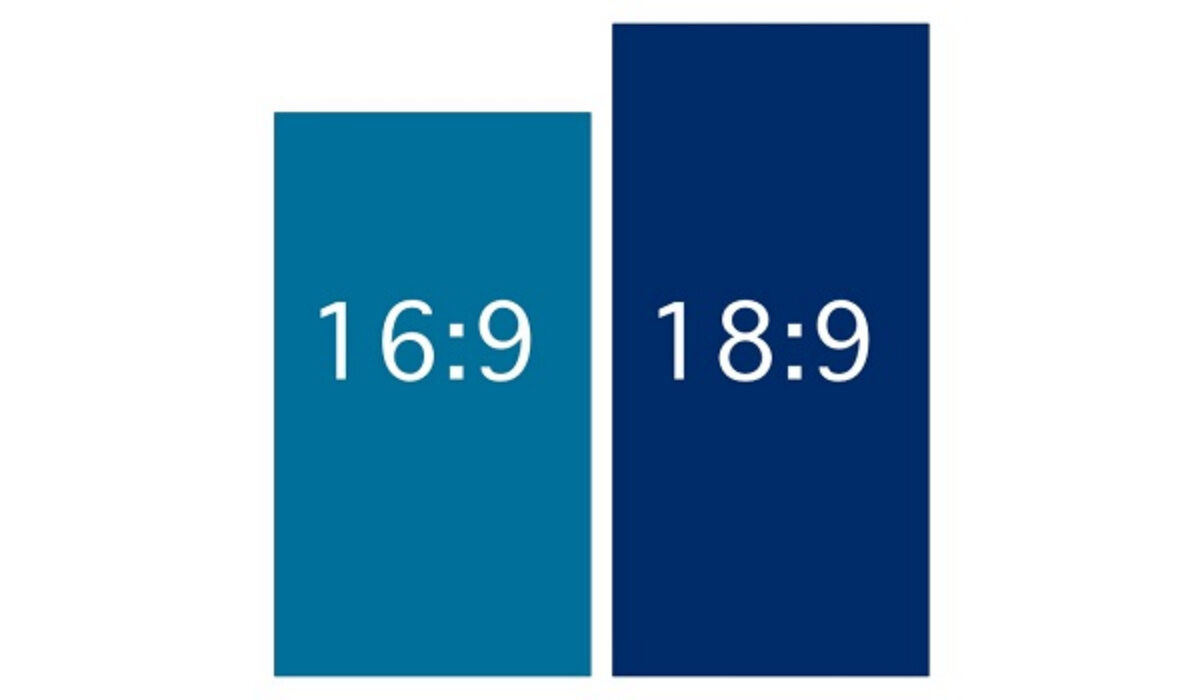
16:9 aspect ratio versus 18:9 aspect ratio
It is said that a picture speaks more than a thousand words. Hopefully, the above image paints a clear…well, picture. The FullView screen (right) is taller and slimmer.
- FullView Display Ratios
- FullView (Edge to edge) Display Versus Bezel-less
- How Does A FullView Display Benefit You?
- Which Do You Prefer?
FullView Display Ratios
So, again, a FullView Display is one with a tall aspect ratio, and is often combined with a bezel-less design. Bezel-less does not necessarily mean no bezels at all, but that the bezels are less than what occurs on older, standard phones. In other words, bezel-less really means minimal or reduced bezels.
As mentioned already, the 16:9 ratio has been the standard phone display. It is still used by a number of brands, including in recent phones like: HTC U11, OnePlus 5, Xperia XZ Premium, and Google Pixel 2. Other aspect ratios used in edge to edge displays are 19:9, 19.5:9, and 21:9, among others.
The new generation of taller displays have 18:9 (LG G6), 18.5:9 (Samsung Galaxy S8, Samsung Galaxy S9), 18.7:9 (Huawei P20), and 19:9 (Nokia X6 2018).
Other taller display aspect ratios include: 19.5:9 (Apple iPhone X), and 17: 9 (Xiaomi Mi Mix). As you can see, there is a variety.
FullView (Edge to edge) Display Versus Bezel-less
To clear the bezel-less versus FullView Display question, a smartphone can use any aspect ratio and still be bezel-less. It does not necessarily have to use a taller display in order to have tiny bezels. For example, the Elephone S8 (below) has a 16:9 aspect ratio despite its bezel-less design. As such, it is wider than FullView Display phones like Samsung Galaxy S8, LG G6, iPhone X, and others.
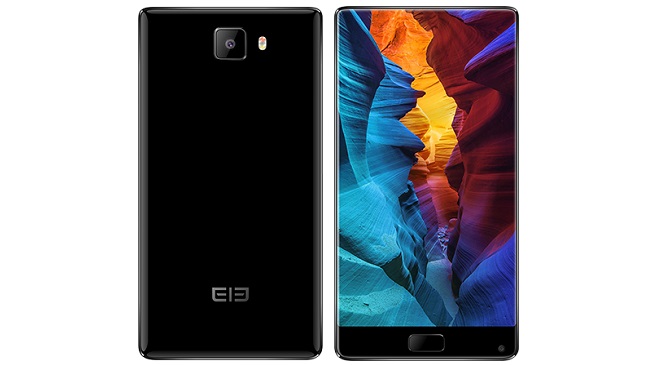
Elephone S8 was one of the early Fullscreen/FullView/bezel-less phones
But taller aspect ratios are the future of Fullscreen or Fullview displays. The taller aspect ratio screens let modern wide-screen movies fill the screen without any wasted space. Remember the black bands that show on the top and bottom of your screen when you are watching movies on standard phones? Full-View Screens get rid of those.
So, besides the video watching advantage, what are the other advantages and disadvantages of having a Full-View screen on a smartphone?
How Does A FullView Display Benefit You?
Early edge-to-edge displays on Nokia and Samsung phones.
A FullView Display allows you to fit in a bigger display in a small, handier form factor. Such phones fit in the hand better because of their narrower profile. It also means that they get taller.
FullView Displays are also great for split screen use; when you are using two apps on your phone screen, both fit in as two full squares. This is different from the less convenient fit that you get on a more traditional 16:9 display. These taller edge to edge displays are also great for gaming, allowing developers to fit in more on-screen controls.
However, while many movies and videos are now shot in widescreen format, some are still not and so will not display properly on a FullView Display. As such, you will see black bars on either side of such videos when watching them on a FullView screen. Yes; crazy. But that problem will go away as more and more videos are shot in 18:9 aspect ratio.
Lastly, while a smartphone with a FullView Display fits in the hand better, the top of the tall display can be difficult to reach with one hand. Some manufacturers address this by including an optional one-handed mode in their devices.
Which Do You Prefer?
Not all manufacturers have jumped on the FullView Display bandwagon. Sony, for example, has stuck with the traditional 16:9 aspect ratio till date, having said they will not be using the 18:9 aspect ratio . Of course, that may change in the future.
Now that you understand what a Fullscreen, bezel-less, or Fullview Display is – and their pros and cons – which do you prefer – FullView, edge to edge, screens or the traditional 16:9 short and squat displays?
- Don’t miss our reviews .
- Follow us on Instagram , Facebook , Twitter , and YouTube .
