Add MobilityArena as a preferred source on Google
Maximizing the battery life of your Samsung Galaxy S24 is the best way to enjoy your device. Experiencing fast battery drain on your S24 can be frustrating, especially when it’s the only device you rely on throughout the day. Thankfully, there are practical solutions to help mitigate this issue and enhance your phone’s battery life. In this article, I have put together practical solutions to help you have a long lasting battery life.

Concept depicting new possibilities for the development of ecological battery technologies and green energy storage in the form of a battery-shaped pond located in a lush forest. 3d rendering.
- Common Causes of Battery Drain
- Practical Solutions to Maximizing Your S24 Battery Optimize Device Settings Manage Background Apps Enable Power Saving Mode Disable Unused Features Monitor Battery Usage Update Software Regularly Use Dark Mode Avoid Overcharging Keep Your Device Cool
- Conclusion
Common Causes of Battery Drain
There are several factors that can contribute to rapid battery drain on the Samsung Galaxy S24. Some of these factors are discussed below.
- Background App Usage: Many apps continue to run in the background, consuming power even when not actively in use.
- Location Services: Constantly using GPS and location services can significantly impact battery life.
- Network Connectivity: Poor signal strength or frequent switching between 4G and 5G can lead to increased battery consumption as the device works harder to maintain connections.
- Software Updates: Occasionally, new software updates may inadvertently cause battery drain issues due to bugs or changes in system behavior.
Practical Solutions to Maximizing Your S24 Battery
To address the fast battery drain issue, consider implementing the following strategies:
Optimize Device Settings
There are a few simple steps to optimize your device from the settings. Simply follow these steps:
- Device Care: Navigate to Settings > Device Care and tap on Optimize now. This feature automatically closes background apps and manages battery usage.
- Screen Brightness: Reduce screen brightness or enable Adaptive Brightness under Settings > Display to adjust brightness based on ambient light.
Manage Background Apps
Another good way to maximize your device battery life is to reduce the background activity for the apps on your device. Simply go to Settings > Apps, selecting an app, and adjusting its battery usage settings to Optimized or Restricted.
Enable Power Saving Mode
You can also enable power saving mode on your device to reduce background activities. Just activate power-saving mode by going to Settings > Battery > Power saving. This mode reduces performance and limits background activity, extending battery life significantly.
Disable Unused Features
You should also turn off or disable unused features on your device. This also helps to maximize the battery life of your device. You should turn off features like Always On Display (AOD), Bluetooth, NFC, Wi-Fi, and GPS when not in use. Access these settings quickly from the Quick Settings panel by swiping down from the top of the screen.
Monitor Battery Usage
Regularly check which apps are consuming the most battery by going to Settings > Battery > View Details. Identify any rogue apps that may need to be restricted or uninstalled.
Update Software Regularly
Ensure your device is running the latest software version by checking for updates under Settings > Software update. Updates often include performance improvements and bug fixes that can enhance battery efficiency.
Use Dark Mode
This may sound funny, but reports have it that enabling dark mode can help conserve battery life, especially on OLED screens. Activate it through Settings > Display > Dark mode.
Avoid Overcharging
Use only certified chargers and avoid leaving your phone plugged in for extended periods after reaching a full charge. This practice helps maintain overall battery health. Also don’t plug into power until the battery power percentage has dropped below 30%.
Keep Your Device Cool
Conclusion
By understanding the common causes of fast battery drain on your Samsung Galaxy S24 and implementing these practical solutions, you can significantly improve your device’s battery life. Regular monitoring of app usage, optimizing device settings, and keeping software up-to-date will enhance your overall user experience and ensure your phone remains reliable throughout the day.
Author:Ifeoluwa Adeleke
Add MobilityArena as a preferred source on Google
We were all anticipating iOS 18, with the thought and hope of exploring new features and improvements. Imagine you’ve just updated your iPhone to the much-anticipated iOS 18, with the much expected features and improvements, only for you to be grappling with battery drain, sluggish performance , and app crashes, instead of the seamless experience you hoped for. Sound familiar? You’re not alone! Many users have encountered these issues after upgrading, but like one of the holy books said, be anxious for nothing, there are effective solutions to help you navigate these challenges and get back to enjoying your device.
- The Allure of iOS 18
- Understanding the Problem on iOS 18
- Highlighted Solutions Restart Your iPhone Check Battery Usage Enable Low Power Mode Limit Background App Refresh Update Your Apps Reset Network Settings Downgrade if Necessary Conclusion
The Allure of iOS 18
The moment Apple announced iOS 18, it came with a host of enticing features — enhanced privacy settings, improved widgets, and even new AI capabilities. Who wouldn’t want to upgrade to have a much better experience on their device? However, as users flocked to install the update, many quickly discovered that the excitement was tempered by a frustrating reality: their devices were not performing as expected. As users took to forums and social media, stories began to emerge. Complaints such as “My battery drains in hours!”, “Apps are crashing left and right,” were part of the trending issues. It was clear that while iOS 18 brought new possibilities, it also introduced a few hiccups.
Understanding the Problem on iOS 18
So, the question is what’s causing this battery drain and sluggish performance on a new software update? Here are a few identified problems:
- Background Activity: After an update, apps often run background processes to optimize their performance for the new OS. This can lead to increased battery consumption.
- Power-Draining Features: New features like enhanced location services or AI functionalities can be resource-intensive, draining your battery faster than anticipated.
- Compatibility Issues: Not all apps are immediately optimized for the latest iOS version. Outdated apps may struggle to function properly, leading to crashes and increased power usage.
- Temporary Bugs: As with any major software update, bugs can arise that affect battery life and overall performance.
Highlighted Solutions
Now that we have a glimpse into the challenges, let’s explore some effective solutions to deal with these issues as I highlight and discuss them.

Restart Your iPhone
Usually, the first resolution to update lag is a simple restart, it can work wonders. It clears out temporary glitches that might be causing the drain. To restart your phone, simply press and hold the Power button along with either Volume button until you see the “Slide to Power Off” slider. Slide it, wait a moment, then turn your device back on.
Check Battery Usage
Some apps automatically gain more strength after software updates and they become so hyper that they begin to drain the battery. Identifying which apps are draining your battery is crucial. How to Check:
- Go to Settings > Battery and review which apps are consuming the most power. If you spot any culprits, consider updating or uninstalling them.
Enable Low Power Mode
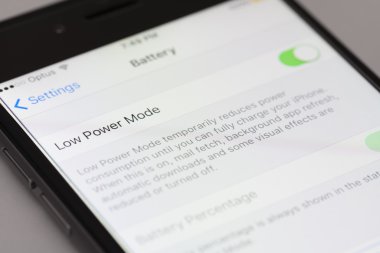
When you’re in a pinch and need to conserve battery life quickly, Low Power Mode is your best friend at the time. To enable low power mode:
- Go to Settings > Battery and toggle on Low Power Mode. This feature reduces background activity and visual effects.
Limit Background App Refresh
You might have to temporarily restrict or limit some apps from refreshing. This will prevent apps from refreshing in the background unnecessarily. To Limit these apps:
- Navigate to Settings > General > Background App Refresh and turn it off for apps that don’t need it.
Update Your Apps
Developers often release updates post-iOS launch to fix compatibility issues. Ensure you check for app updates. To do this:
- Open the App Store, tap your profile icon at the top right, scroll down, and select Update All if updates are available.
Reset Network Settings
If you’re experiencing connectivity issues alongside battery drain, resetting network settings might help. Simply go to Settings > General > Transfer or Reset iPhone > Reset > Reset Network Settings (note that this will erase saved Wi-Fi passwords).
Downgrade if Necessary
Lastly, if all else fails and you’re still facing significant issues, consider downgrading back to iOS 17 until Apple releases a more stable update for iOS 18. You can use tools like Dr.Fone or AnyRecover for a safe downgrade process while preserving your data.
Conclusion
Yes! iOS 18 brings exciting new features, it also presents challenges that can affect battery life and performance. With a better understanding of these issues and implementing the solutions outlined above, you can navigate through this frustrating experience and restore your device’s functionality. Remember, patience is key — sometimes it takes a bit of time for both users and developers to adapt after an update. With these strategies in hand, you’ll be well-equipped to tackle any bumps along the road with your iPhone!
