Add MobilityArena as a preferred source on Google
An active data connection optimizes the performance of your smartphone. When Wi-Fi is unavailable, you’ll inevitably need to rely on your mobile data to access the internet, even in the most remote locations. However, what if your Android’s cellular or mobile data stops working or starts to behave strangely?
By definition, mobile data includes all kinds of Internet access provided by your mobile network operator or carrier: EDGE, 3G, 4G LTE, 5G, etc. The good news is that it’s easy to fix mobile data not working on Android. You’ll just need a few helpful tips to figure the process out easily, and we’ve provided them in this guide.
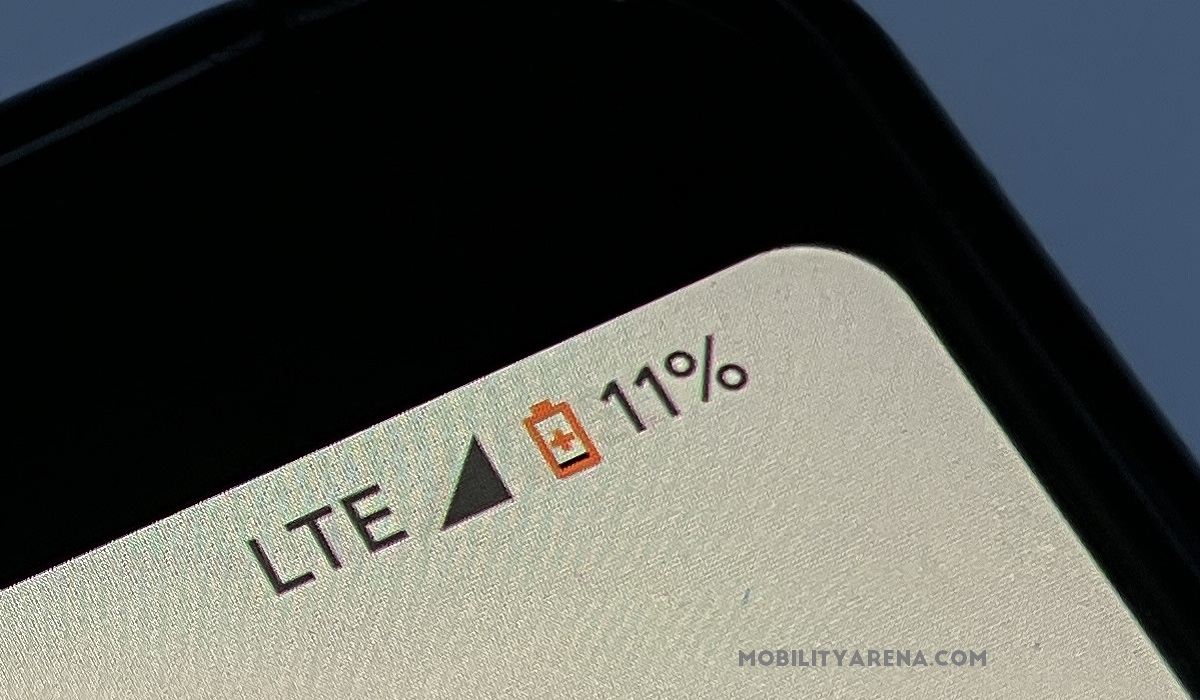
- How to Tell if Mobile Data is Not Working on Android
- How Can I Fix Mobile Data Not Working on Android?
How to Tell if Mobile Data is Not Workingon Android
There are some telltale signs that will let you know if the mobile data on your Android is not working. Here are some of the most common signs:
● Downloads fail to begin, or stop loading at 0%.
● The Google Play loading screen won’t move.
● Browsers become unable to load web pages.
● Difficulty in using internet-dependent apps, such as apps for streaming music or videos, playing online games or using GPS navigation.
If you notice any of these signs, try any of the suggestions in the next section to fix mobile data not working on Android.
How Can I Fix Mobile Data Not Working on Android?
Below, we’ve outlined several solutions you can try to fix mobile data not working on Android.
Verify your Data Plan
This is one of the first places to look when trying to fix mobile data not working on Android. Before you begin troubleshooting, make sure your data plan is active. You’ll typically experience slower speeds if your data plan has a usage cap. If after checking you find that your data plan is exhausted, you may need to purchase a new one to regain access to the internet.
Toggle airplane mode on and off
When you have mobile data turned on but no internet connection, sometimes all you need to do is turn Airplane Mode on and off to fix mobile data not working on Android. The toggle for Airplane mode is typically located in the Quick Settings on Android devices. Alternately, you can go to Settings > Network & Internet > Airplane mode to do this.
Activate the proper network mode
Mobile data may not function if your phone uses a network service type that is not available where you are. So this is something else to consider when you’re looking to fix mobile data not working on Android.
For instance, you can try changing the network type to 3G if you’re in a distant area without access to 5G or 4G. To select the correct network mode for your device, follow the instructions below:
● Go to Settings > Network& Internet > SIM & Mobile Network.
● Select Preferred network type
● Set it to the highest available network in Automatic mode for the best experience. If you have a 4G smartphone, for instance, you should choose 2G/3G/4G auto or anything comparable.
Reset the APN settings on your device
Your Android’s ability to connect to your carrier’s network is facilitated by the APN (Access Point Name), which contains crucial parameters including IP addresses, gateway information, and others. So, when trying to fix mobile data not working on Android, you might need to perform a reset if there’s a problem with APN settings, or if you’ve recently changed carriers or data plans. Follow these instructions:
● Launch the Settings app on your smartphone
● Click on Network & Internet (it may present as SIM card and mobile network on some brands)
● Choose the SIM card that you use for mobile data if you have two SIM cards. E.g. SIM 2.
● Select Access Point Names or APN next.
● Tap the three-dot button in the top right corner.
● From the drop-down menu, select Reset access points
Modify the APN Protocol
You should also attempt to alter the APN protocol if mobile data still does not function after the APN has been reset. Even though IPv4 is the basic protocol for most internet interactions, some sophisticated servers could need IPv6 to function properly.
To change the APN protocol to IPv4 or IPv6 and fix mobile data not working on Android, follow the steps below:
● Open your device.
● Select the Network & Internet button (or SIM card and mobile network on some devices.)
● Choose the SIM card that you use for mobile data if you have two SIM cards. E.g. SIM 1.
● Choos e Access Point Names or APN next.
● Select the first active APN.
● Then, choose APN protocol by scrolling down.
● Select IPv4/IPv6 under the APN protocol option.
● Finally, click the three dots in the top right corner.
● You might get a prompt for caution. To accept the changes, press OK.
On your Android device, mobile data should now operate without issue after following the above instructions.
Reset your phone’s network settings
Network problems with Wi-Fi, voicemail, mobile data and other services might result from improperly designed networks. You can easily restore all the settings to their original state by performing a network reset, which may help to fix mobile data not working on Android.
Just keep in mind that this should only be used as a last option. In the process, you’ll lose all previously saved Wi-Fi networks, Bluetooth connections, and other network settings. Follow these instructions:
● On your Android device, go to Settings and choose System .
● To access the Reset options, expand Advanced . Select Reset Bluetooth, mobile, and Wi-Fi.
● Tap the Reset settings option to finish.
In conclusion , your mobile network should be able to reconnect to the internet if you try all the tips and suggestions provided in this guide to fix mobile data not working on Android. If none of the other options work, ask your network provider for help or try a different network to see if it helps to fix mobile data not working on Android.
- Don’t miss our mobile phone reviews .
- Follow us on Instagram , Facebook , Twitter , and YouTube .
Author:Joan Agie
Add MobilityArena as a preferred source on Google
If you’re looking to increase traffic to your website, and therefore increase conversions and sales, it’s a good idea to add links to Instagram Stories. Instagram had initially removed its swipe-up feature that helped with this, but the good news is that it’s still possible to add links to Instagram Stories with link stickers.
So, if you’re not already familiar with this process, we’ve created this guide for you. Keep reading to learn how to add links to Instagram Stories, and take advantage of this knowledge to grow your brand and revenue.

What is the Instagram Link Sticker?
The Swipe up feature has been replaced with the Instagram Link Sticker , which allows users to add links to Instagram Stories. By enabling brands and influencers to directly add external links to Instagram Stories, the Instagram Swipe up tool helped them reach their audiences and increase their followings.
Since the Swipe up feature was removed, the simplest way to use Instagram to promote external products and content is through story Link Stickers . Instagram analytics also allows you to monitor link clicks for this purpose.
According to Instagram, the link sticker offers three key advantages over the swipe-up feature when it comes to adding links to stories:
● Users are already accustomed to and like using stickers for a variety of purposes, including music, questions, polls, and locations.
● Stickers provide you with greater creative freedom to design a Story’s appearance than swipe-up links did.
● Most importantly, viewers can interact with a Story using stickers rather than the swipe-up feature, which did not support responses or reactions.
It’s also pretty easy to add links to Instagram stories with link stickers, as we’ve described in the next section.
How Can I Add Links to Instagram Stories with the Instagram Link Sticker?
Follow the instructions below carefully to add links to Instagram Stories with link stickers:
● Tap the + sign and choose Story in the Instagram app (rather than Reel, Post, or Live).
● Use any media you have at your disposal to create your story.
● The Sticker icon is located in the top row, click on it.
● Next, fill in the URL.
● Enter the call to action or text for the sticker (e.g., “Click to read”)
● Paste the sticker on your Story
● To resize the Story, pinch and adjust as you please
● To switch between the available color schemes, tap on the option you prefer (black, blue, beige, white, etc.)
● Afterward, click the option to send to your Story, and you’re all done.
If you follow the above instructions correctly, you’ll be able to add links to Instagram Stories easily.
How Can I Customize Instagram Link Sticker Designs?
Apart from having to add links to Instagram stories, you may also have to further customize link sticker designs to suit your brand’s preferences.
Thankfully, this is possible, so follow the instructions we’ve provided if the link sticker designs are not satisfactory for your brand’s aesthetic.
Here’s how to do it:
● Following the same instructions provided above, create your Instagram Story and include a link sticker.
● Next, open your preferred design application.
● Export the sticker as a transparent PNG file to your smartphone.
● Add your personalized sticker to your Instagram Story draft by returning to your phone’s photo album or files.
● Paste the personalized sticker over your link sticker.
● You’re all done!
An important thing to note is that you should keep track of your Story metrics to improve your click-through rate. Ensure that your call to action is clear, and don’t stuff too much content into one Instagram post, especially if you aren’t receiving as many clicks as you would want.
In summary , sharing links with your Instagram audience can help you achieve both relationship-building and conversion goals. The instructions in this guide will help you add links to Instagram stories and increase awareness for your brand. Make sure to follow them correctly to get the best possible results.
