Add MobilityArena as a preferred source on Google
The UK – United Kingdom of Great Britain and Ireland – has one of the most matured mobile markets in the world with a number of mobile network operators (MNOs) and mobile virtual network operators (MVNOs) providing services from one end of the country to another.
Services offered by mobile network operators in the UK include telephone voice calls, SMS, mobile Internet, as well as a range of value-added services. You will find matured 3G and 4G networks in the UK, as well as rapidly growing 5G networks.

Having said that, there are generally two types of mobile network operators – MNO and MVNO. Let’s have a look at them, so you can have a better understanding of how they operate.
- MNO vs MVNO: What is the difference?
- List of Virtual Mobile Network Operators in the UK
- List of Virtual Mobile Network Operators in the UK
- Does it matter whether you use an MNO or MVNO?
MNO vs MVNO: What is the difference?
An MVNO does not have its own telecom towers and frequencies; it uses those of a proper MNO to provide its own services. Despite not owning any infrastructure, virtual operators are able to sell their own branded SIM cards and plans. You wouldn’t know they are resellers, at face value.
List of Virtual Mobile Network Operators in the UK
There are only four real mobile network operators in the UK who have their own infrastructure and run their own networks. These are the MNOs. Here are the Big 4, as they are called:
- EE
- O2
- Vodafone
- Three
EE is currently the largest mobile operator in the UK, followed by O2. In June 2023, Three and Vodafone announced their interntion to merge and form a new MNO called MergeCo, which will then become the largest operator in the country. If the deal goes through, MergeCo will begin operations by the end of 2024.
List of Virtual Mobile Network Operators in the UK
Apart from the Big 4 in the UK, there are twenty virtual operators. Virtual mobile network operators (MVNOs) are different from MNOs in that unlike MNOs who have their own infrastructure and networks, MVNOs do not own any of that. Instead, they resell the services of MNOs using the MNOs infrastructure and networks. Which is why they are called virtual operators.
The list of virtual mobile network operators riding on the networks of one or more of the Big 4 include:
- Tesco Mobile
- Giffgaff
- BT Mobile
- Virgin Mobile
- Sky
- SMARTY
- Talkmobile
- Plusnet
- Asda Mobile
- Lycamobile
- Lebara
- TRUPHONE
- Superdrug
- Your Co-op
- 1pMobile
- FreedomPop
- Now Mobile
- iD Mobile
As already mentioned, virtual operators piggyback on the mobile network operators to resell their services. This means that virtual operators are able to offer 3G, 4G, and 5G services as long as the MNO they piggyback on has those technologies.
As another example, virtual operators like Smarty, iD Mobile , FreedomPop, and Superdrug Mobile all use Three’s network. When you pop their SiM card in your phone, they all connect to Three ‘s network.
Does it matter whether you use an MNO or MVNO?
Not in the least. Feel free to get on any type of mobile network operator in the UK whose services align with your needs. They are all licensed to provide you with mobile services, and sometimes, you will find that an MVNO has packages that are better tailored to your needs.
Author:Mister Mobility
Digital Skills and Communication Coach | Mobile Phone Connoisseur since 2001 | Tech Blogging since 2004
Add MobilityArena as a preferred source on Google
When your iPad isn’t working correctly, a hard reset can be an effective solution. A hard reset can help to fix issues such as your iPad freezing or slowing down. Also If you’re planning on selling or giving away your device, a factory reset is an essential step to ensure that your personal information is erased.
In this article, I’ll walk you through how to hard reset an iPad through a step-by-step process. With the tips in this guide, you’ll be better able to solve common problems and restore optimal performance to your device.

How to Hard Reset an iPadWith or Without a Home Button
A hard reset may be necessary if your iPad is having problems, such as being unresponsive, freezing, doesn’t detect your taps, or the slider doesn’t function. When your iPad is not responding to normal restart procedures, you can force it to restart by performing a hard reset, commonly referred to as a force restart.
Also, a hard reset will not remove any of your information or settings. But it is important to keep in mind that a hard reset should only be used as a last resort and not as a regular way to restart your device. Depending on the model of your iPad, specific procedures must be followed to perform a hard reset.
Here’s how to hard reset or force restart an iPad with a Home button:
- To hard reset your iPad, press and hold the Home and Sleep/Wake buttons simultaneously
- Continue to hold the buttons down until the Apple logo shows on the screen.
- Release the buttons and wait for the iPad to restart.
The procedure for performing a hard reset on an iPad without a home button is slightly different. To hard reset your iPad without a home button, follow the steps below:
- Press and quickly release the Volume Up button.
- Press and quickly release the Volume Down button.
- Press and hold the Power button until the iPad restarts.
After the Apple logo appears, your device will restart, and you should be able to use it normally.
How to Reset an iPad to Factory Settings

A factory reset on your iPad can help you resolve any issues that persist even after you’ve done a hard reset or force restart. You should always factory reset your iPad before you sell or give it to someone else so that they cannot access your data.
A factory reset will erase everything on your iPad. It will permanently remove all of your music, images, messages, and other data from your iPad, restoring it to its factory settings. Before beginning the factory reset on your iPad, make sure to back up all of the files; otherwise, they’ll be permanently lost.
- Launch the iPad’s Settings app.
- Choose General .
- Select Transfer or Reset iPad at the bottom of the page.
- Click on Erase All Content and Settings .
- When prompted, enter your passcode .
- Confirm that you wish to wipe everything on your iPad.
- Hold on for your iPad to reset and restart.
Once the reset is complete, your iPad will be restored to its original settings, and you will need to set it up again from scratch.
Hard Reset vs. Factory Reset: What’s the Difference?
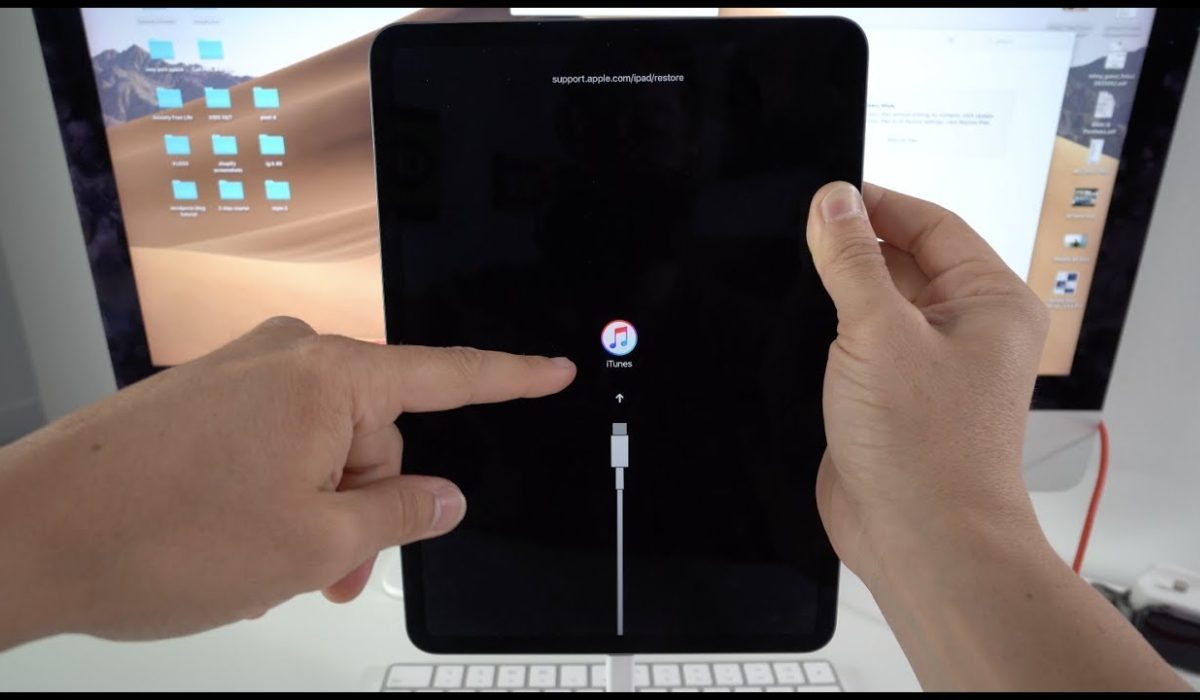
Hard resetting an iPad and factory resetting it are two entirely different procedures with separate outcomes. Hard resetting your iPad is also known as a force restart process. I’ve provided the steps on how to do a hard reset on iPad; it’s quick and doesn’t require a backup process beforehand.
Factory resetting your iPad, on the other hand, erases all data and returns your device to its original factory settings. It’s the more appropriate line of action if, for instance, you want to give out your iPad to a new owner.
It’s important to be sure of what you want to achieve on your iPad so you can pick and apply the right resetting process.
How to Hard Reset an iPad Without A Password
If you can’t remember your password or have entered the wrong one too many times, factory resetting will be difficult. You can resolve this by doing a hard reset on the iPad and removing the passcode while in Recovery Mode. Follow these steps:
- Launch iTunes on your computer and ensure that it is up to date.
- Using a USB cable, connect your iPad to your computer.
- Put your iPad into recovery mode by simultaneously pressing and holding the Power and Home button (if your device has a Home button) or the Power button + either Volume button (if your device does not have a Home button) until the recovery mode screen appears.
- When your iPad icon displays in iTunes, click on it.
- Click Restore iPad and confirm that you wish to erase your iPad.
- Wait for the restore procedure to finish before returning your iPad to its factory settings.
Once the factory reset process concludes, your iPad will revert to its default settings, and you’ll have to start the setup process over.
