Add MobilityArena as a preferred source on Google
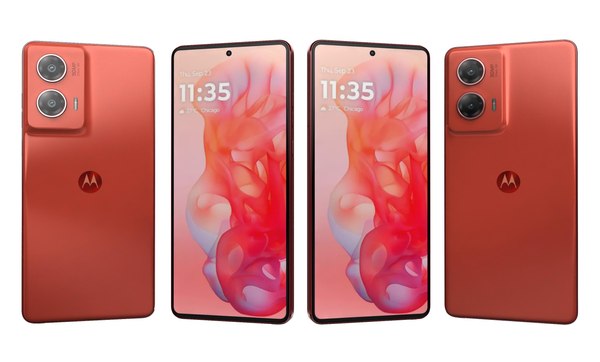
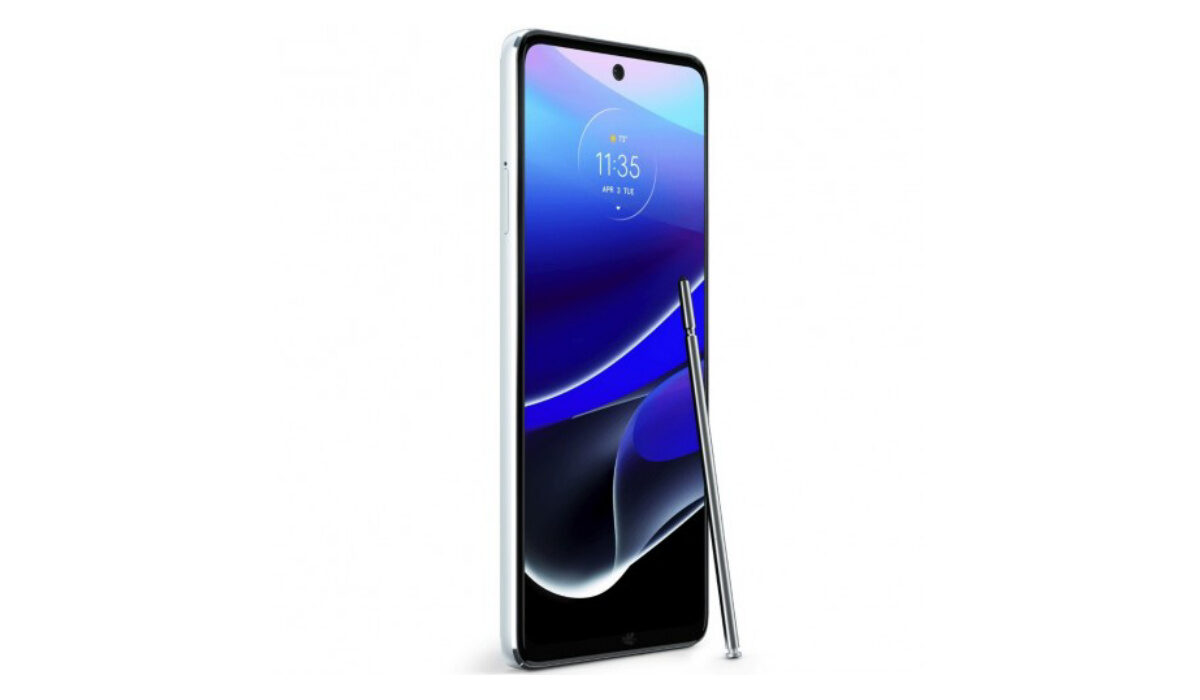
The Moto G Stylus 5G (2024) has emerged as a popular choice for users seeking a budget-friendly smartphone equipped with a stylus. With its impressive features, including a vibrant display, solid battery life, and an affordable price point, it offers great value for money. However, like any device, it comes with its share of issues that users may encounter. Some common concerns include performance lag, connectivity problems, and battery drain. In this article, we will discuss these prevalent problems associated with the Moto G Stylus 5G and provide practical solutions to enhance your experience and ensure you get the most out of this capable device. By addressing these issues effectively, you can enjoy a smoother user experience and fully leverage the features that make the Moto G Stylus 5G stand out in its category. Let’s dive into the specific challenges and their solutions!
- Common Issues with the Moto G Stylus 5G Battery Drain Issues Performance Lag Connectivity Problems Sound Quality Issues
- Conclusion
Common Issues with the Moto G Stylus 5G
Battery Drain Issues

Some users have reported that the battery drains faster than expected, especially when using resource-intensive apps or during extended periods of use. Rapid battery discharge can lead to the device shutting down unexpectedly or not lasting through a full day of usage. I recommend the following to get this resolved:
- Manage Background Apps: Check for rogue apps running in the background that may be draining the battery. Go to Settings > Battery > Battery Usage, select an app, and choose “Restricted” to limit its background activity.
- Battery Calibration: If experiencing erratic battery behavior, fully charge the phone to 100%, then leave it plugged in for an additional hour after reaching full charge to recalibrate the battery.
Performance Lag
Users may experience lagging or freezing during multitasking or when running demanding applications. Apps may take longer to open, and there can be noticeable delays when switching between apps. The following solutions will be of help:
- Clear App Cache: If apps are lagging or freezing, clear their cache to free up memory. Navigate to Settings > Apps > See All Apps, select the app, and choose Storage & Cache > Clear Cache.
- Reduce Animations: To improve performance, reduce animations by enabling Developer Options (tap Build Number under Settings > About Phone seven times) and adjusting animation scales.
Connectivity Problems
Some users of the Moto G Stylus 5G (2024) have faced issues with connecting to 5G networks or maintaining a stable connection. Inconsistent network connectivity can result in dropped calls or slow internet speeds. I recommend the following to get this issue resolved:
- Reset Network Settings: If you encounter connectivity issues, reset network settings by going to Settings > System > Reset Options > Reset Wi-Fi, mobile & Bluetooth, then confirm.
- Check Carrier Settings Update: Ensure your carrier settings are up-to-date by going to Settings > About Phone > System Updates, and install any available updates.
Sound Quality Issues

Users have reported problems with sound quality, including low volume levels or audio cutting out during calls or media playback. Difficulty hearing notifications or conversations can hinder user experience. I recommend the following:
- Adjust Volume Settings: Check sound settings by going to Settings > Sound & Vibration, and adjust the ring volume and media volume sliders accordingly.
- Test in Safe Mode: Restart your device in Safe Mode to determine if a third-party app is causing sound issues. If sound works fine in Safe Mode, consider uninstalling recently added apps.
Conclusion
The Moto G Stylus 5G (2024) is an excellent choice for those seeking a budget-friendly smartphone with stylus capabilities. While it does have its share of common issues—such as battery drain, performance lag, connectivity problems, and sound quality concerns—many of these can be easily resolved with practical solutions. By managing background apps, clearing cache data, resetting network settings, and adjusting sound settings, users can significantly enhance their experience with this versatile device. Embrace these tips to make the most out of your Moto G Stylus 5G and enjoy all the features it has to offer!
Author:Ifeoluwa Adeleke
Add MobilityArena as a preferred source on Google
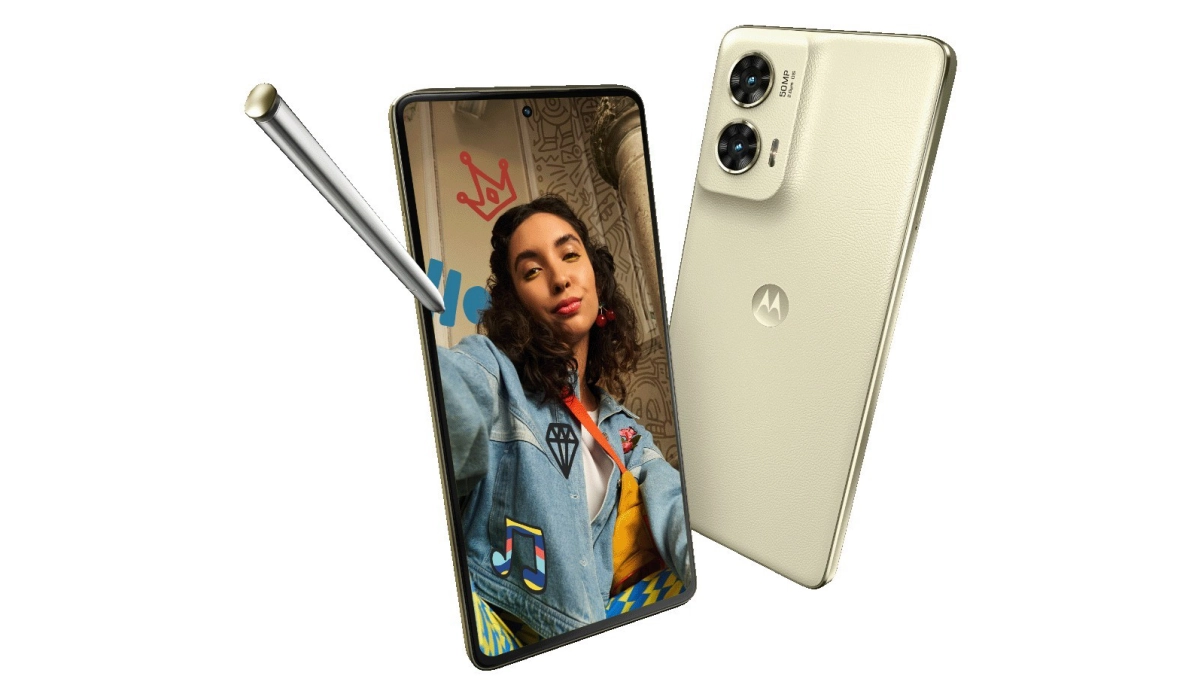
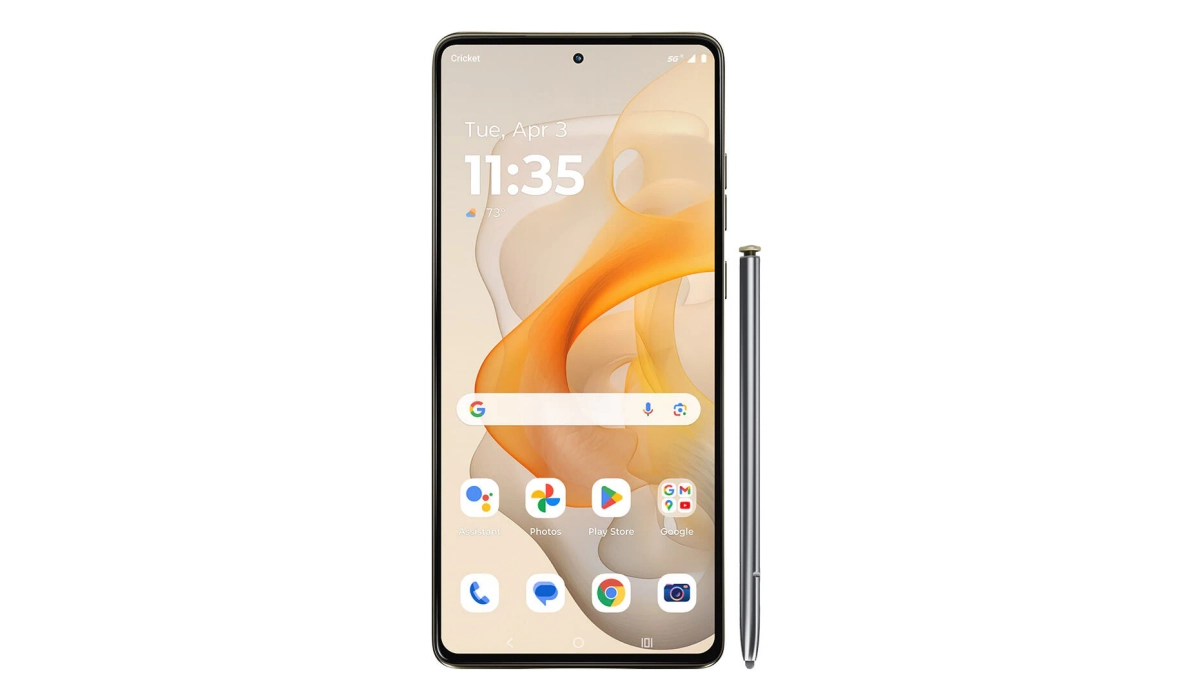
The Moto G Stylus 5G (2024) stands out as a budget-friendly smartphone that offers a stylus, vibrant display, and solid performance. However, many users have reported sound quality issues that can detract from the overall experience, making it less enjoyable for media consumption and communication. Some users have specifically mentioned problems such as low volume levels, muffled audio, and inconsistent speaker performance. In this article, we will explore these common sound quality problems associated with the Moto G Stylus 5G and provide practical solutions to enhance your audio experience. By addressing these issues effectively, you can ensure that your Moto G Stylus 5G delivers the sound quality you expect and enhances your overall user experience. Let’s dive into the specific challenges and their solutions!
- Common Sound Quality Issues and Solutions Low Volume Levels Muffled or Distorted Audio Inconsistent Speaker Performance Issues with Headphone Jack
- Conclusion
Common Sound Quality Issues and Solutions
Low Volume Levels
Many users of the Moto G Stylus 5G have noted that the audio output is significantly lower than expected, making it difficult to hear notifications, music, or videos without cranking up the volume to maximum levels. Users report straining to hear sounds even when the volume is set to its highest setting. I recommend the following:
- Adjust Audio Settings: Go to Settings > Sound & vibration, and ensure all volume sliders (media, ringtone, notifications) are set appropriately.
- Use Volume Boost Apps: Consider downloading a volume booster app from the Google Play Store. Apps like “Volume Boost” can override default settings and increase audio output beyond standard limits.
Muffled or Distorted Audio
Some users experience muffled sound quality or distortion, especially at higher volume levels. Audio may sound unclear or “muddy,” particularly during calls or while playing music. I recommend the following:
- Disable Dolby Atmos: Some users have found that disabling Dolby Atmos improves sound clarity. Go to Settings > Sound > Dolby Atmos, and turn it off.
- Clear App Cache: If you notice distortion when using specific apps (like music or video players), clear their cache by navigating to Settings > Apps > See All Apps, selecting the app, and tapping Storage & Cache > Clear Cache.
Inconsistent Speaker Performance
The speakers may not consistently deliver clear audio, leading to interruptions in sound quality during media playback. Sudden drops in audio quality or complete silence can occur during video playback or calls. I recommend the following:
- Test in Safe Mode: Boot your device into Safe Mode to determine if third-party apps are causing audio issues. To do this, press and hold the power button, then tap and hold “Power off” until you see the option to reboot in Safe Mode.
- Run Hardware Diagnostics: Use the Device Help app to run a hardware test on your speakers. Go to Device Help > Device diagnosis > Hardware test > Speaker, and follow the on-screen instructions to check for any issues.
Issues with Headphone Jack
Users of the Moto G Stylus 5G have reported problems when using wired headphones, including poor sound quality or complete audio failure. Audio may cut out intermittently or sound distorted when headphones are connected. I recommend the following:
- Check Headphone Connection: Ensure that your headphones are properly plugged in and that there’s no debris in the headphone jack that could be obstructing the connection.
- Try Different Headphones: Test with multiple pairs of headphones to determine if the issue lies with the headphones themselves or the device.
- Reset Network Settings: Sometimes, resetting network settings can help resolve audio issues related to Bluetooth connections. Go to Settings > System > Reset options > Reset Wi-Fi, mobile & Bluetooth, then confirm.
Conclusion
The Moto G Stylus 5G (2024) is an excellent choice for those seeking a budget-friendly smartphone with stylus capabilities. While sound quality issues such as low volume levels, muffled audio, inconsistent speaker performance, and headphone jack problems can be frustrating, many of these challenges can be addressed with practical solutions. By adjusting audio settings, disabling Dolby Atmos, testing in Safe Mode, and ensuring proper headphone connections, users can significantly enhance their audio experience. Embrace these tips to make the most out of your Moto G Stylus 5G and enjoy all its features without compromising on sound quality!
