Add MobilityArena as a preferred source on Google
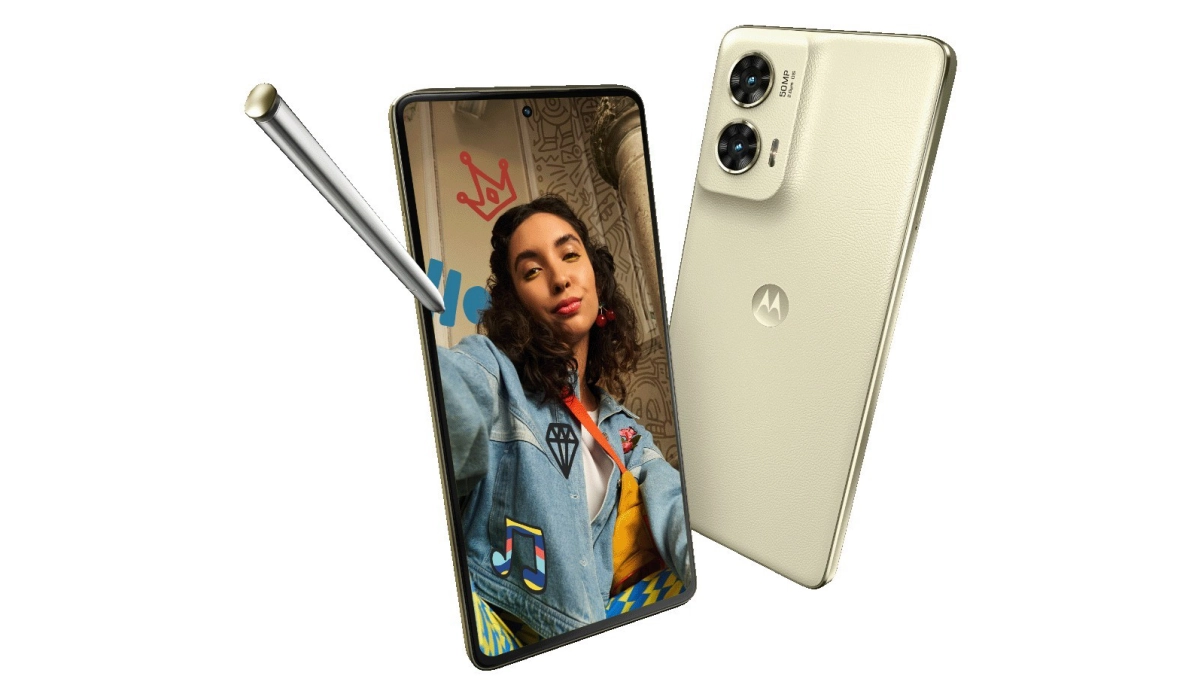
The Moto G Stylus 5G (2024) stands out as a budget-friendly smartphone that offers a stylus, vibrant display, and solid performance. However, many users have reported sound quality issues that can detract from the overall experience, making it less enjoyable for media consumption and communication. Some users have specifically mentioned problems such as low volume levels, muffled audio, and inconsistent speaker performance. In this article, we will explore these common sound quality problems associated with the Moto G Stylus 5G and provide practical solutions to enhance your audio experience. By addressing these issues effectively, you can ensure that your Moto G Stylus 5G delivers the sound quality you expect and enhances your overall user experience. Let’s dive into the specific challenges and their solutions!
- Common Sound Quality Issues and Solutions Low Volume Levels Muffled or Distorted Audio Inconsistent Speaker Performance Issues with Headphone Jack
- Conclusion
Common Sound Quality Issues and Solutions

Low Volume Levels
Many users of the Moto G Stylus 5G have noted that the audio output is significantly lower than expected, making it difficult to hear notifications, music, or videos without cranking up the volume to maximum levels. Users report straining to hear sounds even when the volume is set to its highest setting. I recommend the following:
- Adjust Audio Settings: Go to Settings > Sound & vibration, and ensure all volume sliders (media, ringtone, notifications) are set appropriately.
- Use Volume Boost Apps: Consider downloading a volume booster app from the Google Play Store. Apps like “Volume Boost” can override default settings and increase audio output beyond standard limits.
Muffled or Distorted Audio
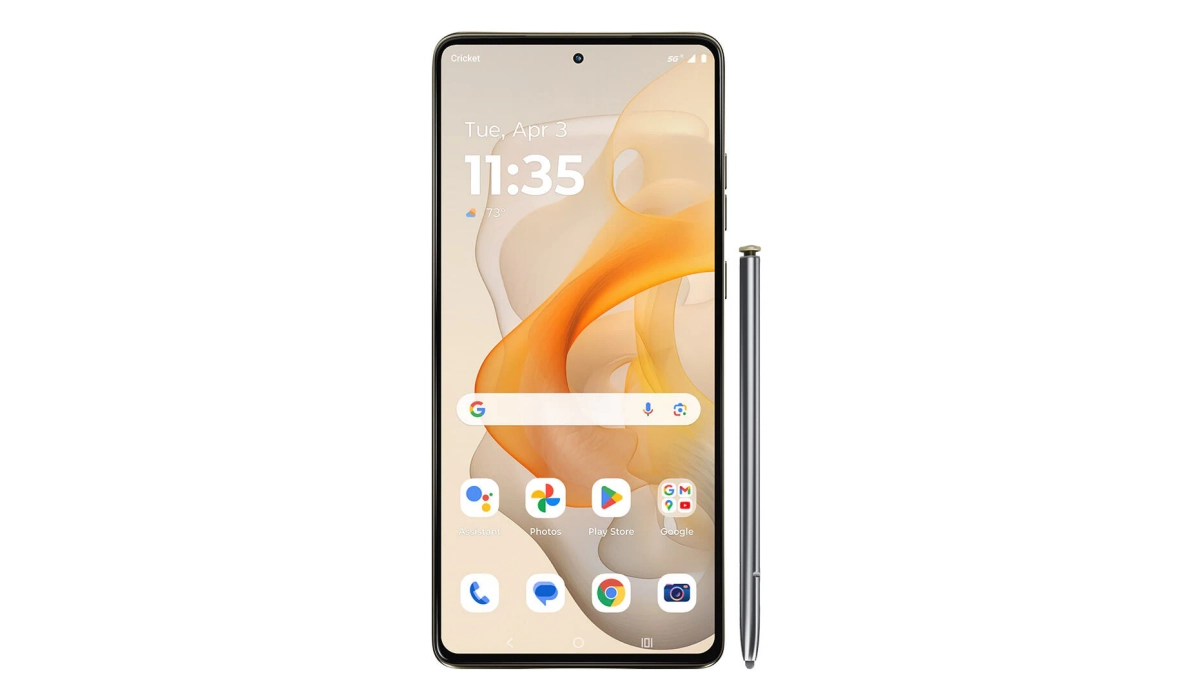
Some users experience muffled sound quality or distortion, especially at higher volume levels. Audio may sound unclear or “muddy,” particularly during calls or while playing music. I recommend the following:
- Disable Dolby Atmos: Some users have found that disabling Dolby Atmos improves sound clarity. Go to Settings > Sound > Dolby Atmos, and turn it off.
- Clear App Cache: If you notice distortion when using specific apps (like music or video players), clear their cache by navigating to Settings > Apps > See All Apps, selecting the app, and tapping Storage & Cache > Clear Cache.
Inconsistent Speaker Performance
The speakers may not consistently deliver clear audio, leading to interruptions in sound quality during media playback. Sudden drops in audio quality or complete silence can occur during video playback or calls. I recommend the following:
- Test in Safe Mode: Boot your device into Safe Mode to determine if third-party apps are causing audio issues. To do this, press and hold the power button, then tap and hold “Power off” until you see the option to reboot in Safe Mode.
- Run Hardware Diagnostics: Use the Device Help app to run a hardware test on your speakers. Go to Device Help > Device diagnosis > Hardware test > Speaker, and follow the on-screen instructions to check for any issues.
Issues with Headphone Jack
Users of the Moto G Stylus 5G have reported problems when using wired headphones, including poor sound quality or complete audio failure. Audio may cut out intermittently or sound distorted when headphones are connected. I recommend the following:
- Check Headphone Connection: Ensure that your headphones are properly plugged in and that there’s no debris in the headphone jack that could be obstructing the connection.
- Try Different Headphones: Test with multiple pairs of headphones to determine if the issue lies with the headphones themselves or the device.
- Reset Network Settings: Sometimes, resetting network settings can help resolve audio issues related to Bluetooth connections. Go to Settings > System > Reset options > Reset Wi-Fi, mobile & Bluetooth, then confirm.
Conclusion
The Moto G Stylus 5G (2024) is an excellent choice for those seeking a budget-friendly smartphone with stylus capabilities. While sound quality issues such as low volume levels, muffled audio, inconsistent speaker performance, and headphone jack problems can be frustrating, many of these challenges can be addressed with practical solutions. By adjusting audio settings, disabling Dolby Atmos, testing in Safe Mode, and ensuring proper headphone connections, users can significantly enhance their audio experience. Embrace these tips to make the most out of your Moto G Stylus 5G and enjoy all its features without compromising on sound quality!
Author:Ifeoluwa Adeleke
Add MobilityArena as a preferred source on Google
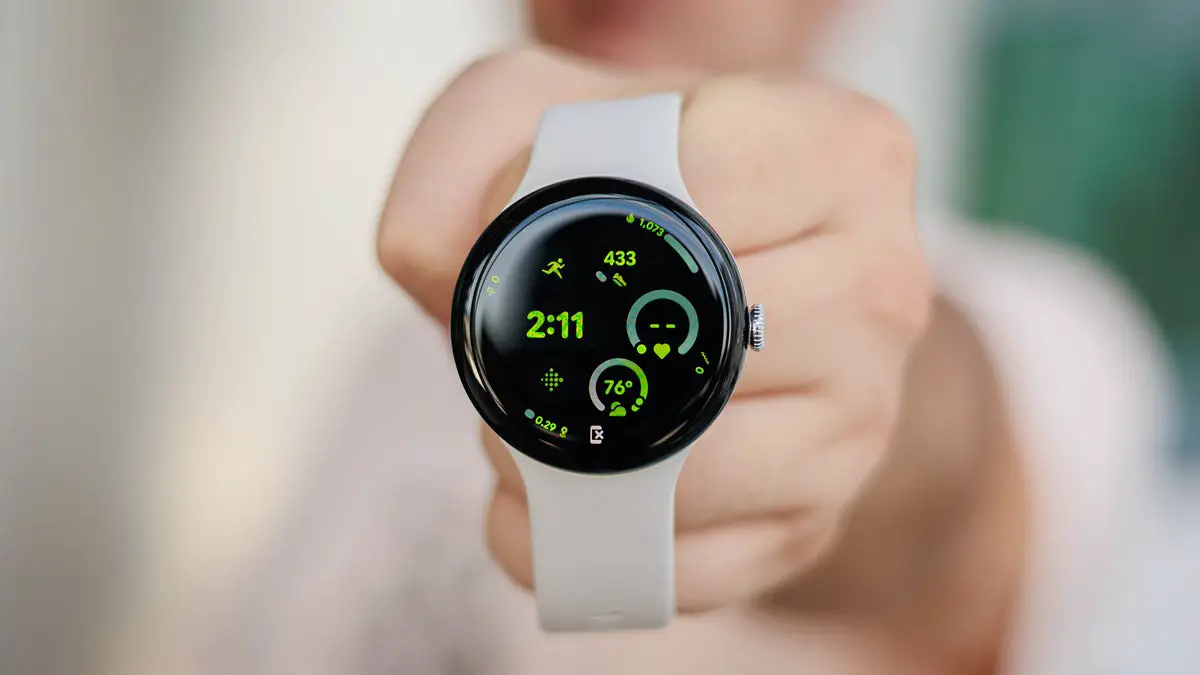
The Google Pixel Watch 3 has quickly gained popularity for its sleek design, robust features, and seamless integration with the Google ecosystem. However, many users have reported connectivity issues that can hinder the overall experience, affecting everything from notifications to health tracking. These problems can be particularly frustrating for users who rely on their smartwatches for daily tasks and communication. In this article, we will explore common connectivity problems associated with the Google Pixel Watch 3 and provide practical solutions to enhance your experience. By addressing these connectivity challenges effectively, you can ensure that your Pixel Watch 3 remains a reliable companion in your daily life, allowing you to fully enjoy its features and capabilities. Let’s delve into the specific issues and their corresponding solutions!
- Common Connectivity Issues Bluetooth Connection Problems Wi-Fi Connectivity Issues LTE Signal Strength Problems Setup Delays
- Conclusion
Common Connectivity Issues
Bluetooth Connection Problems
Users frequently encounter difficulties when trying to connect their Pixel Watch to their smartphones via Bluetooth. This can lead to interruptions in notifications and calls. The watch may fail to pair with the phone, or it may disconnect unexpectedly during use. I recommend the following:
- Restart Devices: Begin by restarting both your Pixel Watch and your smartphone. To restart your watch, press and hold the crown for three seconds, then tap “Restart.”
- Check Bluetooth Settings: Ensure that Bluetooth is enabled on both devices. On your phone, go to Settings > Bluetooth, and confirm that it’s turned on.
- Re-pair Devices: If issues persist, unpair the devices by going to Settings > Connected Devices > Forget Device, then re-pair them following the setup instructions.
Wi-Fi Connectivity Issues
Some users experience problems connecting to Wi-Fi networks, which can limit the watch’s functionality when not paired with a phone. The watch may show a “Network error” message or fail to connect to saved Wi-Fi networks. Apply the following solutions:
- Ensure Wi-Fi is Enabled: Check that Wi-Fi is turned on in your watch settings. Swipe down on your watch face, tap Settings > Connectivity > Wi-Fi, and toggle it on.
- Reconnect to Network: If you encounter a “Network error,” try forgetting the network and reconnecting. Go to Settings > Connectivity > Wi-Fi, select the network, and enter the password again.
- Check Phone Connection: Ensure that your smartphone is connected to a stable Wi-Fi network as the watch relies on it for updates and notifications.
LTE Signal Strength Problems
For those using the LTE version , weak signal strength can lead to dropped connections or inability to access data services while away from the phone. Users may notice inconsistent network performance, especially in areas with poor cellular coverage. I recommend the following:
- Check Signal Strength: On your watch, swipe down and go to Settings > Connectivity > Mobile > SIM Status to check signal strength.
- Move Closer to a Window or Outside: If you’re indoors and experiencing weak signals, try moving closer to a window or stepping outside for better reception.
- Contact Your Carrier: If signal issues persist, reach out to your carrier for assistance or consider switching carriers if coverage is consistently poor in your area.
Setup Delays

New users often report that setting up their Pixel Watch takes longer than expected, which can be frustrating. The setup process may time out or take more than 20 minutes to complete. I recommend the following:
- Follow Setup Instructions Carefully: Ensure you follow each step in the setup process without skipping any instructions. Refer to the official setup video if needed.
- Keep Devices Close Together: During setup, keep your watch and phone within close proximity (within about one foot) to ensure a smooth connection.
- Factory Reset if Necessary: If setup continues to fail, consider performing a factory reset on your watch by going to Settings > System > Disconnect & reset, then attempt the setup process again.
Conclusion
The Google Pixel Watch 3 offers an impressive array of features that enhance daily life, but connectivity issues can sometimes hinder user experience. By addressing common problems such as Bluetooth connection difficulties, Wi-Fi connectivity issues, LTE signal strength problems, and setup delays with practical solutions, users can significantly improve their experience with this innovative smartwatch. Embrace these tips to ensure that your Google Pixel Watch 3 remains connected and functional, allowing you to enjoy all its features without interruption! With a little troubleshooting, you can make the most out of this fantastic device and stay seamlessly connected throughout your day.
