Add MobilityArena as a preferred source on Google
Motorola hasn’t had quite a good reputation for software updates on recent years and we are hoping that this changes soon. The good news is that the Android 15 update for Motorola smartphones is rolling out to many models – 21 in number according to the list.
Up till recently, Motorola offered only 3 years of software updates and only for select models. After the announcement of the Edge 50 range this year, the company bumped that up to five years. Again, that is only for select models.
In a surprise move, two days ago, Motorola began rolling out the beta version of Android 15 to the Edge 50 Fusion . I’m not sure everyone wants to run beta software on their regular smartphone, though, so does it count?
A uway, we have the list of Motorola phones that will eventually get the stable update. Is your smartphone among those models on the Motorola Android 15 update list? Scroll down to find out.
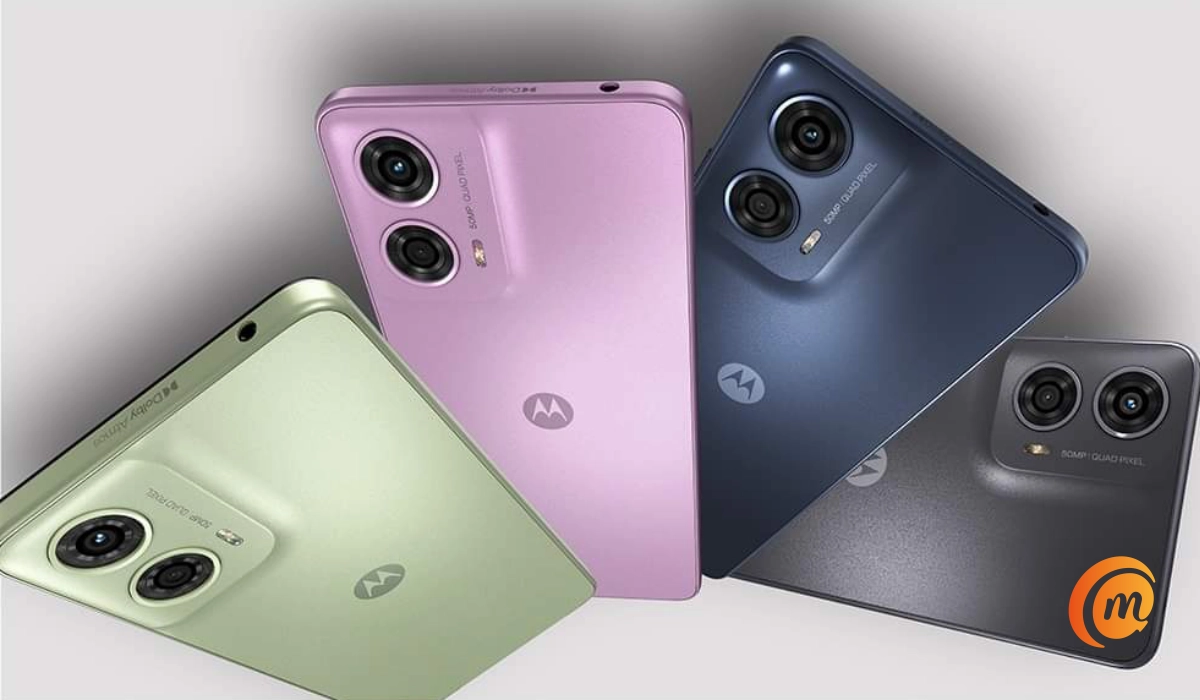
Is your smartphone among the 21 models on the Motorola Android 15 update list?
Phones Eligible for the Motorola Android 15 Update
Here are the Motorola phones that are eligible for the Android 15 update:
Motorola Razr phones:
- Motorola Razr+ (2024) / Razr 50 Ultra
- Motorola Razr (2024) / Razr 50
- Motorola Razr 50s
- Motorola Razr+ (2023) / Razr 40 Ultra
- Motorola Razr (2023) / Razr 40
- Motorola Razr 40s
Motorola Edge phones:
- Motorola Edge (2024)
- Motorola Edge (2023)
- Motorola Edge+ (2023)
- Motorola Edge 50 Ultra
- Motorola Edge 50 Pro
- Motorola Edge 50 Neo
- Motorola Edge 50 Fusion
- Motorola Edge 50
- Motorola Edge 40
- Motorola Edge 40 Neo
- Motorola Edge 40 Pro
- Motorola Edge 30 Ultra
Motorola Moto G series phones:
- Motorola Moto G Power 5G (2024)
- Motorola Moto G Stylus 5G (2024)
- Motorola Moto G 5G (2024)
- Motorola Moto G85
- Motorola Moto G75
- Motorola Moto G55
- Motorola Moto G45
- Motorola Moto G35
- Motorola Moto G34 5G
Motorola ThinkPhone Series :
- ThinkPhone by Motorola
- ThinkPhone 25
These 29 Motorola smartphones will definitely get updated to Android 15 in the coming months. Two of my favourite models are on the list. The Moto Edge 50 Neo and the Moto G Stylus 5G 2024 are the two Motorola smartphones I would consider buying at the moment. It is good to know that should I buy either, I am sure of getting Android 15 on them.
Author:Mister Mobility
Digital Skills and Communication Coach | Mobile Phone Connoisseur since 2001 | Tech Blogging since 2004
Add MobilityArena as a preferred source on Google
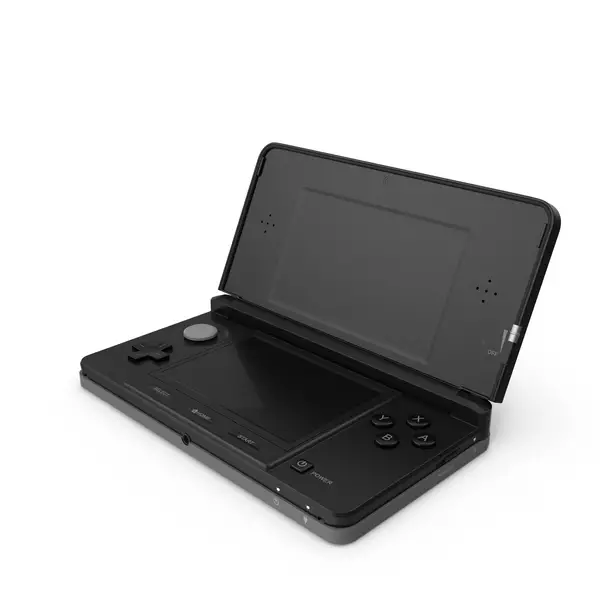
The Nintendo 3DS has captured the hearts of gamers with its innovative dual-screen design and immersive 3D capabilities. However, many users have reported frustrating issues with screen freezing and crashing, which can significantly disrupt gameplay. These problems can arise unexpectedly, leading to interruptions that detract from the overall gaming experience. By understanding these issues and implementing effective strategies, you can keep your Nintendo 3DS running smoothly and make the most of its unique features. Let’s dive into the specifics of what causes these frustrating freezes and crashes, along with actionable solutions to help you get back to gaming!
- Common Issues with Screen Freezing and Crashing Wi-Fi Connectivity Problems Faulty Game Cartridges Software Glitches Insufficient Storage Space
- Conclusion
Common Issues with Screen Freezing and Crashing
Wi-Fi Connectivity Problems

A prevalent cause of freezing is related to the Nintendo 3DS’s Wi-Fi connection . Users often experience crashes when attempting to connect to the internet, especially during online gaming or updates. The device may freeze during online play or when trying to access the eShop, requiring a restart. I recommend the following to get this resolved:
- Turn Off Wi-Fi: If you encounter freezing during online play, consider turning off Wi-Fi while playing single-player games. This can help stabilize performance.
- Router Reset: Restart your router by turning it off for about 5–10 minutes before turning it back on. This can resolve connectivity issues affecting your Nintendo 3DS.
- Update Router Firmware: Ensure that your router’s firmware is up-to-date to improve compatibility with your devices.
Faulty Game Cartridges
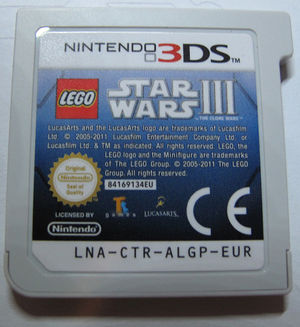
Sometimes, the problem lies with the Nintendo 3DS’s cartridge itself. Dust or damage can prevent proper contact with the console. Games may freeze during loading screens or while in play, often accompanied by error messages. Here are few solutions to get this resolved:
- Clean Cartridges: Use a soft cloth to gently clean the contacts of your game cartridges. Ensure there’s no dust or debris obstructing the connection.
- Reseat Cartridges: Remove and reinsert the cartridge firmly into the slot to ensure a proper connection.
- Test Different Games: If one game consistently freezes, try other cartridges to determine if the issue is isolated.
Software Glitches
Outdated system software can lead to performance issues, including freezing and crashing. Users may notice lagging during gameplay or unexpected shutdowns when navigating menus. Below are a few simple solutions to help fix this issue:
- System Updates: Regularly check for system updates by going to System Settings > Other Settings > System Update. Keeping your software up-to-date can resolve many performance issues.
- Restart Your Device: If you experience freezing, restart your Nintendo 3DS by holding down the power button for about ten seconds until it turns off, then turn it back on.
- Reset Settings: If problems persist, consider resetting your system settings to default through System Settings > Other Settings > Format System Memory (make sure to back up important data first).
Insufficient Storage Space
Low storage can affect performance, especially if the system is trying to save game data. The device may freeze when attempting to save progress or download updates. I recommend the following:
- Check Storage Space: Go to System Settings > Data Management > Save Data Cloud Backup to check available space.
- Delete Unused Data: Remove unnecessary applications or game data that you no longer use to free up space.
- Use an SD Card: Consider upgrading your SD card for additional storage capacity if you frequently run out of space.
Conclusion
While screen freezing and crashing issues can be frustrating for Nintendo 3DS users, understanding the underlying causes and implementing these practical solutions can significantly enhance your gaming experience. By addressing Wi-Fi connectivity problems, ensuring game cartridges are functioning correctly, keeping software updated, and managing storage effectively, you can enjoy uninterrupted gameplay. Nintendo continues to support its devices through updates and community engagement, so staying connected with fellow gamers can provide additional insights and solutions. Embrace these strategies to make the most out of your Nintendo 3DS and immerse yourself in its captivating gaming world!
