Add MobilityArena as a preferred source on Google
Prior to this time, we have seen devices from Motorola like the G stylus which sold at $299 and the G Power which sold at $199 and the G Play at $169. All the devices mentioned are in the G line-up from Motorola and come with decent specs at their individual prices, but it is time to go down the price chart.
At $10 less than the G Play you can get yourself the all new G Pure which starts off at $159 one device that fits itself into this price point is the Nokia 3.4 . Certainly a drop in price also means a drop in the phone’s general ability, but at this price point you will not be looking for something overspeced.
Quick specs of the Moto G Pure
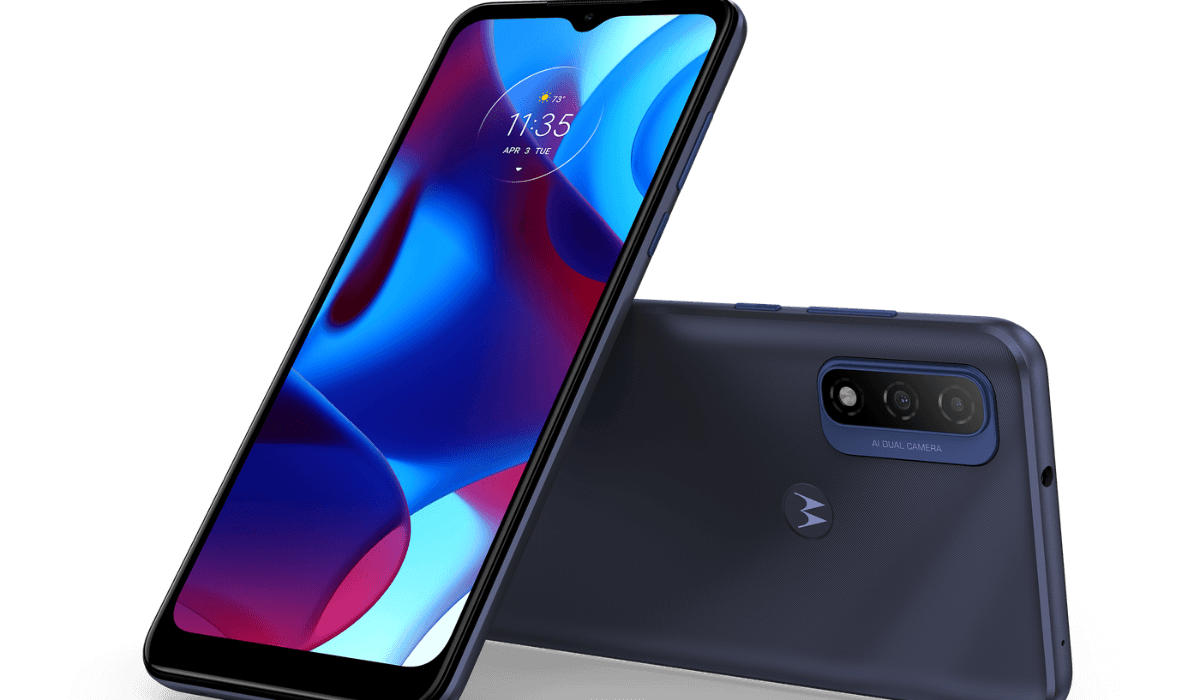
Moto G Pure.
This device decently packs a 4000mAh battery, a MediaTek Helio G25 chipset, which is really not the best at this price point. In terms of camera abilities, this device packs a 13MP main camera and a 2MP depth sensor, bringing the total number of rear cameras to two. It also has a 5MP selfie camera.
The storage capacity on this device is a bit generous, with its 3 GB RAM capacity and 32 GB ROM capacity. The Moto G Pure is also water-resistant to a certain extent, with its IP52 water resistance the device is protected from light splashes of water against the screen. For your security, the device has a fingerprint sensor and a face scanner. It also runs Android 11.
- Source
- Source
Author:KittysTech
Tech analyst, Collins Eshiet, writes about technology. Follow me on Twitter @KittysTech.
Add MobilityArena as a preferred source on Google
Microsoft Teams is one of those products among the Microsoft 365 family, and both the app for phones and software for PC are both user friendly. Apart from that, it offers some very impressive features, and among these features is the changing of backgrounds to what suits you.
With this app, you can join group chats or chat on private lines, you can have group video calls or individual calls for meetings or educational purposes, and you can share files with anyone. With all these features, it’s necessary you should be able to also tailor your experience when using this app, and thankfully the mobile app allows you to change the background during a video conference to suit the occasion or to blur out your room if it is untidy or for any reason whatsoever.
I will show you how to change and blur the background to whatever you like.
The two main ways on how to change the background in Microsoft Teams on smartphones are — changing it before a meeting or changing it during a meeting.
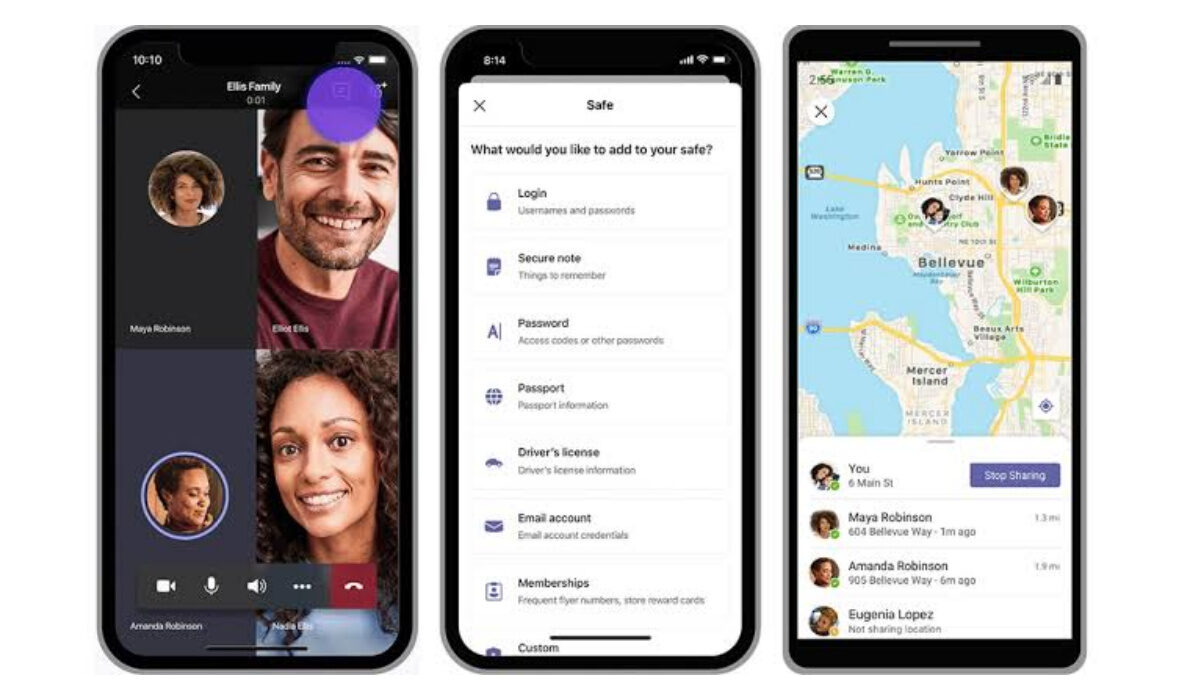
How to change the background in Microsoft teams before a meeting
- Launch the app
Launch the Microsoft teams app on your phone before joining the meeting.
- Tap on background effect
After tapping on it, you will see different pictures on the screen. Choose the one that suits the purpose of the meeting especially if it is an official meeting.
- Choose a custom picture
You can also upload pictures from your phone’s storage. This can be a picture of your pet or a picture you downloaded from the internet. When uploading a personal picture, make sure the image file is. PNG, BMP, or JPG file.
How to change the background in Microsoft teams after a meeting
The steps I am about to show you will work if you have already joined a video conference and the meeting is ongoing.
- Go to controls
Tap on the control button.
- Go to more options
Tap on more options from the pop-up menu.
- Tap on background effects
Tapping on this option will show you the different backgrounds that are available. You can choose from one of these backgrounds, or upload a personal picture from your phone’s storage. If you’re uploading a personal picture make sure it is a PNG, BMP, or JPG file.
How to blur the background in Microsoft teams mobile app
Android
- Launch the app
If you have a meeting, you can access the app via the link in your e-mail or you can launch the app manually.
Tap on the control button
Tap on background effects
You will see the blur option alongside other background effects. You will see it among the top effects.
iPhone
The steps are almost similar to that of an Android device, just one step makes it different. However, it’s worth mentioning that setting this up on an iPhone is much easier than on an Android device.
Launch the app manually or by joining a meeting
Check the bottom-right corner and tap on the three dots
Select “Start video with blur.”
What to do if you are unable to access Microsoft teams meetings on the app
The way most people access Microsoft teams is with their computers, and over time Microsoft has worked on its app to function properly so you don’t have to worry about it being buggy. You can download this app on both Android and iOS devices. The best part is that it is easier to access the Background effects or blur features via the app, unlike when you use a computer. If you are unable to join meetings, here is the way to gain access easily —
Dial-in
This option is available for users that are unable to use the app. If a number is included in the meeting, you can use your phone to dial the number. To use this option you will need the country dial-in number where the meeting is being hosted, and you will need the Microsoft teams conference ID for the meeting.
All teams/organizations on Microsoft teams are given a dial-in number automatically for their meetings. If you cannot find the dial-in number visit this page .
After getting the dial-in code you will need a conference ID. This ID is a number that Microsoft teams generate automatically. You will see the conference ID in the meeting details.
After getting the conference ID, you can now dial into the meeting using your phone. Wait until your call is answered by an automated system. You will be told to enter the conference ID by the automated voice, make sure you follow the directions of the voice and answer all questions correctly.
Wait for a few minutes until you’re directed to the waiting room. Music will be playing to keep you entertained. Afterward, the meeting organizer will be notified and you will be allowed to join.
Can I access Microsoft teams on more than one device?
Yes, you can access this app on more than one device at the same time. This gives you additional options for collaboration and sharing of content. You can choose to connect your mobile phones and computers, and you will be able to control the presentation if you’re hosting a meeting.
All the devices must be connected to your account, and all you need to join a meeting is just one device, on the other devices you will see a message that will enable you to join the meeting and share contents from these devices.
You can join the meeting via a notification. You will receive a notification via your email or phone calendar. You will be given a link you will tap and be automatically taken to the meeting. If you are using an iPhone, you don’t need to log in to your email, a notification will appear on your phone like a text message and you can easily click on the link to gain access to the meeting.
Conclusion
Microsoft teams is a great app to use in video meetings with your friends, business partners, students, or colleagues, and changing the background allows you to create an appropriate setting for the video meeting. Either you are using an iPhone or Android phone, the app works well and changing backgrounds within the app is allowed.
