Add MobilityArena as a preferred source on Google
The Moto Edge X30 fascinates me. My fascination with it isn’t just because it is the first phone to use the Snapdragon 8 Gen 1 chipset. After all, other similarly-equipped phones are already popping up.
Instead, it starts with the looks, extends all through the specs and features, and hits a climax with the pocket-friendly price. In summary, this package is solid value for money. This is a phone I want. The sad news was that it was released in China. And now, the good news is here: it is coming to international markets as Motorola Edge 30 Pro. Exact same design and specs, but with a different name.
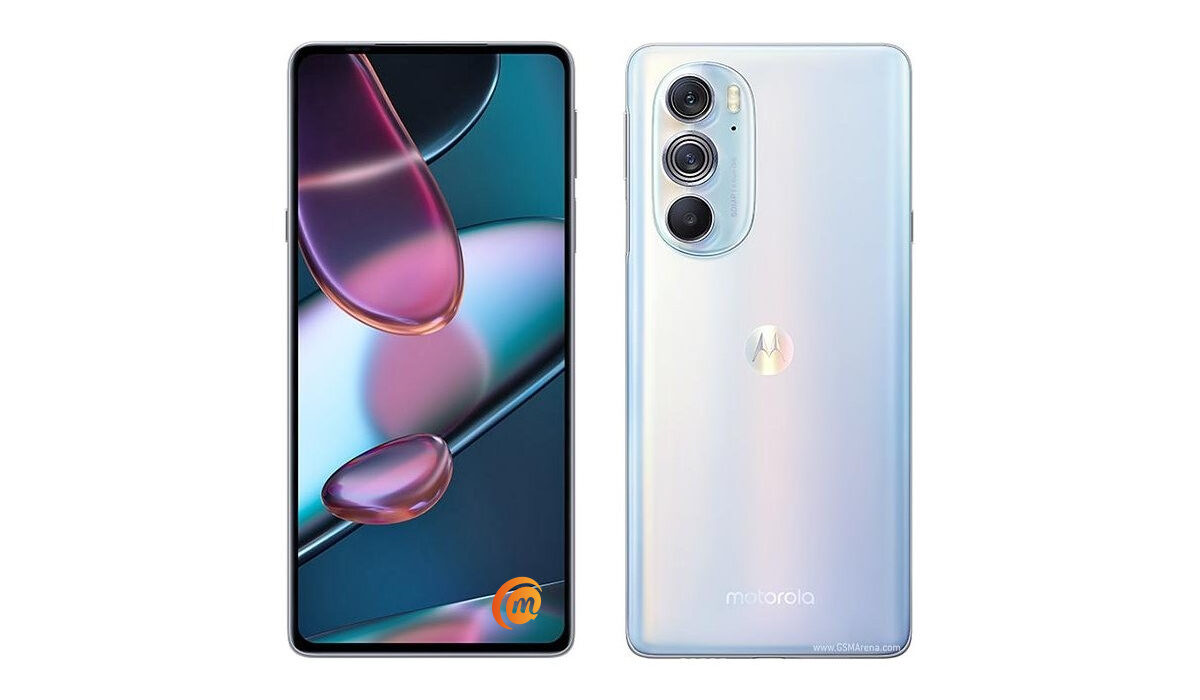
Motorola Edge 30 Pro
A rose, by any other name, remains a rose. The Motorola Edge 30 Pro is the very same device that has held my attention. What is in a name?
Motorola Edge 30 Pro Specs
Key specs of the Edge 30 Pro include the following:
- Android 12
- 5G wireless network
- 6.7-inch 1080×2400 pixels, 144 Hz refresh rate, OLED touchscreen, with Gorilla Glass protection
- 60 MP selfie camera
- Qualcomm Snapdragon 8 Gen 1 5G SoC
- 8/12GB of RAM
- 128/256GB of built-in storage
- 50 MP main lens with OIS + 50 MP ultrawide lens + 2 MP depth sensor
- 4,800 mAh battery
- 68W fast charging (zero to 100% in 35 minutes).
- 15W wireless charging
- 5W reverse wireless power sharing
- Colours: Cosmos Blue, Stardust white.
How much is Motorola Edge 30 Pro in India?
It was launched in India with a retail price of ₹49,999.
How much is Motorola Edge 30 Pro in Europe?
it was launched in Europe at €799 for the 12 GB + 128 GB variant.
What is not to like? I already have an earlier article in which I extolled the virtues of the Moto Edge X30. If the phone interests you, do check that out.
Which specific markets is it coming to? I have no information about that yet. I will update this article with any new details about the international availability of the Motorola Edge 30 Pro as more information becomes available.
But in the meantime, Yes! This is great news, and I can’t wait to get my hands on it.
- Don’t miss our reviews .
- Join our WhatsApp Group , to be notified of the most important articles and deals,
- Follow us on Instagram , Facebook , Twitter , and YouTube .
Author:Mister Mobility
Digital Skills and Communication Coach | Mobile Phone Connoisseur since 2001 | Tech Blogging since 2004
Add MobilityArena as a preferred source on Google
Almost every Android phone user will experience this error at one point in time or the other. Out of the blues, an error box up pops up on your device with a message that says, “ Unfortunately, google app has stopped working “.
It doesn’t matter whether you are using the latest Samsung Galaxy, Xiaomi, Redmi, or OnePlus Android smartphone, it is an error that pops up across all manufacturers because it has little to do with them. It happens because something is wrong with the Google app.
<img loading=“lazy” src=“https://mobilityarena.com/wp-content/uploads/2022/02/unfortunately-Google-app-has-stopped-working-1200x700.jpg" onerror=“this.onerror=null;this.src=‘https://blogger.googleusercontent.com/img/a/AVvXsEhe7F7TRXHtjiKvHb5vS7DmnxvpHiDyoYyYvm1nHB3Qp2_w3BnM6A2eq4v7FYxCC9bfZt3a9vIMtAYEKUiaDQbHMg-ViyGmRIj39MLp0bGFfgfYw1Dc9q_H-T0wiTm3l0Uq42dETrN9eC8aGJ9_IORZsxST1AcLR7np1koOfcc7tnHa4S8Mwz_xD9d0=s16000';" alt=“How do I fix “Unfortunately Google app has stopped working” on my Android? - 2”>
The first thing to remember is that this isn’t a grievous situation. Your Android smartphone has not been hacked and will not stop working or die off on you. It can be fixed through one of a handful of possible options, as laid out below.
- Things you can do to fix the “Unfortunately, Google App has Stopped” error Restart the Google app Restart your smartphone or tablet Update Your Android Smartphone or tablet Update the Google app Uninstall Any Google App Update(s) Clear your Google app cache Clear your Google app data
- Wrapping up
Things you can do to fix the “Unfortunately, Google App has Stopped” error
Restart the Google app
We can’t emphasize it enough: a simple restart is an easy reset mechanism that has the potentials to clear simple problems. And it is so easy that anyone can do it. The first step you should take to attempt to fix the “Google app has stopped working” error is to restart the app.
- Open Settings .
- Under “Device,” tap Apps or Application manager .
- Select Google App Force stop OK .
To check if you get results, try your search again.
Restart your smartphone or tablet
If restarting the Google app doesn’t work, the next easiest thing to try out is to restart your phone or tablet. Power it off, and wait a 2 to 5 minutes, before powering it back up. Again, this is a good first or second step to take whenever your phone throws up an error.
Update Your Android Smartphone or tablet
Running an available software update on your Android device is a possible way to resolve the “unfortunately Google app has stopped working” error. Why is this?
Google regularly releases bug fixes and performance improvements via software updates. As such, if the cause of this error is a big that they are aware of, chances are that a fix is coming via an update. So, keep your device updated.
To check if a software update is available for your Android device, follow these steps:
- On your Android device, find and tap on the “Settings” icon. That’s the one that looks like a gear wheel.
- Tap on “About Phone”.
- Tap on the “About Device”
- Tap on “System Update”.
Your phone will connect to Google servers to check if an update is available. If it is, go ahead to download and install it. You will need to restart your device after it is done.
If the update contains a fix for the “Google app has stopped working” issue, the error won’t pop up any more. If it continues to pop up, there are other fixes you can explore.
Don’t get tired and allow yourself to be frustrated. Like all computerised gadgets, a smartphone or tablet has issues – and they can all be fixed. See the next option below.
Update the Google app
Let’s try updating just the Google app instead. Open Play Store and search for “Google app”, then see if there is an update available for it. If there is, run the update.
Uninstall Any Google App Update(s)
In a paradoxical twist, while an update can fix the error, the error also could have been caused by an update to the app. Sometimes, a new app update introduces bugs. Until the bugs are ironed out by Google, one way you can temporarily resolve the problem is by uninstalling that update. Makes sense; right?
If you think back, did the “Unfortunately, Google app has stopped working” error start showing up after you updated the apps on your phone or tablet? If so, chances are that the update to the Google app was buggy and you need to uninstall it. Follow the steps below.
- Open “Settings” on your Android device.
- Tap on “Applications”.
- Tap on “Application Manager” to see a list of all the apps installed on your Android device.
- Scroll down the list to locate the Google App. If it isn’t listed there, then it is hidden away in the Systems Apps menu. Look at the top right corner of the screen and tap on the icon that looks like 3 vertical dots. This opens the list of System Apps. Find and tap on the Google App.
- Tap on the “Uninstall Update” button.
Any updates installed for the Google app get deleted at this point. You should restart your device and use it to see if the error has gone away.
Clear your Google app cache
When you clear an app’s cache, you delete data stored in a temporary area of the device’s memory. Sometimes, the “Google app has stopped working” error shows up because the app’s temporary cache has accumulated some junk.
Clearing the app cache does not delete permanent files, so you have nothing to fear. Here is what to do to clear your Google app cache:
- Open Settings .
- Under “Device,” tap Apps or Application manager .
- Select Google App .
- Under “Storage” or “Cache,” tap Clear cache .
To check if the error is gone, use the Google app again.
Clear your Google app data
The last option we recommend is to clear the Google app data. This is a more drastic action, similar to a factory reset on a device. It clears and deletes all of the app’s data, including files and settings.
Follow these steps to clear your Google app data:
- Open Settings .
- Under “Device,” tap Apps or Application manager .
- Select Google App .
- Under “Storage,” tap Manage space Clear Google search data .
Use Google on your phone again to see if the “Google app has stopped working” error pops up again. Hopefully, it doesn’t.
Wrapping up
Keep in mind that many problems resolve on their own or future app or software updates will be released to fix them. If you followed the above steps and the “Google app has stopped working” error keeps showing up, do keep your eyes open for any future app and software updates, and apply them when they show up.
- Don’t miss our reviews .
- Join our WhatsApp Group , to be notified of the most important articles and deals,
- Follow us on Instagram , Facebook , Twitter , and YouTube .

