Add MobilityArena as a preferred source on Google
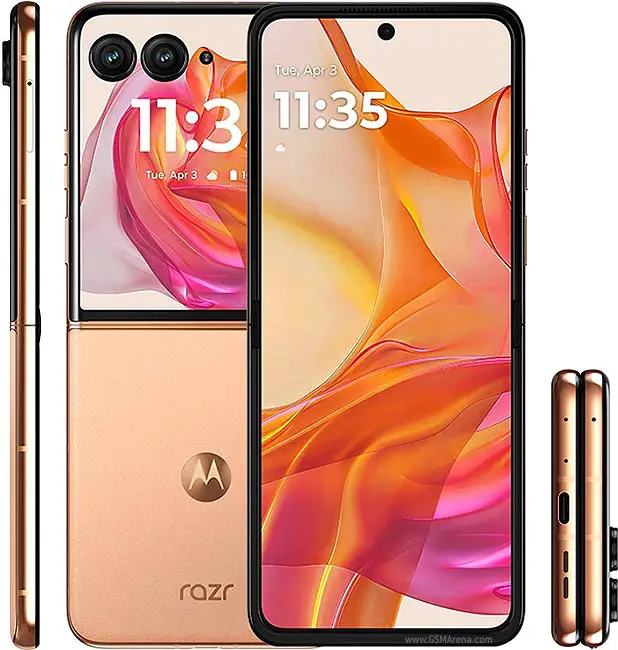
The Motorola Razr+ (2024) has captured the attention of smartphone enthusiasts with its nostalgic flip design, modern features, and impressive performance. However, like any innovative device, it comes with its own set of challenges that users may encounter. From software update delays and connectivity problems to battery life concerns and camera performance issues, these challenges can affect your overall satisfaction with the device. Understanding these issues is crucial for maximizing the functionality of your Razr+. By addressing these common complaints proactively, you can ensure that your time with this impressive smartphone is both enjoyable and efficient. With a little effort and the right strategies, you can unlock the full potential of your Motorola Razr+ (2024) and enjoy all it has to offer! Let’s explore some common issues reported by Razr+ users and provide practical solutions to enhance your experience with this stylish smartphone.
- Software Update Delays
- Connectivity Issues
- Battery Life Concerns
- Camera Performance Issues
- External Display Functionality
- Conclusion
Software Update Delays
Many users of the Motorola Razr+ (2024) have expressed frustration over slow or inconsistent software updates. Some have noted that their devices do not receive timely security patches or feature enhancements, which can impact overall performance. To get this fixed, I recommend the following:
- Check for Updates Regularly: Make it a habit to manually check for updates by navigating to Settings > System > Software Update . This ensures you’re always on the latest version available.
- Join Beta Programs: If you’re eager to access new features sooner, consider enrolling in Motorola’s beta testing programs. This allows you to test upcoming updates before they are widely released.
- Contact Support: If you notice prolonged delays in receiving updates, reach out to Motorola customer support for assistance and clarification on your device’s update schedule.
Connectivity Issues

Some users of the Motorola Razr+ (2024) have reported problems with Bluetooth and Wi-Fi connectivity, including dropped connections or difficulty connecting to devices. Tis highlighted solutions will be of help:
- Reset Network Settings: Go to Settings > System > Reset options > Reset Wi-Fi, mobile & Bluetooth . This can resolve many connectivity issues by resetting all network settings.
- Re-pair Bluetooth Devices: If you’re having trouble with Bluetooth connections, remove the device from your phone’s Bluetooth settings and re-pair it.
- Check for Interference: Ensure that there are no other electronic devices causing interference nearby, as this can disrupt connectivity.
Battery Life Concerns
While the Motorola Razr+ (2024) offers decent battery life, some users have noted that it drains faster than expected, especially when using power-intensive apps or features. Follow my recommendations
- Optimize Battery Settings: Navigate to Settings > Battery and enable battery saver mode. This will help extend battery life by limiting background processes and reducing screen brightness.
- Limit Background Apps: Close apps running in the background that you’re not actively using. You can do this by accessing the recent apps menu and swiping away unnecessary applications.
- Update Apps: Ensure all your apps are updated to their latest versions, as developers often release updates that improve efficiency and reduce battery drain.
Camera Performance Issues

Despite its advanced camera features, some users of Motorola Razr+ (2024) have reported inconsistent performance, particularly in low-light conditions where images may appear grainy or blurry. I recommend the following solutions:
- Use Night Mode: When shooting in low-light environments, enable Night Mode in the camera app to enhance image quality and reduce noise.
- Keep the Lens Clean: Regularly clean the camera lens with a soft cloth to avoid smudges that can affect picture quality.
- Experiment with Settings: Explore different camera settings and modes to find what works best for various lighting conditions.
External Display Functionality
Some users have experienced issues with the external display not recognizing certain apps or functionalities when the phone is closed. I recommend the following:
- App Permissions: Ensure that all necessary permissions are granted for apps you want to use on the external display. Check this under Settings > Apps > [App Name] > Permissions .
- Restart Your Device: Sometimes a simple restart can resolve temporary glitches affecting app functionality on the external display.
- Update Apps Regularly: Keep your apps updated through the Google Play Store to ensure compatibility with the Razr+’s external display features.
Conclusion
The Motorola Razr+ (2024) is an exciting smartphone that blends modern technology with a classic design. While some challenges exist, many of these issues can be effectively addressed through simple troubleshooting steps and proactive measures. By staying informed about software updates, optimizing settings for battery life, and utilizing camera features wisely, you can enhance your overall experience with this innovative device. Remember, every challenge presents an opportunity for improvement—both for you as a user and for Motorola as a brand dedicated to delivering exceptional mobile experiences. With a little effort and care, you can unlock the full potential of your Motorola Razr+ (2024) and enjoy everything it has to offer!
Author:Ifeoluwa Adeleke
Add MobilityArena as a preferred source on Google
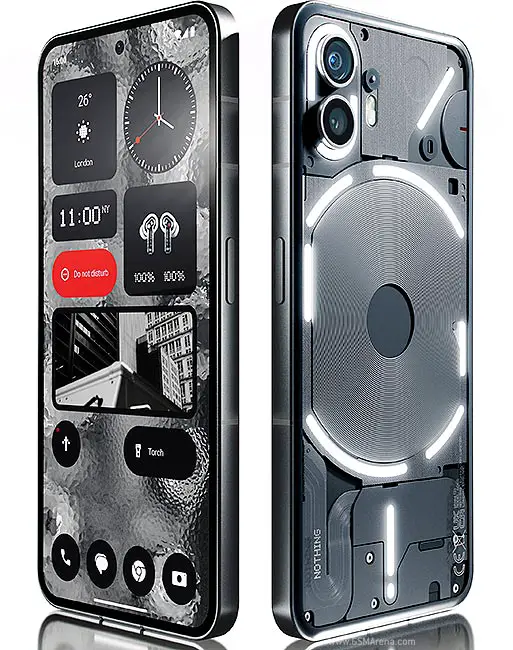
The Nothing Phone 2 has made a splash in the smartphone market with its unique design, innovative features, and competitive pricing. However, as with any new technology, users have encountered some challenges. From performance hiccups and battery drain to connectivity glitches and display inconsistencies, these challenges can impact your overall satisfaction. Additionally, some users have reported issues with the Glyph interface not functioning as intended, which can detract from the user experience. Understanding these issues is crucial for maximizing the functionality of your Nothing Phone 2. By addressing these common complaints proactively, you can ensure that your time with this standout smartphone is both enjoyable and efficient. Let me take walk you through some of these challenges and discover effective solutions that will help you get the most out of your device!
- Screen Responsiveness Problems
- Battery Drain Issues
- Connectivity Issues
- Display Refresh Rate Problems
- Software Bugs After Updates
- Conclusion
Screen Responsiveness Problems
One of the most frequently reported issues of the Nothing Phone 2 is the screen not responding to touch. This can be frustrating, especially when you’re trying to navigate apps or respond to messages. I recommend the following as solutions to get this resolved:
- Perform a Hard Reset: If your screen becomes unresponsive, try holding down the power button and the volume up button simultaneously until the screen goes black and then restarts. This simple reset can often resolve temporary glitches.
- Check for Software Updates: Regularly check for system updates under Settings > System > Software Update . Keeping your software up to date can fix bugs that affect screen responsiveness.
- Clear Cache: Navigate to Settings > Apps > [App Name] > Storage and Cache , then tap on Clear Cache . This can help improve app performance and responsiveness.
Battery Drain Issues
While the Nothing Phone 2 offers great performance, some users have reported rapid battery drain, particularly when using power-intensive applications or features. The following solutions will be of help:
- Optimize Battery Settings: Go to Settings > Battery and enable battery saver mode. This will limit background processes and extend battery life.
- Limit Background Apps: Close unnecessary apps running in the background by accessing the recent apps menu and swiping away those you aren’t using.
- Adjust Display Settings: Lower your screen brightness or set it to automatic adjustment. Reducing the refresh rate can also help save battery life.
Connectivity Issues
Some users have experienced problems with Bluetooth and Wi-Fi connectivity, including dropped connections or difficulty connecting to devices. I recommend the following as solutions to get this issue fixed:
- Reset Network Settings: Go to Settings > System > Reset options > Reset Wi-Fi, mobile & Bluetooth . This will refresh all network settings and may resolve connectivity issues.
- Re-pair Bluetooth Devices: If you’re having trouble with Bluetooth connections, remove the device from your phone’s Bluetooth settings and re-pair it.
- Check for Interference: Ensure that there are no other electronic devices causing interference nearby. Sometimes, other Bluetooth devices can disrupt connections.
Display Refresh Rate Problems
Users of the Nothing Phone 2 have reported inconsistencies with the display refresh rate, where it may not adapt as expected between 1Hz and 120Hz. Follow these simple steps to get it resolved:
- Toggle Refresh Rate Settings: Go to Settings > Display > Refresh Rate , change it to Standard, restart your phone, and then switch it back to High. This can help recalibrate the refresh rate.
- Adjust Brightness Levels: Ensure that your screen brightness is above 55%. The adaptive refresh rate may not function correctly if the brightness is too low.
Software Bugs After Updates
Some users of the Nothing Phone 2 have reported experiencing bugs or glitches after software updates, such as lagging performance or unresponsive apps. Check the following solutions:
- Perform a Factory Reset: If you notice significant issues post-update, consider backing up your data and performing a factory reset under Settings > System > Reset options . This can often resolve lingering bugs.
- Contact Support: If problems persist after a factory reset, reach out to Nothing’s customer support for assistance. They may provide additional troubleshooting steps or inform you of upcoming patches.
Conclusion
The Nothing Phone 2 is an innovative device that brings fresh ideas to the smartphone market. While some challenges exist, many of these issues can be effectively resolved through simple troubleshooting steps and proactive measures. By staying informed about software updates, optimizing settings for battery life, and utilizing available resources for connectivity issues, you can enhance your overall experience with this unique smartphone. Embrace these solutions as opportunities to unlock the full potential of your Nothing Phone 2! With a little effort and care, you can enjoy everything this cutting-edge device has to offer while minimizing any frustrations along the way. Remember, every challenge presents an opportunity for improvement—both for you as a user and for Nothing as a brand dedicated to redefining mobile technology.
