Add MobilityArena as a preferred source on Google
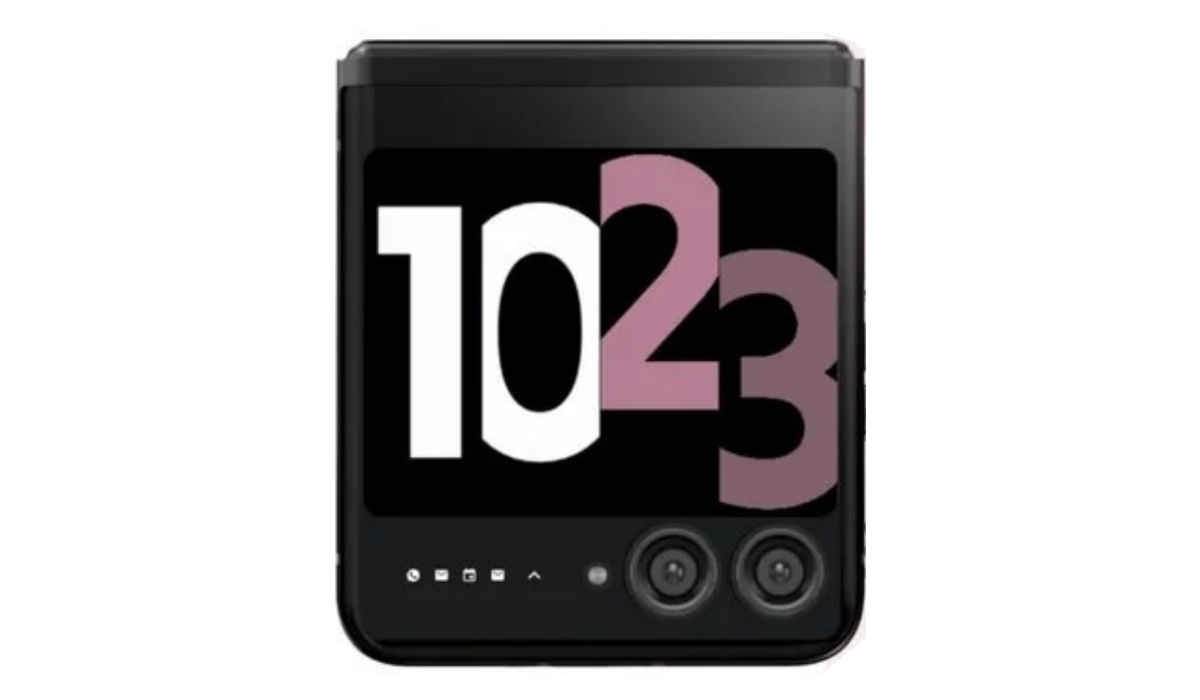
Motorola Razr 40 Ultra Is the 2023 flip form-factor foldable from Lenovo’s subsidiary, Motorola. This model breaks new ground in its category with a large 3.6-inch cover display.
The specs sheet of the Moto Razr 40 Ultra includes the full Qualcomm Bluetooth audio suite of Snapdragon Sound with aptX Lossless, aptX Adaptive, aptX HD, and aptX.
Motorola Razr 40 Ultra: brief information
- OS: Android 13
- Release Date: 2023
- Network Type: 2G/3G/4G/5G
- Main Display: 6.6-inch, 1080 x 2400 pixels resolution
- Processor: Snapdragon 8+ Gen 1
- Selfie Camera: 32 MP
- Rear camera: 12 MP dual
- RAM: 12 GB
- ROM: 512 GB
- Battery: 3800 mAh
- Detailed specifications
- Prices in the USA, UK, and EU Does Motorola Razr 40 Ultra have Google Play Store? Will Motorola Razr 40 Ultra work in the USA?
Detailed specifications
Mobile Wireless Network and Software
- 2G mobile network bands : GSM, GPRS, EDGE 850 / 900 / 1800 / 1900 MHz.
- 3G mobile network bands : UMTS, WCDMA, HSDPA 850 / 900 / 2100 MHz
- 4G mobile network bands : LTE.
- 5G mobile network bands : NSA/SA
- SIM Type : Nano-SIM, Dual SIM, eSIM
- Software / OS : My US based on Android 13
Design, Form Factor, Appearance
- Dimensions : Unfolded: 170.8 x 74 x 7 mm. Folded: 88.4 x 74 x 15.1 mm.
- Weight : 184.5 g or 188.5 g
- Cover Display : 3.6-inch, 1056 x 1066 pixels
- Inner Display : 6.9 inches, 1080 x 2640 pixels, 165 Hz refresh rate, 20:9 aspect ratio, AMOLED screen. Gorilla Glass Victus protection.
- Colors : Infinite Black, Glacier Blue, Viva Magenta, Peach Fuzz.
- Physical Build : Glass front, aluminum frame (7000 series), hinge (stainless steel). Water-repellent coating
Internal Hardware Specs
- CPU/ Processor : 64-bit, 3.2 GHz Octa-core
- Chipset : Qualcomm Snapdragon 8+ Gen 1 (4 nm)
- GPU/ Graphics Processing Unit : Adreno 730
- RAM : 8 GB / 12 GB.
- Extended/Virtual RAM :
- Internal Storage : 256 GB / 512 GB
- External Storage : No.
Photography, Video Recording
- Main Camera : 12 MP main sensor + 13 MP ultrawide angle lens, autofocus, dual LED flash, 4k @30fps, 1080p@30fps video recording. HDR10+, gyro-EIS.
- Front Camera : 32 MP, fixed focus, Face Recognition, 1080p@30fps video capture
Audio, Video Playback
- Music Support : PCM, AAC / AAC + / eAAC + / MP3 / AMR – NB / WB / APE
- Audio :
- Loudspeaker : Stereo speakers
- Video Support : H.264/MP4/MPEG4 player
- FM Radio : No.
Phone Sensors
- Digital Compass : Yes.
- Accelerometer : Yes.
- Proximity Sensor : Yes.
- Ambient Light Sensor : Yes.
- Barometer : No.
- Pedometer : No.
- Heart Rate Monitor : No.
- Gyroscope (G-Sensor) : Yes.
- Fingerprint Scanner : Yes; side-mounted.
- Face Unlock : Yes.
- Iris Scanner : No.
- Motion Sensing / Gesture Control : No.
- Voice Control : No.
- Intelligent Digital Assistant : Yes; Google Assistant.
- Infra-red Blaster : No.
Connectivity Options
- Bluetooth Version : 5.3
- Bluetooth Profiles : A2DP
- Bluetooth Audio Codecs : Snapdragon Sound with aptX Lossless, aptX Adaptive, aptX HD, aptX
- WiFi : Wi-Fi 802.11 a/b/g/n/ac, hotspot
- GPS : Yes, A-GPS, GLONASS, BDS, Galileo
- USB : microUSB v2.0. Type-C. USB-OTG.
- NFC : Yes.
Miscellaneous Specs and Features
- Battery Type and Capacity : Non-Removable Lithium-Polymer 3800 mAh
- Battery Charging : 30W fast charging
- Wireless Charging : 5W.
- Reverse Charging : No.
- Model Version/Number : XT2321-3, XT2321-1, XT2321-2
Launch/Release Dates and Information
- Announced : June 2023
- Release Date : June 2023
Pricesin the USA, UK, and EU
- USA : $324 for the 8GB/256GB variant.
- Canada : C$ 1,148.39 for the 8GB/256GB variant.
- United Kingdom (UK) : £500 for the 8GB/256GB variant.
- European Union (EU) : €715 for the 8GB/256GB variant.
The above prices may change with time from country to country, as market forces and economic policies influence product price movements.
Does Motorola Razr 40 Ultra have Google Play Store?
It supports Google Services and software applications, including Play Store and Maps, Gmail, YouTube, and others.
Will Motorola Razr 40 Ultra work in the USA?
This is a GSM phone and is supported on US GSM carriers like AT&T and T-Mobile and other networks riding on their networks. It does not support CDMA networks. Do make inquiries from your carrier to know what bands/frequencies are supported on their service.
MobilityArena Buyer’s Guide Verdict
Not available.
Our Buyer’s Guide Verdict is a recommendation based on the specifications of the device and is a general guide to help you understand how much value a device offers for its price. It is not an endorsement of the device. Ask questions and use your judgement when buying any device; MobilityArena takes no responsibility for your buying decisions .
Author:InfoDesk
Add MobilityArena as a preferred source on Google
The Samsung Galaxy phones in supported areas come with a call recording feature, making Samsung one of the few Android OEMs (Original Equipment Manufacturers) to do so. I find call recording really helpful, especially when I need to take notes on important details from client calls, meeting, or other forms of important discussions on the phone.
I’ll show you how to record calls on Samsung Galaxy phones in this article. So, instead of writing down important call details with a pen and paper, you’ll now be able to easily record calls on Samsung Galaxy smartphones and listen to them later from your audio library.
- How Can You Record Calls on Samsung Galaxy Phones?
- Can You Legally Record Phone Calls on Samsung Galaxy Devices? How to Record Calls on Samsung Galaxy Phones Automatically How to Manually Record Calls on Samsung Galaxy Phones How to Access Recorded Calls
How Can You Record Calls on Samsung Galaxy Phones?
The call recording feature is built into all Galaxy devices, so recording calls is way easier. Several reasons could cause a need to record calls on Samsung Galaxy phones, and this is probably why Samsung provides native call recording features. In any case, follow the instructions below to record calls on Samsung Galaxy devices.
Can You Legally Record Phone Calls on Samsung Galaxy Devices?
Before proceeding to record calls on Samsung Galaxy phones, it’s important to note that certain local rules and regulations may cause the feature to be unavailable in your country or residence area.
Also, call recording without the consent of the other person is unlawful in various countries. So don’t be surprised if your Samsung Galaxy device lacks the call recording feature. You’re out of luck in such circumstances because there’ll be nothing you can do to enable this feature.
How to Record Calls on Samsung Galaxy Phones Automatically
It’s possible to program your Samsung Galaxy smartphone to automatically record all calls. You can record calls from all contacts in your phone book, chosen contacts, or unknown numbers, depending on your preferences. Here’s what you need to automatically record calls on Samsung Galaxy devices:
- On your Samsung Galaxy mobile, launch the Phone app.
- In the top-right corner, tap the 3-dot overflow menu button, then Settings > Record calls .
- Navigate to the Auto record calls menu and turn on the feature.
- Next, decide if you want to record All calls , Calls from Unsaved Numbers , or Calls from Specific Numbers .
How to Manually Record Calls on Samsung Galaxy Phones
On phones like the Galaxy S23, Note, or Galaxy Fold series from Samsung, you can manually record individual calls as well. Here are the steps to manually record calls on Samsung Galaxy phones:
- Open the Phone app on your Samsung mobile and dial the number of the person whose call you want to record. On the other hand, you could also accept the incoming call that you want to record.
- On the call screen, click the Record call icon to start recording. If you don’t see the option on the call screen, press the three-dot menu button in the top-right corner and then click Record call .
- You will be prompted to agree to the terms and conditions before you can use the call recording feature for the first time.
- The other party won’t be aware when you record calls on Samsung Galaxy devices, unlike some other phones. That only occurs on Android phones with the Google Phone app set as the default dialer app.
Keep in mind that the procedure for recording a phone call is the same on One UI 4, One UI 5, and One UI 5.1.
Furthermore, please take note of the following when trying to record calls on Samsung Galaxy phones:
- VoWiFi calls—that is, voice calls made over Wi-Fi—cannot be recorded.
- It’s also worth noting that you can’t record calls on Android with a third-party app. These apps do not work on Android 9 or later because of privacy concerns. Any app that promises to perform this function will necessitate the rooting of your Android device, which can void the warranty on that device.
- There is no Samsung call recorder app available. Rather, the call recording feature is built into the One UI Phone app. This also implies that the recorded call files can only be accessed through the Phone / Dialer app.
- As a result, if your device lacks the call recording feature, you cannot simply download an app from the Play Store to gain this functionality.
If your Android device includes the Google Phone app as the default dialer, follow the instructions below to record voice calls:
- Launch the Google Voice application.
- Go to Settings by clicking the hamburger menu in the upper-left corner.
- Enable the incoming call options.
- Open the keypad and press 4 to begin recording when you answer a call on your Google Voice number.
- All participants on the call are going to hear a “ This call is now being recorded ” message.
- Tap 4 to end the recording and locate the voice clip in the Voicemail menu.
How to Access Recorded Calls
The Phone app on your Samsung Galaxy mobile allows you to examine recorded calls.
- On your Samsung Galaxy mobile, launch the Phone app.
- In the top-right corner, tap the 3-dot overflow menu button.
- Navigate to Settings > Record Calls > Recorded Calls . All recorded calls will be displayed here. To make it easier to identify the recorded calls, the file name will include the contact name or phone number.
- Select any recorded audio file and then tap the Share button to share the call on WhatsApp, Gmail, Drive, and other services.
As you can see, it’s rather easy to record calls on Samsung Galaxy smartphones, assuming local regulations do not prohibit the company from providing the feature in your area. And always keep in mind that you should never record a call without first telling the other party.
