Add MobilityArena as a preferred source on Google
For a more user-friendly mobile browsing experience, you can follow these steps to move address bar and browser controls to the bottom of the page in Chrome browser for Android .
Having web browsers with the address bar and browser controls located at the top of the screen is something that we are comfortable with on PC browsers. It makes sense there on PCs, but then smartphones came along and developers just carried over the practice to mobile.
It isn’t so user friendly though, especially as smartphone screens have gotten bigger. One holds the mobile device in the bottom half of the device and address bars (and other controls) located at the top of the screen results in a lot of stretching and hand movements. It is a common mistake that is present in most mobile web browsers .
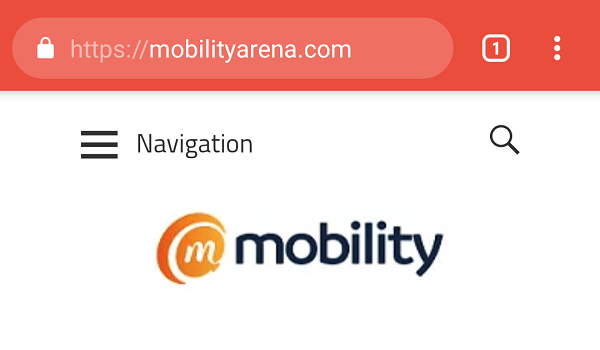
Chrome browser for Android has its address bar at the top by default
Chrome browser for Android is one of the countless culprits. It is funny in a sad way that the only mobile browsers that got it right belong to platforms that are dying off – Edge for Windows Phone and BlackBerry 10 browser. Those two browsers have the address bar and all user controls and interactions are at the bottom of the screen, making them much more user friendly.
Since I am stuck with Android OS till further notice, I needed a 3rd party browser that handled this issue well or a way to make Chrome switch the address bar or controls to the bottom of the screen. I found a way to make the latter happen, like this:

After you move address bar to the bottom
In the sections below, I will show you how to move address bar and browser controls from the top to the bottom for a more convenient user experience. Important: Do note that Google says this is an experimental feature and warns as follows: “By enabling this feature, you could lose browser data or compromise your security or privacy. Enabled features applied to all users of this browser”.
If you want to take the plunge, let’s go. If not, there are plenty of other useful articles on MobilityArena for you to go enjoy.
How to move browser controls to the bottom using Chrome Duet
The newest version of Chrome mobile browser implements what is called Chrome Duet, a feature that does not move the address bar but rather splits it and the browser controls, moving the latter to the bottom.
If you are using the newest version of Chrome mobile browser, here are the steps to follow to enable Chrome Duet:
- Open Chrome Browser on Android.
- In the Chrome address bar, type chrome://flags and tap the Enter button to list the Chrome flags. This will bring the Google Chrome Flag list into the browser.
- You will see a search box just below the address bar. Type duet in the search bar and proceed to search.
- You should now see the Chrome Duet flag in the search results with the setting on Default .
- Tap on the Default to change the setting.
- Select “ Enabled” .
- Relaunch the browser and the browser controls should now be at the bottom of the page within easy reach of your fingers.
- If after relaunching, you still see the address bar and controls at the top, type chrome://restart to restart the Chrome Browser.
- Once restarted, you will find that while the address bar stays at the top, the browser controls have moved to the bottom. Bow you can enjoy a more convenient browsing experience without having to reach for the top any more. For example, to enter text in the address bar, just tap the Search icon at the bottom of the page.
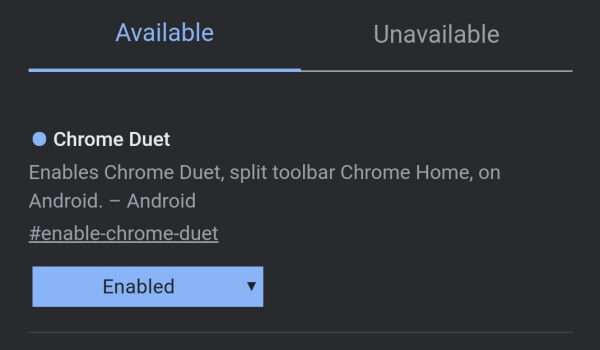
How to move browser controls to the bottom in Chrome for some newer Android devices
If you are using a slightly older version of Chrome mobile browser, here are the steps to follow to move effect the change:
- Open Chrome Browser on Android.
- In the Chrome address bar, type chrome://flags and tap the Enter button to list the Chrome flags. This will bring the Google Chrome Flag list into the browser.
- You will see a search box just below the address bar. Type home in the search bar and proceed to search.
- You should now see Force Enable Home Page Button flag in the search results with the setting on Default .
- Tap on the Default to change the setting.
- Select “ Enabled” .
- Relaunch the browser.
- If after relaunching, you still see the address bar and controls at the top, type chrome://restart to restart the Chrome Browser.
- Once restarted, you will find that while the address bar stays at the top, the browser controls have moved to the bottom.
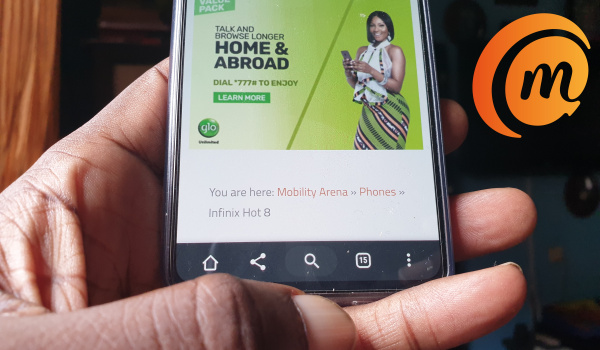
Don’t worry about the address bar still displayed at the top. You will not need to reach for the top to type a website address or search query any more. Just hit the Search icon located among the controls at the bottom and it will insert the cursor into the address bar automatically. Just type away.
How to move address bar to the bottom in Chrome for older Android devices
If you are using an older Android smartphone with an older version of Chrome for Android, here are the steps to follow to move the address bar and controls to the bottom:
- Open the Google Chrome app and type “ chrome://flags ” into the address bar.
- Scroll down to (or search for) “Chrome Home Android”, tap the drop-down menu and select “Enabled” there.
- You will be prompted to relaunch Chrome. After the browser restarts, the address bar will display at the bottom of the screen.
Web browsing on my smartphone has gotten much more pleasant since I effected this change. At some point in time, Google, Firefox and other mobile browser makers will have to make the bottom position default.
If You Do Want A Browser That Has It Already
If you would rather not mess with the technical process of having to tweak things to move address bar to the bottom in Chrome, but you do want a browser that has its address bar and controls located at the bottom by default, dash to Google Play and search for Habit Browser . Download and just start using it without needing to tweak stuff.
Another mobile web browser that you should consider is Samsung Internet Browser . Actually, Samsung Internet has the address bar at the top of the page and controls at the bottom. It is one of the finest mobile web browsers I have used. It has extensive features, including Night Mode. Download it HERE .
Using a mobile web browser with the address bar or controls at the bottom of the screen is such a pleasant and enjoyable experience that every browser should be that way. I am looking forward to when Chrome mobile browser and others will implement it as default.
- Don’t miss our reviews .
- Follow our news on Google News .
- Join our WhatsApp Group , to be notified of the most important articles and deals,
- Follow us on Instagram , Facebook , Twitter , and YouTube .
Author:Mister Mobility
Digital Skills and Communication Coach | Mobile Phone Connoisseur since 2001 | Tech Blogging since 2004
Add MobilityArena as a preferred source on Google
One of the first signs of ageing on an iPhone is the battery not holding a charge as long as it once did. This does not mean that it is the only thing to look out for; there are lots of things that indicate that it is time to get a new phone. However, here are some common iPhone battery problems and how to fix them. These would be quite helpful if you want to use your iPhone a little more before replacing it.
IF YOUR BATTERY DIES TOO QUICKLY
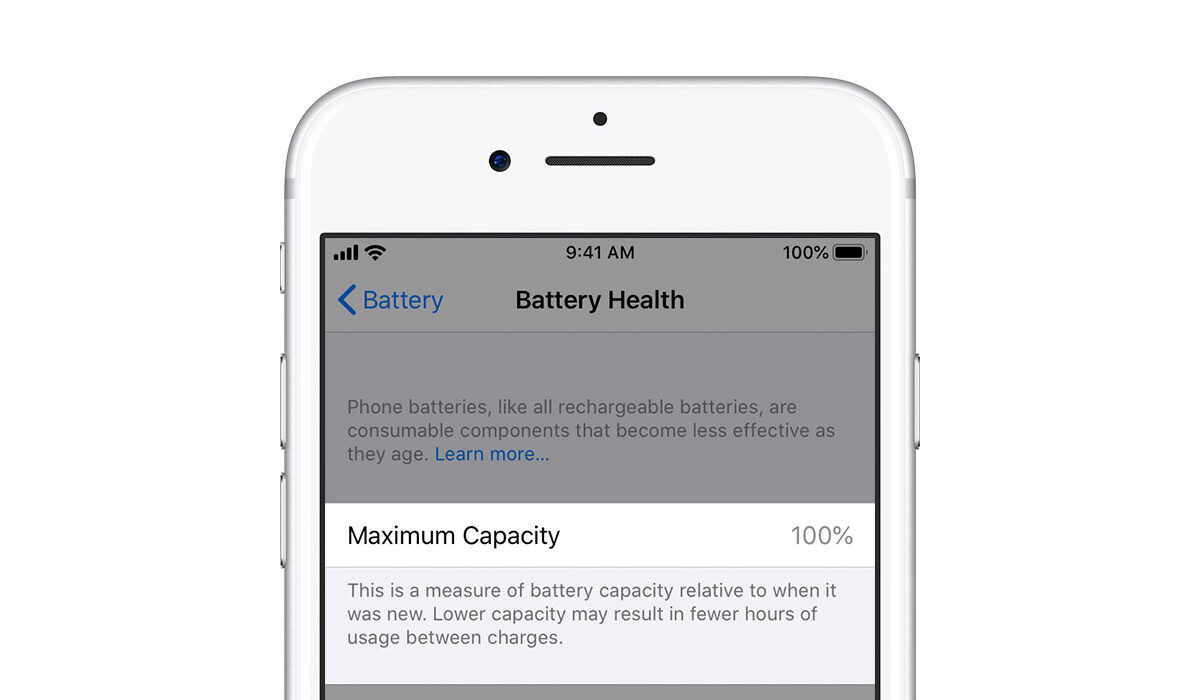
There are lots of reasons why your battery would die quicker than usual. To be sure what exactly is the matter, go to Settings > Battery. Under Battery Usage, check out a list of apps and see how much battery each app has consumed in the last 24 hours or 7 days. If there is any particular app that consumes too much battery you can do without, delete it.
But before you do that, check the fine print. It could be that the app is consuming data simply because it keeps running in the background or requesting your location. You could disable the former by going to Settings > General Background App Refresh and disabling it altogether or for individual apps. For the latter, go to Settings > Privacy > Location Services, then disable it totally or just for apps that overuse the feature.
IF YOUR IPHONE SUDDENLY SHUTS DOWN
This is one of the difficult iPhone battery problems. If your iPhone dies before the battery hits zero, there are certain steps you can follow to correct it. Here they are:
- Check for a software update: Go to Settings > General > Software Update to see if there is an update available. If there is, download and install it.
- Restore from backup or factory reset: if you use the latest version of iOS, you might want to perform a reset on your device. You can restore your iPhone from a recent backup on iTunes, or you can perform a factory reset. To do this, go to Settings > General > Reset > Erase All Content and Settings.
- Take the device to an Apple Store: If your iPhone battery problems continue after your factory reset, you might want to take it in for repairs. Apple will run diagnostics to see if there is a hardware issue with your phone.
IF YOUR iPHONE GETS TOO HOT WHILE CHARGING
This might be because you are using a poor-quality charger. Your charger might be cheaper than the original Apple charger, but it might cause your phone to heat up seriously. Try to find a suitable replacement. Now, you don’t necessarily have to buy an Apple charger, but you can use various third-party accessories that have Made for iPhone/iPad/iPod logo on their packaging.
- Don’t miss our reviews .
- Follow our news on Google News .
- Join our WhatsApp Group , to be notified of the most important articles and deals,
- Follow us on Instagram , Facebook , Twitter , and YouTube .
