Add MobilityArena as a preferred source on Google
“Why is my Google Authenticator code not working?” a frustrated reader asked us. We asked him a few questions about the problem and he filled us in. Eventually, we were able to figure out what went wrong and helped him sort it out. If your Google Authenticator code is not working either, we have the information to help you.
Google Authenticator is a mobile security app based on two-factor authentication (2FA) that helps to verify user identities before granting them access to digital platforms like websites and apps.
This free security app protects your digital accounts against password theft, and is available for both iOS (iPhone) and Android smartphones. It works by generating a random code used to verify your identity when you are logging into websites and apps.
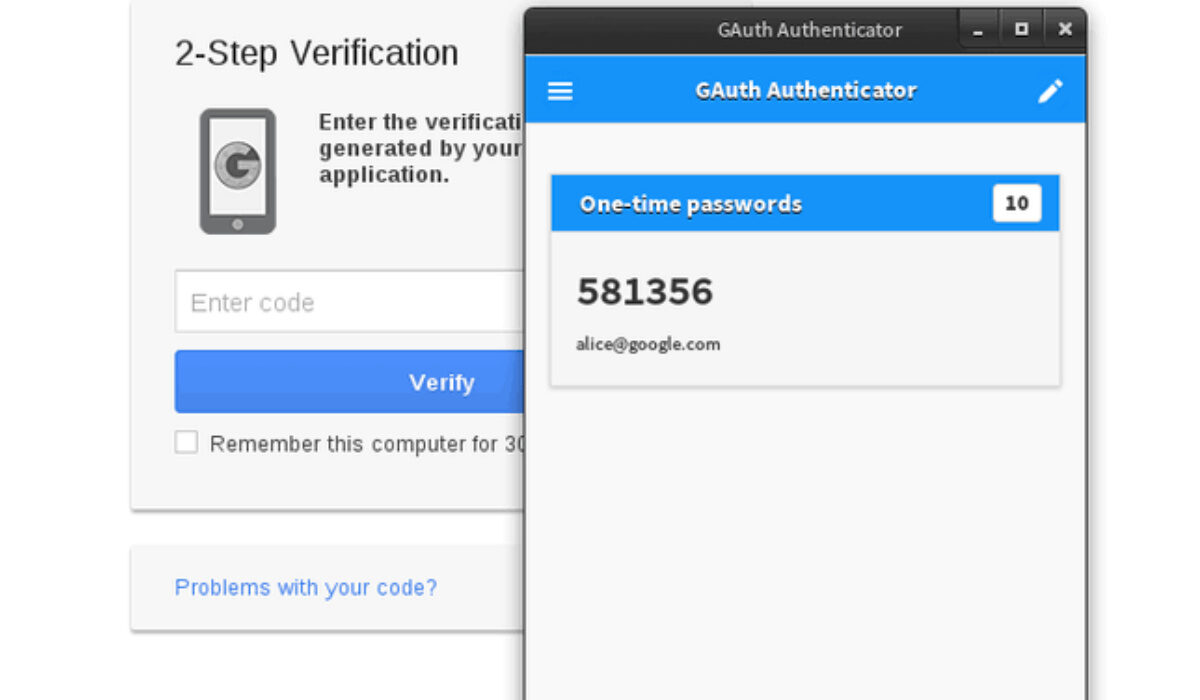
To login to a service with Google Authenticator, you take the generated code and enter it into the provided field on the service website or app.
Sometimes, you may experience a situation in which your Google Authenticator code does not work. Do not panic. This can usually be rectified with the steps provided below.
- How to fix Google Authenticator Code Not Working on Android
- How to Fix Google Authenticator Code Not Working on iPhone
How to fix Google Authenticator Code Not Working on Android
If you are experiencing trouble with your Google Authenticator code and you are using an Android phone, it might be because the time on your Google Authenticator app is not synced correctly.
To make sure that you have the correct time, carry out these steps:
- Launch the Google Authenticator app
- Go to the main menu
- Tap Settings
- Tap Time correction for codes
- Tap Sync now
On the next screen, the app will confirm that the time has been synced, and you should now be able to use your verification codes to sign in. The sync will only affect the internal time of your Google Authenticator app on your Android phone, and will not change your device’s Time and Date settings.
How to Fix Google Authenticator CodeNot Working on iPhone
To make sure that you have the correct time, carry out these steps on your iPhone:
- Launch the Google Authenticator app
- Go to the main menu
- Tap Settings
- Tap Time correction for codes
- Tap Sync now
This does not affect the time on your iPhone.
If syncing the time and date does not fix the problem and Google Authenticator codes still do not work, here are a few more steps you may take to fix it.
- Restart your iPhone or Android smartphone.
- Update the Google Authenticator app from your device’s app store.
- Uninstall and Reinstall the Authenticator app.
- Check to see if there is a software update available for iOS on your iPhone or Android smartphone and run it.
You are reading Mobility Arena .
- Don’t miss our reviews .
- Follow us on Instagram , Facebook , Twitter , and YouTube .
Author:InfoDesk
Add MobilityArena as a preferred source on Google
The smooth operation of any business or institution largely depends on setting up a proper data storage solution. Businesses need a reliable solution for storing and sharing data. To achieve this goal, most small businesses are using NAS devices that provide a scalable, effective, and affordable data storage solution.
NAS provides an ideal combination of both local and cloud-based data storage solutions. A network-attached storage (NAS) device contains multiple hard disk drives and connects directly to the network. This device can connect through a wired or wireless network connection. It provides an easy way to centralize your data and keep your team connected. Typically, a NAS device consists of its own processor (CPU), memory (RAM), and storage operating system.
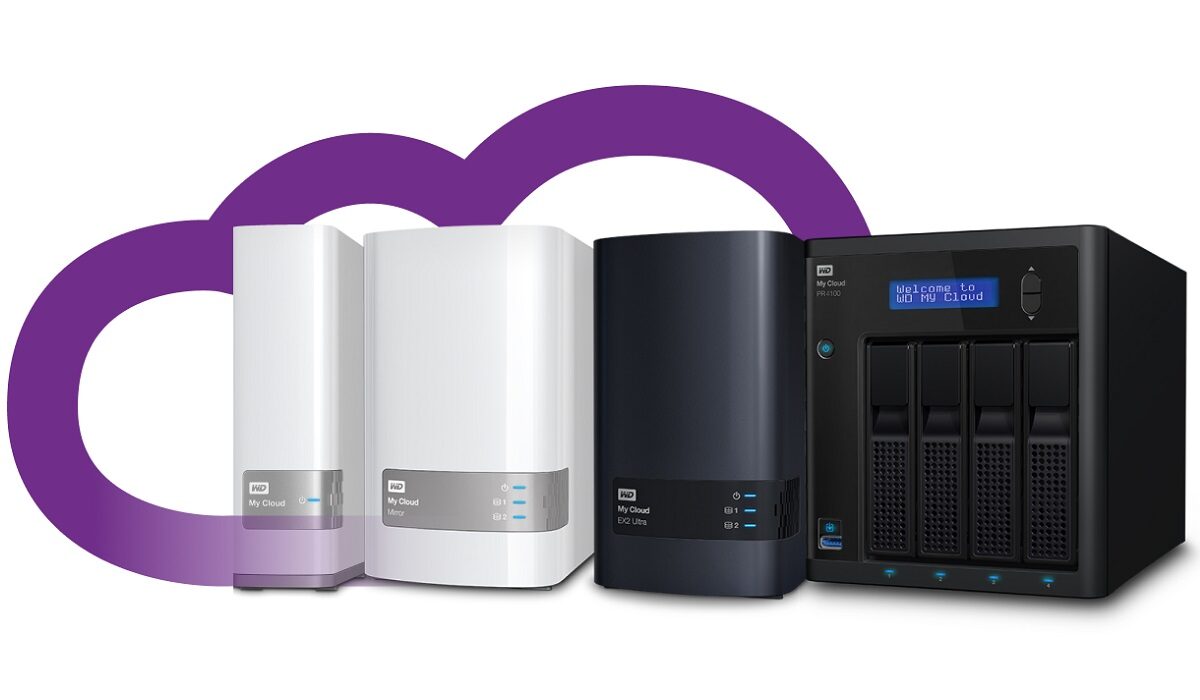
NAS is different than Cloud-based storage services like Dropbox that allow you to lease space on another person’s network-connected drives. With an internet connection, Cloud service enables users to access data from any place. But with a NAS, you get the same functionality without entrusting your data to a hosting service.
It means that your employees at different locations can access the data. The latest documents can be uploaded on the company’s NAS and all the authorized members can access the recent documents. In addition to this, there are many more benefits of using a NAS at your office. So, keep reading to find out the advantages of using network-attached storage.
Ample Storage Space
Businesses need the huge storage capacity that NAS can provide. This device can increase the available storage space to ensure smooth business operations. Desktop computers and laptops have limited storage space but adding a NAS provides a cost-effective way to boost storage space. You can find NAS devices with multiple hard drive bays to achieve higher disk capacity and better redundancy.
Efficient Collaboration
NAS provides a way to centralize your file storage. It allows users to access files either from the desktop workstation or remotely. Employees don’t need to keep emailing files to access them remotely. With the help of a NAS device, documents can be accessed from one central location by all employees to ensure better collaboration. The best NAS devices such as Buffalo NAS and WD My Cloud allow users to access data remotely. This makes collaboration easier, but if somehow the NAS gets damaged, the business can encounter data loss. To restore NAS data, businesses need a specialist like WD My Cloud data recovery service.
Easy to Install and Use
NAS devices are produced by many reputed brands that make sure to keep the configuration simple and easy to use. Even if you need a NAS for home, it’s easy to follow setup instructions and start using NAS without spending several hours understanding complex instructions. It is compact and has a simple web-based interface to ensure easy setting.
Data Protection
NAS devices that come with built-in RAID options allow users to duplicate data across multiple drives. It means that if one drive stops functioning, the user will not face data loss because a copy already exists. This type of NAS provides data redundancy and minimizes downtime in the event of sudden failure.
Author:Emily Robertson
Emily is a guest contributor.
