Add MobilityArena as a preferred source on Google

Netflix logo
A Netflix Streaming Guide? Yes. The long awaited Money heist season 5 is out on Netflix, maybe you also waited for this movie, a lot of people did (here is the Netflix streaming link ).
Streaming services have become a norm to most people around the world today. The feeling of being among the first people in the world to get to see a movie or show is just amazing. Knowing that you have tons of movies and series at your disposal at little cost is out of this world. But all of this poses a certain level of difficulty to lost people and these issues of concern to most people will be talked on in this article.
Netflix Streaming Guide!
Streaming is amazing yet burdensome, finding the right movie to watch, curving your streaming habits, saving extra data while streaming, poor network connection and so much more. You might personally have faced on of the challenges mentioned earlier and you might have wondered how to solve it. We got you covered with a few Netflix Streaming Guides.

Netflix Streaming Guide.
A few problems with Netflix streaming will be touched and solutions to each will be given for streaming from your smartphone.
• Do Away With Geo-blocking : It can be quite stressful to find movies and series while using Netflix as some of this movies are not available in every region. For example the series “The Office” is not available to be streamed here in Nigeria, so if you are looking out to watch this movie you might just be disappointed. But we have a fix for that. Simply use a VPN (check out what a VPN is here ) and then access your Netflix account and then search for that movie that is not available in your region and you will be able to see the movie
• Save Yourself Some Data : Streaming requires a lot of data to see movies online and you might just tap into data you intended to use for other purposes, this can be so painful. But you need to see your series and movies, then try saving some data, how, you may ask. You can set aside data specifically for streaming or use a WiFi. If none of none of these seem to work for you then head over to your Netflix app settings and navigate to cellular data usage now toggle on the data saving mode. You can also try streaming movies in at a lower quality to save you extra data.
• Split The Bills : Netflix has a lot of payment plans that might be a bit too much considering what your budget is, but there is a way to make your streaming less of a burden to you.
• Watch That Movie At Your Own Time : We all lead busy lives, whether it is work, school or running errands around the house we all are preoccupied every now and then, so adding streaming to our busy schedule is not an ideal thing to do. Netflix understands this issue and there is a fix to help you take control of your streaming habits and not the other way round. You can natively download your favourite movies, shows or series.
Type in the item desired when it comes up hit the download icon note that the downloaded item expires after 48 hours counting from when you hit the play button. There is also Smart downloads for our series lovers, go to you Netflix app settings and toggle on smart download. This feature downloads new episodes of a particular series and delete the current one the moment we are done with the previous as long as WiFi or data connection is active.
• Stay Aware Of Who Has Access To Your Account : It can be frustrating to notice that you cannot access your Netflix account because someone is currently using it, even more frustrating when that person is an unwanted user. Stay up to date with information on everyone who has access to your Netflix account, this way you will be aware all those using the account. Ensure that you are using the latest version of the Netflix application and as long as you are the head account Netflix will inform you of who or which device is using your account at a given time.
• Use Audio Descriptions : Well this feature works for some people, if you are comfortable with just hearing what is going on in the screen and not seeing the action. It serves as a narrator telling you every single action taking place on the screen at the time. Setting this up is quite different on iOS than the very direct approach on Android. On Android you need to download the movie then while it is playing select the Audio & Subtitle on the players settings then toggle on Audio Description.
• Lock Your Screen: Reduce the interuption from accidental swipes on your screen that can distract your attention from the movie. This feature is live on Android and we complied a guide here .
• Use Do Not Disturb: Define your streaming time and reduce distraction by turning on your do not disturb mode on your iPhone or Android device it will help you retain your focus and Netflix better.
Author:KittysTech
Tech analyst, Collins Eshiet, writes about technology. Follow me on Twitter @KittysTech.
Add MobilityArena as a preferred source on Google
Finding ways to boost battery life on your iPhone has become of essence. This is because battery life on successive iPhone models has really been a nightmare. I vividly remember how I had to use the iPhone SE 2020 for a whole week just a few months ago and whenever I look back at my experience I recall how frustrated I was because of how poorly the battery performed. Well, like I said I used that device for a whole week, during that time I came across a few ways to optimize the battery life to make it last a bit longer.
Personally, I do not use iPhones as my daily device for a lot of reasons, but for this article I will focus on the battery issue surrounding these smartphones. If you take a closer look at older iPhones like the 6s, 7, 8, you will notice that on paper they pack a relatively small battery if compared to their Android counterparts.
The battery capacity a device packs does not ultimately tell if it will outperform other devices. Battery performance is the product of software optimisations baked into smartphones, and Apple has long neglected this.
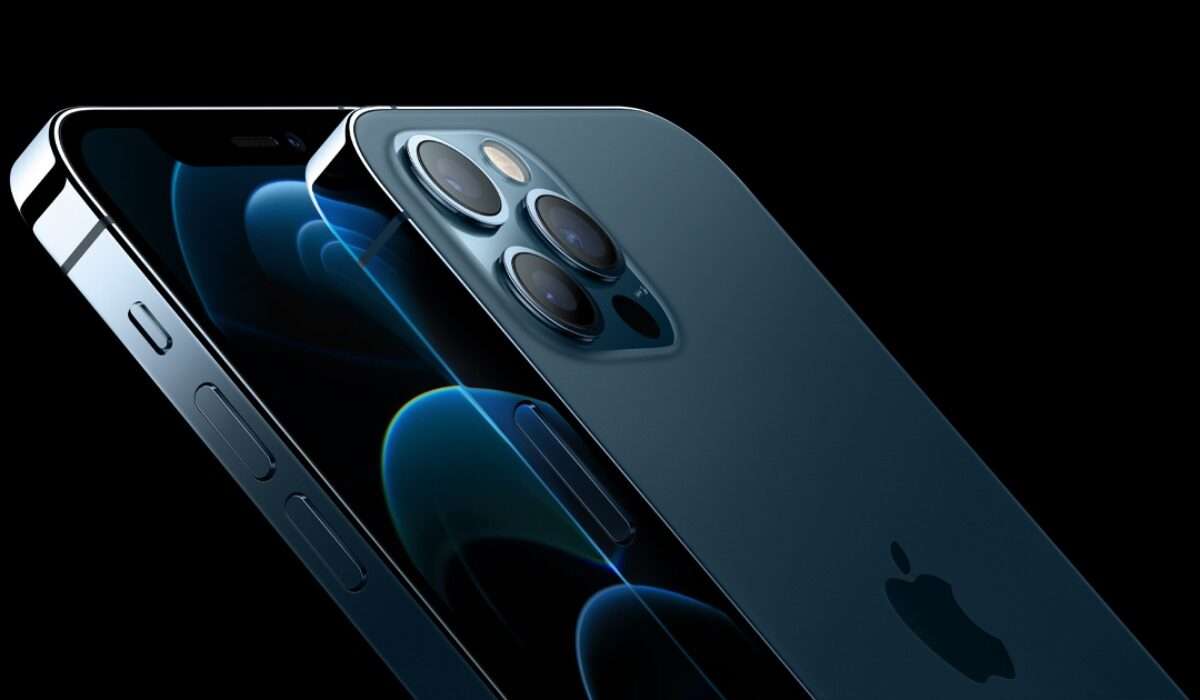
iPhone 12 pro.
Out of all the iPhones I have used over time, I have come to realize that the iPhone 11 Pro Max lasts the longest on a full day-to-day usage, even better than its more recent successor. Having stated this and also from personally experience, it is no news that iPhones batteries perform poorly, so how can we boost battery life and get our iPhones to survive a whole day on regular usage.
We recently looked at how we can Boost Battery Life on Pixel devices, so in case you need a run down on how to go about that, here is the article for you.
Practical Tips That Can Help To Boost Battery Life On Your iPhone.
Let us look at a few ways to boost battery life on your iPhone, hence enabling it to last even longer for your regular activities. It is also important to note that the tips that we are going to talk about can help extend battery life on a normal usage, so if you are into extensive playing of video games on your iPhone the simplest thing for you to do is to have a constant power supply because iPhone batteries are not the best for gaming.
The six tips mentioned below if followed will help you boost battery life on your iPhone. We will start off with the rather obvious battery drainers and then move over to the more subtle ones.
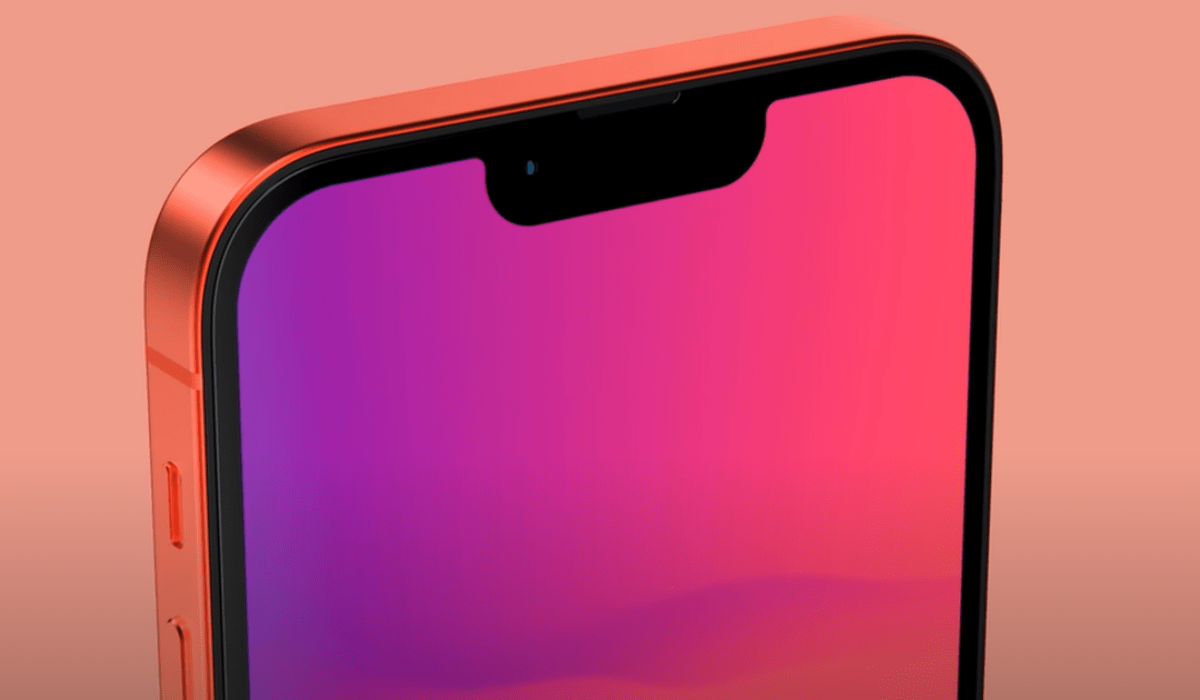
• Turn On Low Power Mode : This is the easiest option that a typical iPhone user will go for when trying to boost his/her battery life. Head off to your device settings and open the “Battery” tab, then turn on the Low Power Mode. For most people turning on Low Power Mode on an iPhone dulls productivity, well that is a personal discussion to make.
What this feature does is to reduce background activities like your downloads or fetching your mails up until your iPhone is back to 100%. On every iPhone, this feature automatically comes into play whenever your device is below 20%, but you can adjust the settings to suit your needs. Activating the auto lock feature also helps the battery, but I personally would not do that as I will want my device on for as long as I am using it.
• Mute Some Notifications: Your iPhones screen automatically turns on whenever you receive a notification, and this can be annoying and also battery sapping. It is funny just how many unnecessary notifications you can be hit with the moment you turn on your data. Swipe left on unnecessary notifications and block them or go to your settings to manage apps that you would like to receive notifications from, this will help your battery.
• Turn Off Data, Bluetooth and Airdrop If Not In Use: It is funny how people tend to leave these features on even when they are not in use. If you are done with using your data, turn it off; if you stop playing music wirelessly to your AirPods turn Bluetooth off; if you are not sharing anything to another iPhone user turn Airdrop off. These actions as little as they seem can save you more battery.
• Deactivate Automatic App Update: By deactivating this feature from your settings, you agree to update them locally by yourself and not depend on your device to update them whenever an update is available. This will not only save your battery, but also your hard-earned data. Head over to your settings, tap on App Store tab and deactivate Automatic App Update.
• Turn On Airplane/Flight Mode: Most people find this action very useless, but I tell you that it helps a lot. Personally, if I am in a class, a meeting or in a very important conversation and do not want to be disturbed I turn on my Airplane Mode (also known as Flight Mode).
This action not only cuts you some slack but also saves you some battery. Try to use it more often and not only when you are on an aeroplane. So open the control panel by scrolling up on your iPhone if you are using any iPhone below the iPhone X or from the right-hand side of the screen on the iPhone X and above, then activate your Airplane Mode.
• Use Still Wallpapers: Yes, of course, still wallpapers. If you use iPhones, you will notice that when choosing a custom wallpaper you have two options, still or dynamic wallpapers. Using a dynamic wallpaper uses up your battery by keeping the elements on your screen in constant motion.
So save yourself the extra battery by switching to still wallpapers if you are a fan of custom wallpapers. There are also a lot of apps available on the app store where you can get your still wallpapers from an example is this HD wallpaper app from StuckPixel, Inc. You can download it directly from this link on your iPhone or iPad, there is a rich collection of various categories that you can pick from, so be sure to give it a try.
There you have it, the above hold just some actions that can help you boost battery life on your iPhone you can also try turning off background app refresh, turning off location, turning off SIRI suggestions and turning off auto brightness in your settings.
- Don’t miss our reviews .
- Follow our news on Google News .
- Join our WhatsApp Group , to be notified of the most important articles and deals,
- Follow us on Instagram , Facebook , Twitter , and YouTube .
Author:KittysTech
Tech analyst, Collins Eshiet, writes about technology. Follow me on Twitter @KittysTech.
