Add MobilityArena as a preferred source on Google
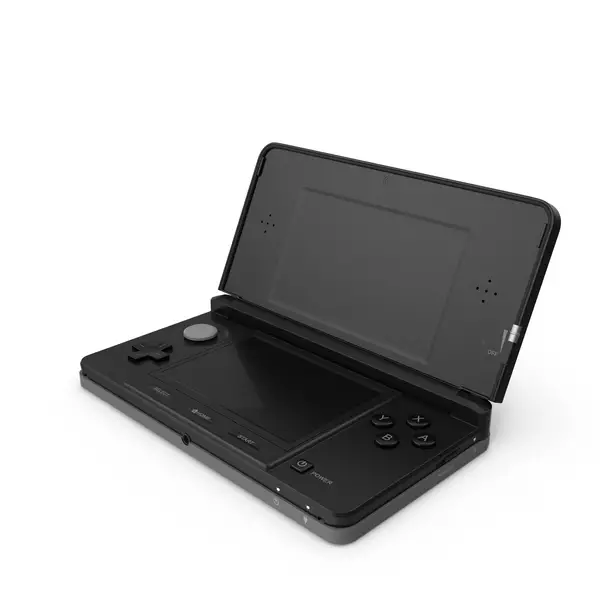
The Nintendo 3DS has captured the hearts of gamers with its innovative dual-screen design and immersive 3D capabilities. However, many users have reported frustrating issues with screen freezing and crashing, which can significantly disrupt gameplay. These problems can arise unexpectedly, leading to interruptions that detract from the overall gaming experience. By understanding these issues and implementing effective strategies, you can keep your Nintendo 3DS running smoothly and make the most of its unique features. Let’s dive into the specifics of what causes these frustrating freezes and crashes, along with actionable solutions to help you get back to gaming!
- Common Issues with Screen Freezing and Crashing Wi-Fi Connectivity Problems Faulty Game Cartridges Software Glitches Insufficient Storage Space
- Conclusion
Common Issues with Screen Freezing and Crashing
Wi-Fi Connectivity Problems

A prevalent cause of freezing is related to the Nintendo 3DS’s Wi-Fi connection . Users often experience crashes when attempting to connect to the internet, especially during online gaming or updates. The device may freeze during online play or when trying to access the eShop, requiring a restart. I recommend the following to get this resolved:
- Turn Off Wi-Fi: If you encounter freezing during online play, consider turning off Wi-Fi while playing single-player games. This can help stabilize performance.
- Router Reset: Restart your router by turning it off for about 5–10 minutes before turning it back on. This can resolve connectivity issues affecting your Nintendo 3DS.
- Update Router Firmware: Ensure that your router’s firmware is up-to-date to improve compatibility with your devices.
Faulty Game Cartridges
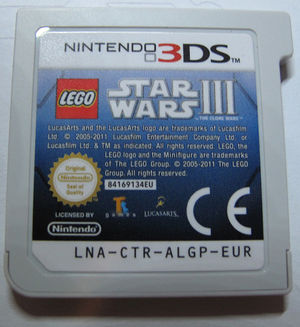
Sometimes, the problem lies with the Nintendo 3DS’s cartridge itself. Dust or damage can prevent proper contact with the console. Games may freeze during loading screens or while in play, often accompanied by error messages. Here are few solutions to get this resolved:
- Clean Cartridges: Use a soft cloth to gently clean the contacts of your game cartridges. Ensure there’s no dust or debris obstructing the connection.
- Reseat Cartridges: Remove and reinsert the cartridge firmly into the slot to ensure a proper connection.
- Test Different Games: If one game consistently freezes, try other cartridges to determine if the issue is isolated.
Software Glitches
Outdated system software can lead to performance issues, including freezing and crashing. Users may notice lagging during gameplay or unexpected shutdowns when navigating menus. Below are a few simple solutions to help fix this issue:
- System Updates: Regularly check for system updates by going to System Settings > Other Settings > System Update. Keeping your software up-to-date can resolve many performance issues.
- Restart Your Device: If you experience freezing, restart your Nintendo 3DS by holding down the power button for about ten seconds until it turns off, then turn it back on.
- Reset Settings: If problems persist, consider resetting your system settings to default through System Settings > Other Settings > Format System Memory (make sure to back up important data first).
Insufficient Storage Space

Low storage can affect performance, especially if the system is trying to save game data. The device may freeze when attempting to save progress or download updates. I recommend the following:
- Check Storage Space: Go to System Settings > Data Management > Save Data Cloud Backup to check available space.
- Delete Unused Data: Remove unnecessary applications or game data that you no longer use to free up space.
- Use an SD Card: Consider upgrading your SD card for additional storage capacity if you frequently run out of space.
Conclusion
While screen freezing and crashing issues can be frustrating for Nintendo 3DS users, understanding the underlying causes and implementing these practical solutions can significantly enhance your gaming experience. By addressing Wi-Fi connectivity problems, ensuring game cartridges are functioning correctly, keeping software updated, and managing storage effectively, you can enjoy uninterrupted gameplay. Nintendo continues to support its devices through updates and community engagement, so staying connected with fellow gamers can provide additional insights and solutions. Embrace these strategies to make the most out of your Nintendo 3DS and immerse yourself in its captivating gaming world!
Author:Ifeoluwa Adeleke
Add MobilityArena as a preferred source on Google
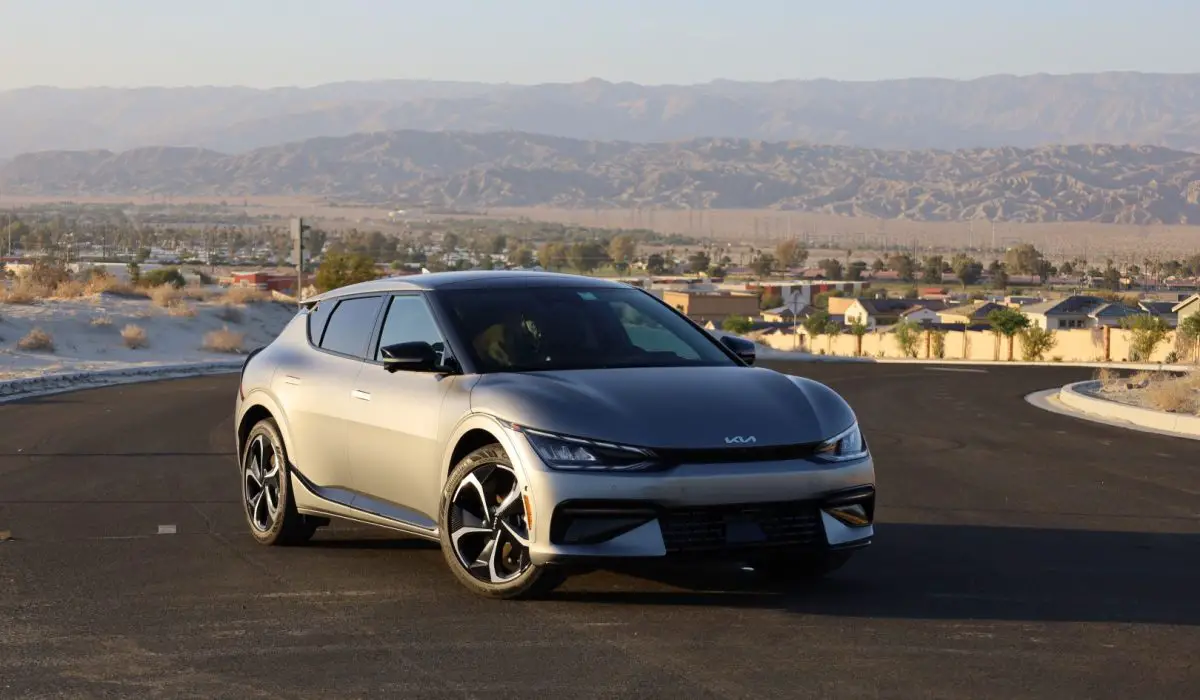
The Kia EV6 has gained attention for its sleek design and impressive performance as an electric vehicle. However, many users have reported usability issues with its infotainment system, which can detract from the overall driving experience. With features that include navigation, audio control, and connectivity options, the infotainment system is crucial for a seamless driving experience. Users have expressed frustration over specific issues such as dark map visibility, complex navigation menus, and connectivity problems with smartphones. Addressing these concerns is essential for maximizing the enjoyment and functionality of the Kia EV6. By understanding these challenges and implementing effective strategies, drivers can significantly improve their experience with this innovative electric vehicle. Let’s delve into the common usability issues and their corresponding solutions in detail.
- Common Infotainment System Usability Issues and Solutions Navigation System Limitations and Solutions Infotainment Interface Complexity and Solutions Connectivity Challenges and Solutions
- Conclusion
Common Infotainment System Usability Issues and Solutions
Navigation System Limitations and Solutions
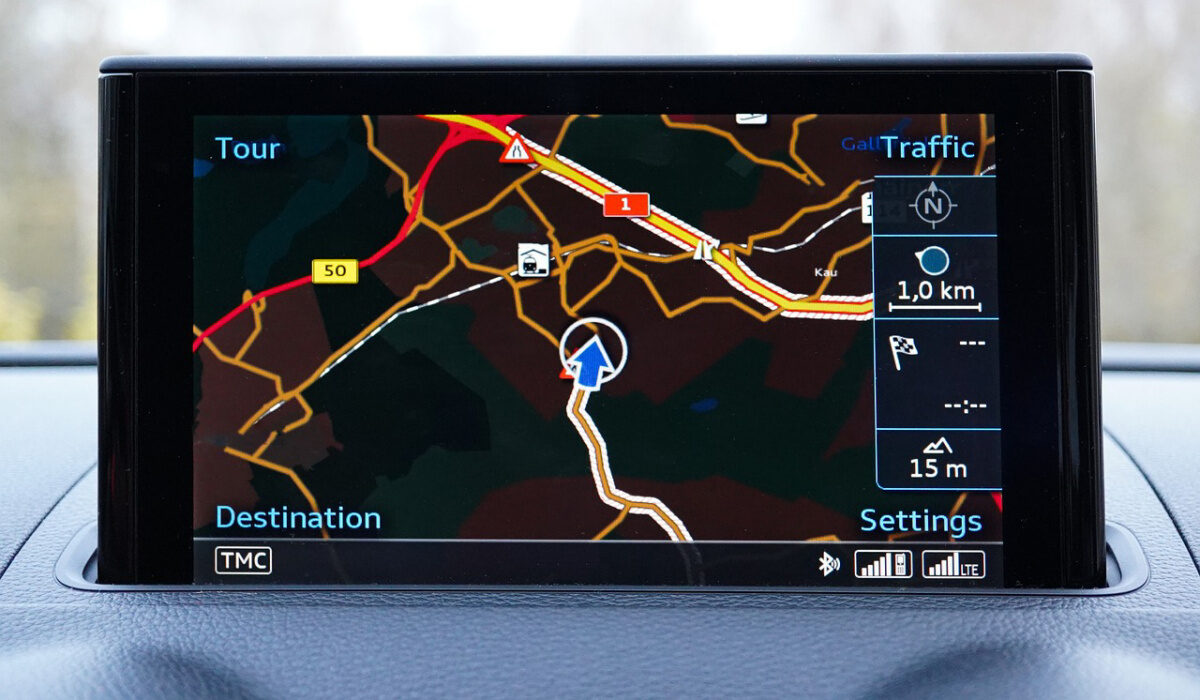
Users have expressed frustration with the navigation system, particularly regarding:
- Dark Map Visibility: The dark map is often nearly invisible in certain lighting conditions, while the light mode can be blinding at night.
- Lack of Automatic Mode Switching: Unlike some competitors, the Kia EV6 does not automatically switch between dark and light modes, requiring users to navigate through menus to make adjustments.
- Address Input Restrictions: The inability to search by postcode forces users to input full addresses, which can be cumbersome.
I recommend the following aolutiona to get it fixed:
- Adjust Map Settings: Users can manually adjust brightness and contrast settings to improve visibility in different lighting conditions. Additionally, feedback can be provided to Kia for future software updates that might include automatic mode switching.
- Utilize Alternative Navigation Apps: Consider using smartphone apps like Google Maps or Waze via Apple CarPlay or Android Auto for more flexible navigation options while driving. These apps often provide better visibility and functionality.
Infotainment Interface Complexity and Solutions
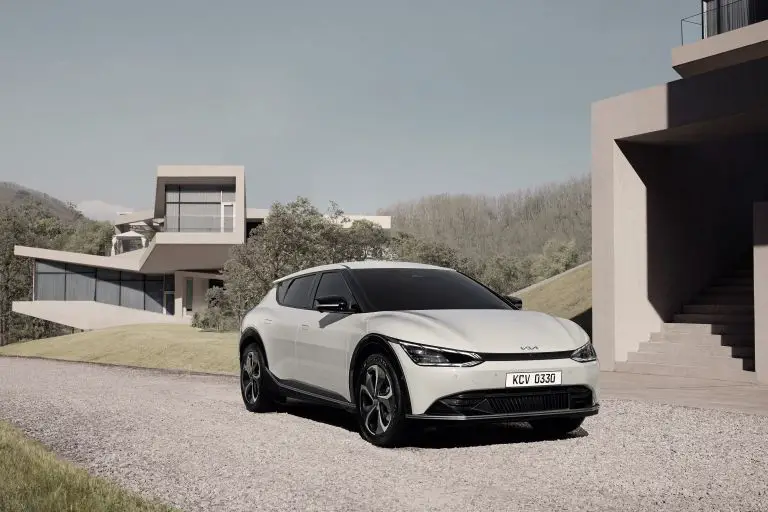
The overall interface of the Kia EV6 has been described as less intuitive compared to other brands. Users have reported:
- Difficult Navigation: Finding specific features or settings can be time-consuming due to a cluttered layout.
- Limited Customization Options: Users desire more flexibility in personalizing their home screens and app layouts.
I recommend the use of the user manual to get this issues fixed:
- User Training: Familiarize yourself with the infotainment system through the user manual or online tutorials. Understanding how to navigate menus efficiently can save time and enhance usability.
Connectivity Challenges and Solutions

Users of the Kia EV6 have faced difficulties with smartphone integration, including:
- Bluetooth Connectivity Problems: Some users report issues with pairing their devices or maintaining a stable connection.
- Limited Wireless Features: The lack of wireless Apple CarPlay and Android Auto has been a point of contention for many users who prefer seamless integration with their smartphones.
I recommend the following solutions:
- Ensure Software Updates: Regularly check for software updates for both the vehicle and your smartphone. Keeping both systems updated can resolve many connectivity issues.
- Optimize Bluetooth Settings: If experiencing connectivity problems, try deleting previous pairings and re-pairing your device. Ensure that Bluetooth is enabled on your phone and that it is set to discoverable mode.
Conclusion
While the Kia EV6 offers a remarkable driving experience, usability issues within its infotainment system can hinder overall satisfaction for some users. By implementing these practical solutions—such as enhancing navigation functionality, streamlining interface navigation, and improving connectivity—drivers can significantly enhance their experience with this innovative electric vehicle. Kia is continuously working on software updates and improvements based on user feedback, so staying engaged with the community and providing constructive feedback can lead to a better infotainment experience in future models. Embrace these strategies to make the most out of your Kia EV6 and enjoy all that this cutting-edge vehicle has to offer!
