Add MobilityArena as a preferred source on Google
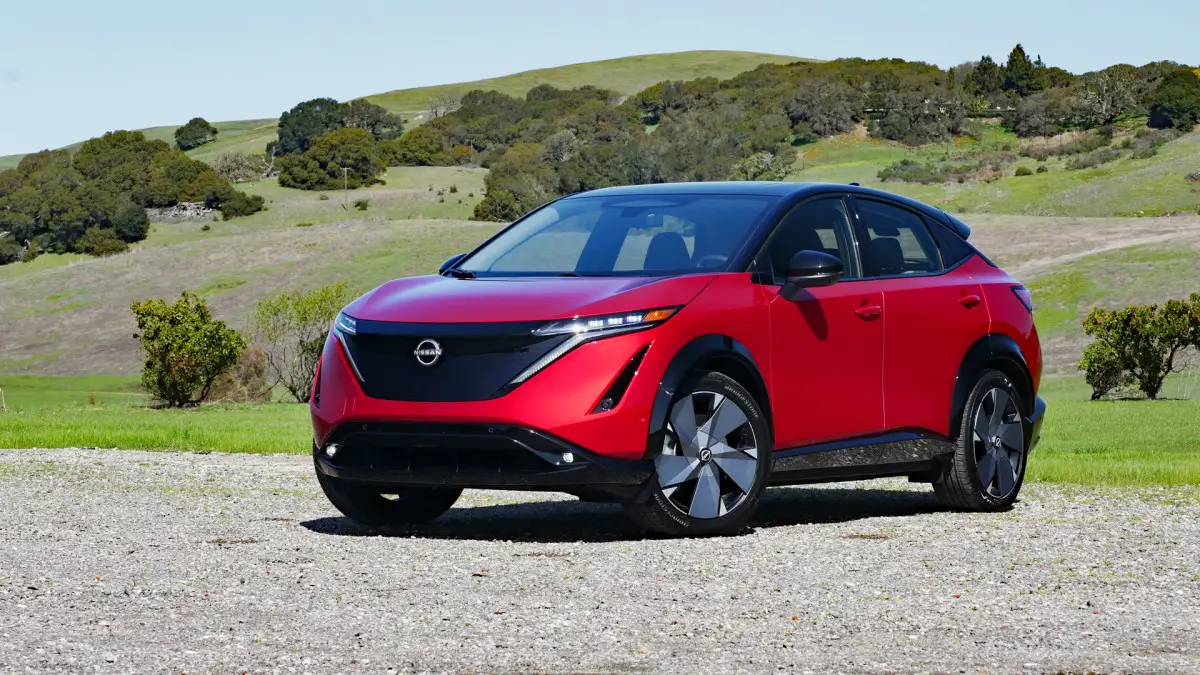
The Nissan Ariya is an innovative electric vehicle (EV) that combines cutting-edge technology with comfort and style. One of the standout features of the Ariya is its advanced air conditioning system, designed to provide a refreshing driving experience regardless of external weather conditions. However, some users may encounter challenges when navigating the air conditioning controls, especially in varying climates or while using additional features. The air conditioning unit is strategically designed to maximize efficiency and effectiveness, ensuring that you remain comfortable during your journey. Understanding how to utilize its various settings can greatly improve your experience, especially when adjusting to different temperatures or humidity levels. Additionally, we will address common user concerns regarding performance and ease of use, providing tips to help you make the most out of this impressive feature. By the end of this article, you’ll be equipped with the knowledge to optimize your air conditioning system for a more enjoyable ride in your Nissan Ariya.
- Key Features of the Air Conditioning System Touchscreen Controls Automatic Climate Control Airflow Modes Recirculation Mode Climate Control Timer
- Common Challenges with Air Conditioning Controls
- Practical Solutions for Enhanced Comfort Familiarize Yourself with Controls Use Automatic Climate Control Wisely Utilize Airflow Modes Effectively Monitor Battery Usage Regular Maintenance Checks
- Conclusion
Key Features of the Air Conditioning System

Touchscreen Controls
The Nissan Ariya features a user-friendly touchscreen interface that allows drivers to easily adjust climate settings. By tapping on the climate control icon, you can access various settings, including temperature control, fan speed, and airflow direction.
Automatic Climate Control
The automatic climate control feature allows the system to maintain your desired cabin temperature. Once set, it automatically regulates fan speed and airflow based on current conditions, ensuring a consistently comfortable environment.
Airflow Modes
The air conditioning system offers multiple airflow modes, allowing you to choose where air is directed within the cabin. You can select options such as defrosting windows or focusing airflow on the driver and passenger seats.
Recirculation Mode
This mode helps improve cooling efficiency by recirculating interior air instead of drawing in outside air. While effective, it’s important to use this mode judiciously to prevent stale air buildup.
Climate Control Timer
The Nissan Ariya includes a climate control timer feature that allows you to precondition your vehicle’s interior while it’s still charging. This ensures a comfortable cabin temperature before you even start driving.
Common Challenges with Air Conditioning Controls
While the air conditioning system in the Nissan Ariya is designed for ease of use, some users have reported experiences such as:
- Difficulty Adjusting Temperature Settings
- Inconsistent Cooling Performance
- Confusion Over Airflow Modes
- Battery Drain Concerns.
Practical Solutions for Enhanced Comfort

Familiarize Yourself with Controls
- Spend some time getting acquainted with the touchscreen controls and their functions while parked.
- Refer to your owner’s manual for detailed explanations of each feature and setting.
Use Automatic Climate Control Wisely
- Set your desired temperature and allow the automatic climate control to manage fan speed and airflow.
- If you notice inconsistent cooling, check if any vents are blocked or if recirculation mode is activated unnecessarily.
Utilize Airflow Modes Effectively
- For optimal comfort during winter months, use defrost mode to keep windows clear.
- In summer, focus airflow on passengers using dedicated settings for a more enjoyable ride.
Monitor Battery Usage
- When using climate control while parked, be mindful of battery levels.
- The Nissan Ariya’s climate control timer can help precondition your vehicle without significantly impacting battery life.
Regular Maintenance Checks
- Ensure that your air conditioning system is regularly serviced to maintain its efficiency.
- Check for any obstructions in vents or filters that may hinder performance.
Conclusion
The air conditioning controls in the Nissan Ariya EV are designed to provide an exceptional level of comfort and convenience for drivers and passengers alike. By familiarizing yourself with these features and implementing practical solutions, you can enhance your overall driving experience. Embrace these strategies as opportunities to optimize your comfort while enjoying all that this innovative electric vehicle has to offer. With a little attention and care, you’ll find that navigating the air conditioning system in your Nissan Ariya becomes second nature, allowing you to focus on what truly matters—enjoying the journey ahead!
Author:Ifeoluwa Adeleke
Add MobilityArena as a preferred source on Google
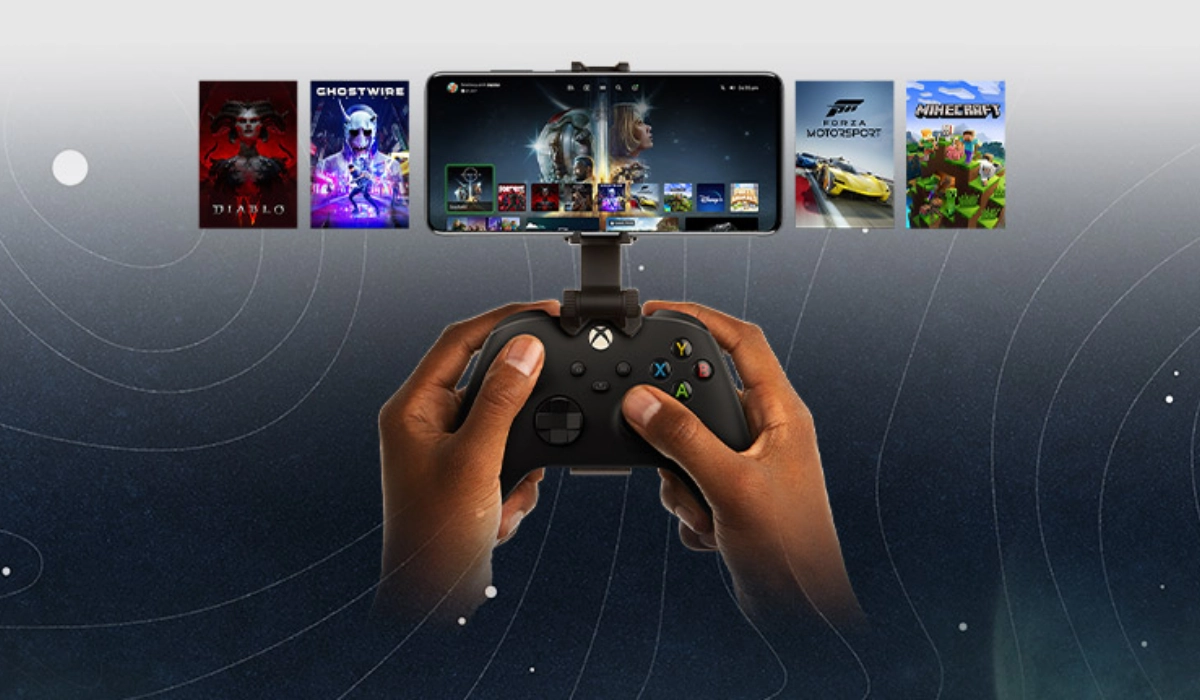
Thanks to cloud gaming , mobile users have the ability to play Xbox games on Android smartphones and tablets over the internet without needing a console or a television set. Seeing as we live in a world of smartphones now, this is a liberating experience allowing you to game anywhere and at any time you choose.
Being able to play Xbox games on Android is simply a beauty of convenience and accessibility converged. And you don’t get to play low graphics, low quality games either. It is wireless access to high-quality gaming experiences.
Earlier this year, an update from Microsoft freed game lovers from needing a controller to play Xbox games on their devices. You can use it if you want, but that update made it possible for you to play your games with just the on-screen controls in the Xbox game app. But it gets better.
In October 2024, a US court ruled against Google, forcing the giant to open up the Play Store to allow third-party app stores to be publicly visible within the store and operate freely.
As a result of that injunction, Microsoft has announced that from November 2024, players will be able to play and purchase Xbox games directly from the Xbox App on Android devices [1].
Before this development, you could only buy a physical copy or a digital copy through the store on the Xbox console. From November, however, you will also have the option of buying games directly through the Xbox app on your Android phone or tablet.
- Key takeaways
- What games are available on Xbox remote play on Android?
- How to setup Xbox games on Android phones or tablets with Game Pass Ultimate (Cloud Gaming)
- How to setup Xbox games on Android phones or tablets with Remote Play
- References
Key takeaways
Here are the key takeaways from this article:
- Playing Xbox games on Android allows you to game anywhere without needing a TV or console setup.
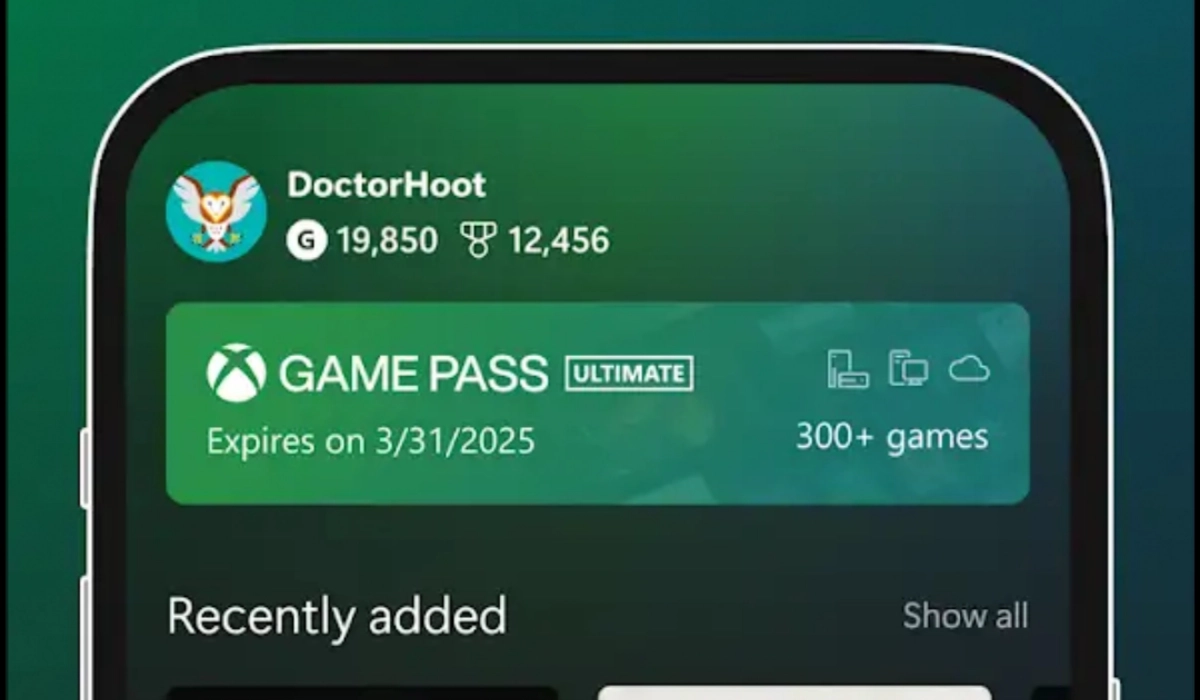
- There are two ways you can play Xbox games on Android devices: the first is to use Xbox Cloud Gaming with a Game Pass Ultimate subscription, and you do not need a console to be able to use this method. The second is to use Xbox Remote Play . Note that this second method requires an Xbox console to use.
- Whichever way you choose to go, you will need an Android smartphone or tablet, a fast and stable internet connection, and either a Game Pass Ultimate subscription or an Xbox console.
Now let’s get into the details of how it works.
What games are available on Xbox remote play on Android?
With Xbox Remote Play, you can play most games installed on your Xbox console, including titles available through Xbox Game Pass. However, there are some limitations:
- Backward Compatibility : Games from the Xbox 360 or original Xbox that are backward compatible are not supported for remote play.
- Game Pass Titles : Any game available on Xbox Game Pass can be played remotely, provided it is installed on your console.
This means you have access to a wide range of games, from the latest releases to popular Game Pass titles.
How to setup Xbox games on Android phones or tablets withGame Pass Ultimate (Cloud Gaming)
Here’s a step-by-step guide to help you set up Xbox Game Pass Ultimate (Cloud Gaming) on your Android device:
- Subscribe to Xbox Game Pass Ultimate : This subscription provides access to a library of Xbox games that can be streamed to your Android device over the internet.
- Download the Xbox Game Pass app : Install the Xbox Game Pass app from the Google Play Store.
- Log in with your Microsoft account : Sign in using the same Microsoft account you use for Xbox Game Pass.
- Start playing : Browse the library and select a game to start playing.
How to setup Xbox games on Android phones or tablets with Remote Play
Here’s a step-by-step guide to help you set up Xbox Remote Play on your Android device:
- Prepare Your Xbox Console : Press the Xbox button on your controller to open the guide. Go to Profile & system > Settings > Devices & connections > Remote features . Check the box for Enable remote features . Under Power options , select Sleep . This ensures your console is ready for remote play.
- Connect Your Console : Open the Xbox app on your Android device. If you do not have it installed on your device yet, proceed to download and install it from the Play Store. Sign in with the same Microsoft account you use on your Xbox console. Tap the My Library icon and select Consoles . Choose your console from the list and tap Remote play on this device .
- Connect Your Controller : Pair your Xbox Wireless Controller with your Android device via Bluetooth or use a USB cable. Don’t forget that you can now play games without the need for a controller, so this is an optional step.
- Start Playing : Once connected, you can start playing games installed on your Xbox console directly on your Android device.
Enjoy the freedom of playing Xbox games on your Android smartphone or tablet. May the force be with you!
References
- Players will be able to play and purchase Xbox games directly from the Xbox App on Android. ( source )
Author:Mister Mobility
Digital Skills and Communication Coach | Mobile Phone Connoisseur since 2001 | Tech Blogging since 2004
