Add MobilityArena as a preferred source on Google
One of my favourite mid-rangers reviewed here on MobilityArena in December 2020 is the Nokia 3.4 . It is coming a little late, but the Nokia 3.4 Android 11 update is now rolling out to devices in the first wave of countries. .
Nokia’s software updates are rolled out to each device in two waves – a first set of countries, followed by the second set. Nokia 3.4 units in 39 countries will be blessed with Android 11 first.
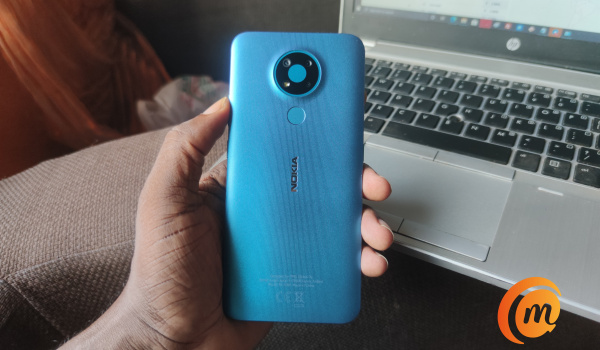
Nokia 3.4 Android 11 Update is here
Below is the list of the first wave.
Nokia 3.4 Android 11 update Wave 1
- Australia
- Austria (A1 AT, T-Mobile AT)
- Bahrain
- Belgium
- Cambodia
- Denmark
- Egypt
- Estonia
- Finland
- France
- Germany
- Hong Kong
- Iceland
- India
- Iran
- Iraq
- Jordan
- Laos
- Latvia
- Lebanon
- Lithuania
- Luxembourg
- Macau
- Malaysia
- Nepal
- Netherlands
- Norway
- Oman
- Philippines
- Portugal
- Qatar
- Saudi Arabia
- Spain
- Sri Lanka
- Sweden
- Switzerland
- Thailand
- UAE
- Vietnam
Nokia 3.4 Specs
- 6.39-inch, 720 x 1560 pixels, curved IPS LCD
- Stock Android 10, with planned upgrades to Android 11 and Android 12
- 8MP selfie camera
- 13MP wide angle + 5MP ultrawide angle + 2MP depth camera with LED light
- 4000mAh battery with 10W charging
- Qualcomm Snapdragon 460 processor engine
- 4GB RAM
- 64GB internal storage
- Dedicated microSD card slot
- USB Type-C
- 3.5mm audio headset port.
in our review, the Nokia 3.4 came out with a good recommendation. It is a phone I still recommend till today for those looking for a capable mid-ranger on a budget. Plus, how many phones at this price point ever get a software update?
If you are in the market for a budget smartphone, the Nokia 3.4 is solid value for money. You should consider making it your choice. Enjoy our Nokia 3.4 review .
You are reading Mobility Arena .
- Don’t miss our reviews .
- Join our WhatsApp Group , to be notified of the most important articles and deals,
- Follow us on Instagram , Facebook , Twitter , and YouTube .
Author:Mister Mobility
Digital Skills and Communication Coach | Mobile Phone Connoisseur since 2001 | Tech Blogging since 2004
Add MobilityArena as a preferred source on Google
For a while, I had been wanting to get a dashcam (or dash cam) for use in my car but couldn’t and finally decided to use an Android phone as a dashcam. And it worked! A dash cam is a useful utility. By definition, a dashcam is a camera that is positioned inside your car and pointed out your windshield to constantly record video of the road ahead.
What are dash cams useful for? Records. Evidence. With a dash cam, you have evidence to back up your claims about incidents and accidents while on the road. A dashcam can also provide some fun footage of natural activities – storms, floods, animals, etc.
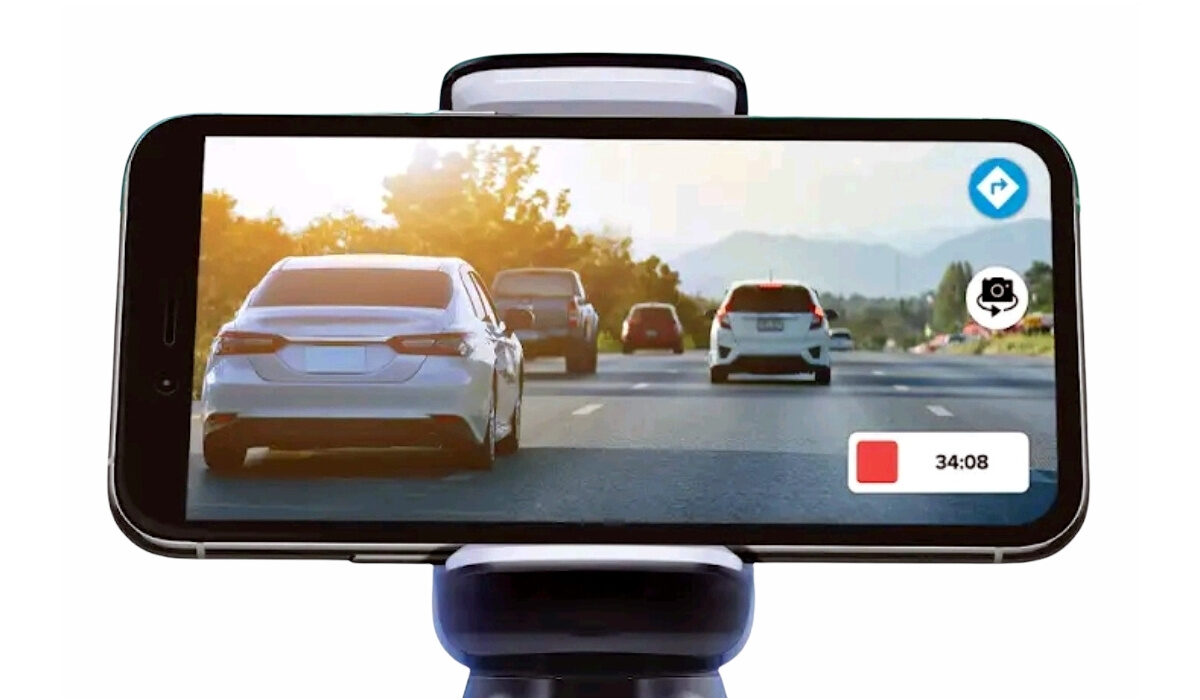
You can use your Android phone as a dashcam
Anyway, back to my story. Getting a dash cam to buy from where I am requires weeks of waiting, as it has to be shipped thousands of kilometres. So, I decided that there had to be an alternative. Guess what – it turns out that anyone can use an Android phone as a dashcam.
And it is pretty easy too. Using an Android phone as a dashcam requires just a few things – the Android smartphone itself and a dash cam app to ensure that the footage is captured in the right format for storage purposes. Some would argue that my list should read four items, as you would need a car mount for the phone, and a car charger to keep the battery topped up.
- What You Need
- DashCam Apps To Try
- Setting Up Your Android Phone As A Dashcam
- Download Drive Recorder
What You Need
- Android smartphone
- Dash cam app
- Car phone mount
- Car phone charger
Do you need an expensive smartphone to be able to create your own dash cam? Not at all; as a matter of fact, a basic smartphone will do. You do not need a lot of processing power or the most powerful camera for dashcam use. I mean, you can use a basic, entry-level Android phone as a dashcam.
Dash cams usually have to record for a long time, so you do not want to record your video in large resolutions, which would lead to quick depletion of the phone’s built-in storage.
DashCam Apps To Try
There is a variety of dash cam apps available in the Play Store. Some of them are free and some require a fee. Here is a short list for you to consider:
- Driver: Turn Your Phone Into A dash Cam For Free
- Drive Recorder
- Smart Dash Cam
- Droid Dashcam – Driving video recorder, BlackBox
- AutoGuard Dash Cam – BlackBox
- AutoBoy Dash Cam – BlackBox
Setting Up Your Android Phone As A Dashcam
The first thing to do is download and install the dash cam app. Then launch the app and dive into the Settings, where you can tinker with it to your needs and taste. Once you are okay with the settings and ready to take it for a spin, mount the phone in your car with your car mount. Do not forget to plug in your phone for charging: video recording is a huge battery drain.
Then start the recording and start driving. Make sure that the first time you use your phone as a dash cam, it is on a deliberate test drive. That way, you can get used to how the app works and also adjust the settings further to make it function how you want.
Some dash cam apps let you record in both directions – capturing both the road ahead and the inside of the car. This can be quite useful. Some offer a “Retain” feature that lets you store only the last few minutes of footage, thereby saving you storage space.
Drive Recorder was my first experience with dash cam apps. It is a basic tool that gets the job done without any frills. Do feel free to experiment till you find a dashcam app that you feel comfortable with. I am still experimenting too, and this might not be my final choice for a dashcam app. But for now, it does a fair job of letting me use an Android phone as a dashcam.
Download Drive Recorder
You can download Drive Recorder HERE .
That is it. Now you know how to use your Android phone as a dashcam. Go record some incredible moments on the road. Feel free to also share some of your experiences in which you found a dashcam useful.
You are reading Mobility Arena .
- Don’t miss our reviews .
- Follow us on Instagram , Facebook , Twitter , and YouTube .
Author:Anna Makama
Gadget lover making my way through life one day at a time.
