Add MobilityArena as a preferred source on Google
Nokia G11 is a twin sibling of the Nokia G21 . The two phones share many features and specs. It is important to note that the G11 sits lower on the rung of the ladder.
What Nokia G11 offers
The G11 has a display of 6.5 inches (16.51 centimetres) in size and has a water drop notch. It is powered by a Unisoc T606 chipset.
There is 3 GB RAM and 32 GB built-in storage, both of which are good choices for a mid-range Android phone. And it ships with stock Android 11, and comes with Nokia’s promise of 2 years of major Android updates. There is a triple camera setup at the rear, with an 8MP main lens.

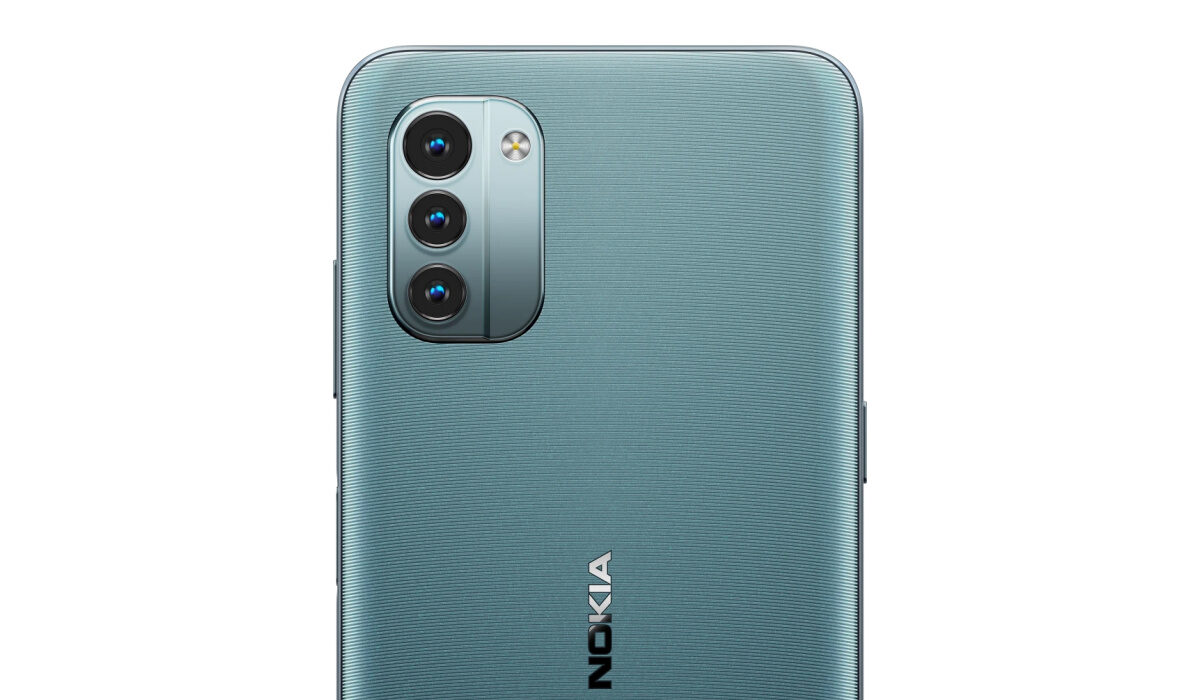
Once again, as seen on the Nokia G21 and Nokia G400 5G , HMD Global has moved away from the circular rear camera module that we have seen for some time on its models. Nokia is now definitely playing around with some more variety, as part of drumming up excitement for the brand .
Nokia G11 specs
- 6.5-inch, 720×1600 pixels, 90Hz, IPS LCD screen
- Android 11 operating system
- 2G, 3G, 4G networks
- Glass front, plastic frame, plastic back
- Dimensions: 164.6 x 75.9 x 8.5 mm
- Weight: 190g
- Unisoc Tiger T606 chipset (12nm), Octa-core, Cortex-A75
- ARM Mali G57 MP1
- 13 MP main lens + 2 MP macro lens + 2 MP depth sensor
- 8 MP front Camera
- 3 GB RAM
- 32 GB built-in storage memory options
- Memory card slot (dedicated)
- 3.5mm headphone jack
- Side-mounted fingerprint reader
- 5050mAh Li-Poly battery
- 18W fast charging (included cable supports up to 10W only). USB Power Delivery 3.0
How much is the G11?
Price of Nokia G11
The G21 was announced with a recommended retail price of £120 in the United Kingdom (UK) and €159 in the European union (EU). That’s about $180.
Release Date and Availability
It is available in two colour options, Charcoal Gray and Ice Blue. It will go on sale in the UK from March 2022. It is also expected to be available in Europe, Africa, Asia, North America, and South America.
- Don’t miss our reviews .
- Follow us on Instagram , Facebook , Twitter , and YouTube .
Author:InfoDesk
Add MobilityArena as a preferred source on Google
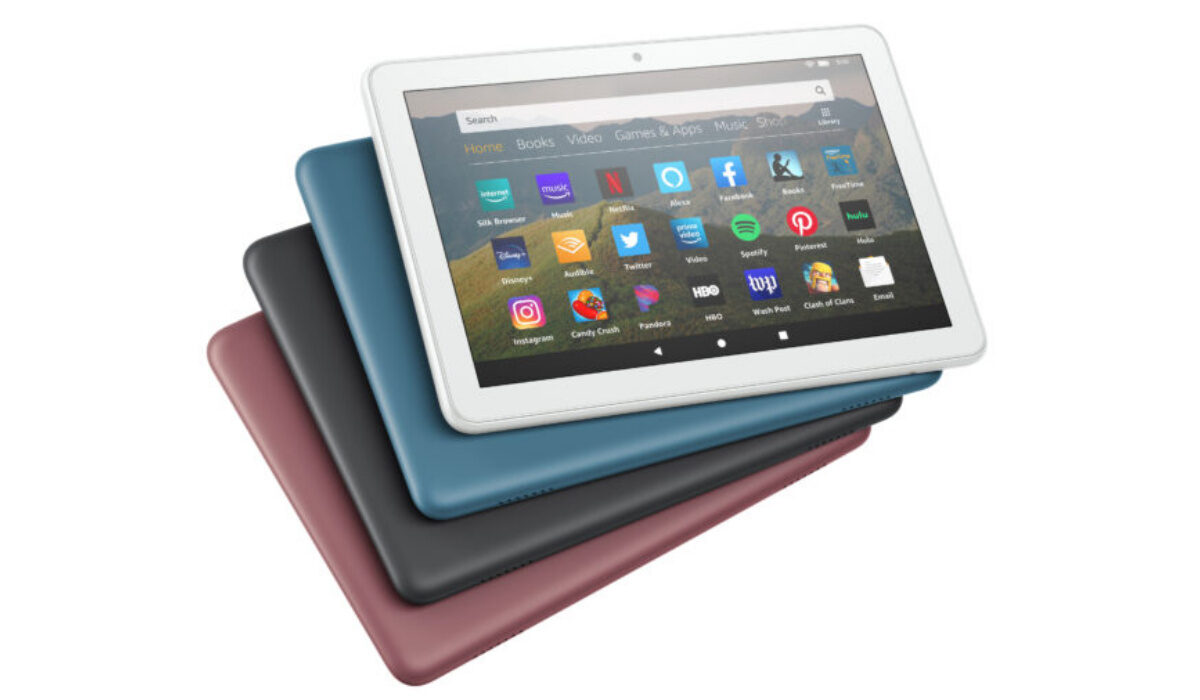
That means, out of the box, your Fire tablet does not have apps like Google Play Store, YouTube, Gmail, Google Assistant, or Chrome included. If you want to use them, you have to download and install them on your own.
- Install Google Play Store on Amazon Fire tablet with Fire Toolbox
- Install Google Play Store on Amazon Fire tablet manually
There are 11 steps in the instructions below, but don’t allow that scare you; some of those steps are just things you have to do on your phone to allow Fire Toolbox access to install the apps. It is quite an easy process that will take no more than a few minutes.
- Using a Windows PC, download and install the latest version of Fire Toolbox. To download, click here .
- On your tablet, open the Settings menu.
- Scroll down to Device Options and tap it.
- Tap the Serial number 7 times until you see a notice saying that you’re a developer.
- Tap the back button to return to the previous screen.
- Select the newly appeared “Developer Options.”
- Slide the toggle to enable Developer Options.
- Scroll down until you see “USB Debugging” and slide the toggle to enable that.
- Plug your tablet into your Windows PC using a USB cable (the charging cable that came with the tablet should be fine).
- Run the Fire Toolbox application on your PC.
- Tap OK on the box that appears on the tablet.
- Wait a moment and/or follow any instructions on the screen as Fire Toolbox detects your device.
- Click the box that says “Google Services.”
- Read the instructions and then click “Yes.”
Google Play Store and services apps all get to be installed on your Fire tablet after that single click, and you are good to go once done.
The other way to download Google Play store to your Fire tablet is the manual way, without the assistance of PC software. It isn’t a difficult process either, and you might very much prefer it.
To install Play Store manually on a Fire tablet, you have to install four (4) different apps, otherwise it won’t work. Those files are: Google account Manager, Google Services Framework, Google Play Services, and Google Play Store.
- Open Settings
- Tap the option that says Security and Privacy
- Scroll down to Applications from unknown sources.
- Tap the Amazon Silk browser.
- Slide the toggle to enable Silk to install apps from unknown sources
- Google Account Manager (use the latest version)
- Google Services Framework 9 (do not use version 10 or later if you’re using a tablet running Fire OS 7, as it’s based on Android 9)
- Google Play Services (use a recent version compatible ARM64 and Android 9+)
- Google Play Store (use the latest version)
- Don’t miss our reviews .
- Follow our news on Google News .
- Join our WhatsApp Group , to be notified of the most important articles and deals,
- Follow us on Instagram , Facebook , Twitter , and YouTube .
